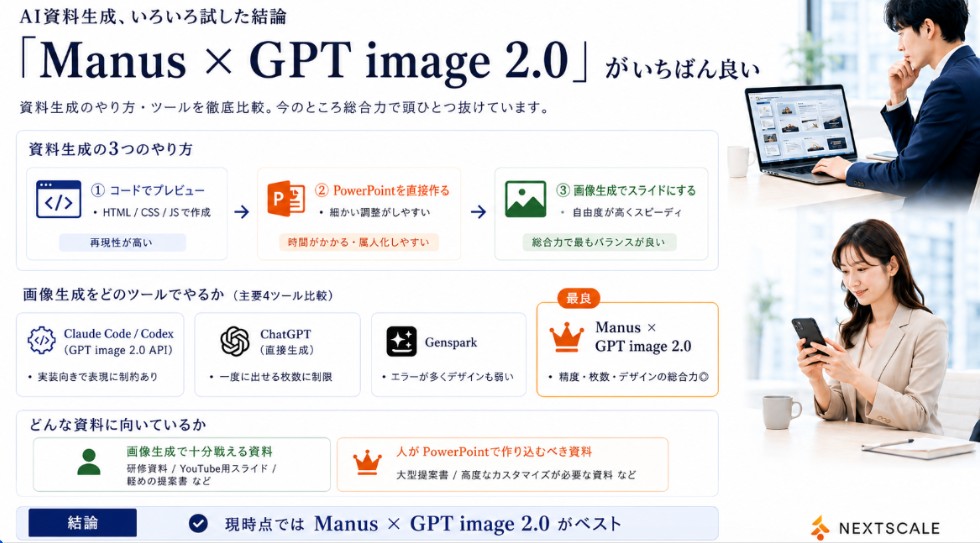
Manus GPT Image 2.0 Comparison Slide
Prompt
Goal: Create a polished Japanese business infographic slide comparing AI presentation-material generation methods and tools, with a corporate white, navy, orange, and green palette. The main message is that Manus × GPT image 2.0 is currently the best overall option.

Canvas: Wide 16:9 landscape slide, clean white background, thin light-gray card borders, deep navy typography, subtle blue-gray shadows. Leave a right-side vertical photo strip occupying about 24% of the canvas.

Header: At top left, small Japanese lead-in text using AI資料生成、いろいろ試した結論. Below it, a very large elegant serif headline using 「Manus × GPT image 2.0」がいちばん良い. Under the headline, add a smaller subtitle using 資料生成のやり方・ツールを徹底比較。今のところ総合力で頭ひとつ抜けています。.

Right photo area: Add exactly 2 realistic business lifestyle photos stacked vertically with soft bright office lighting. Top photo: a Japanese businessman in a navy suit working at a laptop showing slide thumbnails, seated near a window, face softly blurred. Bottom photo: a Japanese businesswoman in a beige blazer looking at a smartphone at a desk, face softly blurred. Keep the photos cropped cleanly with white margins, matching the slide’s corporate look.

Section 1 layout: Create a large rounded rectangle card titled "資料生成の3つのやり方". Inside it place exactly 3 horizontal method cards connected by two right-pointing arrows. Method 1: blue code icon, label "① コードでプレビュー", small text "HTML / CSS / JSで作成", bottom pill "再現性が高い". Method 2: orange PowerPoint icon, label "② PowerPointを直接作る", small text "細かい調整がしやすい", bottom pill "時間がかかる・属人化しやすい". Method 3: green image icon, label "③ 画像生成でスライドにする", small text "自由度が高くスピーディ", bottom pill "総合力で最もバランスが良い".

Section 2 layout: Below, add a title "画像生成をどのツールでやるか(主要4ツール比較)" and exactly 4 equal comparison cards in a row. Card 1: Claude Code / Codex, gear/code icon, sublabel "(GPT image 2.0 API)", bullet "実装向きで表現に制約あり". Card 2: ChatGPT, OpenAI knot icon, sublabel "(直接生成)", bullet "一度に出せる枚数に制限". Card 3: Genspark, sparkle icon, bullet "エラーが多くデザインも弱い". Card 4: highlighted best card with orange border and crown icon, small orange badge "最良", title using Manus × GPT image 2.0, bullet "精度・枚数・デザインの総合力◎".

Section 3 layout: Add a rounded box titled "どんな資料に向いているか" with exactly 2 side-by-side suitability cards. Left card with green person icon: title "画像生成で十分戦える資料", examples "研修資料 / YouTube用スライド / 軽めの提案書 など". Right card with orange crown icon: title "人がPowerPointで作り込むべき資料", examples "大型提案書 / 高度なカスタマイズが必要な資料 など".

Bottom conclusion bar: Full-width light-blue conclusion strip with a navy label box reading "結論", a circular check icon, and large conclusion text using 現時点では Manus × GPT image 2.0 がベスト.

Branding: Bottom right place a small orange abstract mark and the word "NEXTSCALE" in dark gray. Keep all text crisp and aligned, use Japanese business-slide typography, avoid clutter, and do not add any extra cards beyond the counted 3 method cards, 4 tool cards, 2 suitability cards, and 2 photos.
- Category
- Charts & Infographics
- Model
- GPT Image 2
- Creator
- Pei_2002
- Source ID
- youmind-24036
Views2