20

Turquoise tunnel portrait: GPT Image 2 prompt
Enlarge

Example images

Turquoise tunnel portrait: GPT Image 2 prompt

Prompt
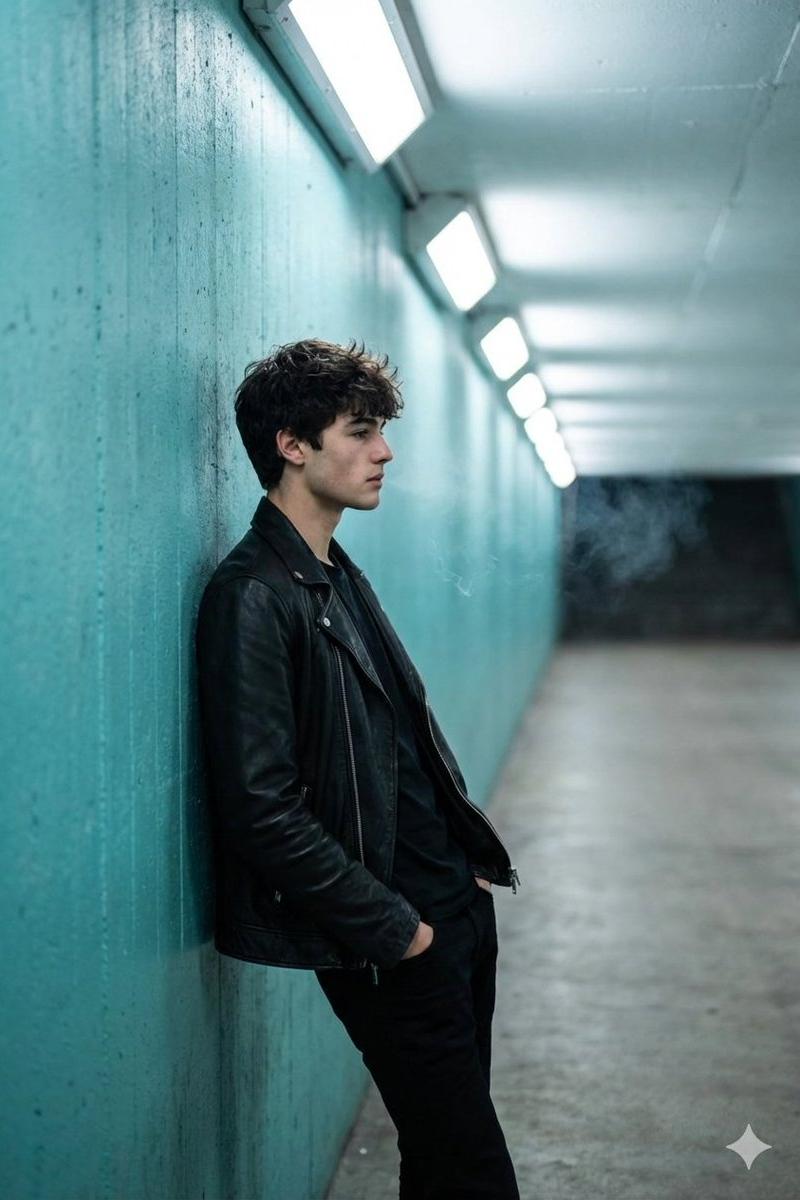
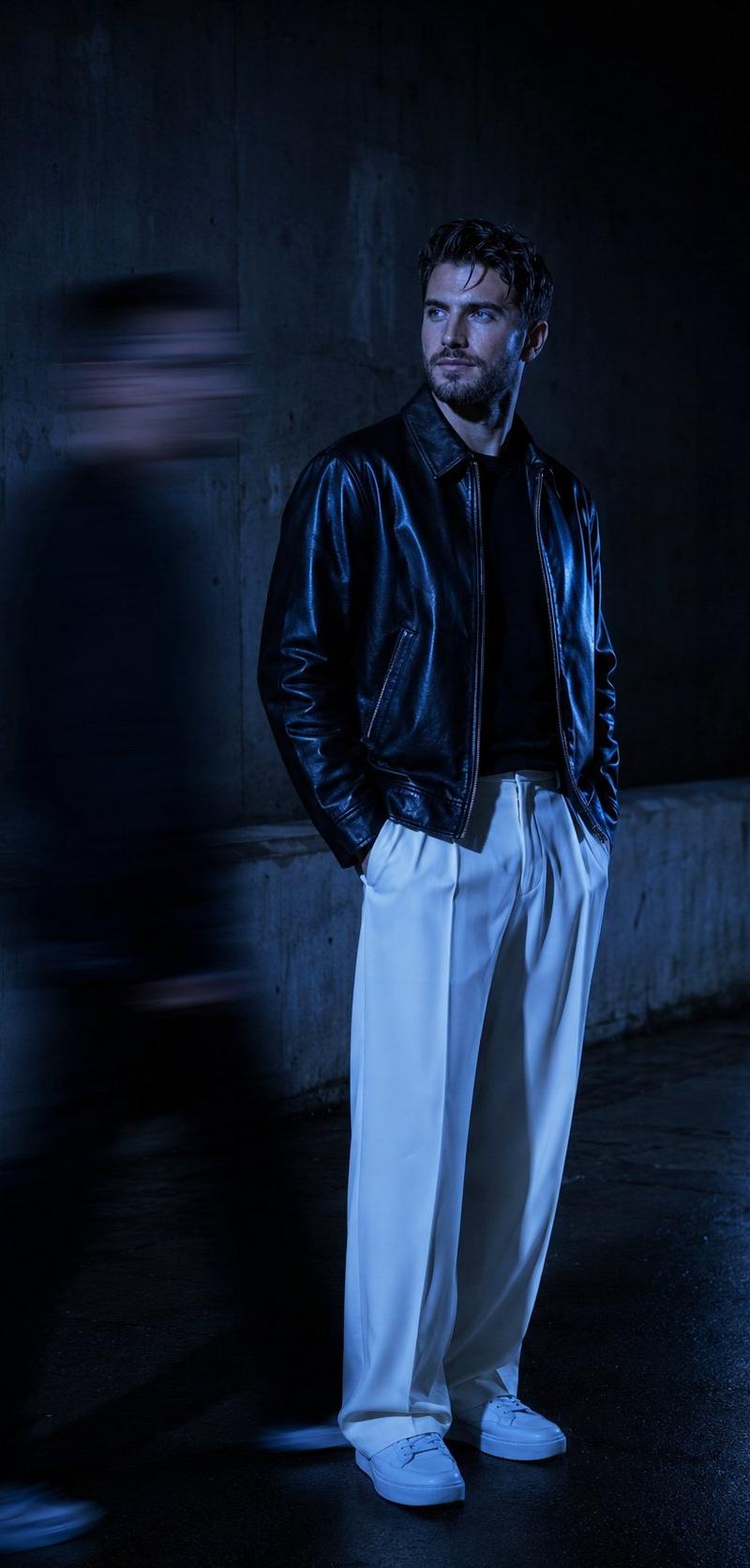
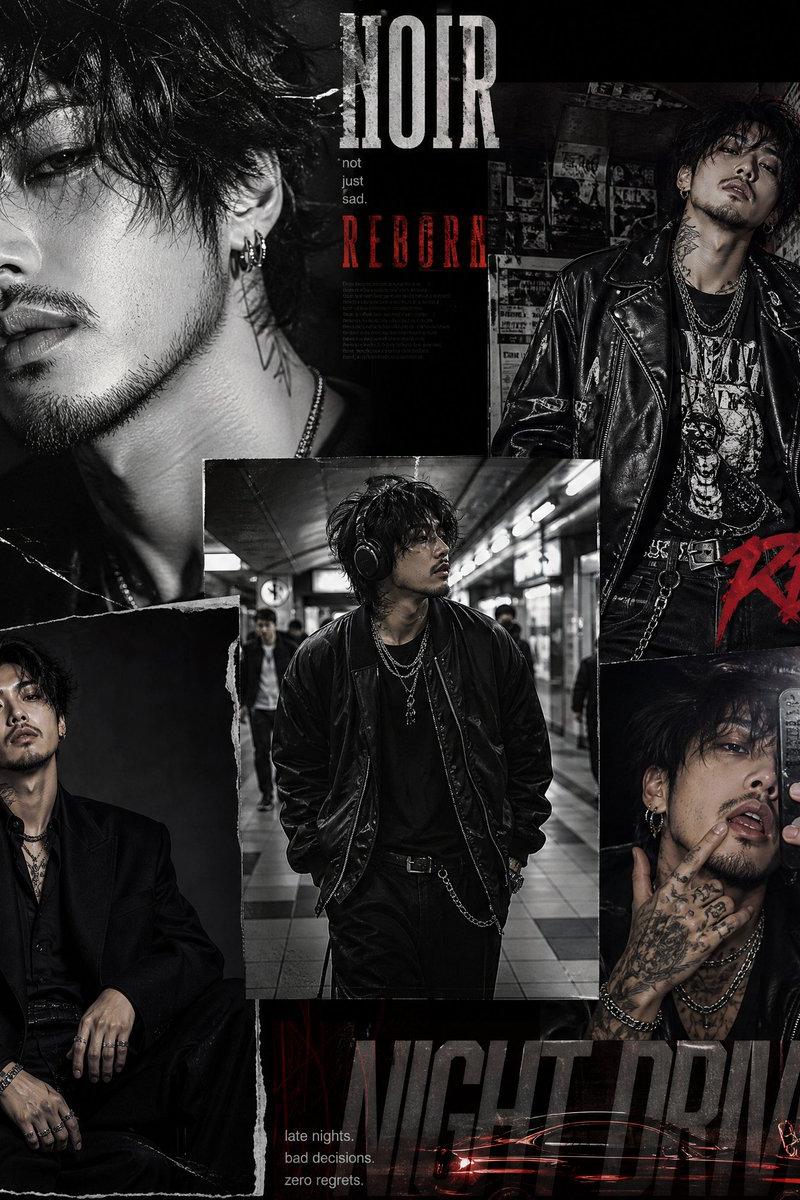
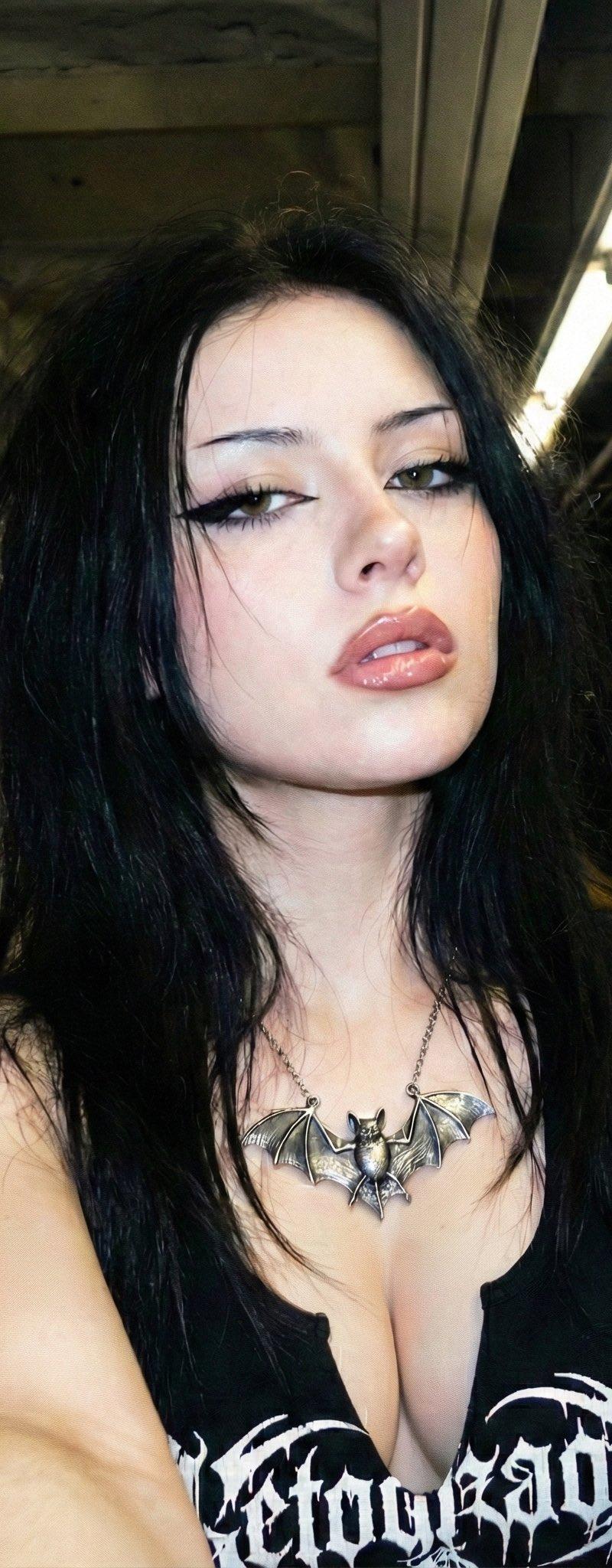
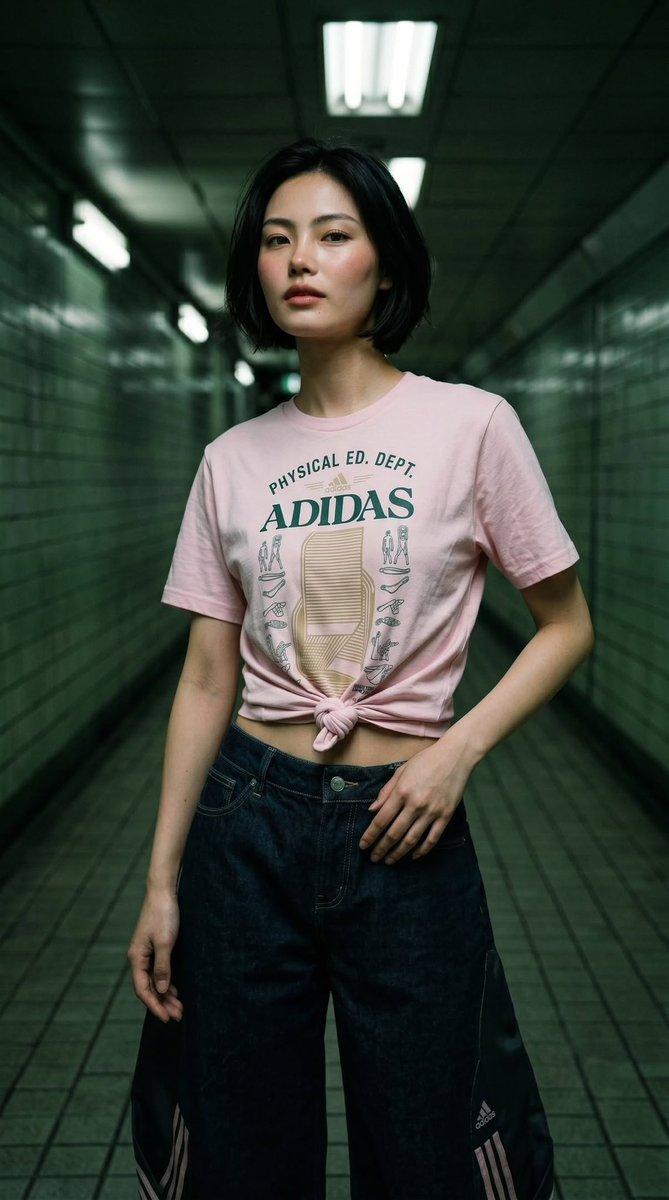
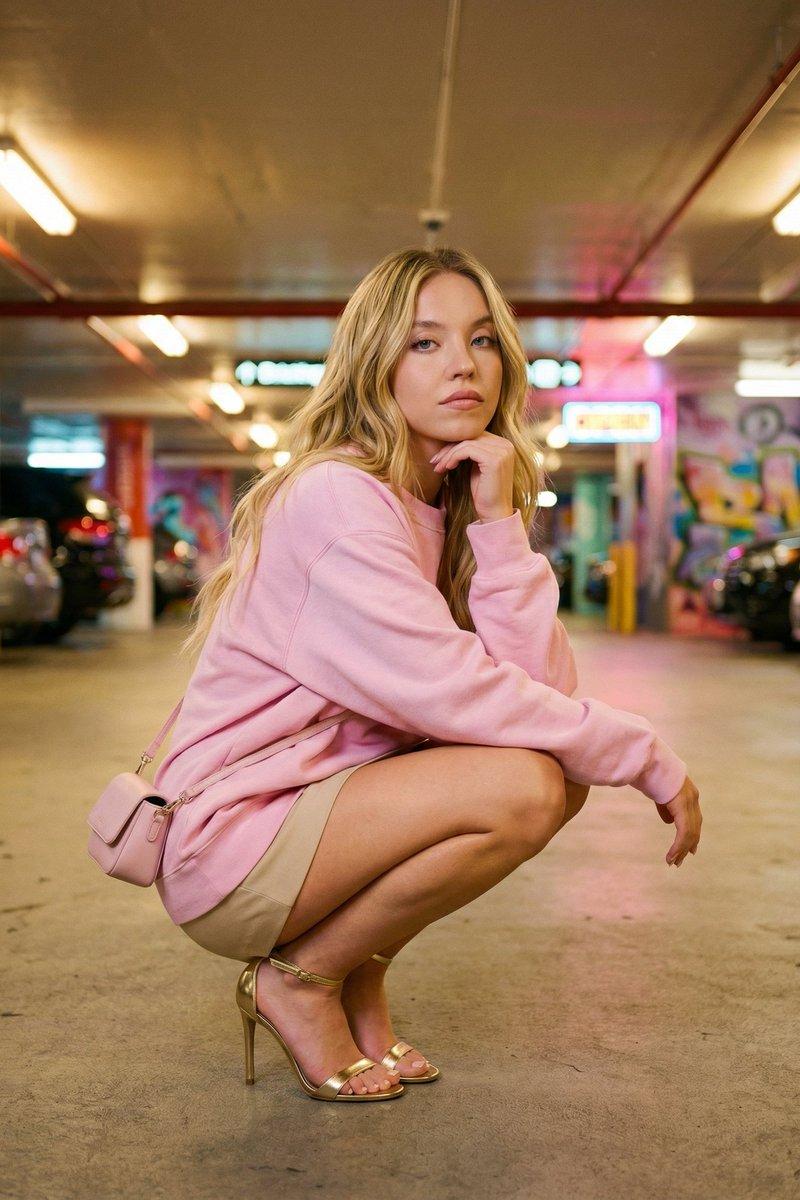
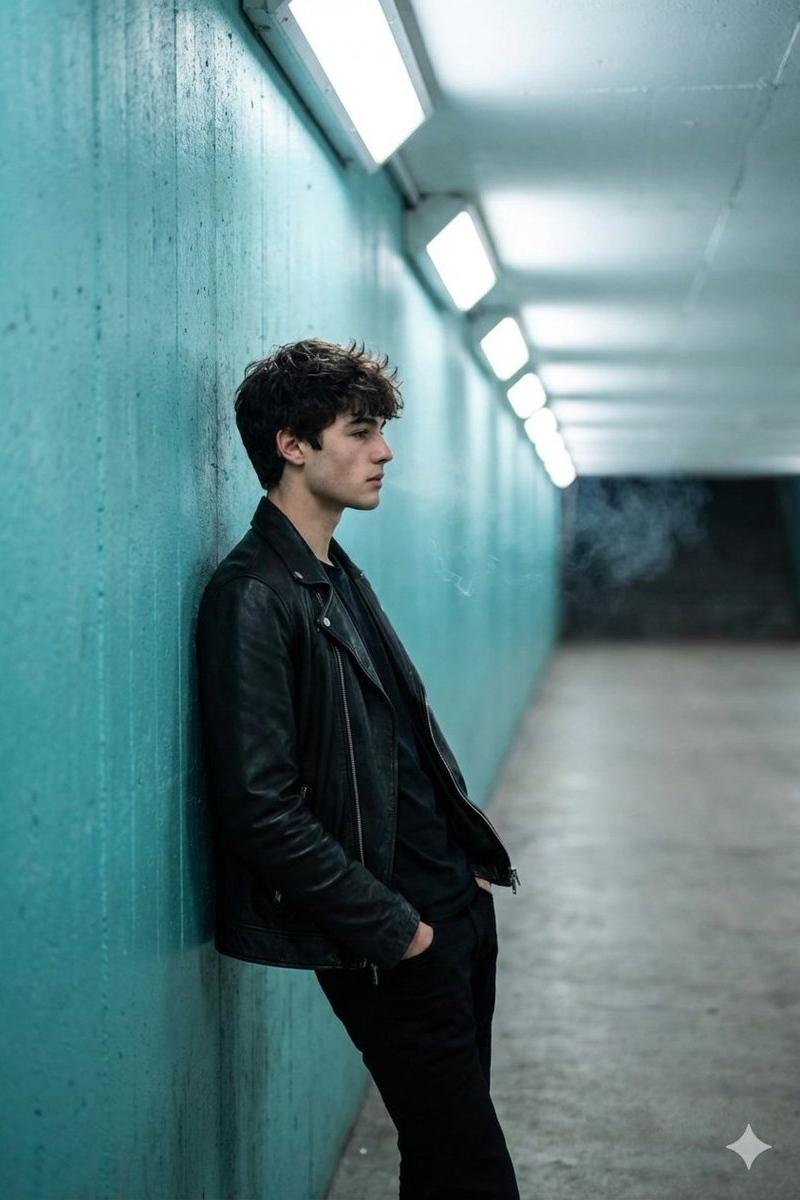
A full shot captures a young man in profile, leaning against a textured turquoise wall inside a brightly lit tunnel. He is dressed in a sleek black leather jacket and black pants. His short, dark hair is casually styled, framing a contemplative expression as he gazes forward. Wisps of smoke curl subtly above his head. The background features a series of evenly spaced rectangular lights along the tunnel's ceiling, creating a strong sense of depth and leading the eye. The overall lighting casts a cool, ethereal glow on the scene, with the vibrant turquoise of the walls contrasting with the stark brightness of the lights. The image conveys a mood of quiet introspection and urban coolness.
Category
Photography & Realism
Model
GPT Image 2
Creator
Harboris
Source language
en
Views0
Source ID
2017213008729244087
Published
Jan 30, 2026
Studio

Guide

About "Turquoise tunnel portrait: GPT Image 2 prompt"

What is this prompt for?

"Turquoise tunnel portrait: GPT Image 2 prompt" AI image prompt for GPT Image 2 (Photography & Realism). A full shot captures a young man in profile, leaning a…

The full copyable prompt and example visuals above are ready for AI image generation or one-click recreate in Picva.

How to use this prompt

  1. Step 1

    Open the prompt detail

    Review the example visuals, category, and full prompt text for "Turquoise tunnel portrait: GPT Image 2 prompt".

  2. Step 2

    Copy the prompt

    Copy the prompt body from this page, or load it directly in Studio.

  3. Step 3

    Pick a model (GPT Image 2)

    Prefer GPT Image 2. If you switch models, keep subject and composition and tweak style terms.

  4. Step 4

    Generate and export

    Recreate the look in Picva, or export into your workflow for editing and publishing.

FAQ

What is the "Turquoise tunnel portrait: GPT Image 2 prompt" prompt?
It is an AI image-generation prompt for GPT Image 2 in the Photography & Realism category. This page includes the full prompt text, example visuals, and a one-click recreate path in Picva.
How do I use this prompt to generate an image?
Copy the prompt from this page, or use Generate / Studio. Paste it into a compatible image model, or recreate the look in Picva with optional reference images.
Which model is this prompt for?
This page lists GPT Image 2. Most descriptive prompts also transfer to nearby image models such as GPT Image, Flux, or Midjourney with light style tweaks.
Can I use the result commercially?
You can usually copy the prompt for creation, but commercial use of the final image depends on the model terms, reference-image rights, and the generated content. Follow the source author and platform rules.