16

Teal speed-light blur portrait: GPT Image 2 prompt
Enlarge

Example images

Teal speed-light blur portrait: GPT Image 2 prompt

Prompt
Google Nano Banana Pro

Prompt: 
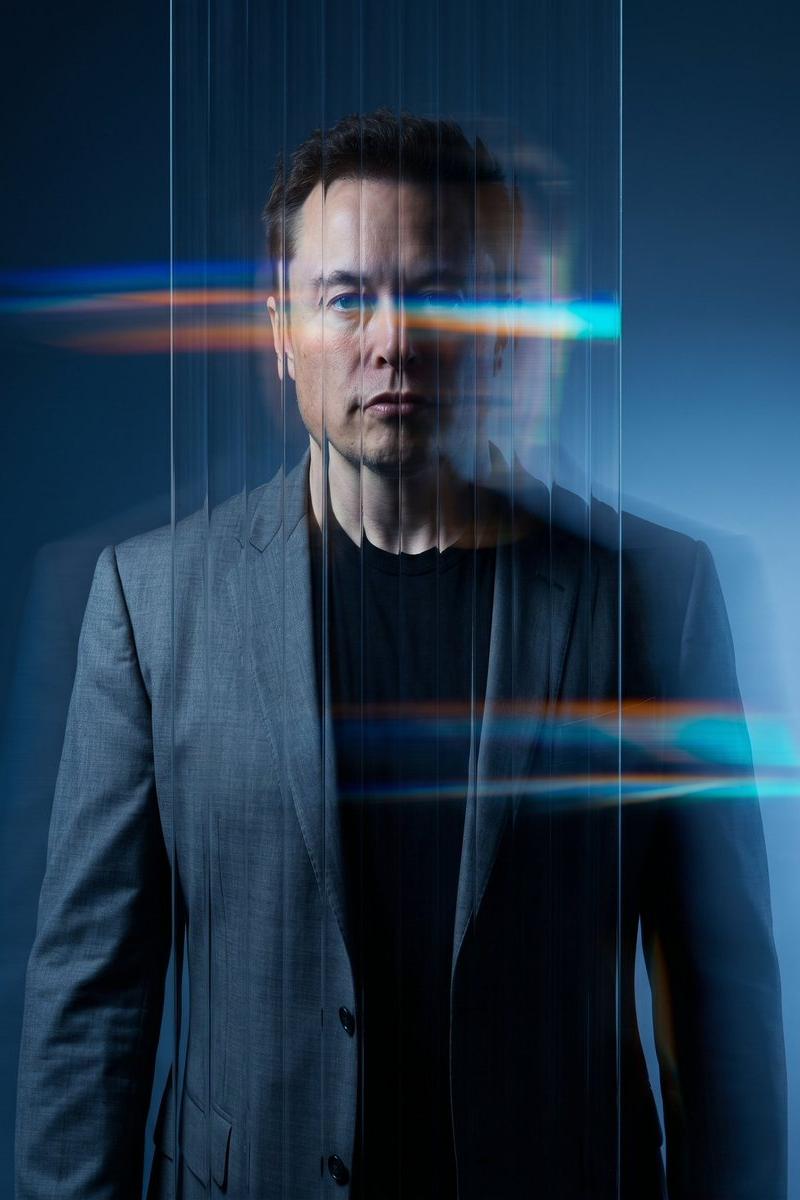
Generate an image of a man in the uploaded image in which the entire scene is layered with heavy, horizontal motion-blur streaks in shades of teal, yellow, and white, creating a "speed-light" effect. These colorful blurs must appear both behind the man and superimposed over his body and face, behaving like reflections on a glass mirror. A medium shot of a man standing perfectly still in the center of a frame, looking down at a red smartphone held with both hands. He is wearing a white t-shirt under a translucent, light gray windbreaker jacket and a dark wristwatch. The background is a chaotic, vibrant blur of horizontal light trails in colors of neon blue, orange, yellow, and white, suggesting a high-speed train or city traffic. Crucially, these colorful motion-blurred light streaks pass both behind and directly over the man's body, appearing semi-transparent as they overlap his torso and arms, creating a double-exposure effect. The man's face and hair are in sharp focus, showing a calm expression, contrasting with the high-speed motion of the environment. Cinematic lighting, hyper-realistic, 8k resolution.
Category
Photography & Realism
Model
GPT Image 2
Creator
Duet | AI
Source language
en
Views0
Source ID
2040284964605009940
Published
Apr 4, 2026
Studio

Guide

About "Teal speed-light blur portrait: GPT Image 2 prompt"

What is this prompt for?

"Teal speed-light blur portrait: GPT Image 2 prompt" AI image prompt for GPT Image 2 (Photography & Realism). Google Nano Banana Pro Prompt: Generate an image…

The full copyable prompt and example visuals above are ready for AI image generation or one-click recreate in Picva.

How to use this prompt

  1. Step 1

    Open the prompt detail

    Review the example visuals, category, and full prompt text for "Teal speed-light blur portrait: GPT Image 2 prompt".

  2. Step 2

    Copy the prompt

    Copy the prompt body from this page, or load it directly in Studio.

  3. Step 3

    Pick a model (GPT Image 2)

    Prefer GPT Image 2. If you switch models, keep subject and composition and tweak style terms.

  4. Step 4

    Generate and export

    Recreate the look in Picva, or export into your workflow for editing and publishing.

FAQ

What is the "Teal speed-light blur portrait: GPT Image 2 prompt" prompt?
It is an AI image-generation prompt for GPT Image 2 in the Photography & Realism category. This page includes the full prompt text, example visuals, and a one-click recreate path in Picva.
How do I use this prompt to generate an image?
Copy the prompt from this page, or use Generate / Studio. Paste it into a compatible image model, or recreate the look in Picva with optional reference images.
Which model is this prompt for?
This page lists GPT Image 2. Most descriptive prompts also transfer to nearby image models such as GPT Image, Flux, or Midjourney with light style tweaks.
Can I use the result commercially?
You can usually copy the prompt for creation, but commercial use of the final image depends on the model terms, reference-image rights, and the generated content. Follow the source author and platform rules.