20

3d render bear: GPT Image 2 prompt
Enlarge

3d render bear: GPT Image 2 prompt

Prompt
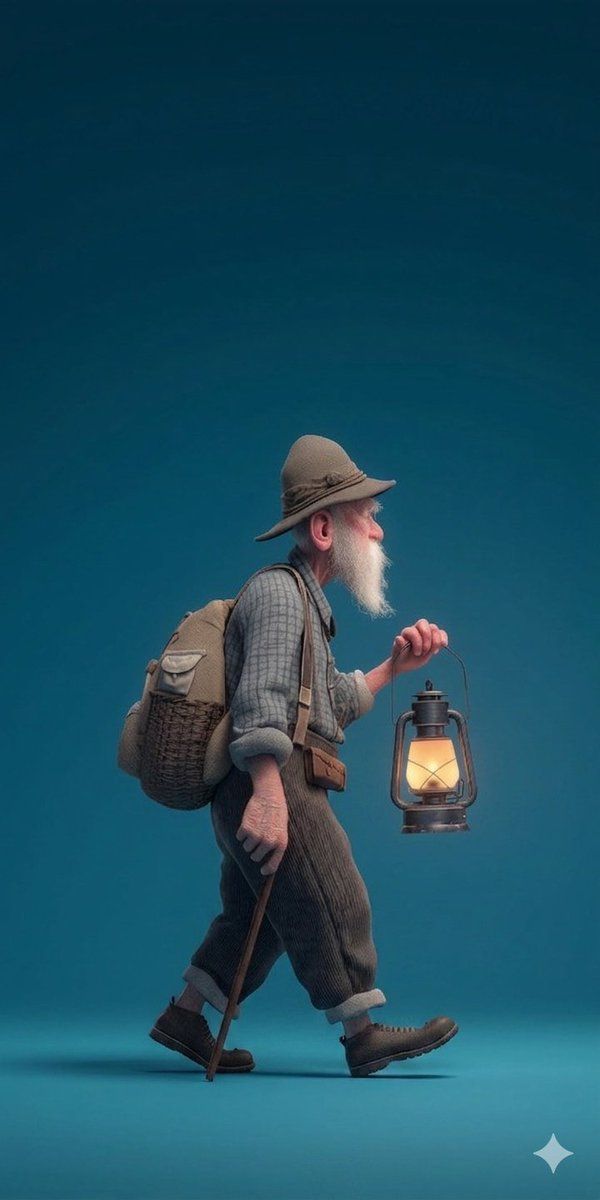
​A stylized 3D rendered full-body profile portrait of an elderly male hiker with a long white beard, viewed from the side and walking from left to right. He is set against a solid, seamless deep-teal studio background with soft floor reflections. He wears a brown felt wide-brimmed hiker's hat, a gray and blue plaid shirt over cuffed brown corduroy trousers, and dark, scuffed work boots. On his back is a large, detailed combination canvas and woven wicker backpack with leather straps. He holds a lit, vintage brass-and-glass hurricane lantern in his right hand, which casts a warm, soft glow. He also carries a simple wooden walking stick. The image has a textured, matte finish and soft, diffused studio lighting, with the vertical composition leaving ample negative space.
Category
Photography & Realism
Model
GPT Image 2
Creator
auqib
Views0
Source ID
2044357243827580959
Published
Apr 15, 2026

Guide

About "3d render bear: GPT Image 2 prompt"

What is this prompt for?

"3d render bear: GPT Image 2 prompt" AI image prompt for GPT Image 2 (Photography & Realism). ​A stylized 3D rendered full-body profile portrait of an elderly…

The full copyable prompt and example visuals above are ready for AI image generation or one-click recreate in Picva.

How to use this prompt

  1. Step 1

    Open the prompt detail

    Review the example visuals, category, and full prompt text for "3d render bear: GPT Image 2 prompt".

  2. Step 2

    Copy the prompt

    Copy the prompt body from this page, or load it directly in Studio.

  3. Step 3

    Pick a model (GPT Image 2)

    Prefer GPT Image 2. If you switch models, keep subject and composition and tweak style terms.

  4. Step 4

    Generate and export

    Recreate the look in Picva, or export into your workflow for editing and publishing.

FAQ

What is the "3d render bear: GPT Image 2 prompt" prompt?
It is an AI image-generation prompt for GPT Image 2 in the Photography & Realism category. This page includes the full prompt text, example visuals, and a one-click recreate path in Picva.
How do I use this prompt to generate an image?
Copy the prompt from this page, or use Generate / Studio. Paste it into a compatible image model, or recreate the look in Picva with optional reference images.
Which model is this prompt for?
This page lists GPT Image 2. Most descriptive prompts also transfer to nearby image models such as GPT Image, Flux, or Midjourney with light style tweaks.
Can I use the result commercially?
You can usually copy the prompt for creation, but commercial use of the final image depends on the model terms, reference-image rights, and the generated content. Follow the source author and platform rules.