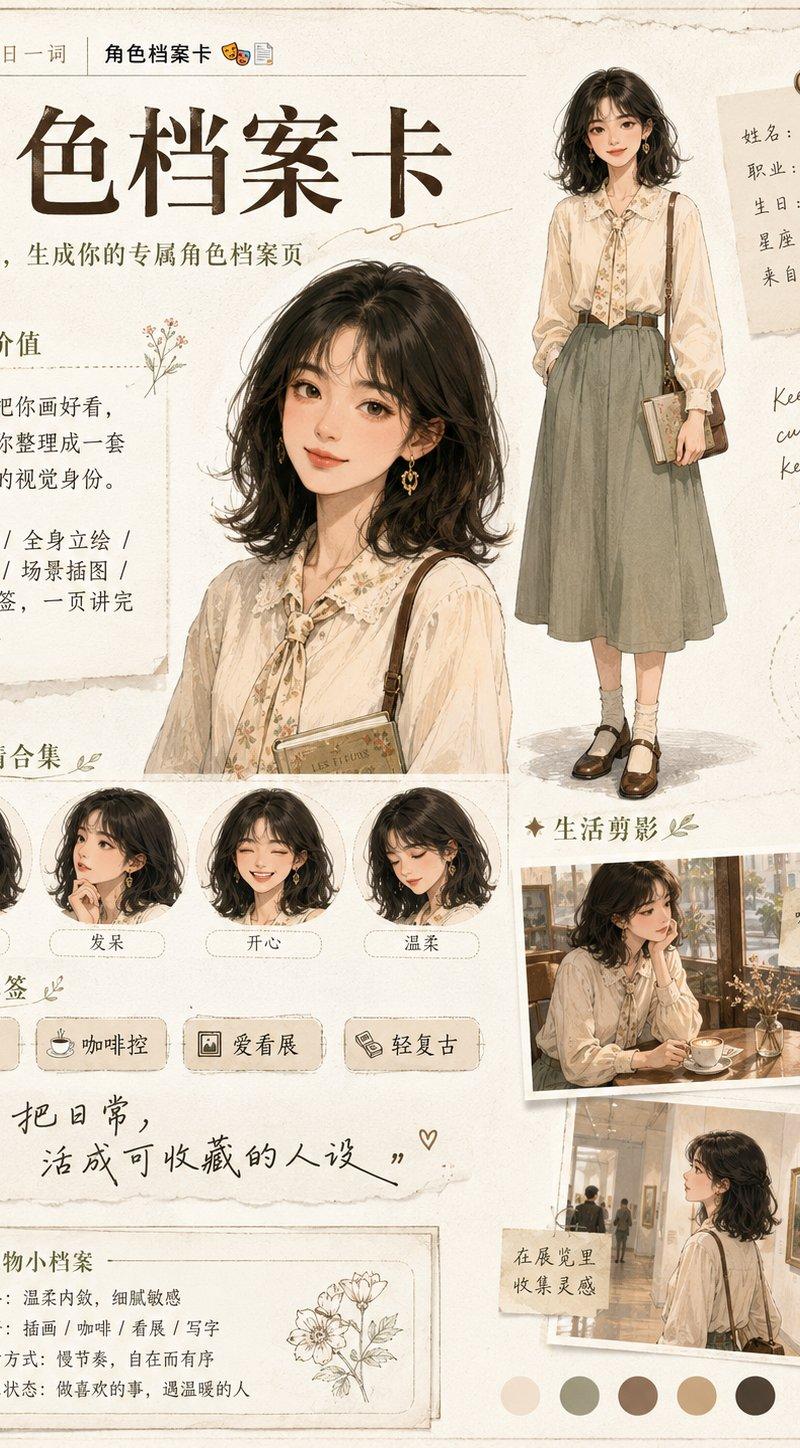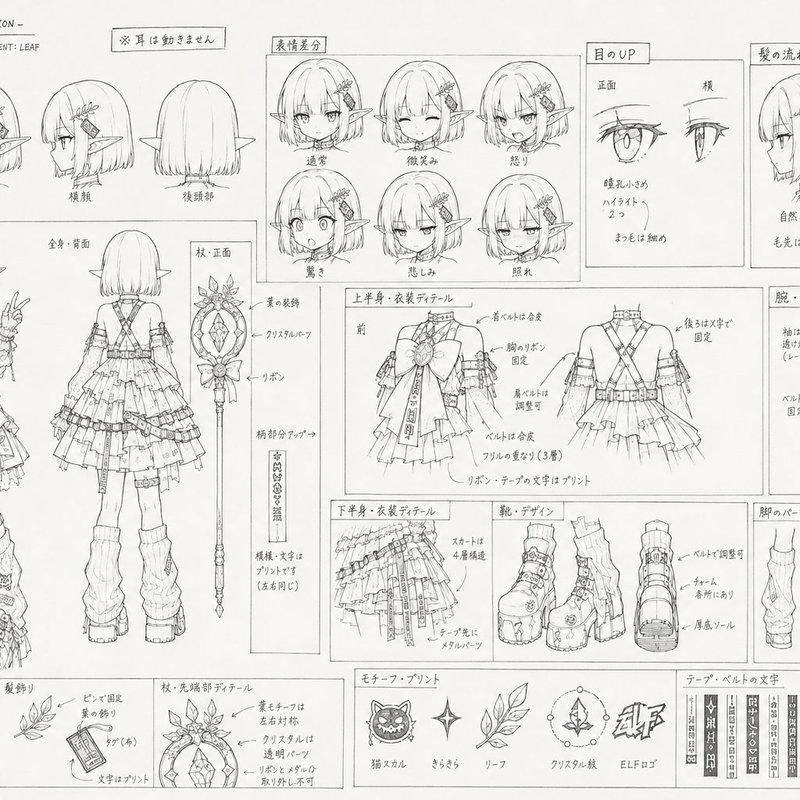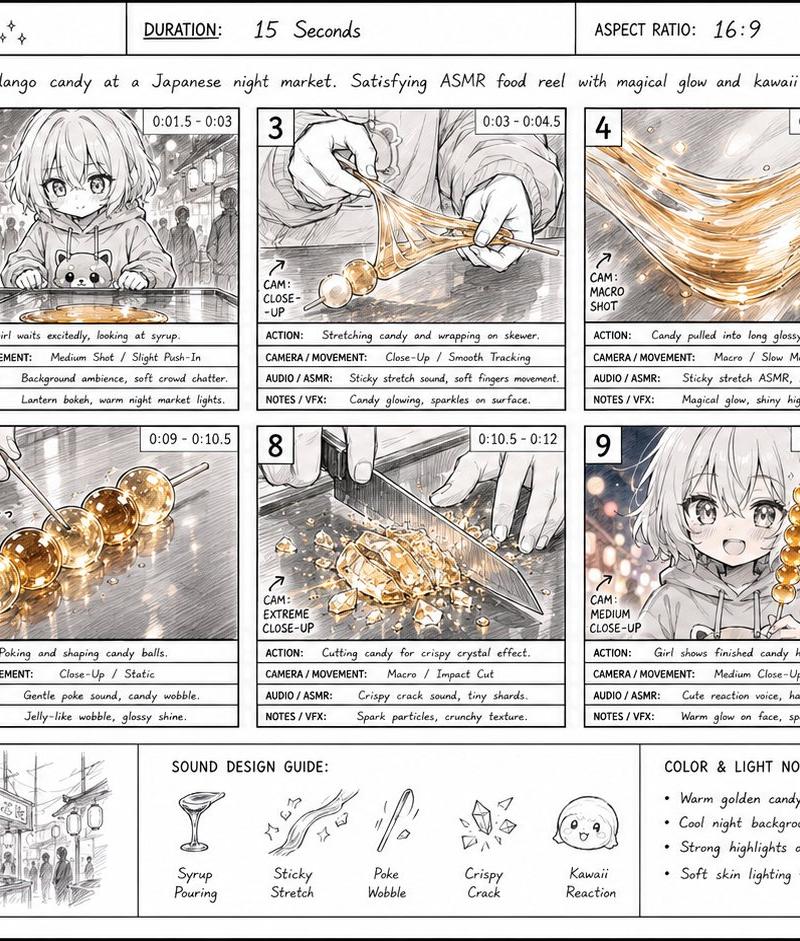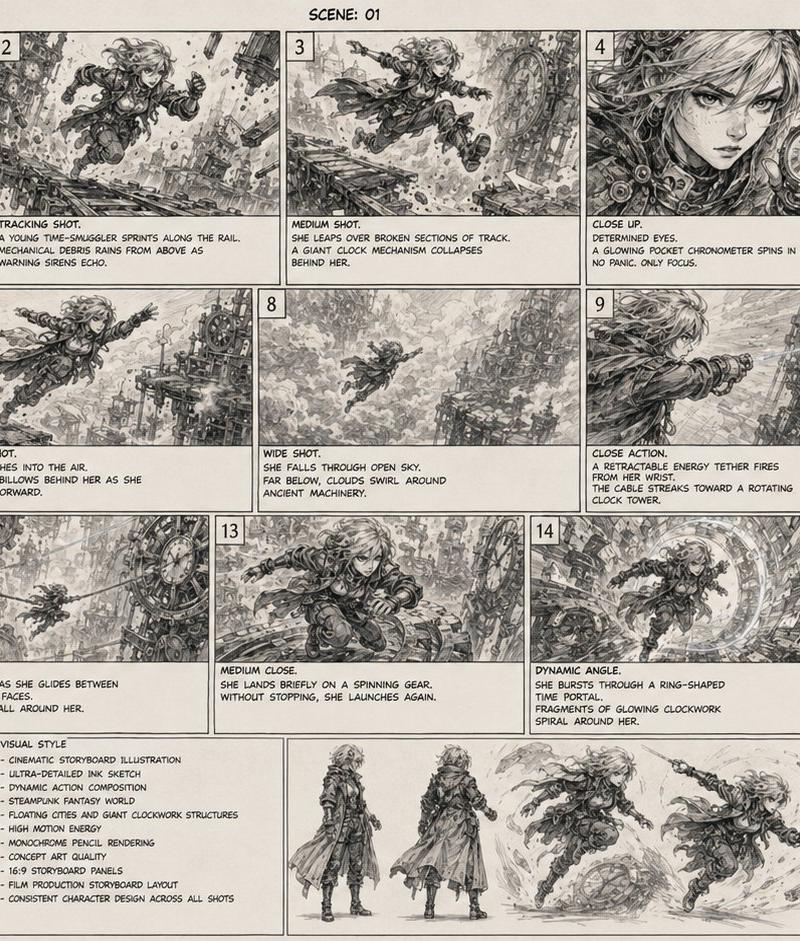
18

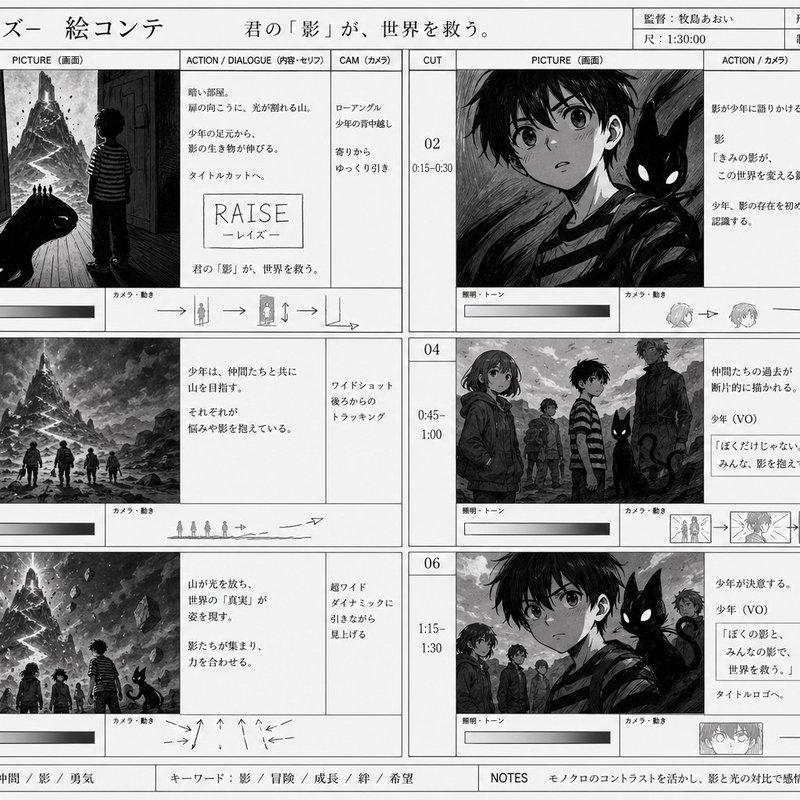
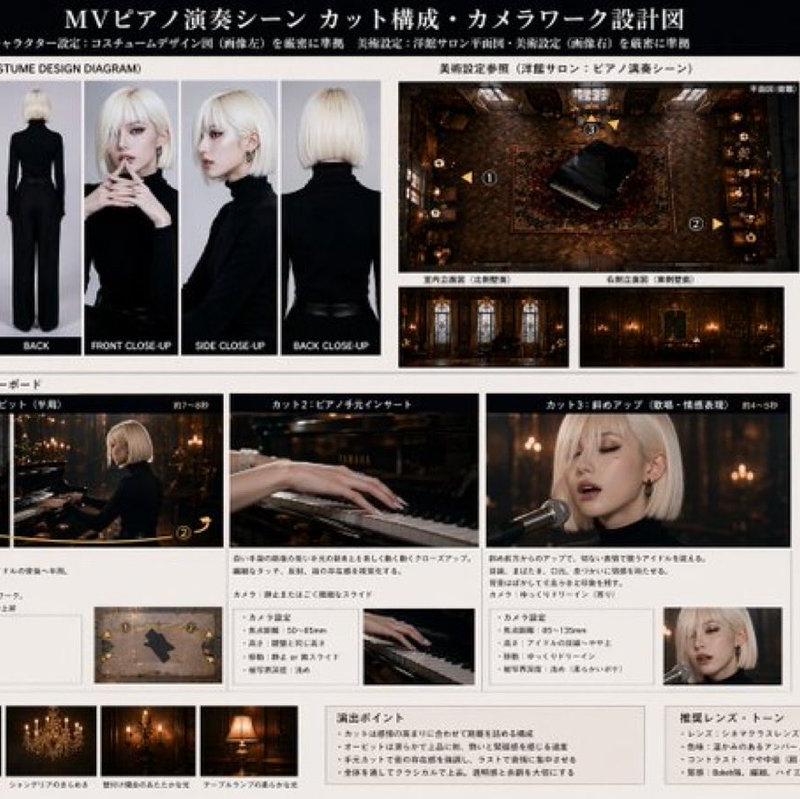
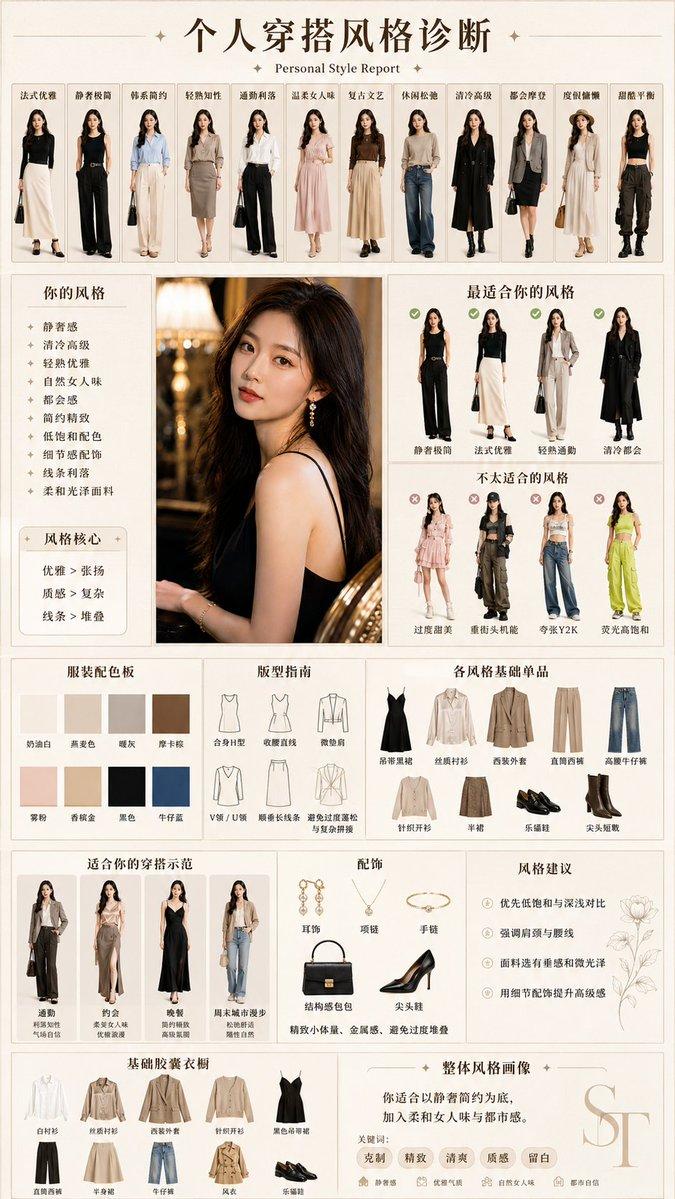
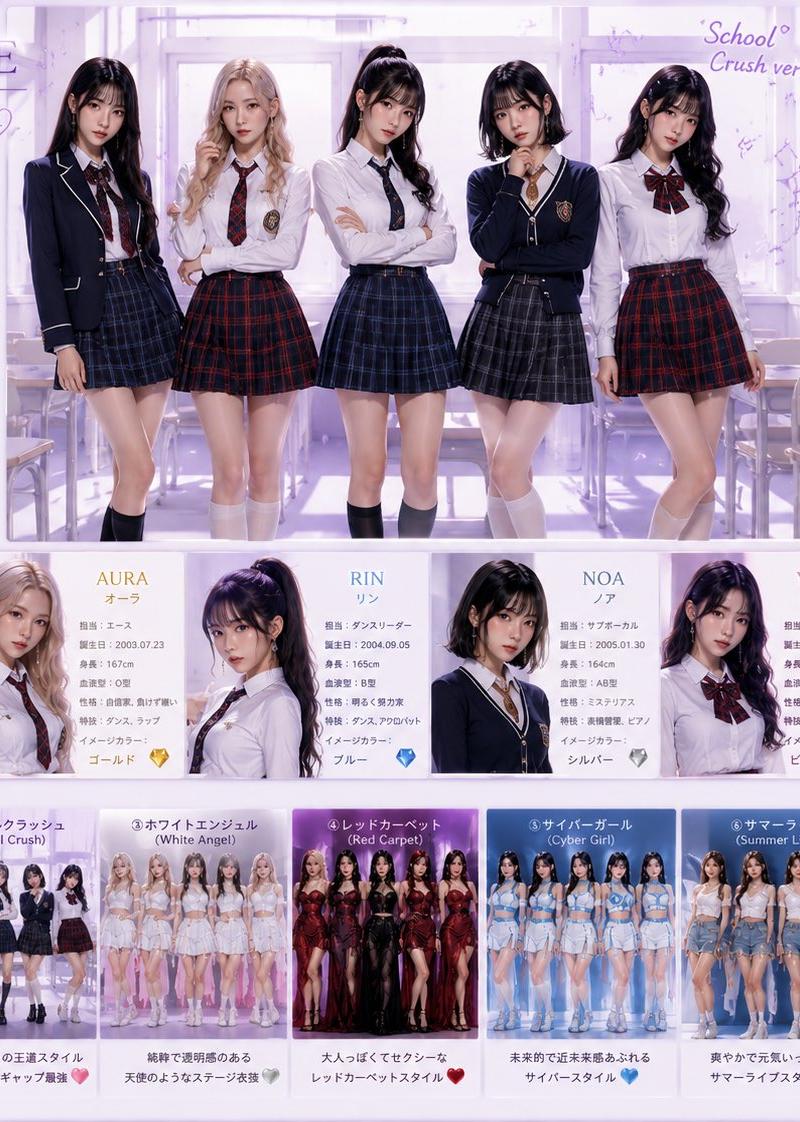
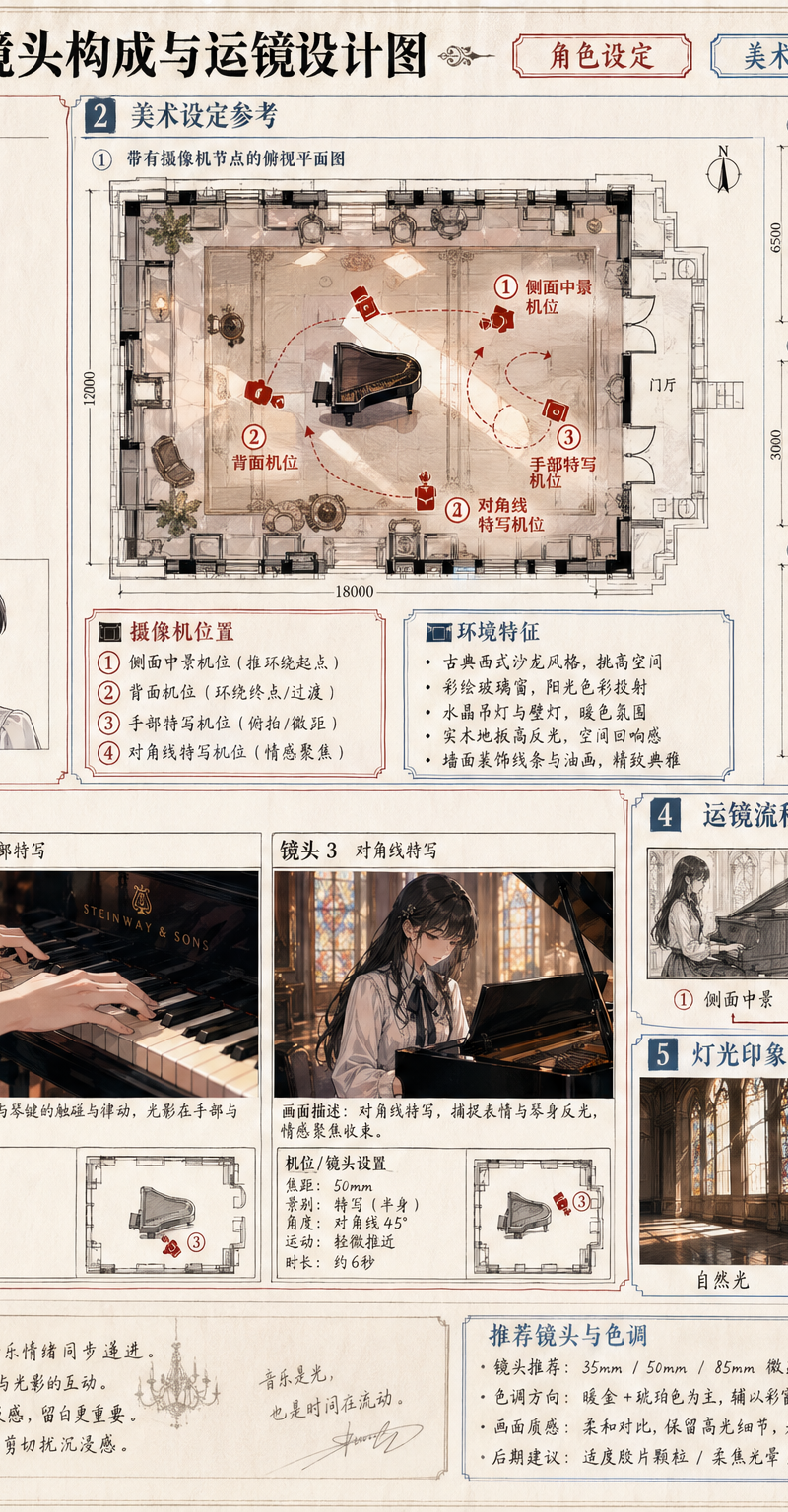
{ "type": "制作设计与分镜蓝图", "header": { "title": "{argument name=\"project title\" de
Enlarge

Example images

{ "type": "制作设计与分镜蓝图", "header": { "title": "{argument name=\"project title\" de

Prompt
{
 "type": "制作设计与分镜蓝图",
 "header": {
 "title": "{argument name=\"project title\" default=\"MV 钢琴演奏场景 镜头构成与运镜设计图\"}",
 "subtitles": ["角色设定", "美术设定"]
 },
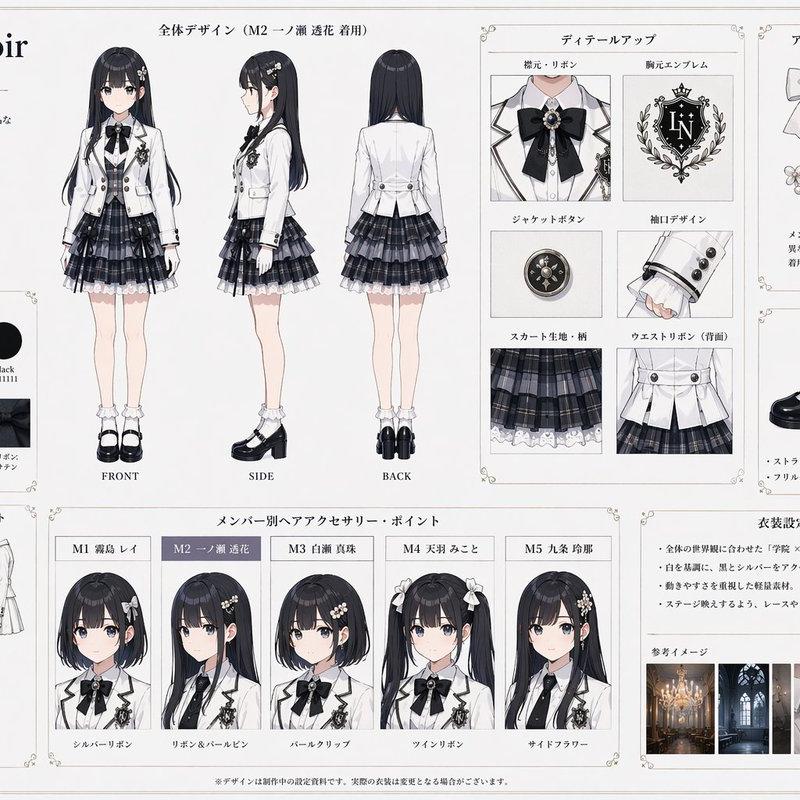
 "character_reference": {
 "title": "角色参考 (COSTUME DESIGN DIAGRAM)",
 "description": "{argument name=\"character description\" default=\"长发黑发年轻女性,身穿白色衬衫、黑色丝带、格子裙\"}",
 "views_count": 6,
 "labels": ["正面", "侧面", "背面", "正面特写", "侧面特写", "背面特写"]
 },
 "art_setting": {
 "title": "美术设定参考",
 "setting": "{argument name=\"scene setting\" default=\"带有彩色玻璃和吊灯的古典西式沙龙\"}",
 "diagrams_count": 4,
 "diagram_types": ["带有摄像机节点的俯视平面图", "北立面图", "东立面图", "剖面图"],
 "text_boxes": ["摄像机位置", "环境特征"]
 },
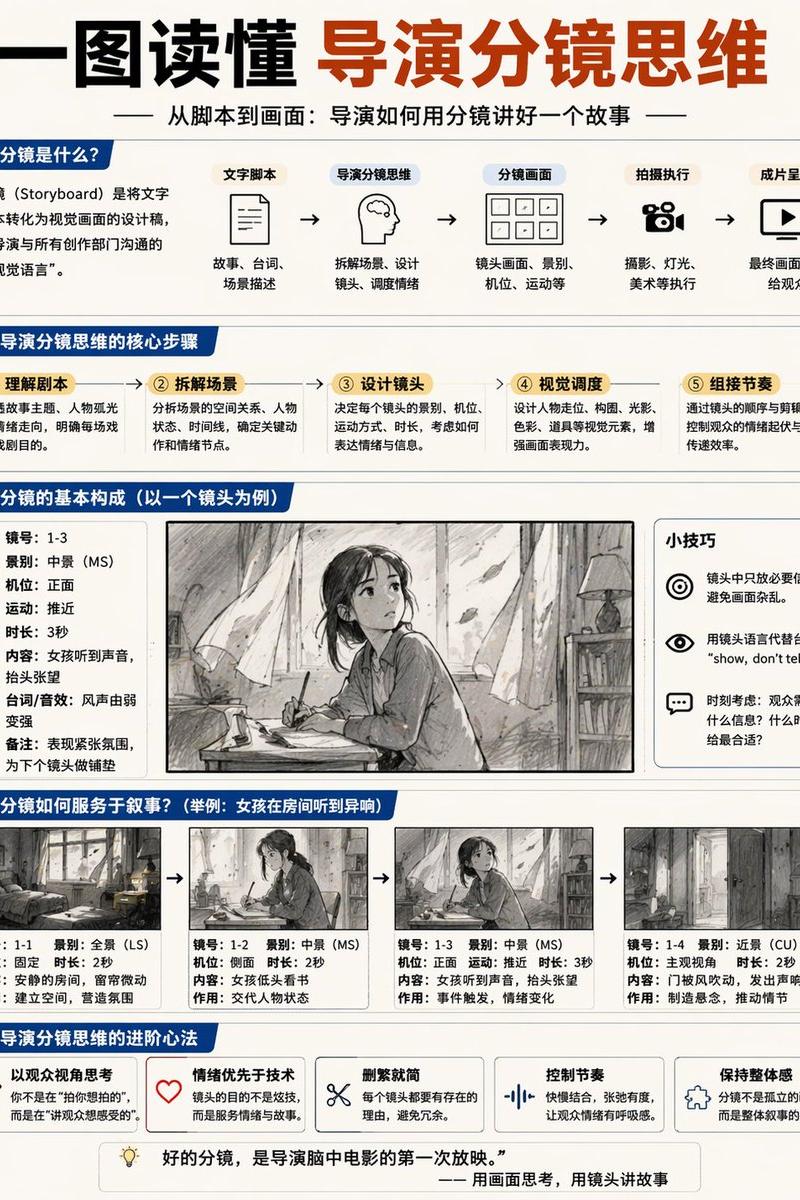
 "storyboard": {
 "title": "镜头构成分镜脚本",
 "action": "{argument name=\"action\" default=\"演奏大钢琴\"}",
 "panels_count": 3,
 "panels": [
 {"cut": "镜头 1", "description": "侧面中景至背面环绕", "elements": ["主图", "描述文本", "摄像机设置框", "小图示"]},
 {"cut": "镜头 2", "description": "钢琴手部特写", "elements": ["主图", "描述文本", "摄像机设置框", "小图示"]},
 {"cut": "镜头 3", "description": "对角线特写", "elements": ["主图", "描述文本", "摄像机设置框", "小图示"]}
 ]
 },
 "camera_workflow": {
 "title": "运镜流程 (概念图)",
 "steps_count": 4,
 "descriptions": ["侧面中景", "背面机位", "手部特写", "对角线特写"]
 },
 "lighting_reference": {
 "title": "灯光印象 (参考)",
 "images_count": 4,
 "labels": ["自然光", "吊灯", "壁灯", "台灯"]
 },
 "notes": {
 "boxes_count": 2,
 "labels": ["导演要点", "推荐镜头与色调"]
 }
}
Category
Charts & Infographics
Model
GPT Image 2
Creator
xie underwood
Source language
zh-CN
Views447
Source ID
2395
Published
Apr 30, 2026
Studio

Guide

About "{ "type": "制作设计与分镜蓝图", "header": { "title": "{argument name=\"project title\" de"

What is this prompt for?

"{ "type": "制作设计与分镜蓝图", "header": { "title": "{argument name=\"project title\" de" AI image prompt for GPT Image 2 (Charts & Infographics). { "type": "制作设计与分镜蓝…

The full copyable prompt and example visuals above are ready for AI image generation or one-click recreate in Picva.

How to use this prompt

  1. Step 1

    Open the prompt detail

    Review the example visuals, category, and full prompt text for "{ "type": "制作设计与分镜蓝图", "header": { "title": "{argument name=\"project title\" de".

  2. Step 2

    Copy the prompt

    Copy the prompt body from this page, or load it directly in Studio.

  3. Step 3

    Pick a model (GPT Image 2)

    Prefer GPT Image 2. If you switch models, keep subject and composition and tweak style terms.

  4. Step 4

    Generate and export

    Recreate the look in Picva, or export into your workflow for editing and publishing.

FAQ

What is the "{ "type": "制作设计与分镜蓝图", "header": { "title": "{argument name=\"project title\" de" prompt?
It is an AI image-generation prompt for GPT Image 2 in the Charts & Infographics category. This page includes the full prompt text, example visuals, and a one-click recreate path in Picva.
How do I use this prompt to generate an image?
Copy the prompt from this page, or use Generate / Studio. Paste it into a compatible image model, or recreate the look in Picva with optional reference images.
Which model is this prompt for?
This page lists GPT Image 2. Most descriptive prompts also transfer to nearby image models such as GPT Image, Flux, or Midjourney with light style tweaks.
Can I use the result commercially?
You can usually copy the prompt for creation, but commercial use of the final image depends on the model terms, reference-image rights, and the generated content. Follow the source author and platform rules.