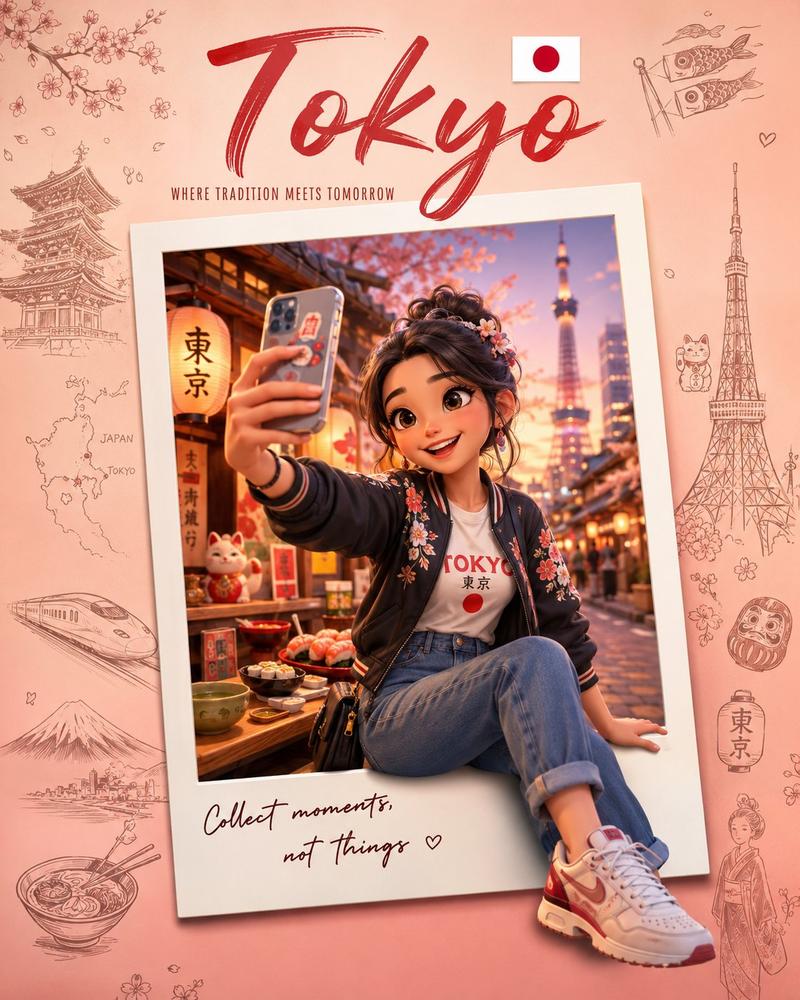
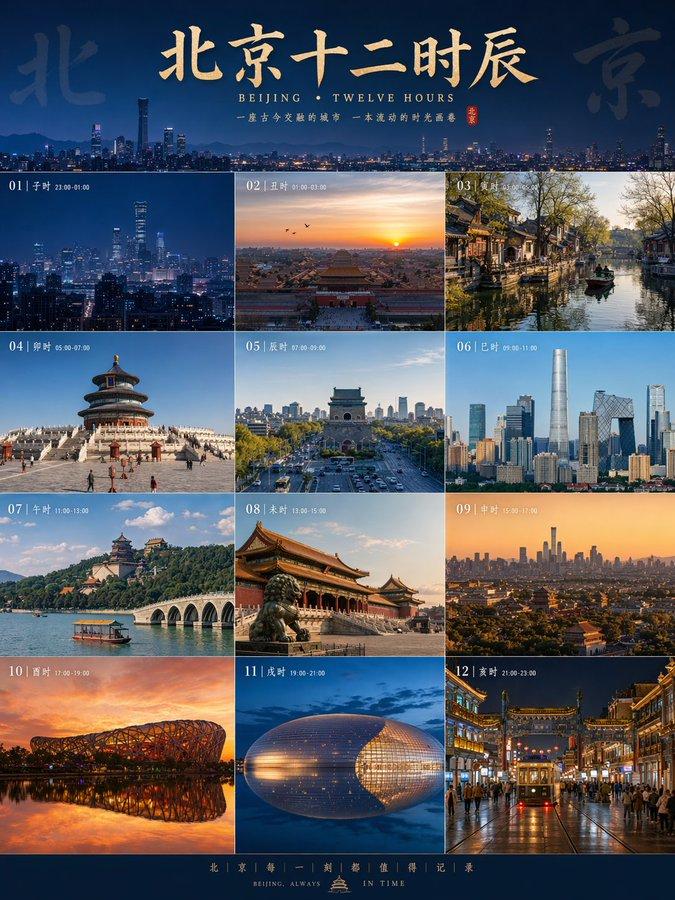
Create a 9:16 image in the "Clean Triptych Travel Vlog Thumbnail" style
Prompt
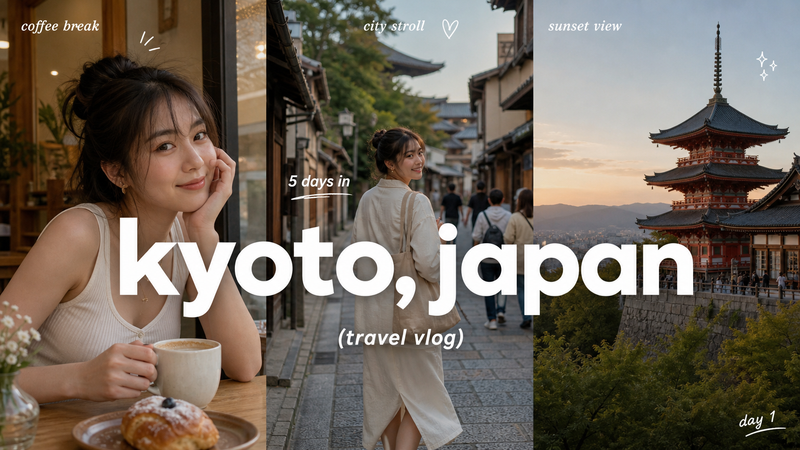
Create a 9:16 image in the "Clean Triptych Travel Vlog Thumbnail" style.

Subject: [SUBJECT].
Subject action: [SUBJECT_ACTION].
Product or prop: [PRODUCT_OR_PROP].
Location: [LOCATION].
Background elements: [BACKGROUND_ELEMENTS].
Main headline text: "[MAIN_TEXT]".
Secondary text: "[SECONDARY_TEXT]".
Accent symbol: [ACCENT_SYMBOL].
Wardrobe styling: [WARDROBE_STYLE].

Use a clean three-panel travel-vlog thumbnail composition. Divide the frame into three equal vertical photographic panels with hard edges and no visible border. Make the left panel a close-up lifestyle or cafe moment, the center panel a city-stroll scene with the traveler, and the right panel a landmark, scenic viewpoint, skyline, garden, gate, harbor, or destination proof point.

Place a huge lowercase destination headline in pure white across the center of the whole image, crossing all three panels. Use an extra-bold rounded geometric sans-serif, smooth and friendly, with no outline and minimal shadow. Put small italic white panel labels near the top, a small day-count line above the headline, a parenthetical vlog subtitle below it, and one tiny bottom-corner diary note.

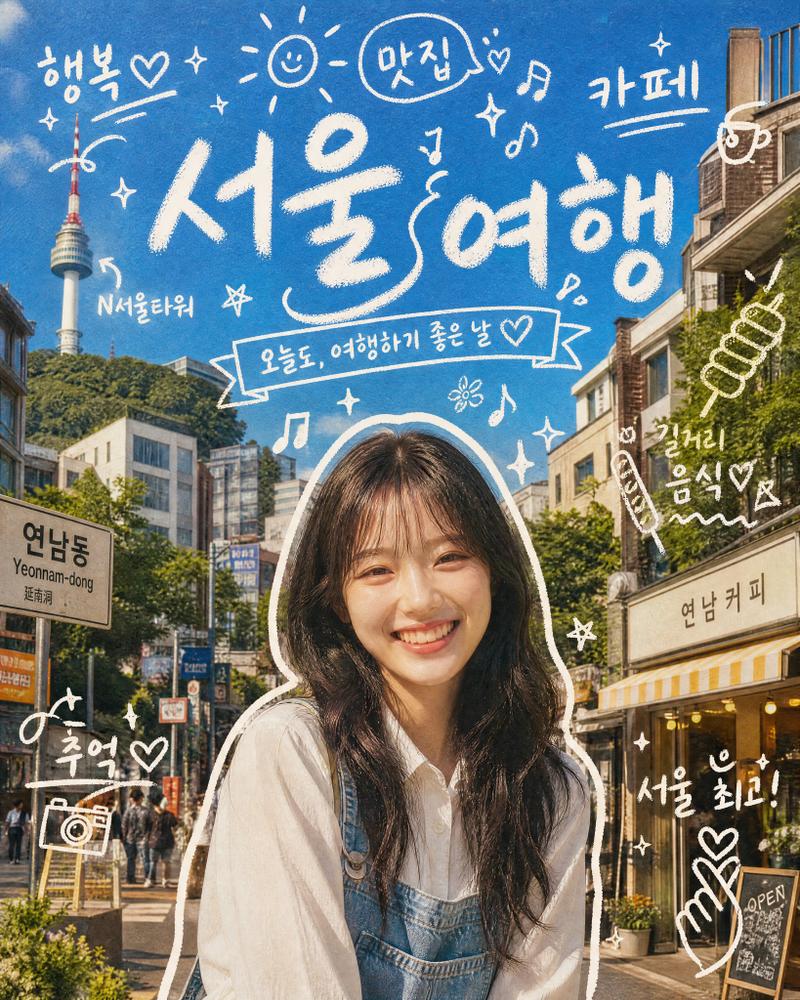
Add only sparse white hand-drawn accent marks: a tiny heart, dash, underline, corner stroke, sparkle, or loose bracket. Keep the photo treatment warm, candid, soft, lightly grainy, and phone-camera realistic. The mood should feel modern, clean, travel-diary-like, and ready for a video thumbnail.

Avoid watermark, username, creator ID, platform logo, QR code, app UI, readable real brand logo, brand name, celebrity likeness, cluttered sticker collage, scrapbook overload, neon poster, grunge texture, luxury travel ad, corporate brochure, colorful headline, heavy drop shadow, outlined text, illegible destination text, plain single-photo background, and dark muddy image.

--- VARIABLES ---

[ACCENT_SYMBOL] — tiny hand-drawn heart, underline, sparkle, bracket, dash, or loose corner mark
[BACKGROUND_ELEMENTS] — three clean photo panels: close-up lifestyle panel, city-stroll panel, and landmark or scenic panel
[LOCATION] — destination city, neighborhood, street route, cafe, station, park, landmark, waterfront, or theme-park-like attraction
[MAIN_TEXT] — large lowercase destination headline
[PRODUCT_OR_PROP] — unbranded drink, pastry, camera, tote bag, transit card, ticket, map, sunglasses, or travel snack
[SECONDARY_TEXT] — small vlog subtitle, day count, panel captions, and short handwritten-feeling notes
[SUBJECT] — main traveler, host, couple, group, or implied travel point of view
[SUBJECT_ACTION] — walking, posing, holding a drink, looking across the street, boarding transit, or pausing at a landmark
[WARDROBE_STYLE] — simple travel outfit, dark coat, clean casual layers, neutral citywear, sunglasses, tote, or camera strap

--- NEGATIVE PROMPT ---

Avoid watermark, username, creator ID, platform logo, QR code, app UI, readable real brand logo, brand name, celebrity likeness, cluttered sticker collage, scrapbook overload, neon poster, grunge texture, luxury travel ad, corporate brochure, colorful headline, heavy drop shadow, outlined text, illegible destination text, plain single-photo background, and dark muddy image.
- Category
- Charts & Infographics
- Model
- GPT Image 2
- Creator
- One Khách
- Source ID
- 35810
- Published
- Jun 26, 2026
Views34