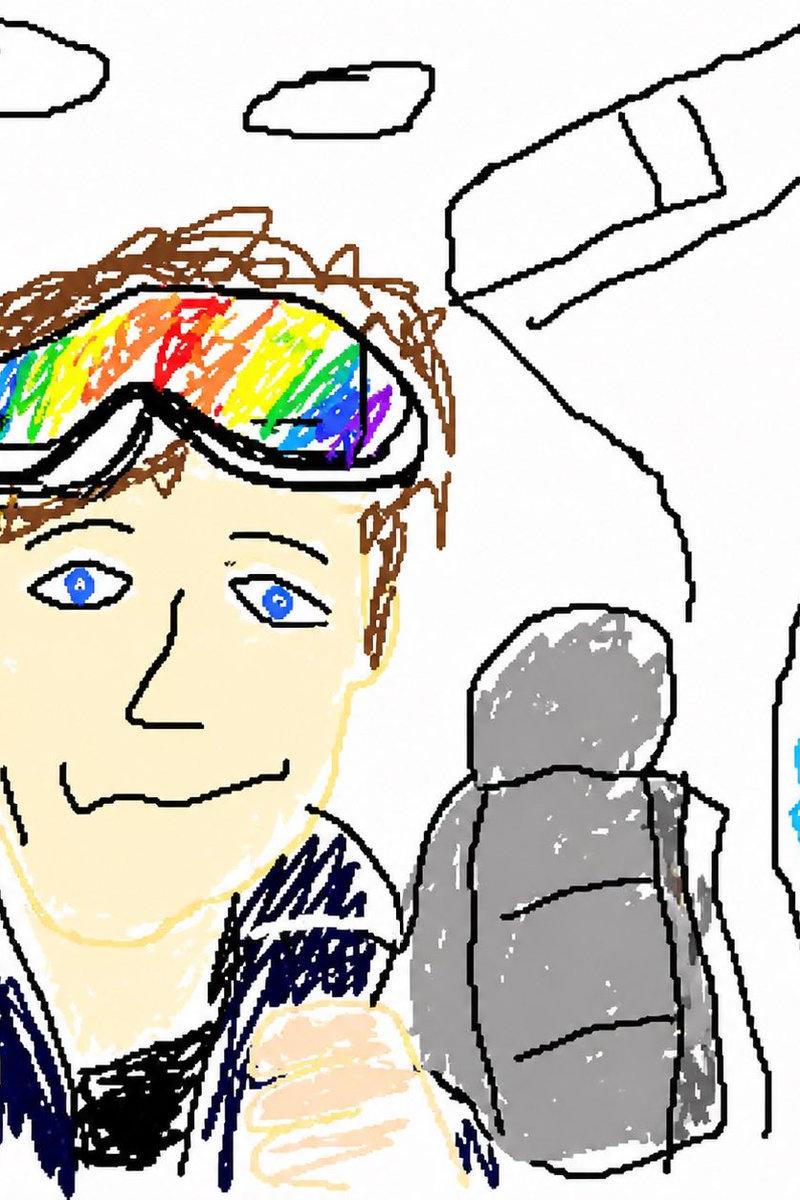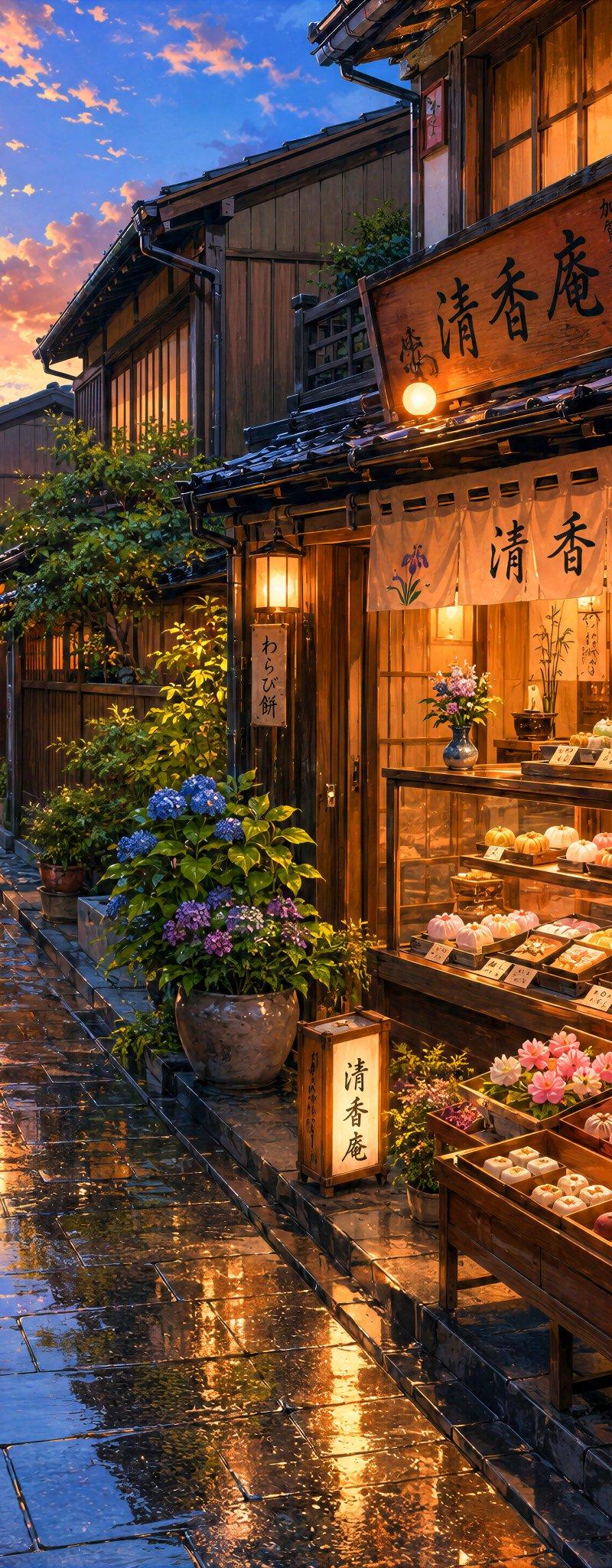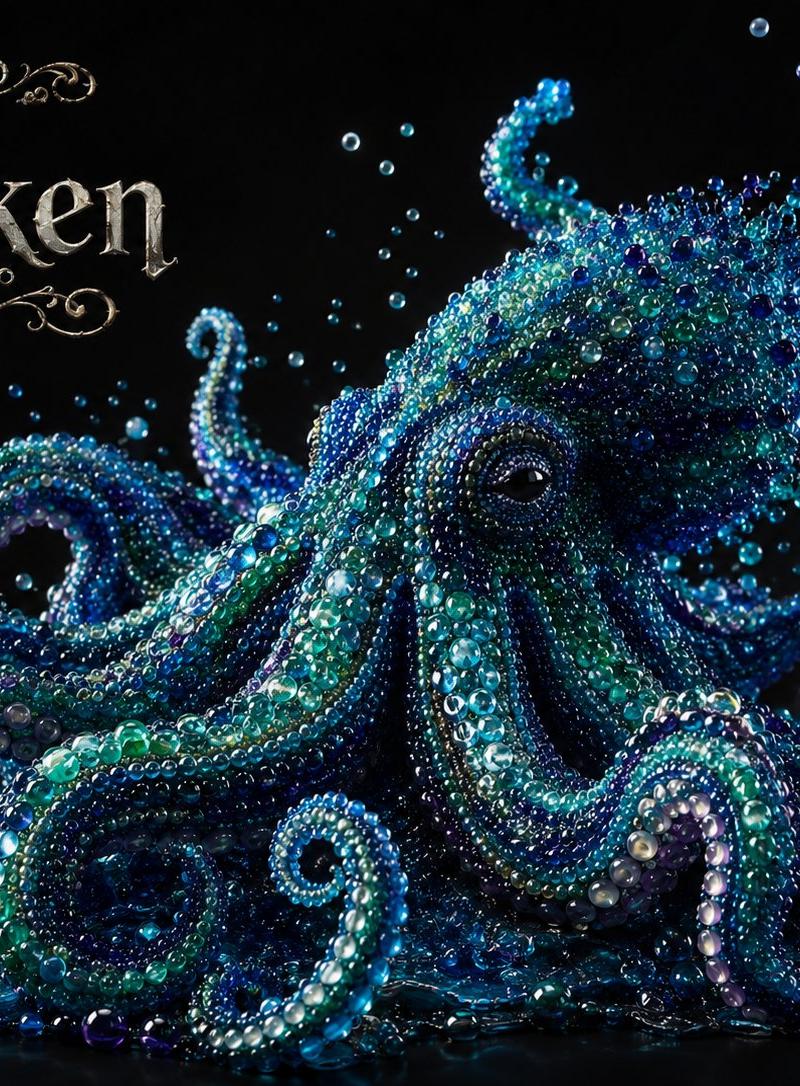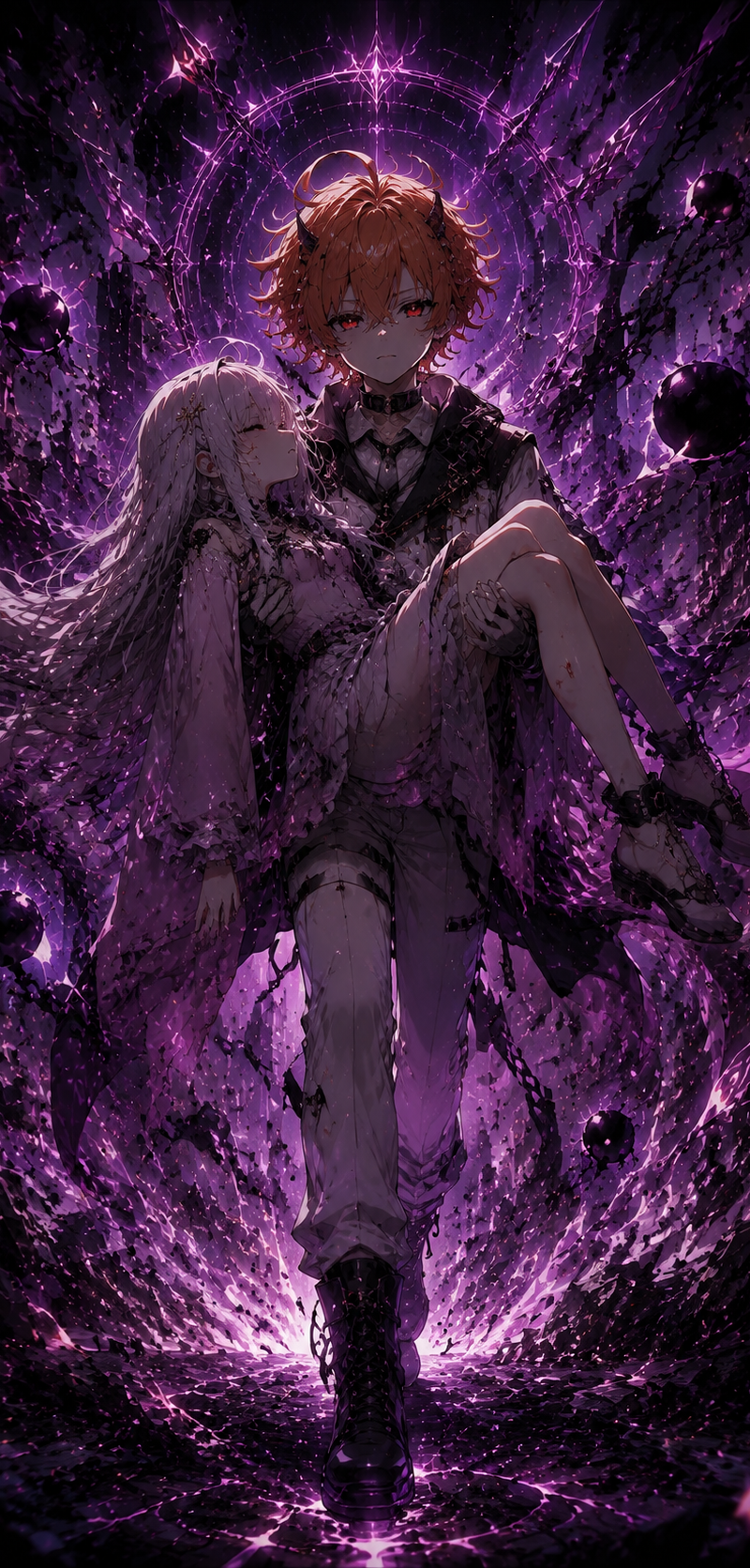
20

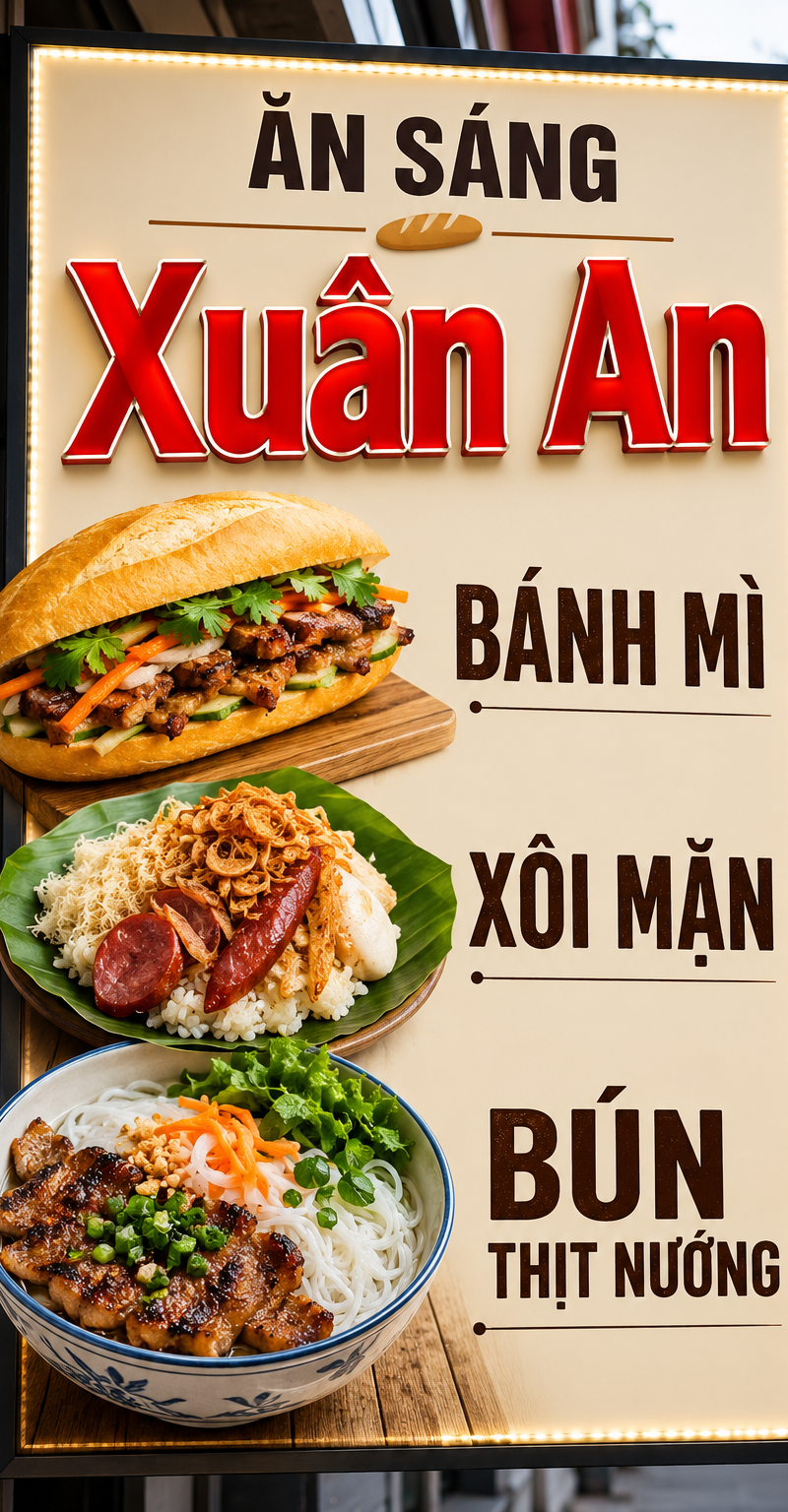
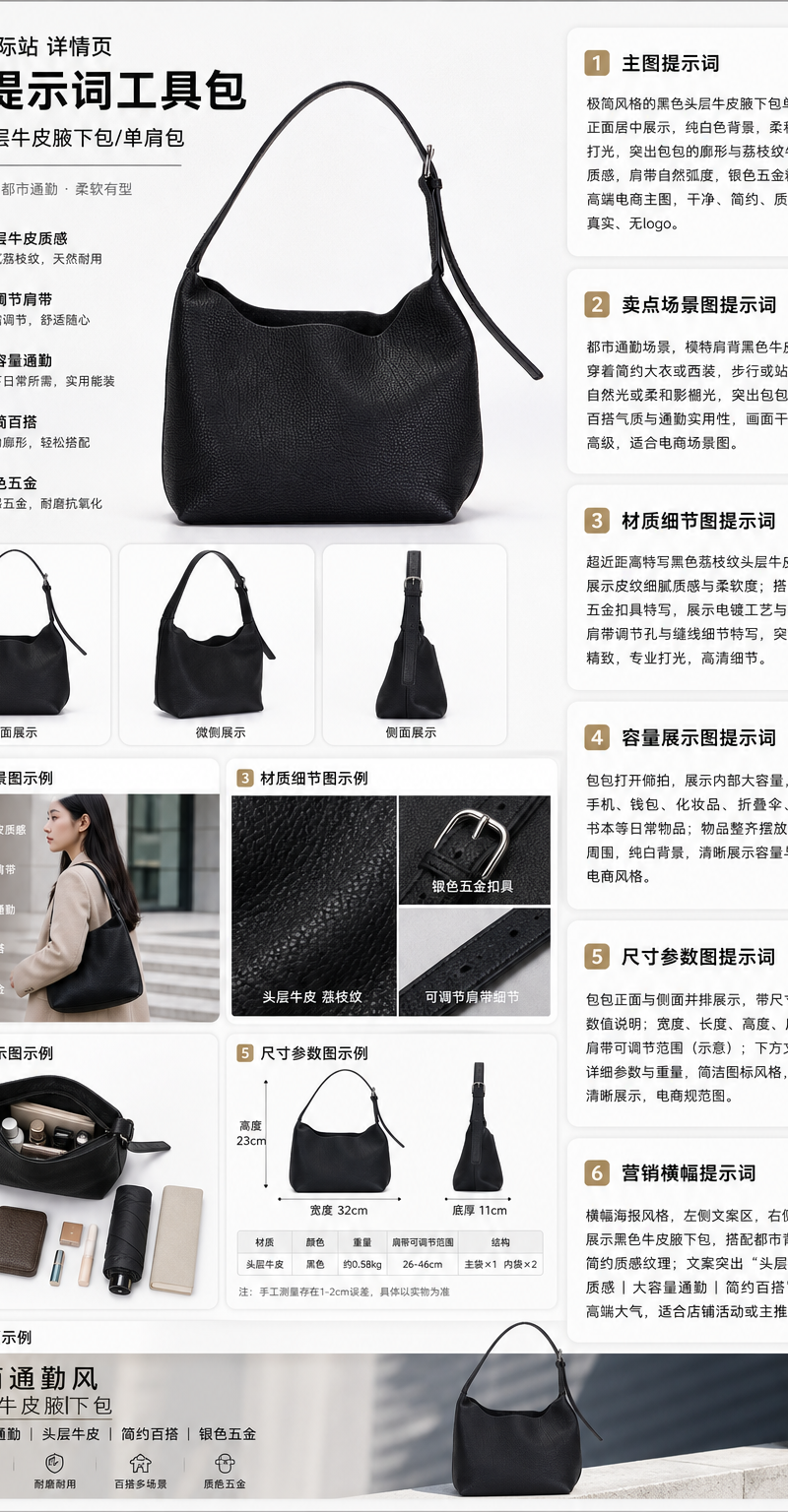
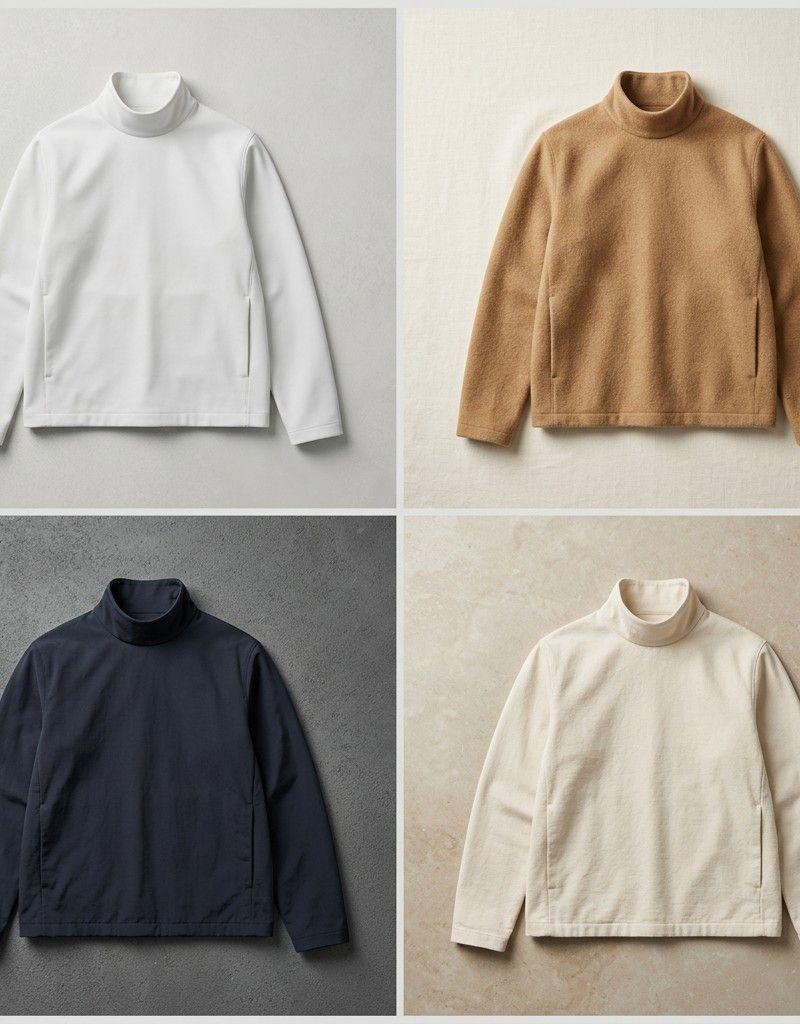
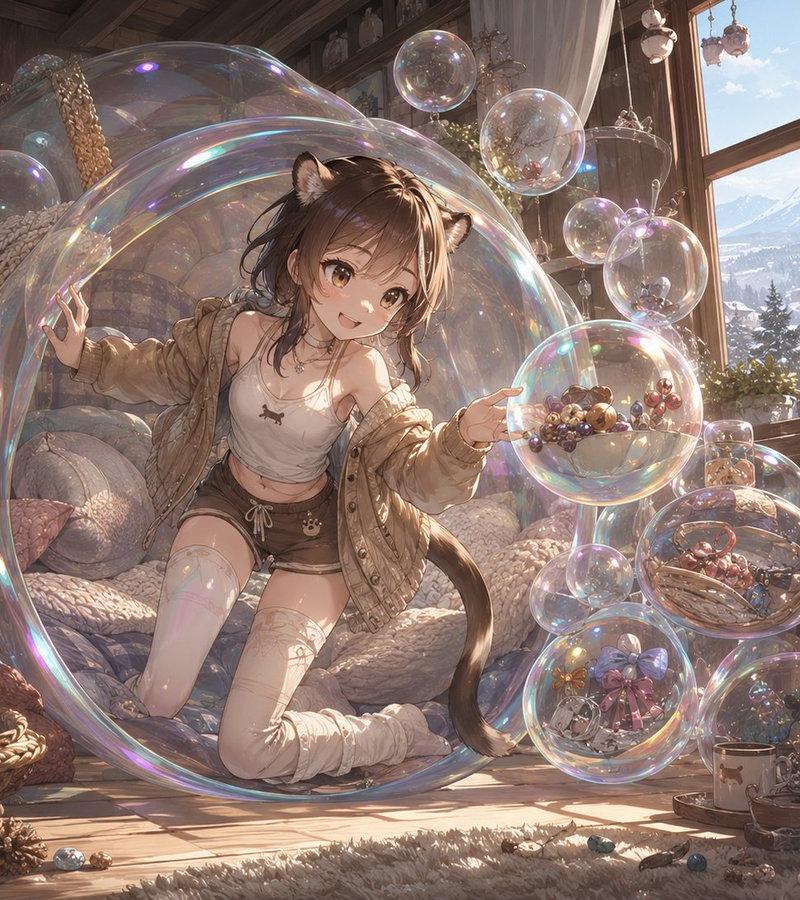
手写字迹擦除与图像清理
Enlarge

手写字迹擦除与图像清理

Prompt
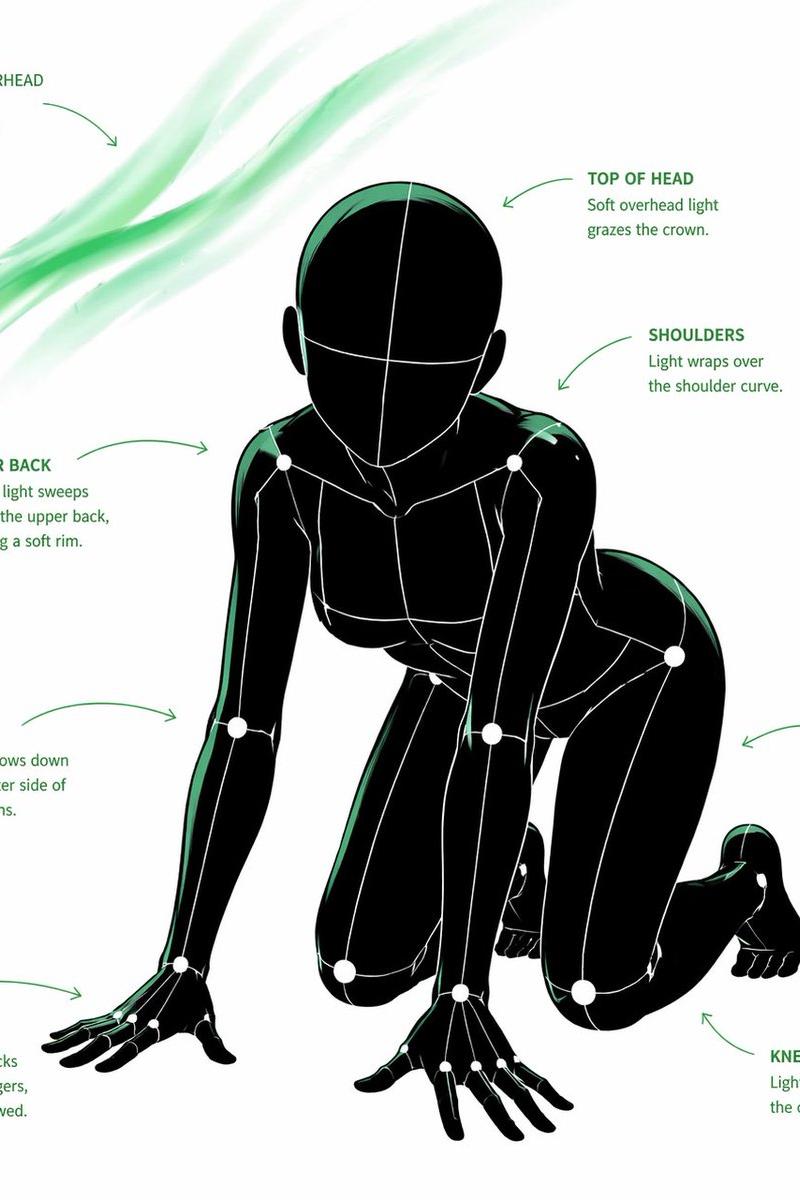
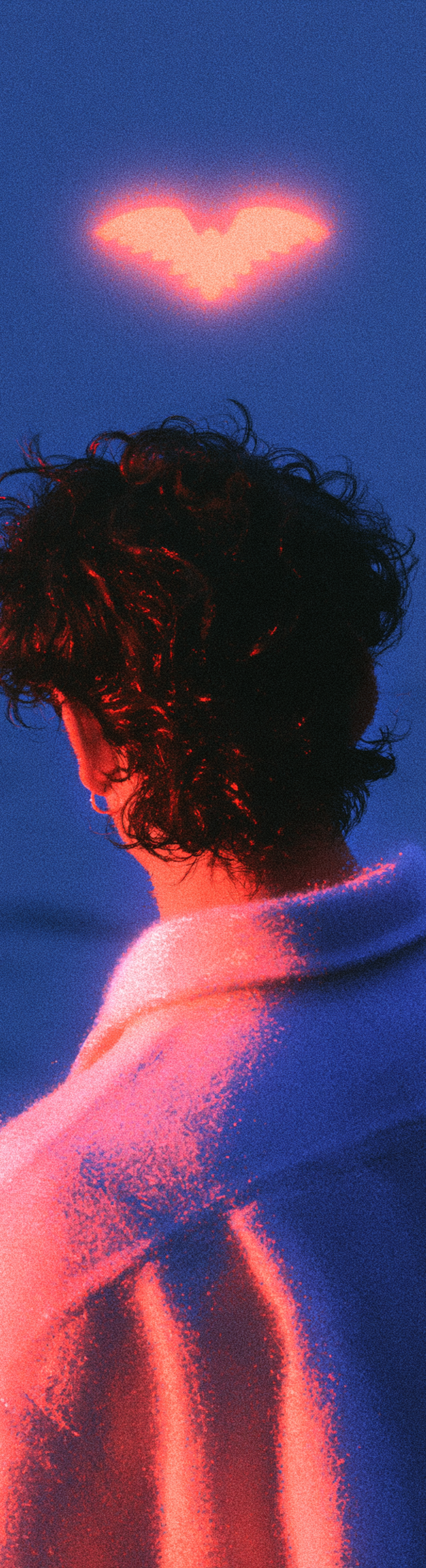
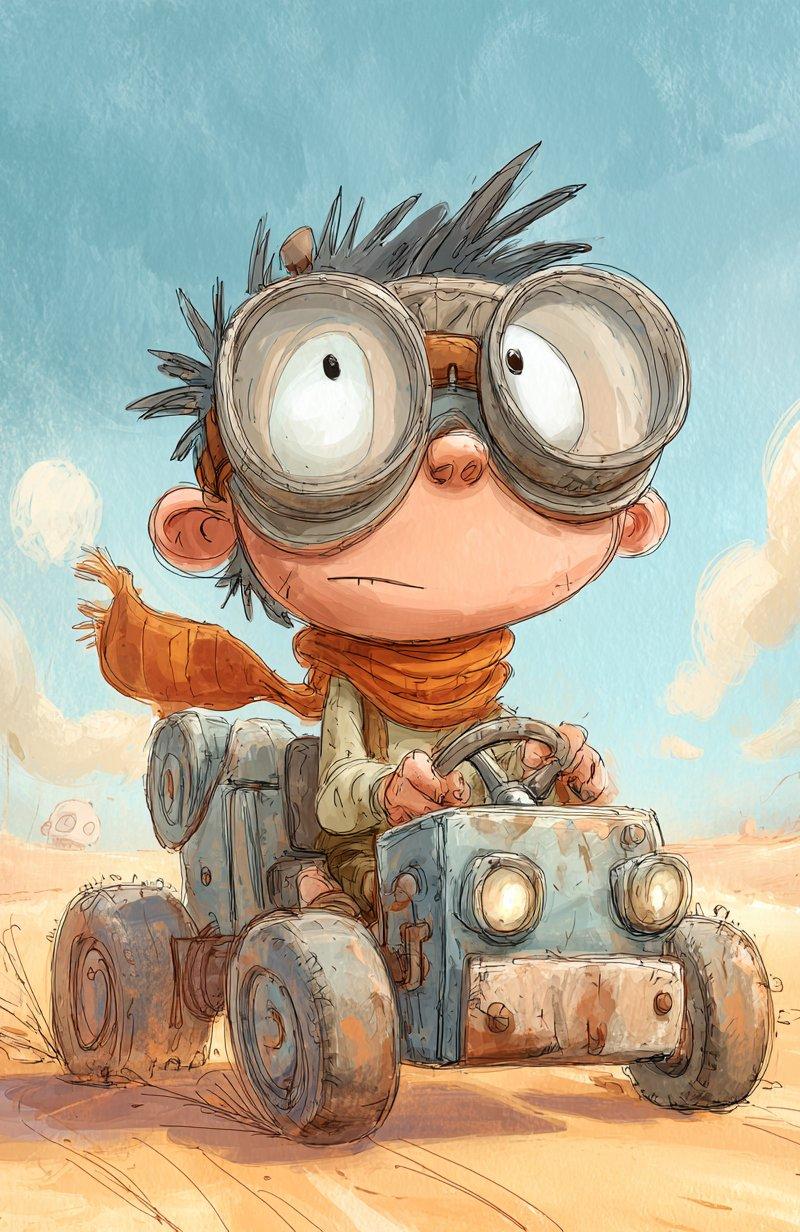
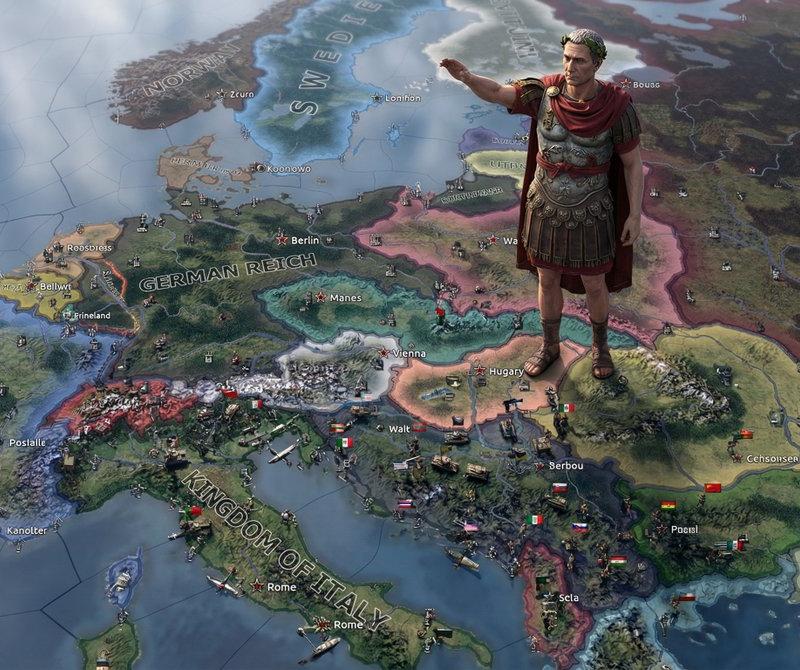
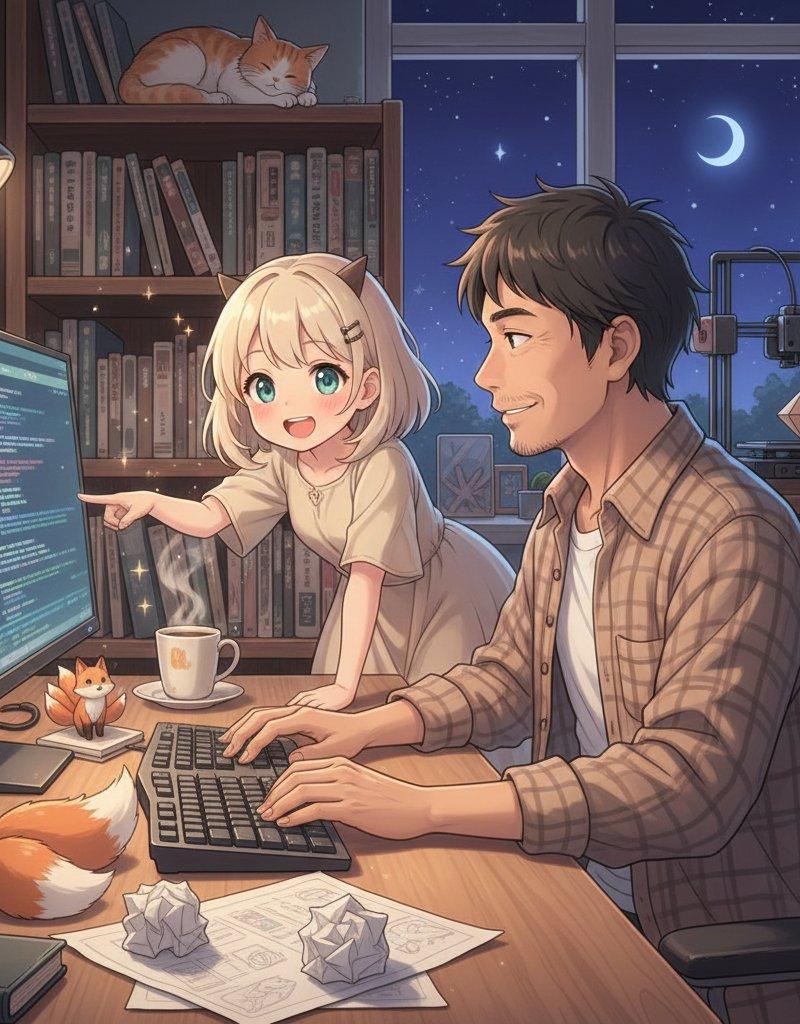
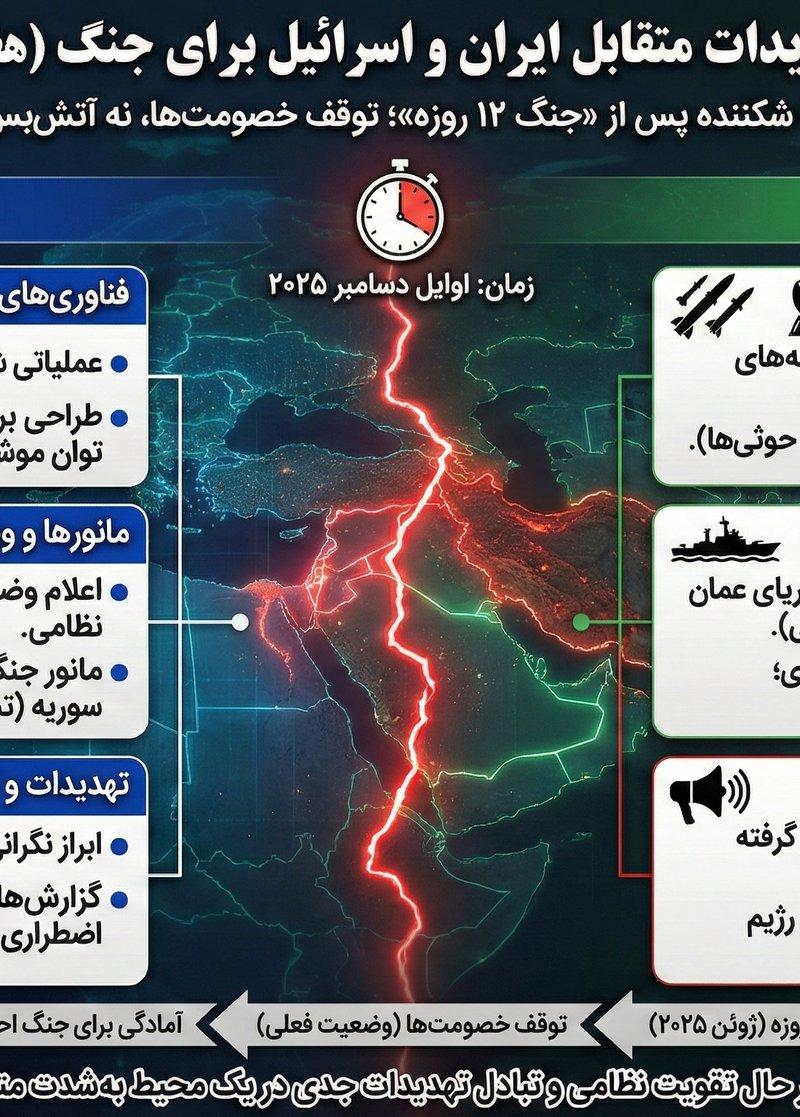
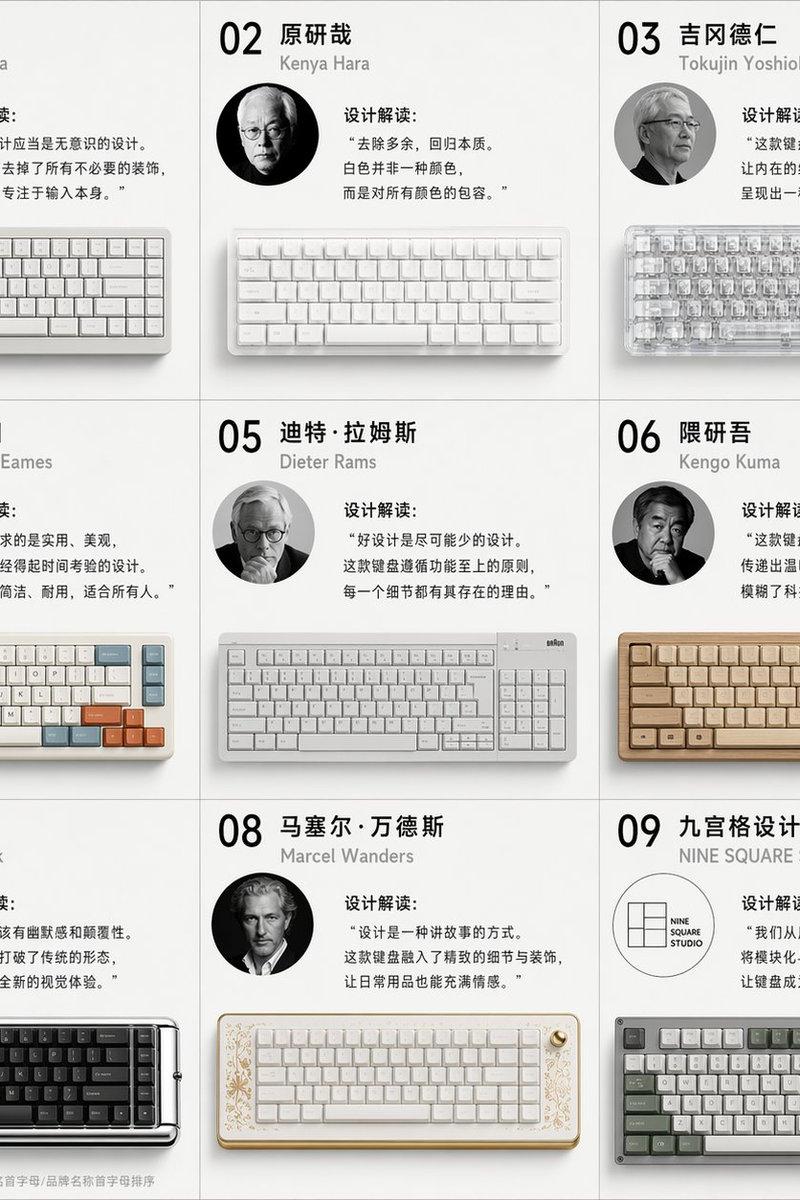
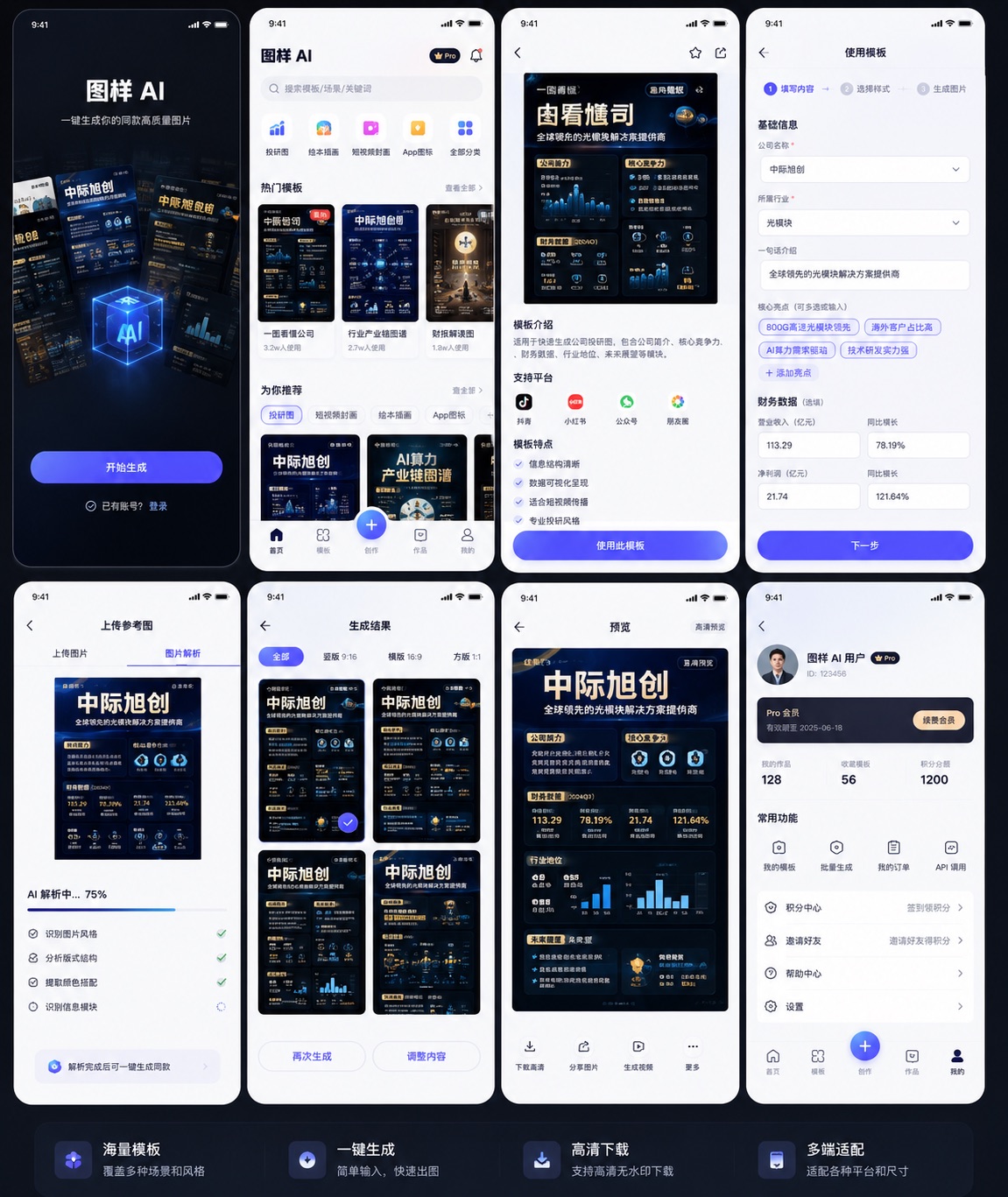
保持图像原样,并擦除 {argument name="position" default="右侧"} 的所有 {argument name="target" default="手写字符"}。
Category
Creative Use Cases
Model
GPT Image 2
Creator
テツメモ|AI図解×検証|Newsletter
Source language
ja
Views5
Source ID
17876
Published
May 2, 2026
Studio

Guide

About "手写字迹擦除与图像清理"

What is this prompt for?

"手写字迹擦除与图像清理" AI image prompt for GPT Image 2 (Creative Use Cases). 一个用于 GPT Image 2 的实用提示词,可在保留原始布局和图形的同时,擦除图像特定区域内的手写文字。 Copy it on Picva and recreate the lo…

The full copyable prompt and example visuals above are ready for AI image generation or one-click recreate in Picva.

How to use this prompt

  1. Step 1

    Open the prompt detail

    Review the example visuals, category, and full prompt text for "手写字迹擦除与图像清理".

  2. Step 2

    Copy the prompt

    Copy the prompt body from this page, or load it directly in Studio.

  3. Step 3

    Pick a model (GPT Image 2)

    Prefer GPT Image 2. If you switch models, keep subject and composition and tweak style terms.

  4. Step 4

    Generate and export

    Recreate the look in Picva, or export into your workflow for editing and publishing.

FAQ

What is the "手写字迹擦除与图像清理" prompt?
It is an AI image-generation prompt for GPT Image 2 in the Creative Use Cases category. This page includes the full prompt text, example visuals, and a one-click recreate path in Picva.
How do I use this prompt to generate an image?
Copy the prompt from this page, or use Generate / Studio. Paste it into a compatible image model, or recreate the look in Picva with optional reference images.
Which model is this prompt for?
This page lists GPT Image 2. Most descriptive prompts also transfer to nearby image models such as GPT Image, Flux, or Midjourney with light style tweaks.
Can I use the result commercially?
You can usually copy the prompt for creation, but commercial use of the final image depends on the model terms, reference-image rights, and the generated content. Follow the source author and platform rules.