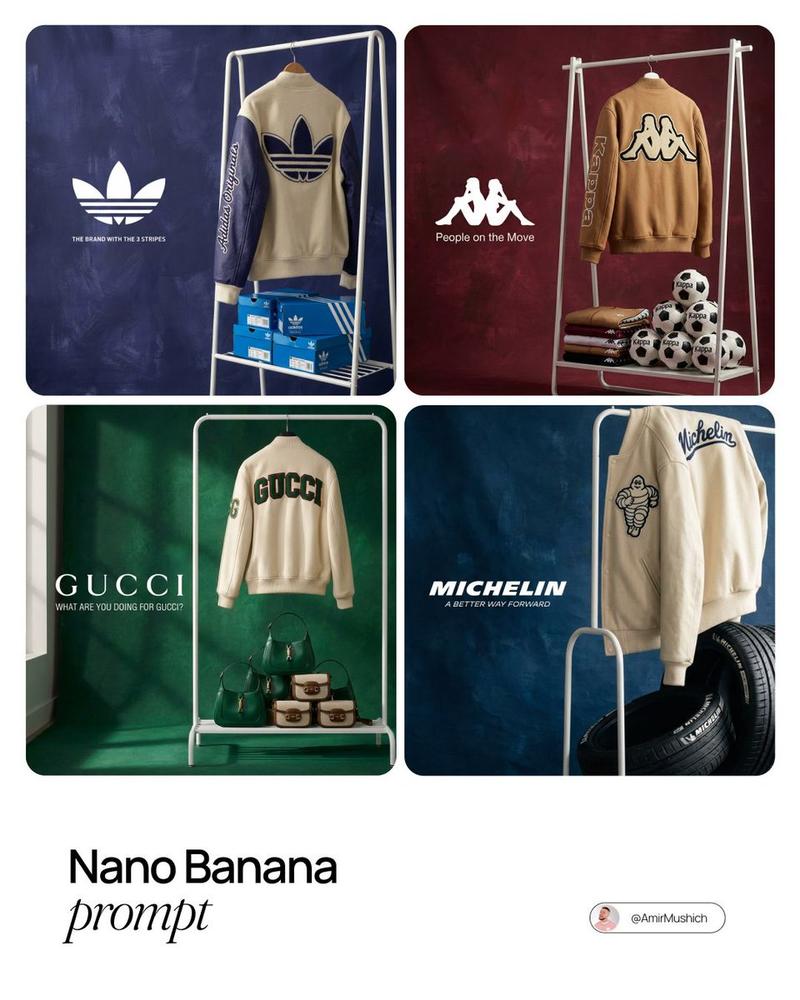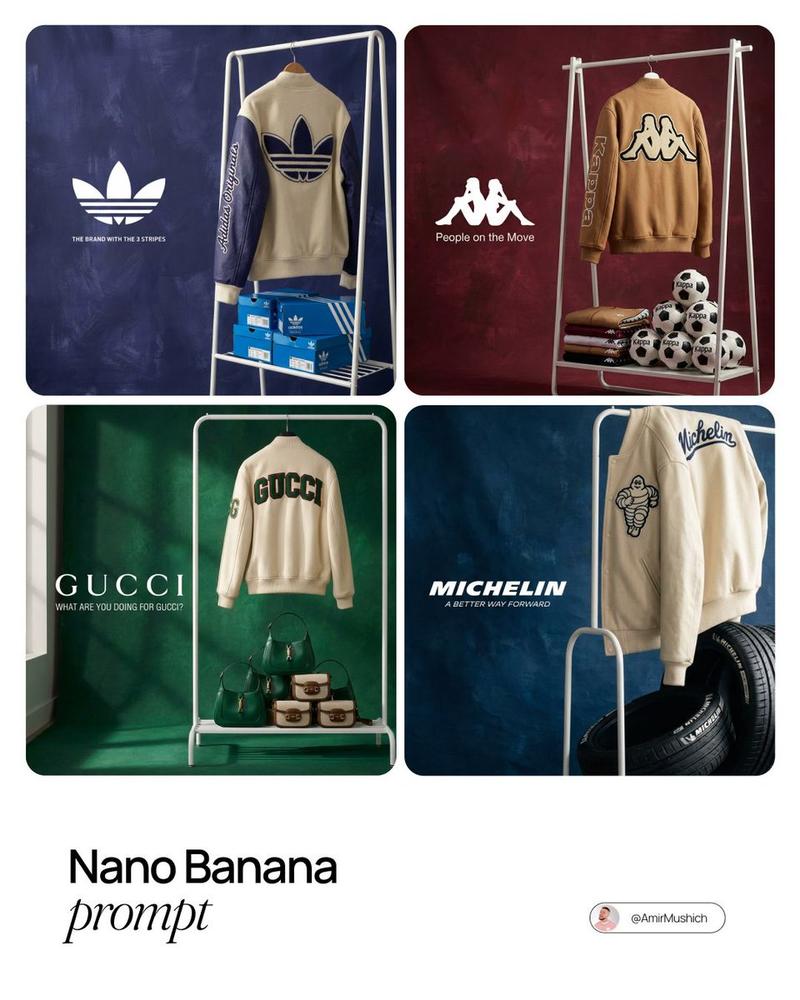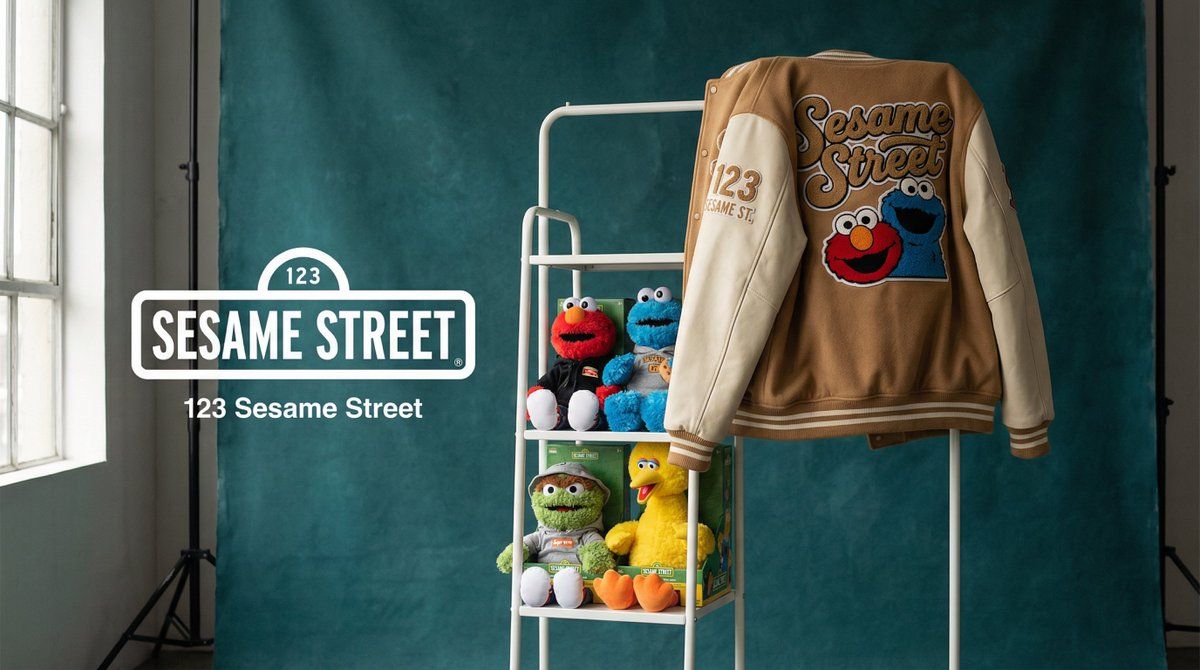
品牌周边发布生成器
Prompt
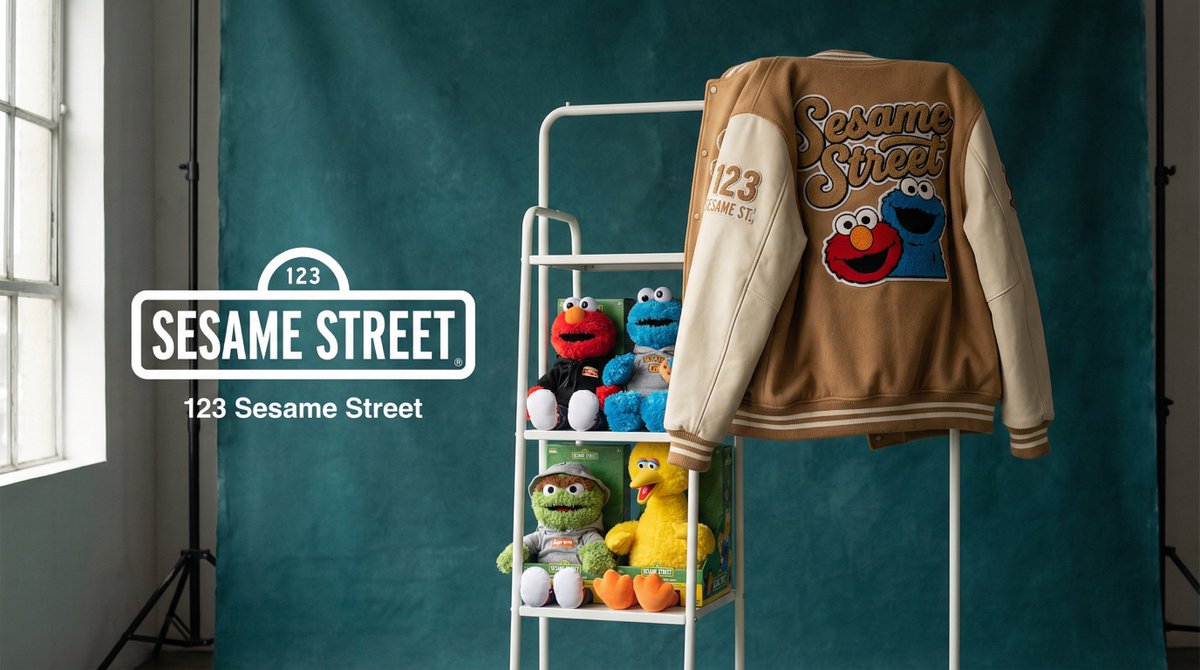
[{argument name="brand" default="BRAND NAME"}]. You are a Creative Director and Still Life Photographer for a high-fashion hypebeast magazine.

YOUR TASK:
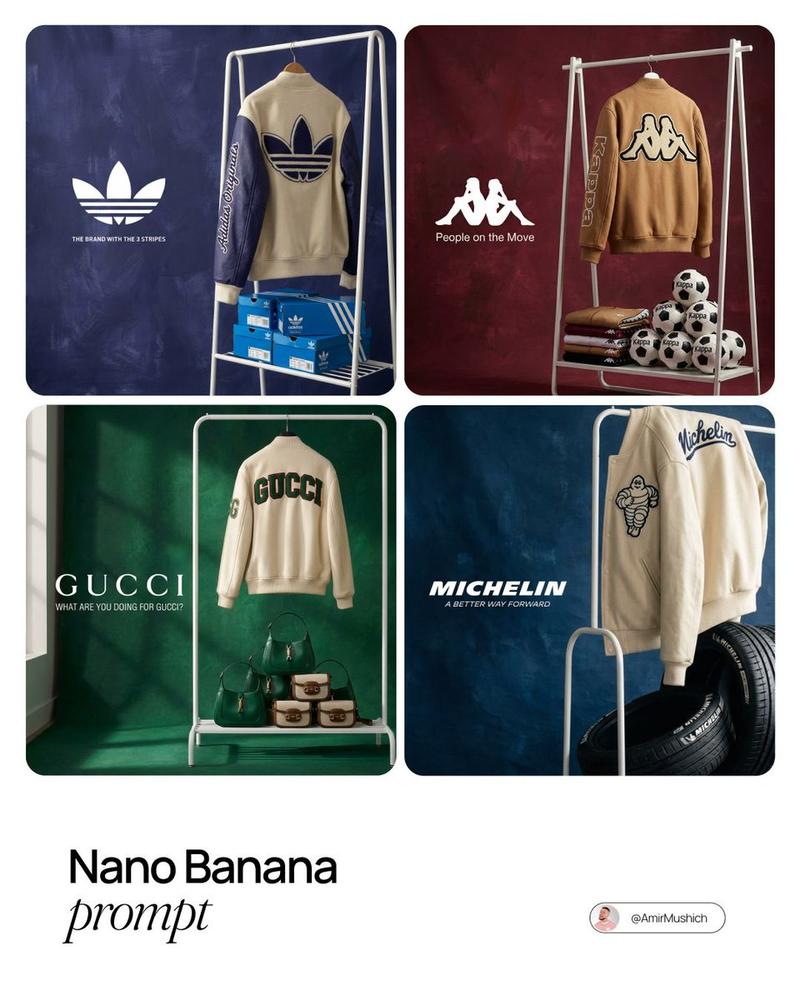
Design a premium "Showroom Still Life" image to announce a limited merch drop for [{argument name="brand" default="BRAND NAME"}].

STEP 1: BRAND ANALYSIS
Study [{argument name="brand" default="BRAND NAME"}]: identify its industry and signature physical product (e.g., "Spalding" = basketballs, "McDonald's" = burger packaging, "Visa" = metal cards).
Choose the Color Palette:
- Background: a deep, rich, textured tone from the brand's secondary colors (Teal, Navy, Burgundy, or Slate Grey).
- Merch: a warm or neutral accent tone (Camel, Orange, or Cream) that pops against the backdrop.
- Apparel Piece: select something that fits the brand's energy (Varsity Letterman Jacket, Heavyweight Hoodie, Canvas Tote, or Wool Scarf).

STEP 2: SET DESIGN
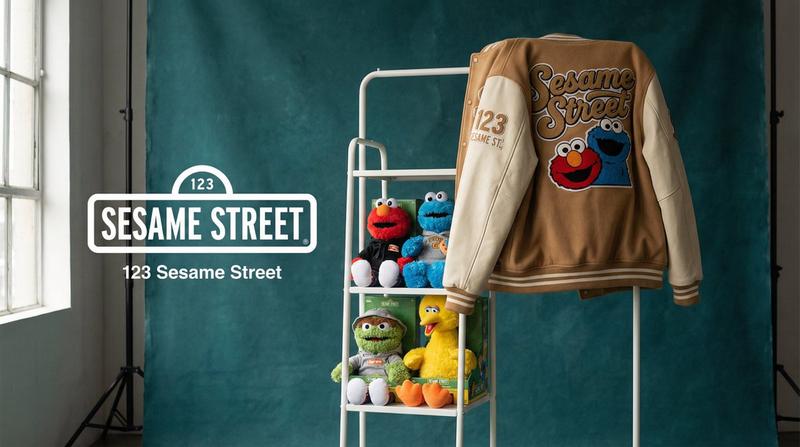
Main Prop: a clean, modern White Powder-Coated Metal Rack or shelving unit.
Layout:
- The apparel piece hangs casually from the rack or a hanger, showing off its texture.
- On the rack shelves, stack several units of the brand's core product (e.g., basketballs, cans, boxes).
- Backdrop: hand-painted canvas in the chosen deep background color, with visible brushstrokes for that studio aesthetic.

STEP 3: BRANDING DETAILS
Apparel: feature premium physical branding via Chenille Patches, Embroidered Logos, or Screen Print on the sleeve or back. It should look like a genuinely expensive garment.
Products: ensure the [{argument name="brand" default="BRAND NAME"}] logo is clearly visible on all stacked items.

STEP 4: PHOTOGRAPHY
Lighting: soft, directional side window light with realistic soft shadows and rich texture highlights.
Focal length: 50mm or 85mm. Sharp focus on the merch, gentle background falloff.

STEP 5: GRAPHIC OVERLAY
Left-aligned composition:
- Large, clean white [{argument name="brand" default="BRAND NAME"}] logo placed in the negative space on the left.
- Beneath the logo, small white text with the brand's official tagline.- Category
- Charts & Infographics
- Model
- GPT Image 2
- Creator
- PromptLab
- Source ID
- 23994
- Published
- Jun 3, 2026
Views2