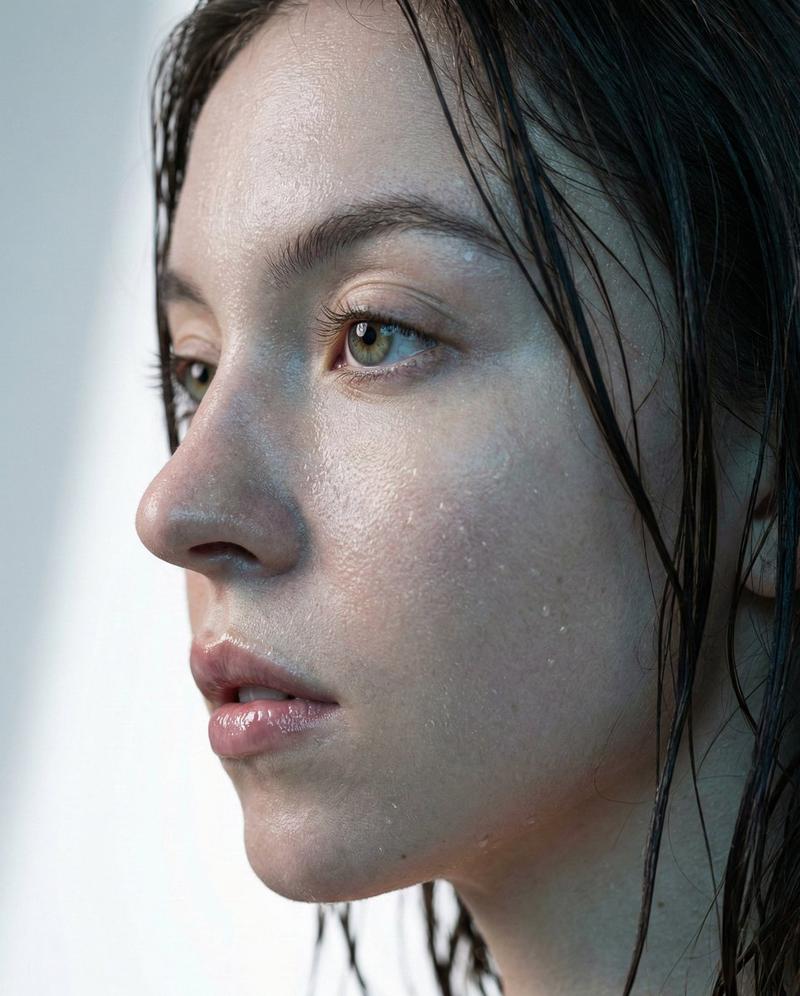
AI Video Workspace Screenshot
Prompt
Goal: Create a clean web-app interface screenshot showing an AI video-generation workspace with a large cinematic preview image and a text prompt composer below it.

Canvas: Wide 16:9 screenshot on a very light gray background, minimal modern UI, soft shadows, rounded corners, lots of white space.

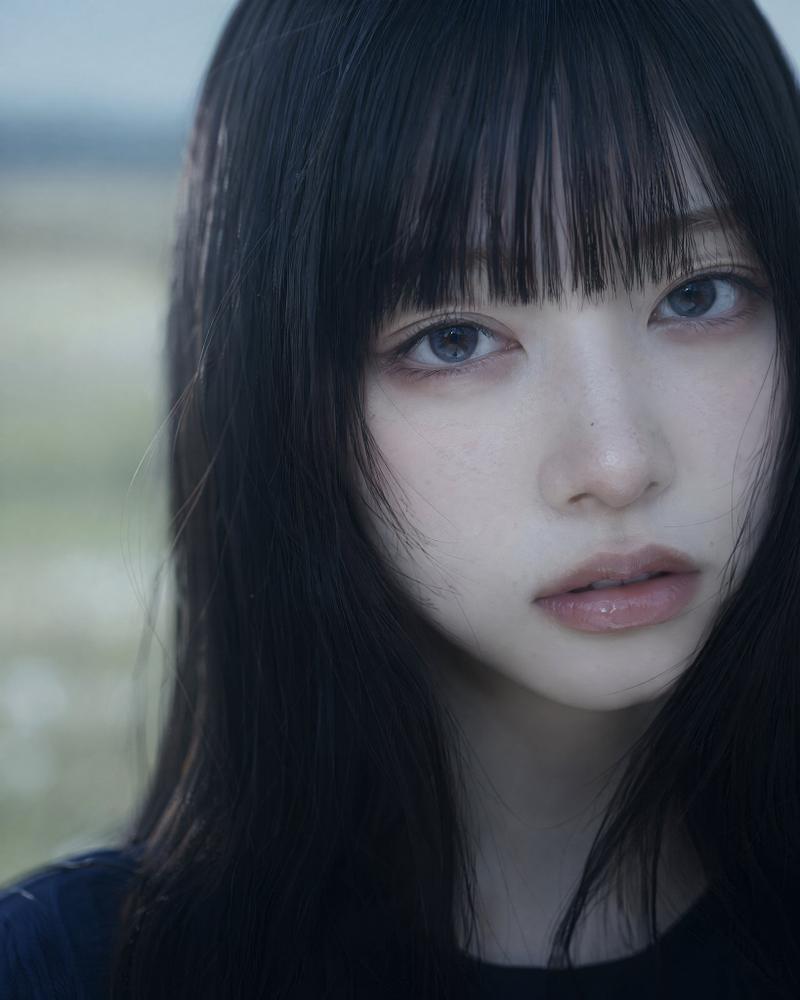
Main preview: Place one large rounded-rectangle preview panel centered near the top, about 85% of the canvas width and 60% of the canvas height. The preview shows a photorealistic close-up of {argument name="main subject" default="a young woman with long dark hair"} standing in a dewy green field at sunrise. Her face is mostly covered by a large opaque square privacy block in the center, colored dark warm brown. Visible details include dark hair on the left side, a small part of the lower face and neck below the block, misty grass in the foreground, distant hills, a bright warm sunrise glow on the right, and a soft cinematic shallow-depth-of-field look.

Left thumbnail rail: On the left side of the preview, show exactly 5 small vertical rounded thumbnails stacked evenly. The 5 thumbnails are: 1) close-up face with eyes closed, 2) close-up face with a small overlay icon, 3) side-profile close-up, 4) blurred brown square privacy-block image, 5) darker blurred image with a tiny overlay icon.

Right action toolbar: On the right side of the preview, show exactly 6 circular floating buttons stacked vertically. The 6 buttons are: 1) heart icon in red, 2) X icon, 3) circular refresh arrow, 4) download arrow, 5) black highlighted upload/share icon, 6) three-dot more menu. Add a small muted-audio icon in the bottom-right corner inside the preview panel.

Prompt composer: Below the preview, centered, create a rounded white prompt input card with a subtle border and shadow. At the top-left of the card show exactly 4 small attachment tiles in a row: 1) a plus button, 2) a cropped brown-face thumbnail, 3) a face/portrait thumbnail, 4) a small character-sheet-like thumbnail with multiple figures. Under the attachments, include this readable English prompt text: "Use this image as the start keyframe. Create a seamless cinematic close-up video of a young woman in a sunrise field. The shot opens with a quiet pause, holding her face in stillness with her eyes gently closed. Her expression is calm, inward, and emotionally delicate, as if feeling the morning light before awakening. After this held opening moment, she slowly opens her eyes with natural, graceful eyelid motion." Use {argument name="quality label" default="720p"} as the selected pill in a row of small option pills, with neighboring pills labeled "480p", "6s", and "10s". Place a black circular send button with an upward arrow at the bottom-right of the card.

Additional details: Add a small circular user avatar near the lower-left of the composer area. Keep typography small, clean, sans-serif, and UI-like. The overall impression should be a realistic screenshot of a video prompt tool, not a standalone photograph. Do not add extra buttons, extra thumbnails, watermarks, browser chrome, or unrelated text.- Category
- Charts & Infographics
- Model
- GPT Image 2
- Creator
- ai honobono | AI Art, Fiction, Music
- Source language
- en
- Source ID
- 24670
- Published
- Jun 7, 2026
Views243