Claude Design 同步 UI 模型
Prompt
Goal: Create a polished wide 16:9 product-announcement mockup showing Claude Design and Claude Code working together on a fundraising webpage design.

Canvas: 1200×675 landscape composition with a warm coral-orange background filling the full frame. Center a large cream-white design canvas with subtle shadow, partially covered by a left editor sidebar, a right donation card, and a floating terminal window.

Layout: Use exactly 4 main interface elements: 1 left design editor panel, 1 central webpage artboard, 1 right donation progress card, and 1 floating dark terminal window in the upper-right. The artboard should sit behind the panels, with the terminal overlapping its top-right area.

Left editor panel: A rounded off-white sidebar titled “Playground Crowdfunding Page” with a small circular app icon at far left and a bell icon at far right. Below it show a top row with exactly 3 actions: “Edit”, “Discard”, and a coral “Save” button. Then show exactly 3 tabs: “Simple”, “Pro”, “Code”, with “Simple” active. Include a compact toolbar with exactly 9 visible icons: selected pointer, cursor, rectangle, grid/cross, circle, text T, pencil, undo, redo. Add labeled controls for Text, Typography, Appearance, and Border. Typography controls should include font “Poppins”, size “36 px”, color “#1A1714”, weight “Bold”, italic, underline, strikethrough, alignment icons, leading “1.35”, case “none”, and tracking. Appearance controls should include background “None”, radius “0px”, overflow “visible”, opacity “1”, and z “auto”.

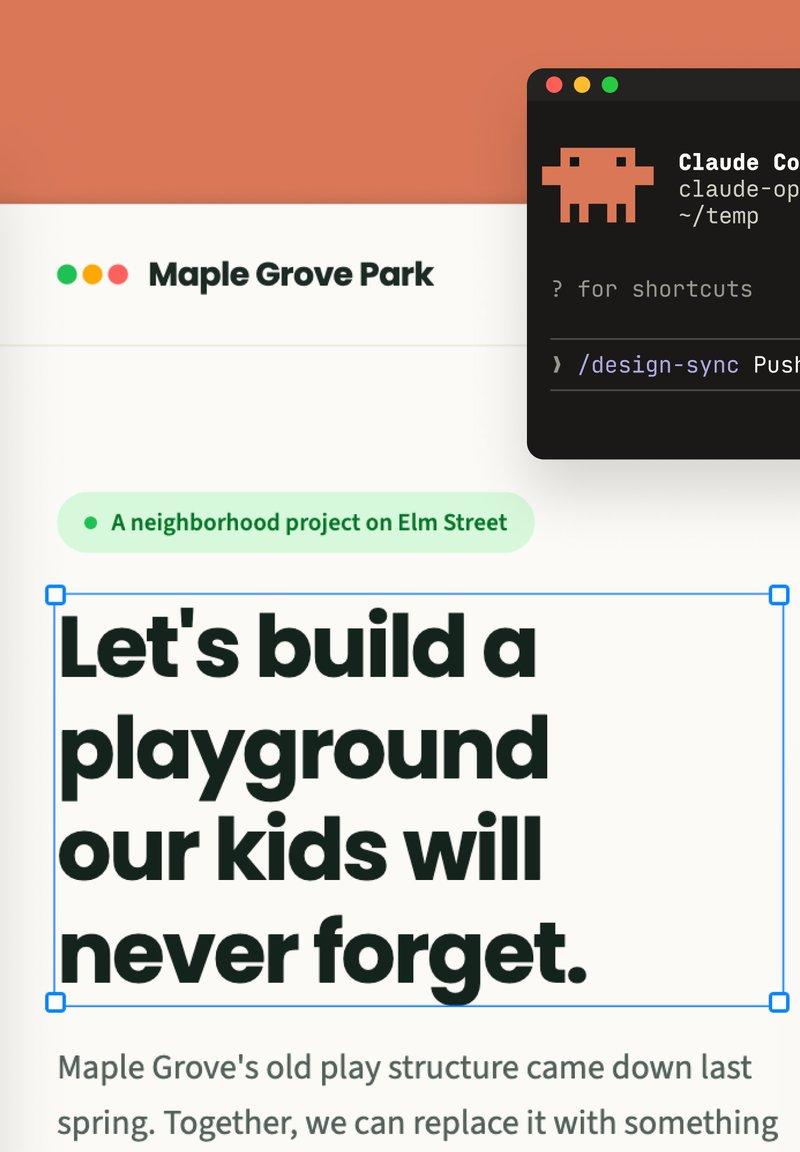
Central webpage artboard: At the top of the webpage show a small logo made of exactly 3 colored dots: green, yellow, and red, followed by the site name {argument name="organization name" default="Maple Grove Park"}. Beneath it place a pale green pill tag with one green dot and the text {argument name="project label" default="A neighborhood project on Elm Street"}. The main headline must be large, bold, dark green-black, and actively selected with a thin blue bounding box and exactly 4 blue square corner handles. Headline text: {argument name="headline text" default="Let's build a playground our kids will never forget."} Break it into four lines like the image. Under the headline, show smaller gray body copy beginning “Maple Grove's old play structure came down last spring. Together, we can replace it with something”.

Right donation card: A white rounded card with a soft shadow, cropped slightly off the right edge. It contains exactly 4 visible content items: a selected amount text box reading {argument name="funding amount" default="$61,240"} with a blue dashed selection outline, a horizontal progress bar with green-to-lime fill and pale gray remainder, a status row reading “72% funded” on the left and “312 neighbors” on the right, and a large rounded green call-to-action button reading “Chip in today”.

Floating terminal window: In the upper-right, add a black macOS-style terminal with rounded corners and shadow. It has exactly 3 traffic-light dots: red, yellow, green. Window title line reads “temp — claude — 64x22”. Show a pixel-art orange Claude-like mascot icon on the left. Terminal text should include “Claude Code v2.1.176”, “claude-opus-4-8”, “~/temp”, “? for shortcuts”, and a command line reading “/design-sync Push my design components to Claude Design” with the caret at the end. Use monospaced terminal typography.

Visual style: Modern SaaS interface screenshot, clean Figma-like design controls, creamy whites, dark forest-green text, coral accent background, soft shadows, rounded corners, crisp readable UI text, high-end presentation slide aesthetic.

Constraints: Keep the composition wide and uncluttered, preserve the exact counts listed above, do not add people, do not add extra panels, and do not include watermarks.- Category
- Charts & Infographics
- Model
- GPT Image 2
- Creator
- しょうへい|デイトラ代表 / AI経営顧問
- Source language
- en
- Source ID
- 26157
- Published
- Jun 18, 2026
Views0