18

远征规划战略项目
Enlarge

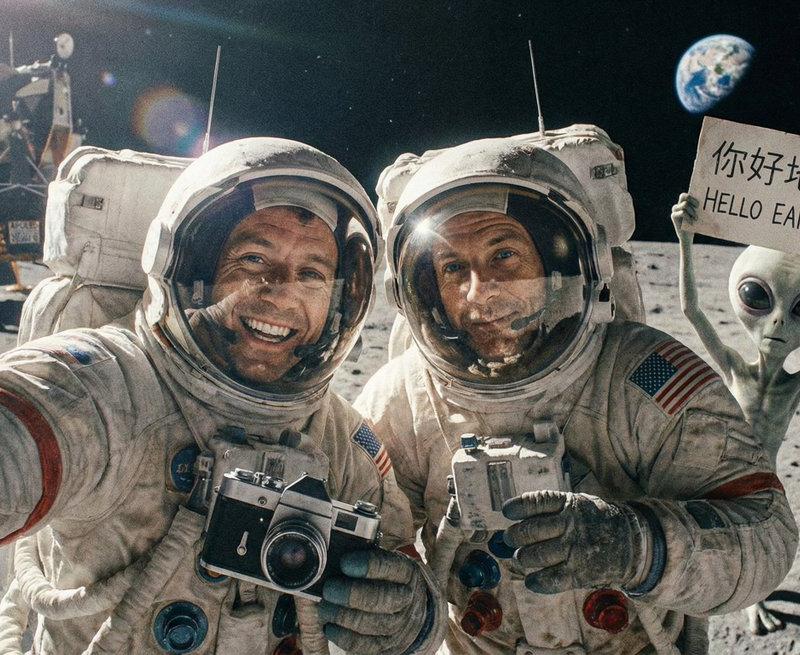
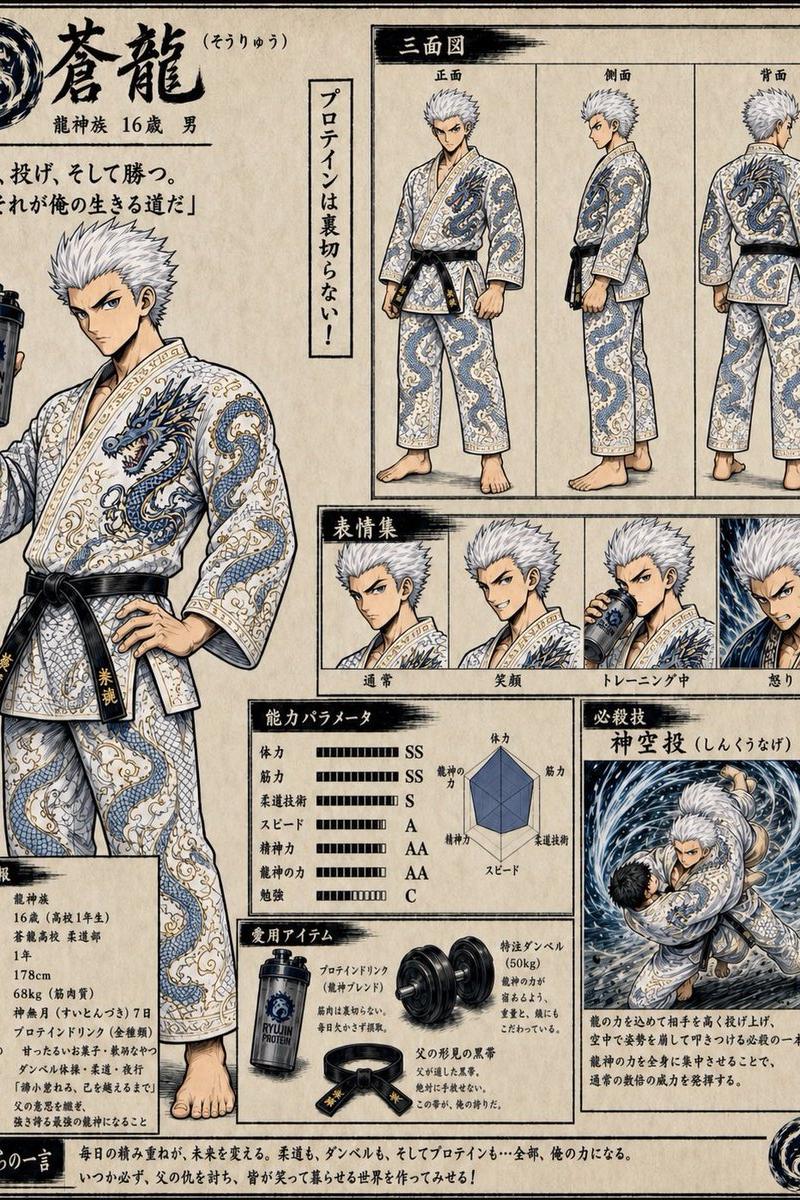
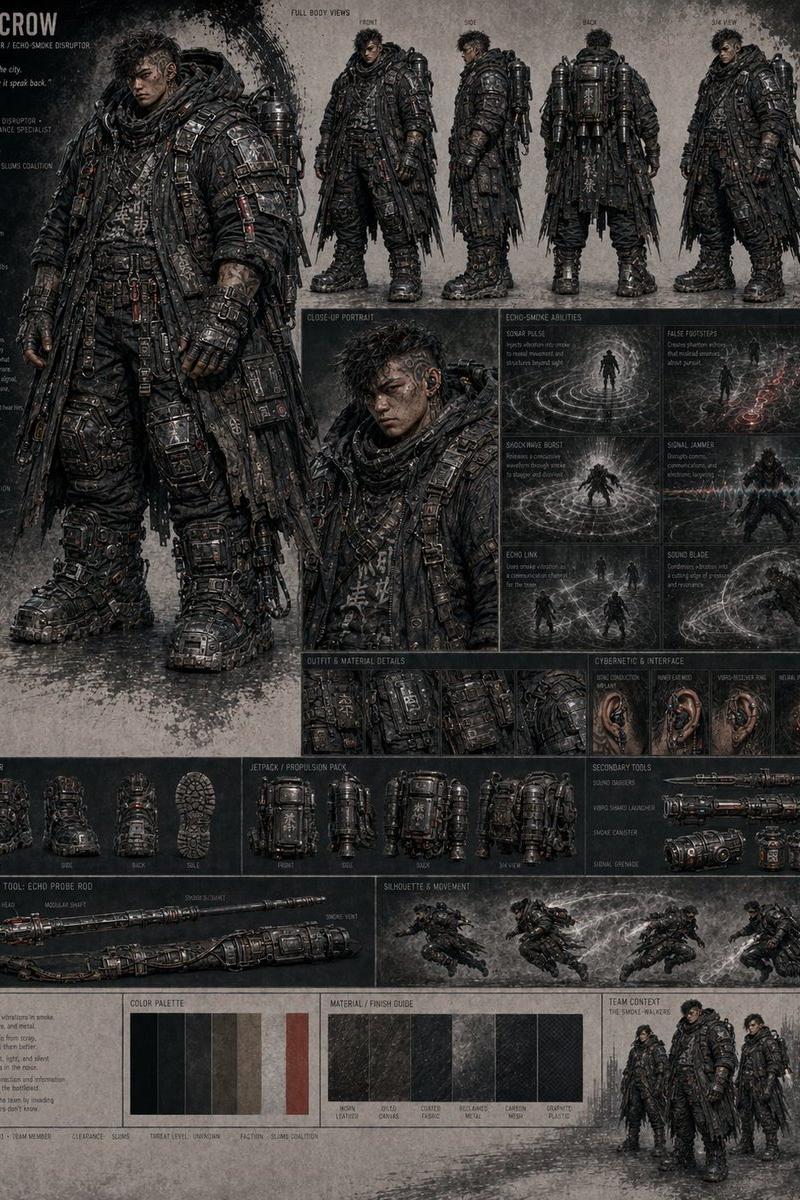
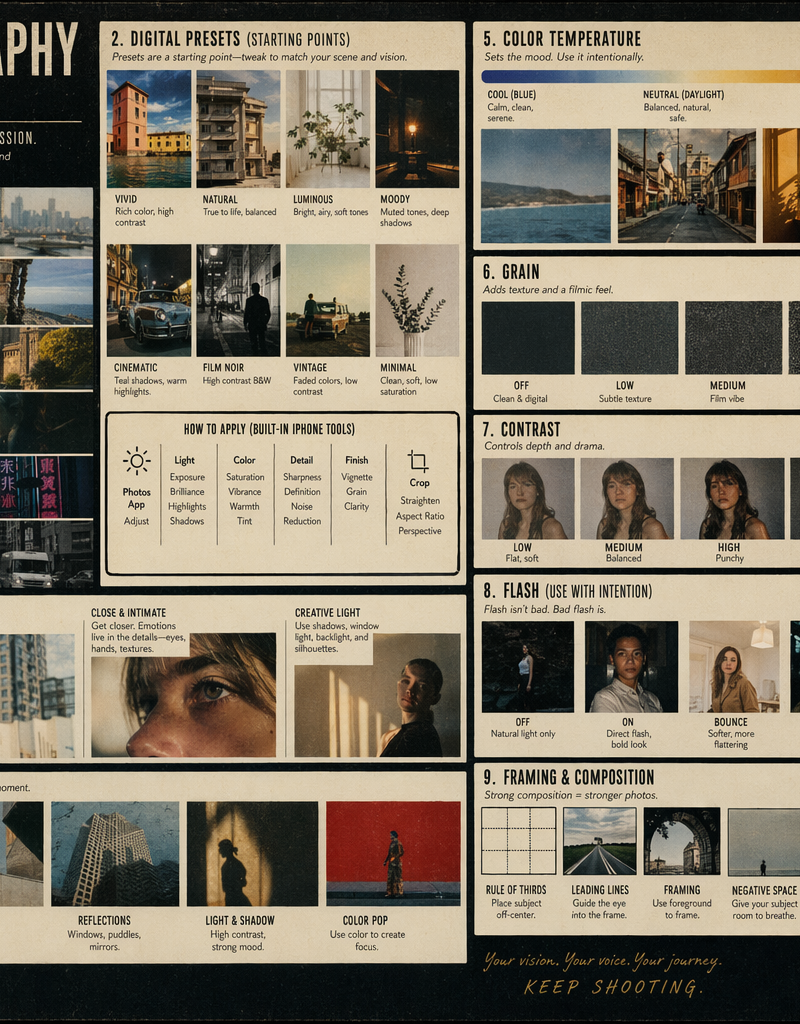
Example images

远征规划战略项目

Prompt
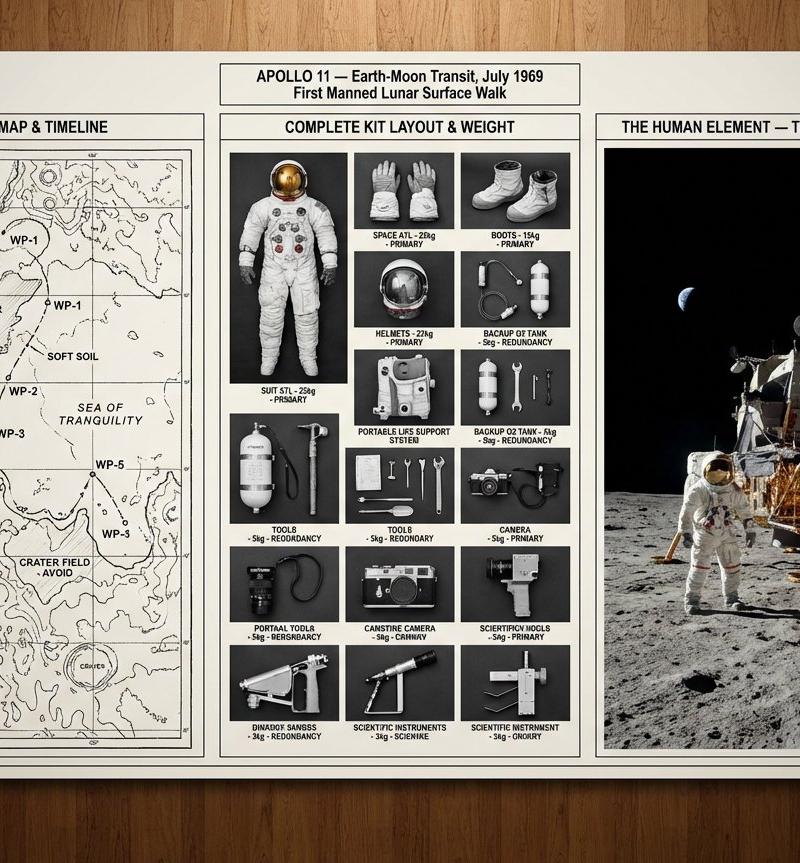
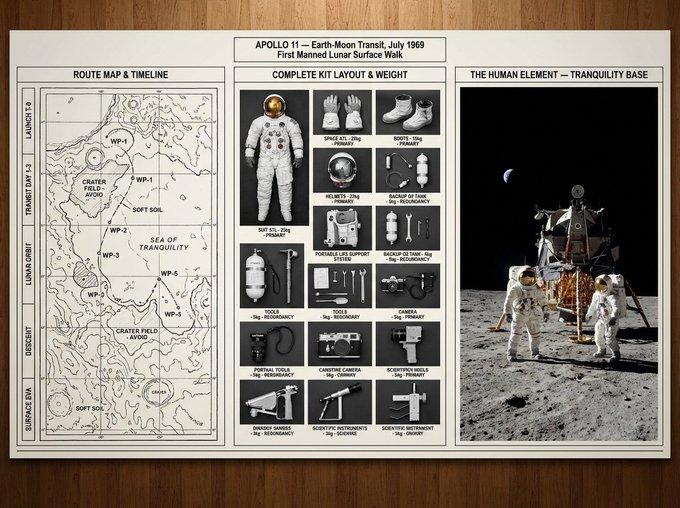
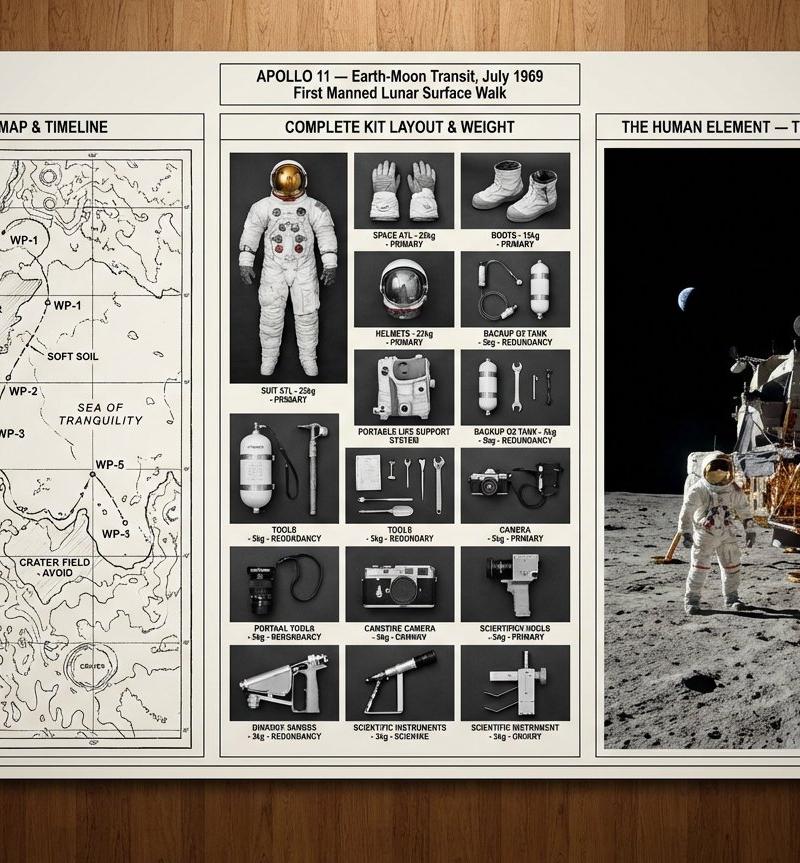
A strategic command board for an expedition leader planning {argument name="mission type" default="[JOURNEY / MISSION]"} to {argument name="location" default="[DESTINATION / ERA]"}. Left panel: detailed topographic route map with labeled waypoints, annotated danger zones, and a timeline running along the edge. Center panel: overhead flat lay of every piece of kit in neat organized rows, each item tagged by weight and function, redundancies flagged, nothing unnecessary included. Right panel: the expedition in motion or the destination reached, small human figures against a vast landscape, scale unmistakable. Visual language shifts from cartographic precision through functional inventory documentation to sweeping epic environmental photography. Title block reads: "{argument name="expedition name" default="[EXPEDITION NAME]"} — [ROUTE], [DATE], [OBJECTIVE]".
Category
Charts & Infographics
Model
GPT Image 2
Creator
PromptLab
Source language
en
Views0
Source ID
26498
Published
Jun 22, 2026
Studio

Guide

About "远征规划战略项目"

What is this prompt for?

"远征规划战略项目" AI image prompt for GPT Image 2 (Charts & Infographics). 生成一份全面的远征规划项目布局,包含地形图、功能性装备清单和环境摄影,以规划特定任务。 Copy it on Picva and recreate the look in one c…

The full copyable prompt and example visuals above are ready for AI image generation or one-click recreate in Picva.

How to use this prompt

  1. Step 1

    Open the prompt detail

    Review the example visuals, category, and full prompt text for "远征规划战略项目".

  2. Step 2

    Copy the prompt

    Copy the prompt body from this page, or load it directly in Studio.

  3. Step 3

    Pick a model (GPT Image 2)

    Prefer GPT Image 2. If you switch models, keep subject and composition and tweak style terms.

  4. Step 4

    Generate and export

    Recreate the look in Picva, or export into your workflow for editing and publishing.

FAQ

What is the "远征规划战略项目" prompt?
It is an AI image-generation prompt for GPT Image 2 in the Charts & Infographics category. This page includes the full prompt text, example visuals, and a one-click recreate path in Picva.
How do I use this prompt to generate an image?
Copy the prompt from this page, or use Generate / Studio. Paste it into a compatible image model, or recreate the look in Picva with optional reference images.
Which model is this prompt for?
This page lists GPT Image 2. Most descriptive prompts also transfer to nearby image models such as GPT Image, Flux, or Midjourney with light style tweaks.
Can I use the result commercially?
You can usually copy the prompt for creation, but commercial use of the final image depends on the model terms, reference-image rights, and the generated content. Follow the source author and platform rules.