17

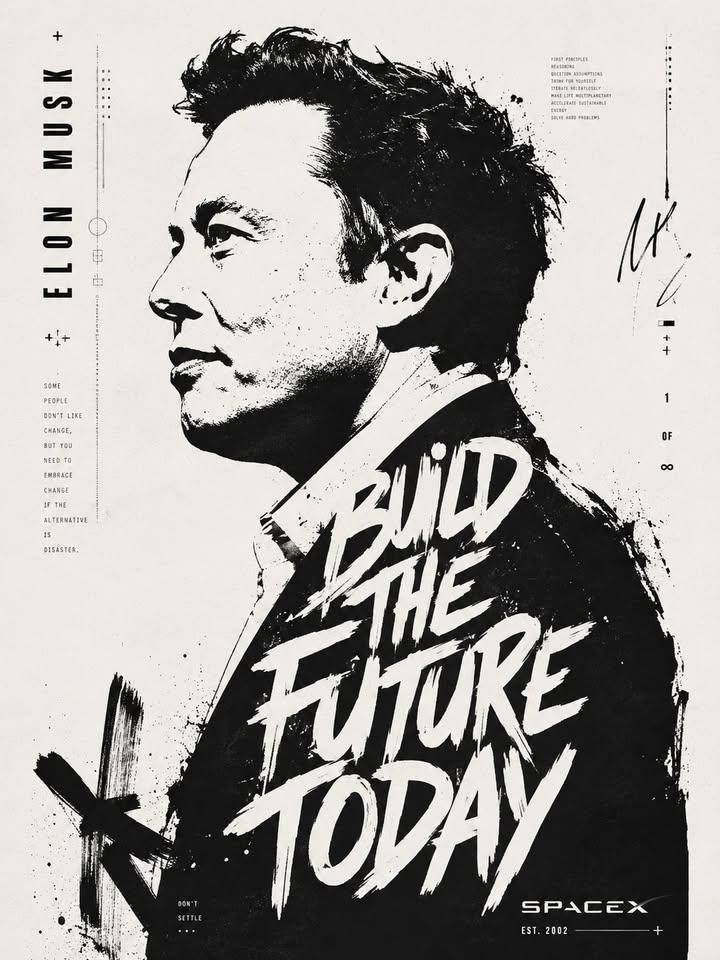
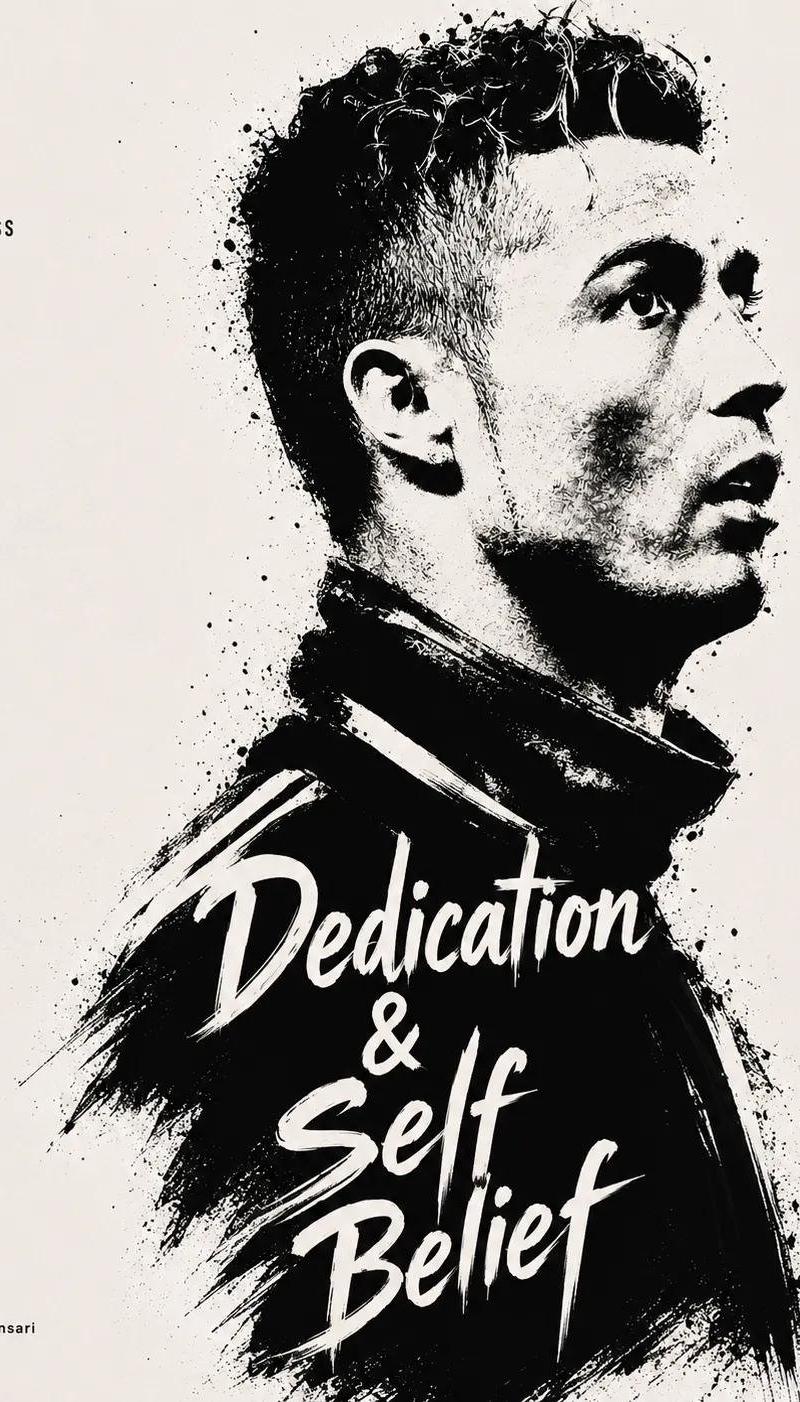
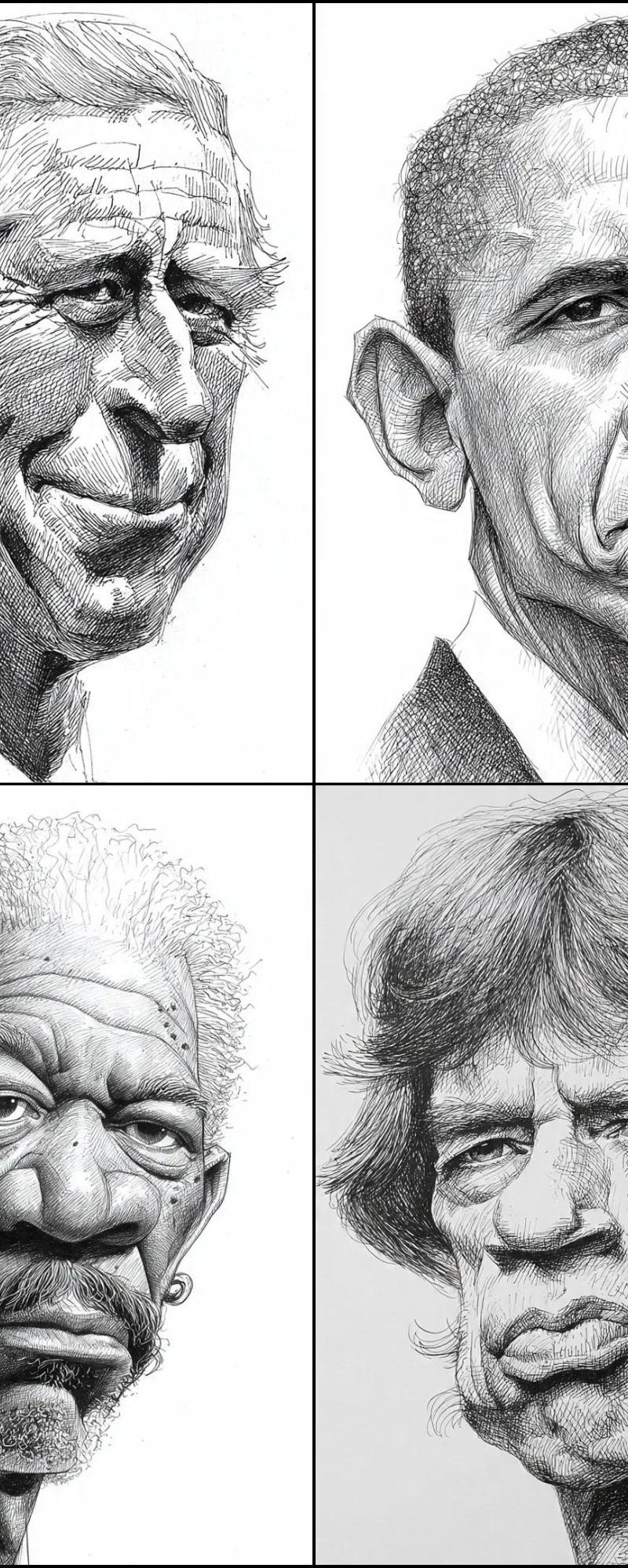
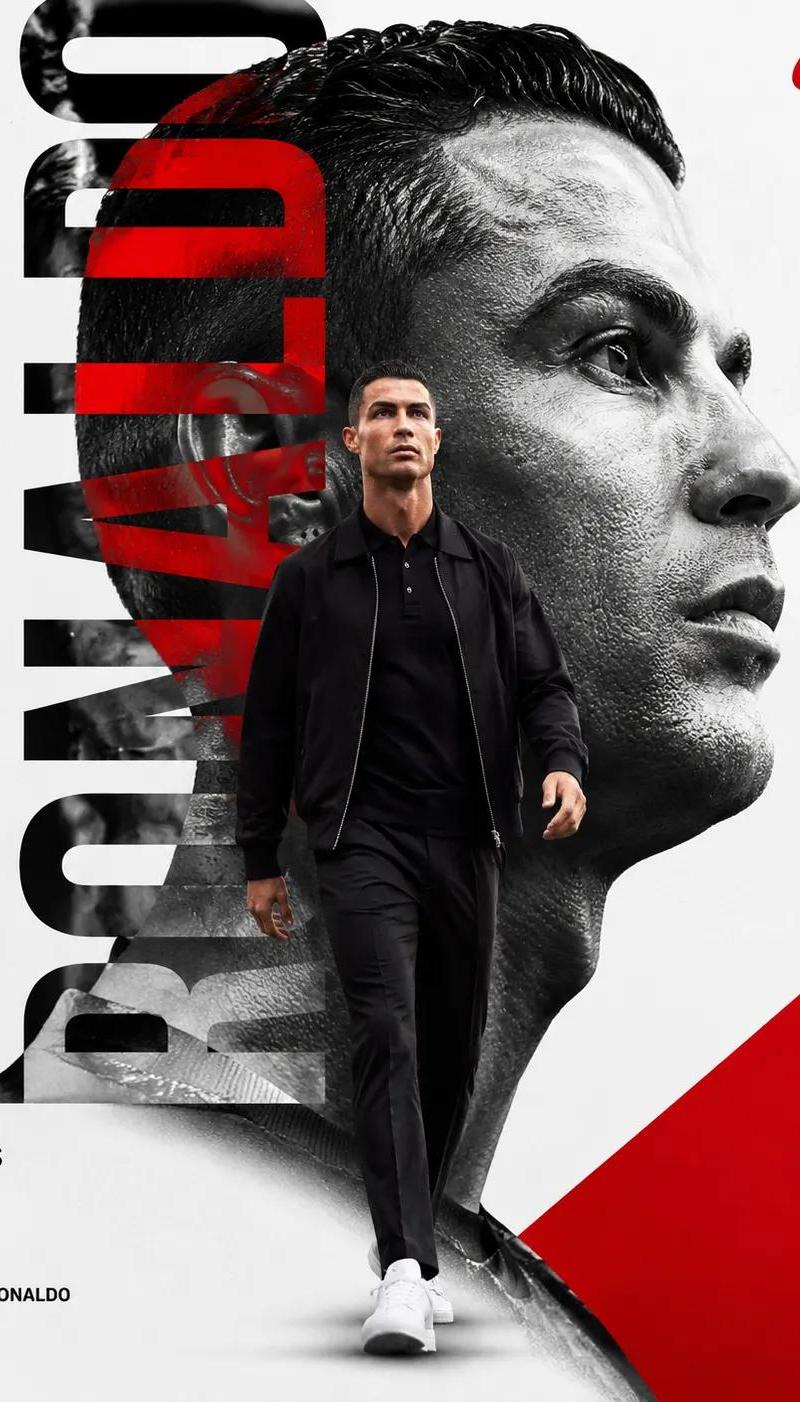
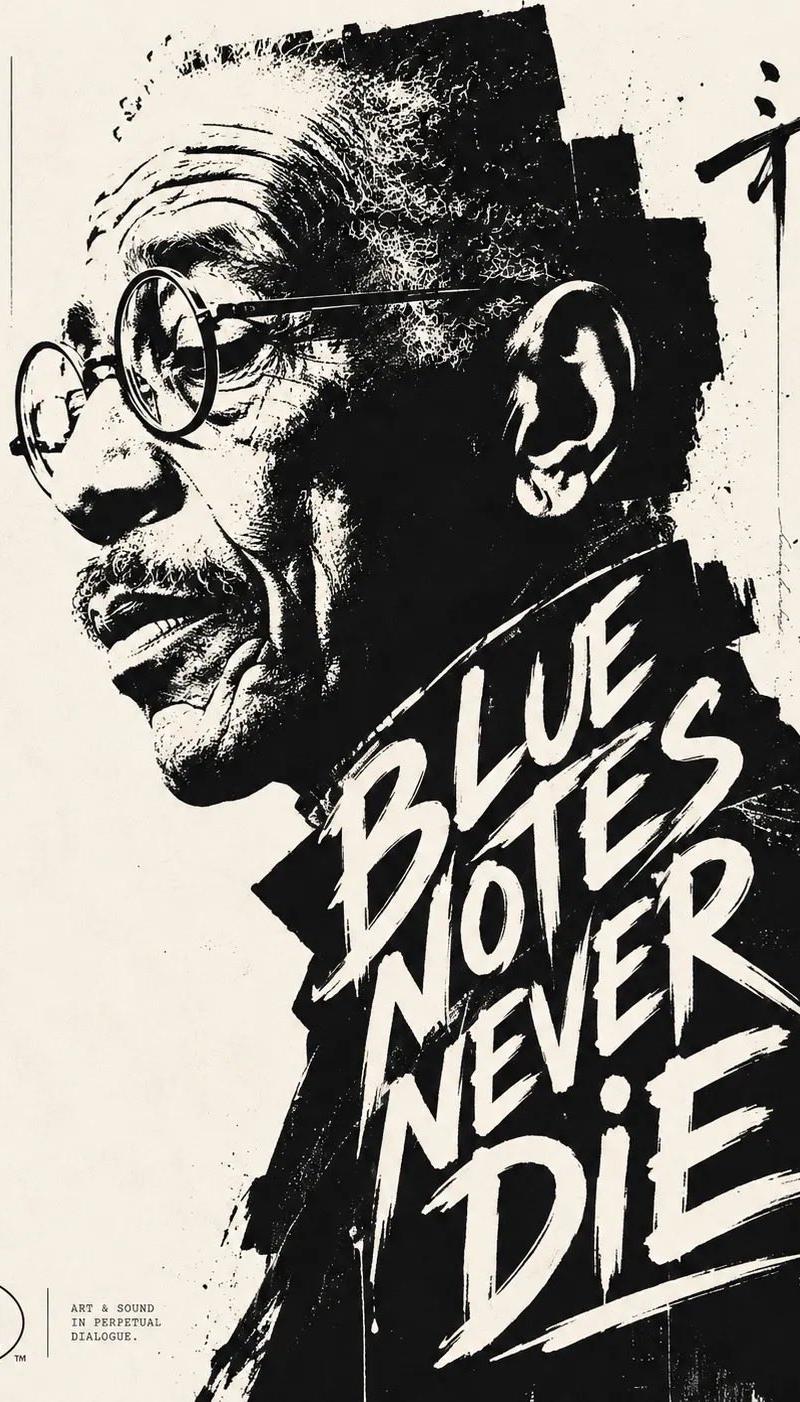
排版墨迹肖像海报
Enlarge

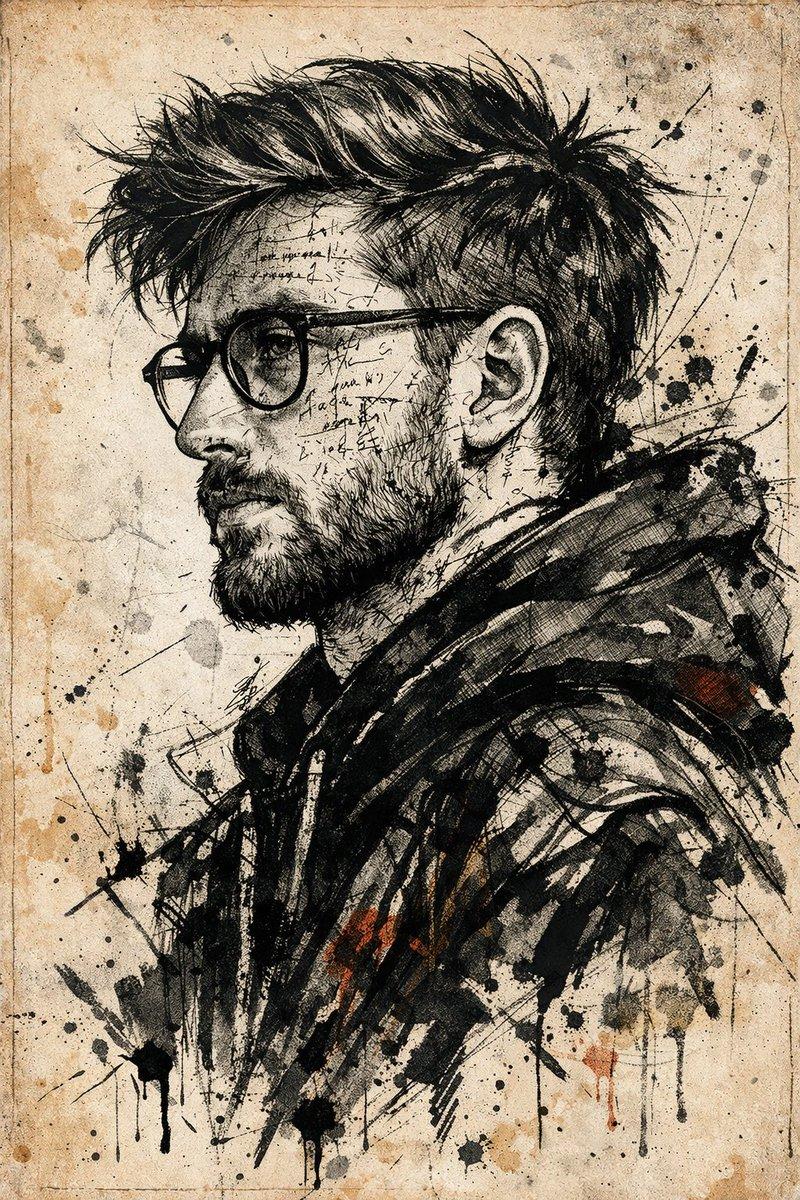
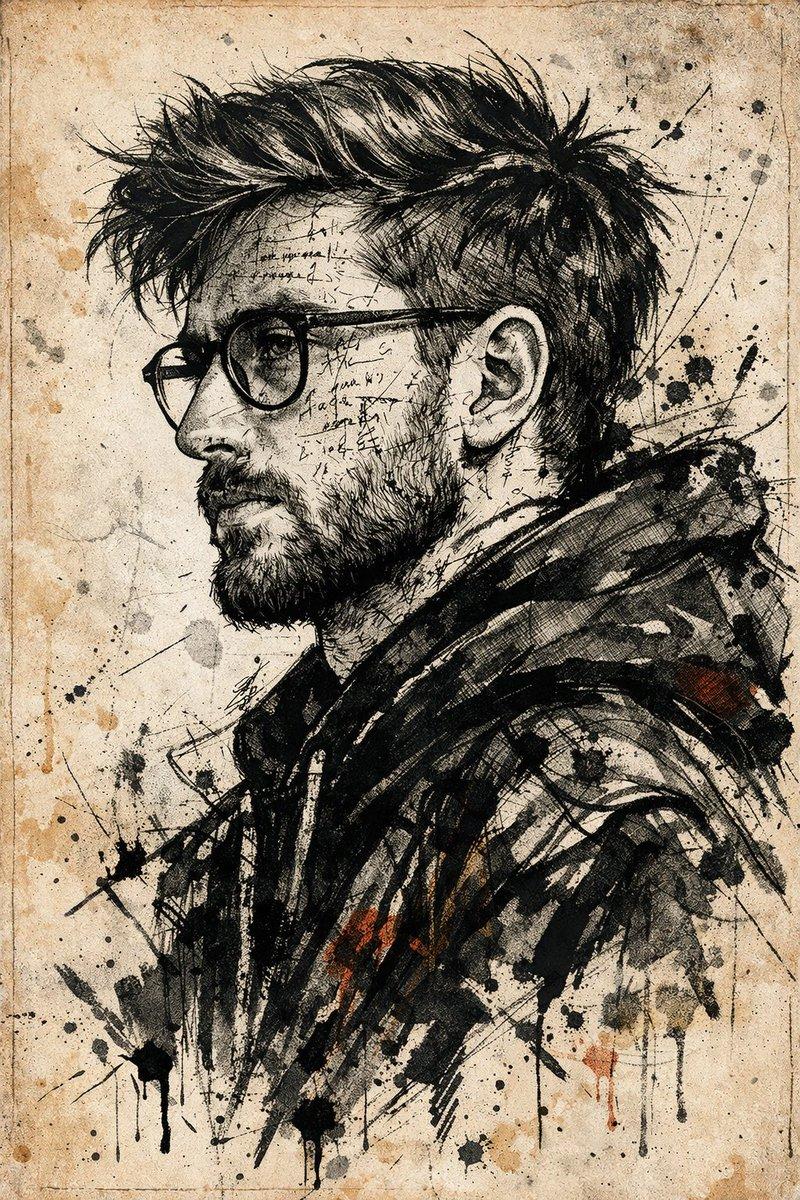
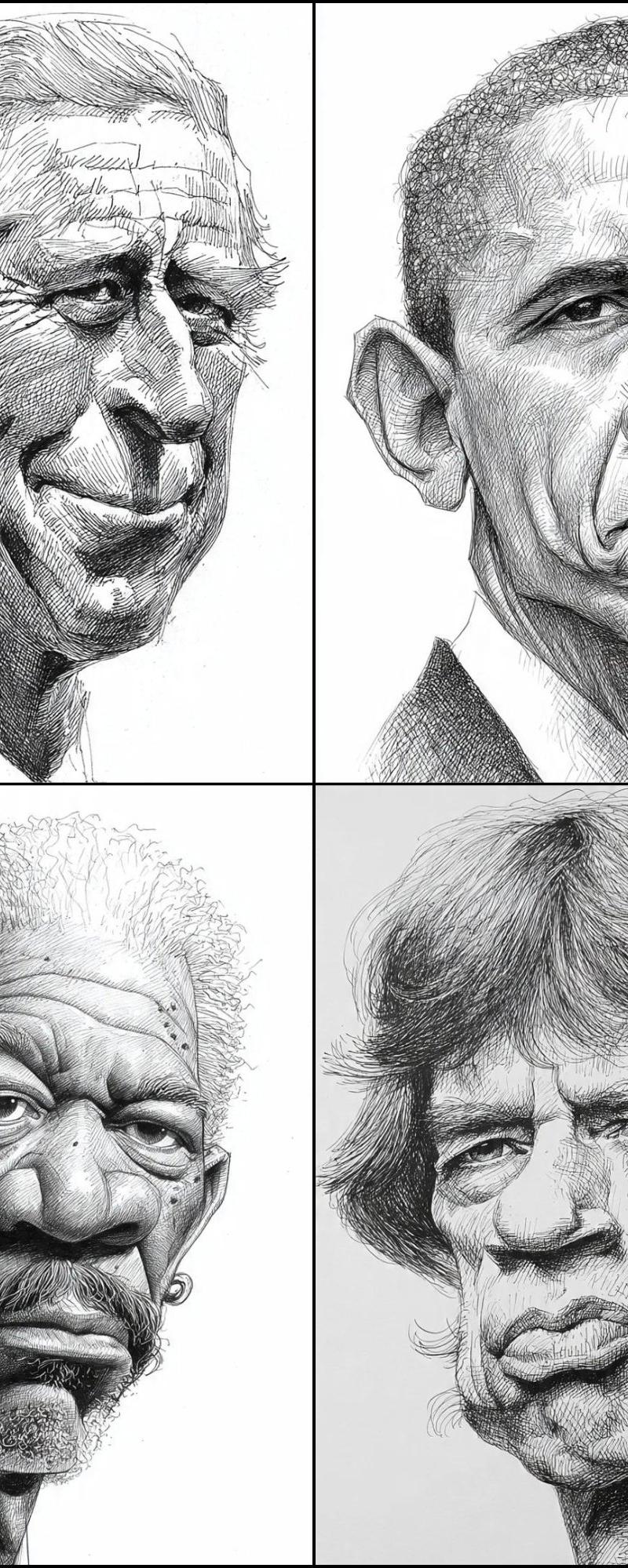
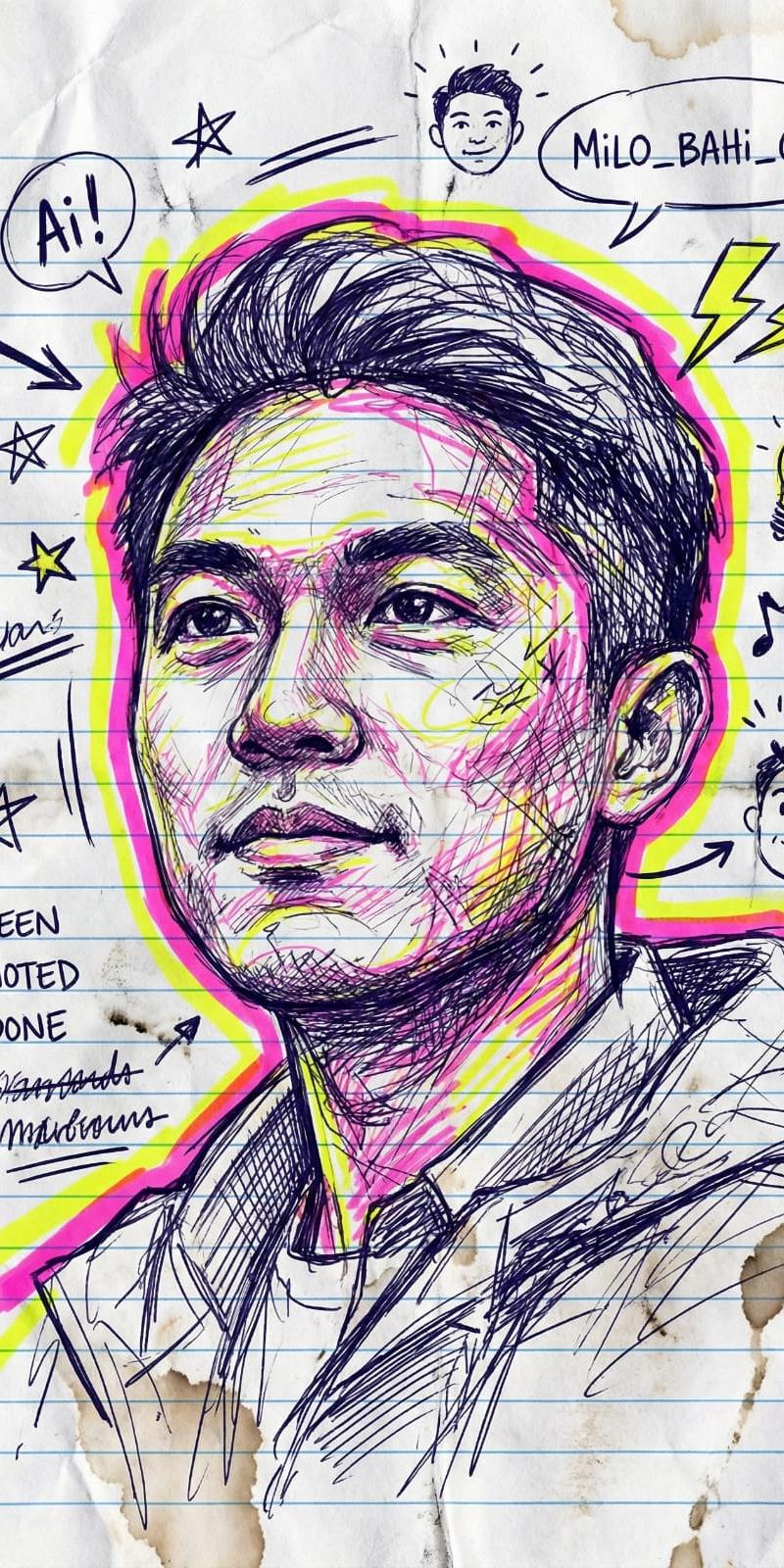
Example images

排版墨迹肖像海报

Prompt
High-contrast black and white typographic portrait poster of {argument name="subject" default="HUMAN"}, shown in side profile with {argument name="distinctive feature" default="FEATURE"}. Build the portrait with bold black silhouette blocks, sharp negative space, rough ink edges, fragmented stencil shapes, tiny editorial microtext, vertical typographic accents and expressive hand-drawn calligraphic marks. Integrate one large readable text block saying “{argument name="quote text" default="TEXT"}” in 2 to 4 stacked lines, placed only inside the neck and body area, using oversized scribbled lettering that feels fused into the silhouette. Include a graphic design logo reading “[LOGO]” near the footer. Minimal off-white paper background, asymmetrical layout, cropped vertical composition, experimental editorial poster design, raw ink print texture, aspect ratio 4:5.
Category
Charts & Infographics
Model
GPT Image 2
Creator
Duet | AI
Source language
en
Views0
Source ID
26754
Published
Jun 25, 2026
Studio

Guide

About "排版墨迹肖像海报"

What is this prompt for?

"排版墨迹肖像海报" AI image prompt for GPT Image 2 (Charts & Infographics). 一个实验性的编辑设计提示词,用于创作高对比度的黑白剪影肖像,并填充大号、易读的排版块。 Copy it on Picva and recreate the look in one c…

The full copyable prompt and example visuals above are ready for AI image generation or one-click recreate in Picva.

How to use this prompt

  1. Step 1

    Open the prompt detail

    Review the example visuals, category, and full prompt text for "排版墨迹肖像海报".

  2. Step 2

    Copy the prompt

    Copy the prompt body from this page, or load it directly in Studio.

  3. Step 3

    Pick a model (GPT Image 2)

    Prefer GPT Image 2. If you switch models, keep subject and composition and tweak style terms.

  4. Step 4

    Generate and export

    Recreate the look in Picva, or export into your workflow for editing and publishing.

FAQ

What is the "排版墨迹肖像海报" prompt?
It is an AI image-generation prompt for GPT Image 2 in the Charts & Infographics category. This page includes the full prompt text, example visuals, and a one-click recreate path in Picva.
How do I use this prompt to generate an image?
Copy the prompt from this page, or use Generate / Studio. Paste it into a compatible image model, or recreate the look in Picva with optional reference images.
Which model is this prompt for?
This page lists GPT Image 2. Most descriptive prompts also transfer to nearby image models such as GPT Image, Flux, or Midjourney with light style tweaks.
Can I use the result commercially?
You can usually copy the prompt for creation, but commercial use of the final image depends on the model terms, reference-image rights, and the generated content. Follow the source author and platform rules.