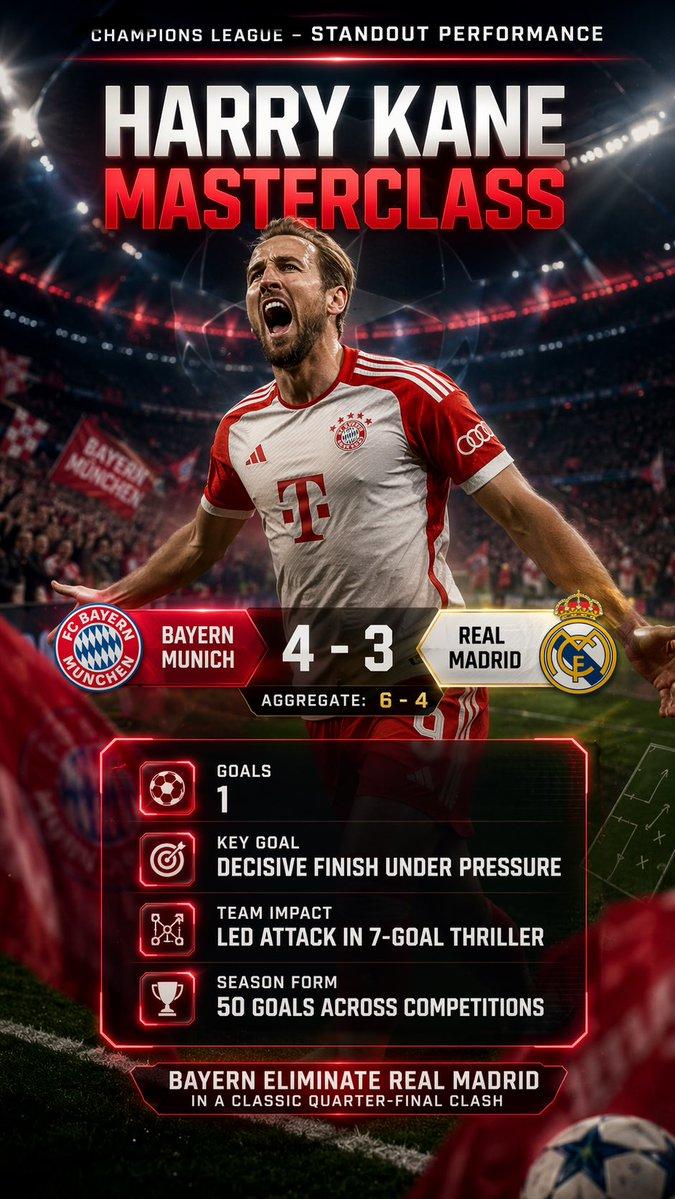
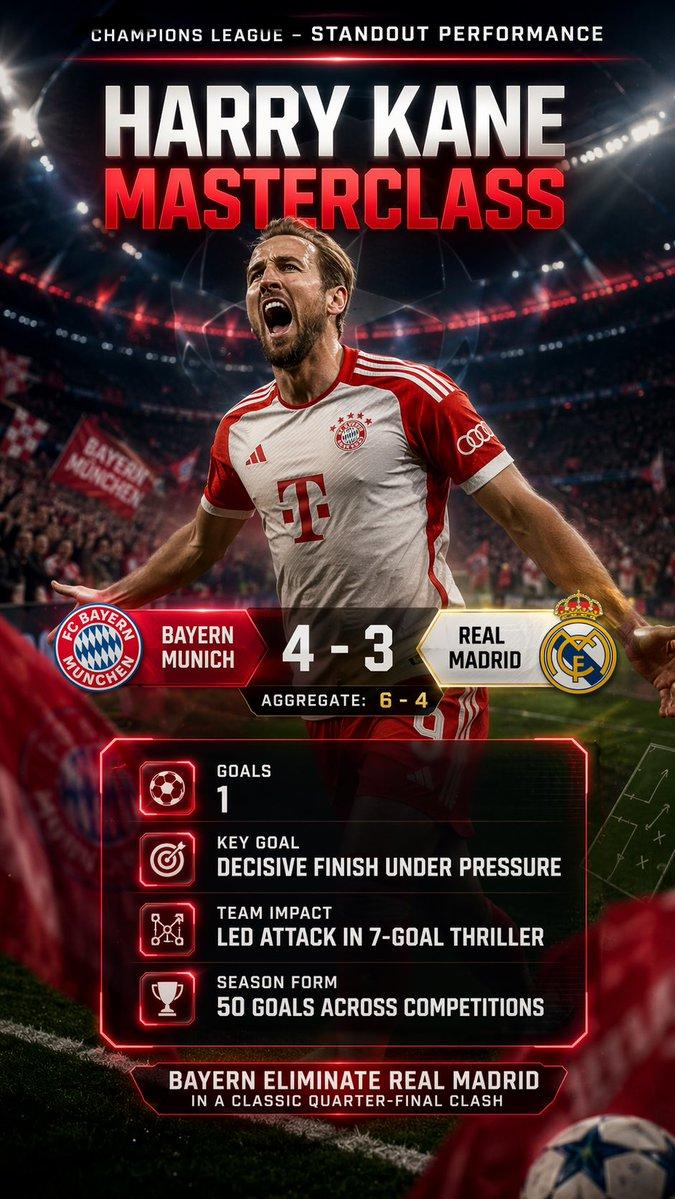
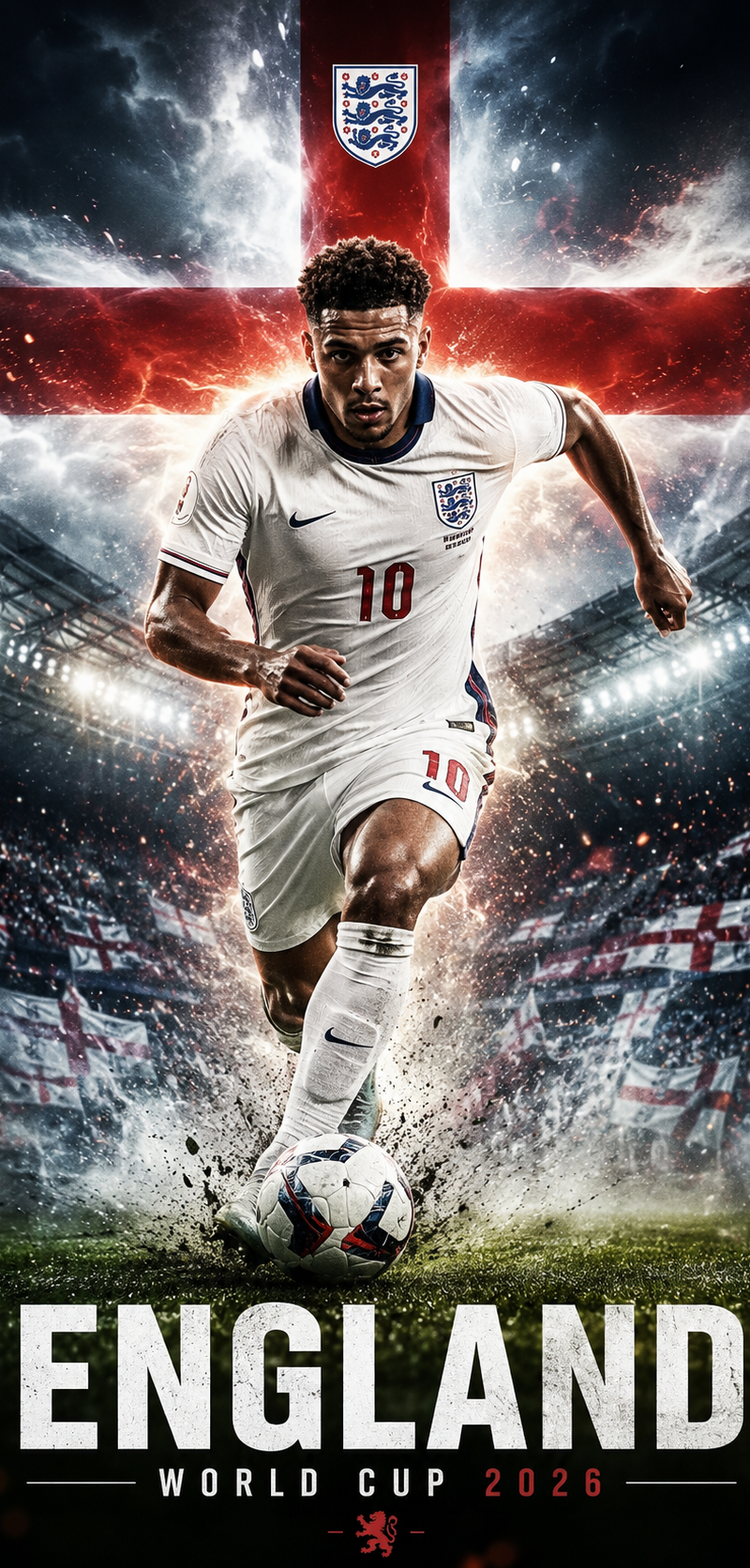
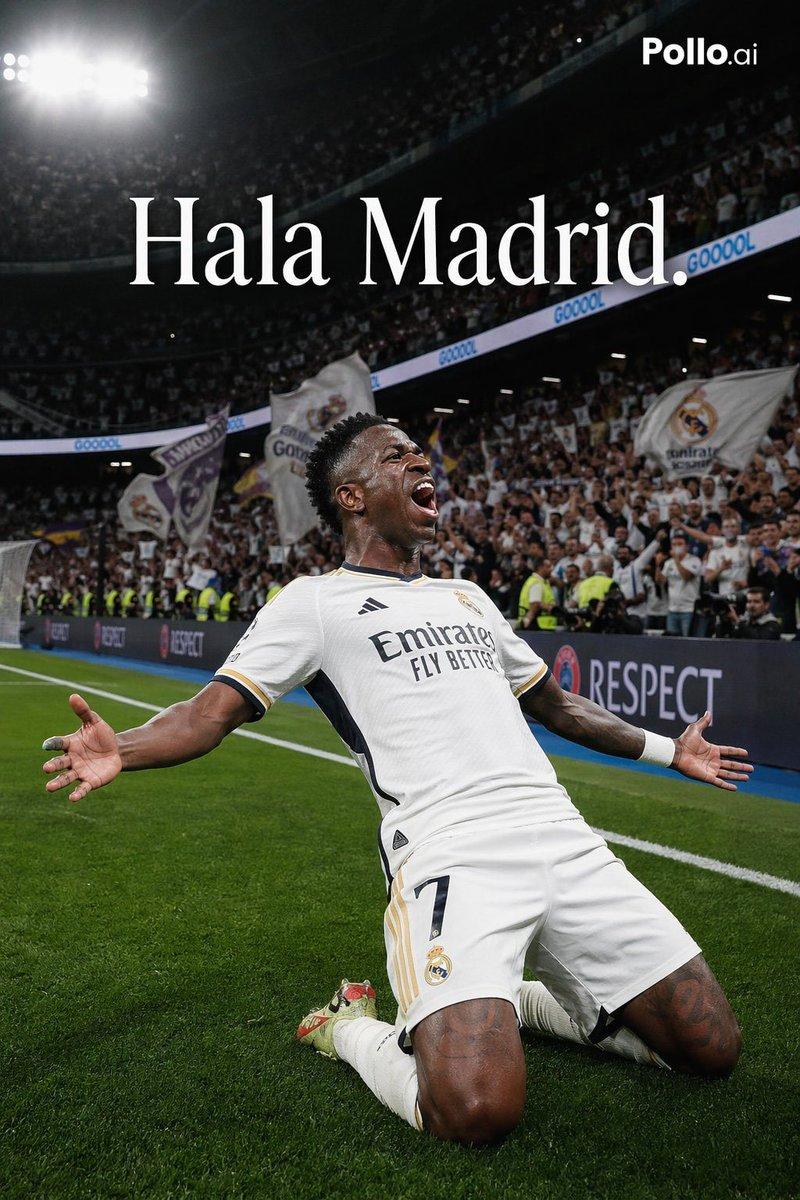
20

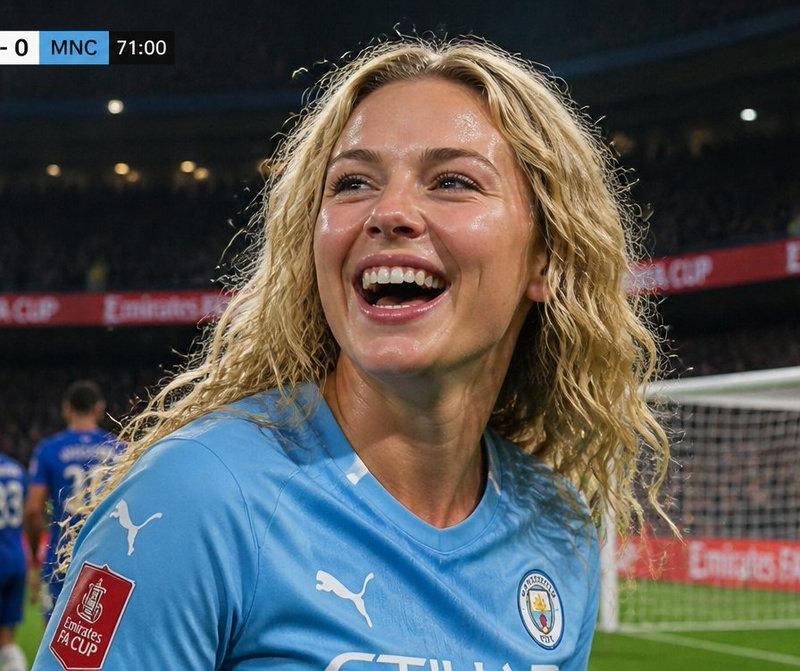
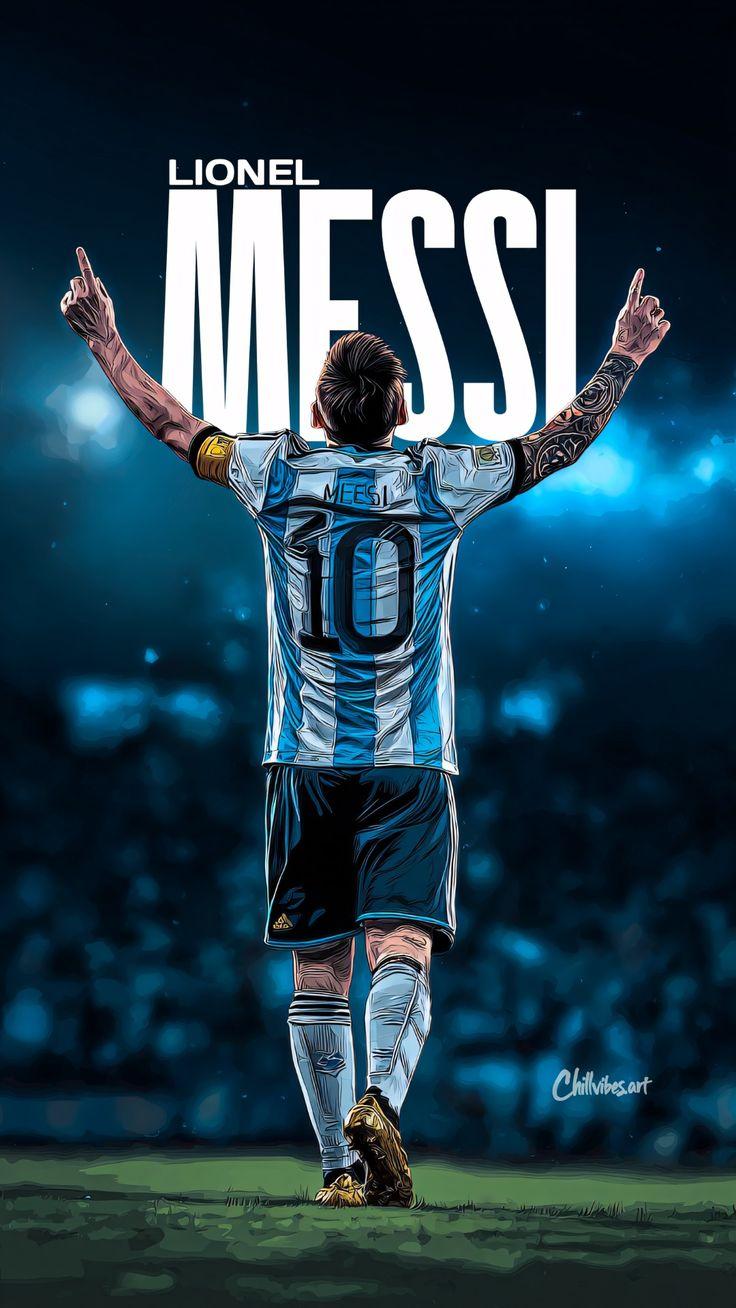
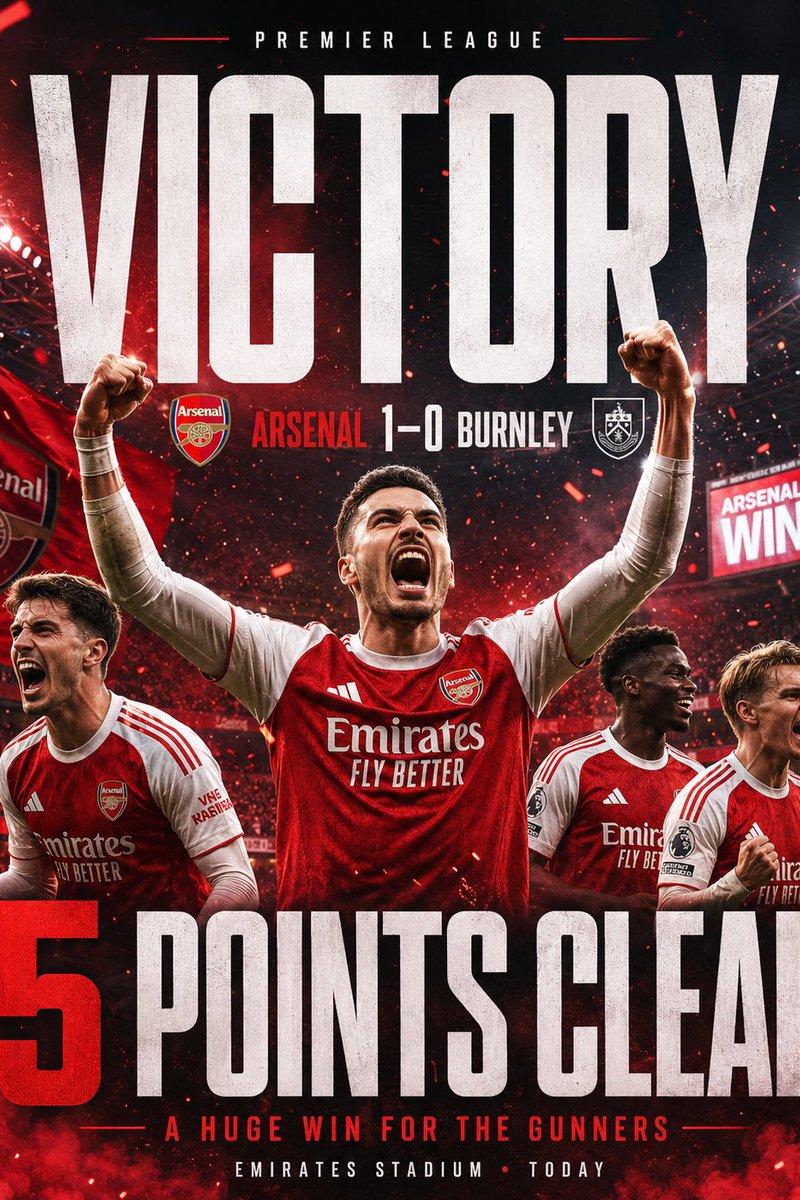
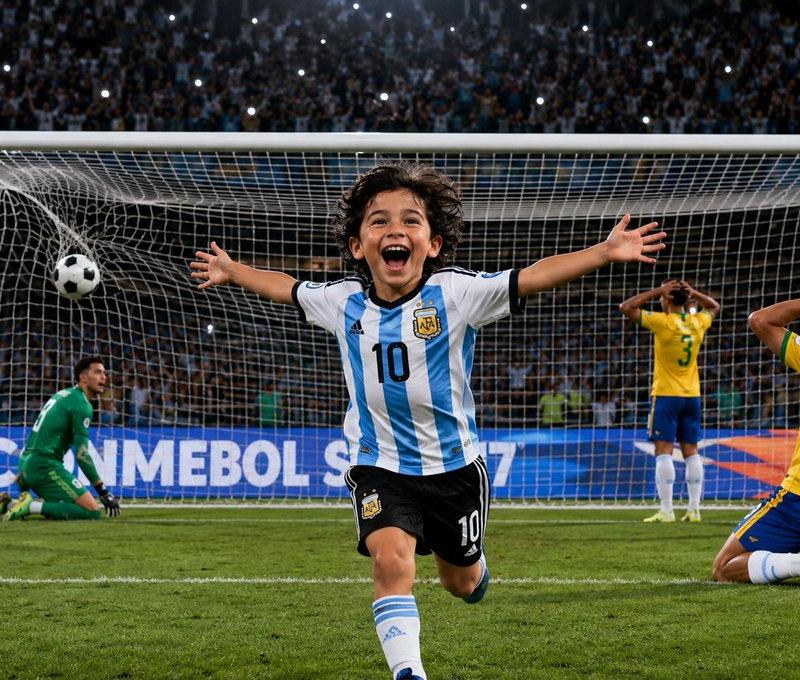
体育编辑海报设计
Enlarge

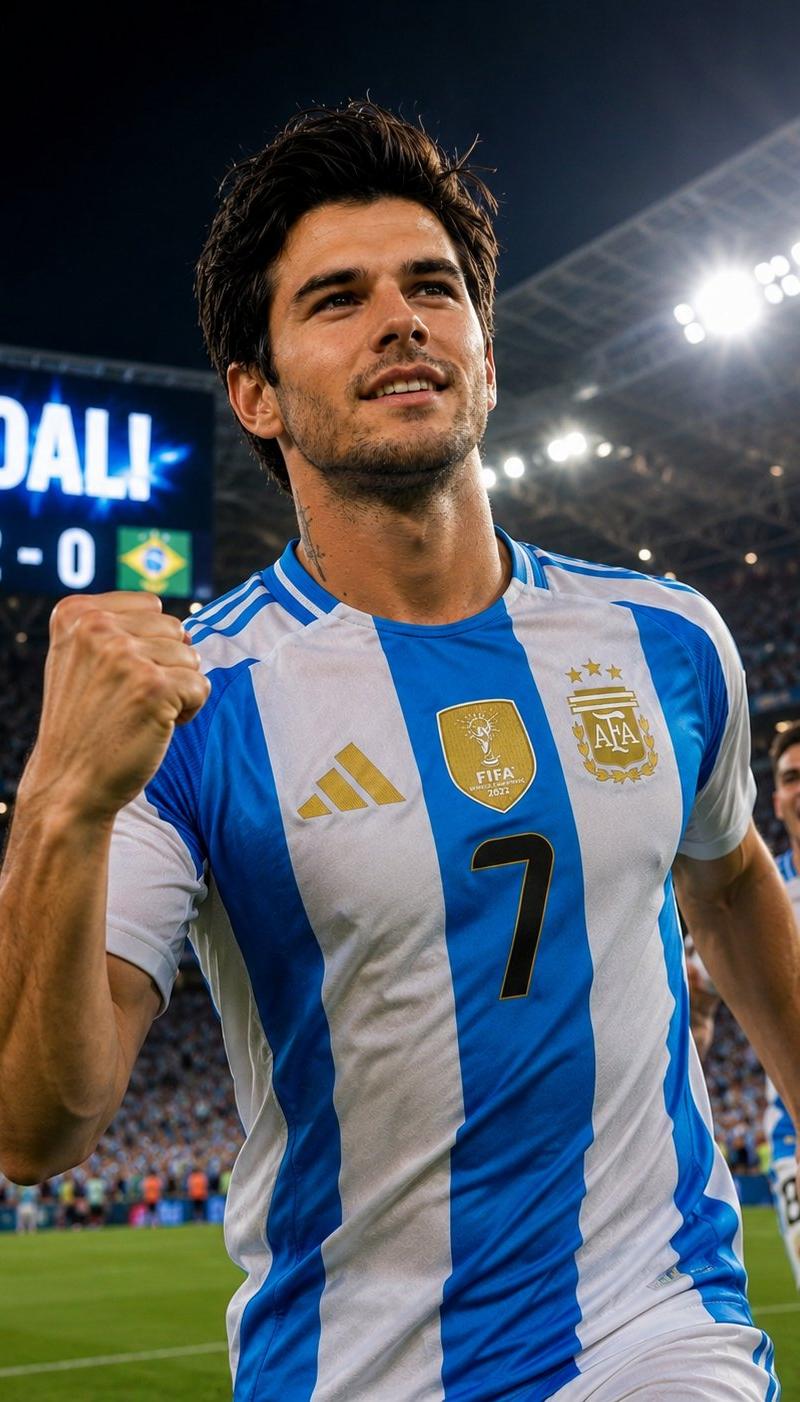
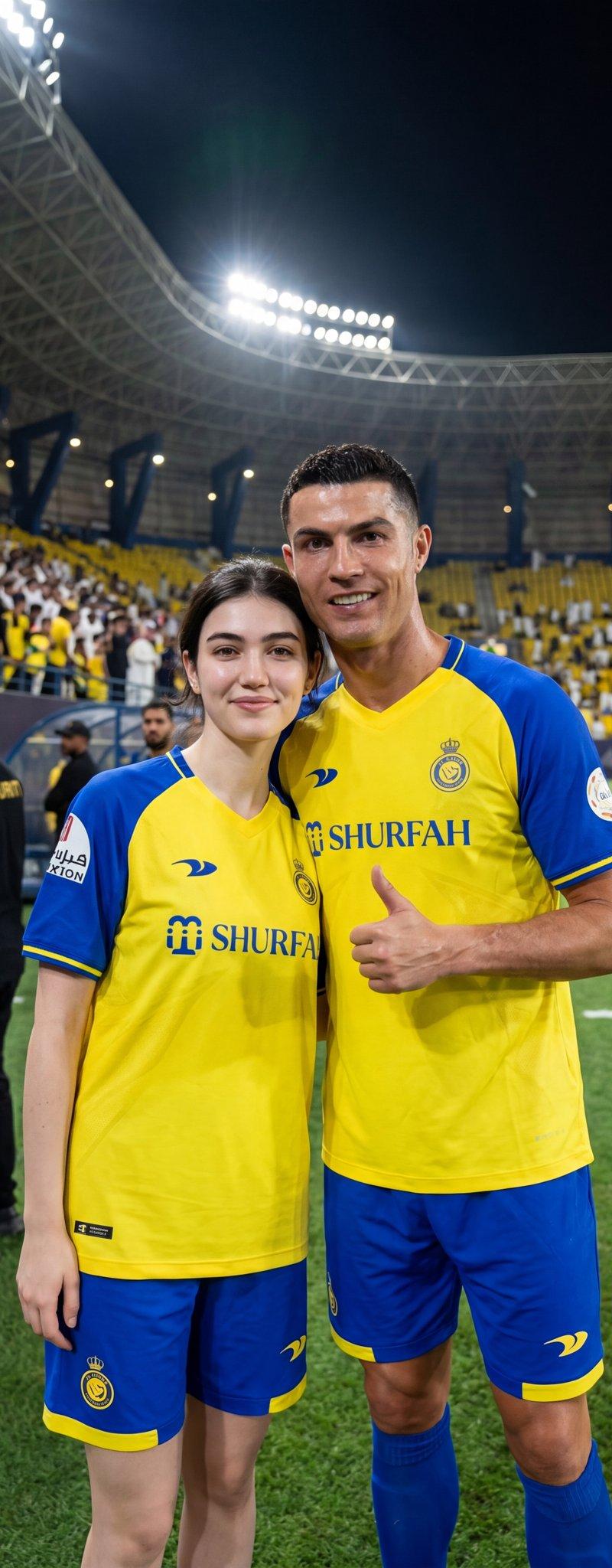
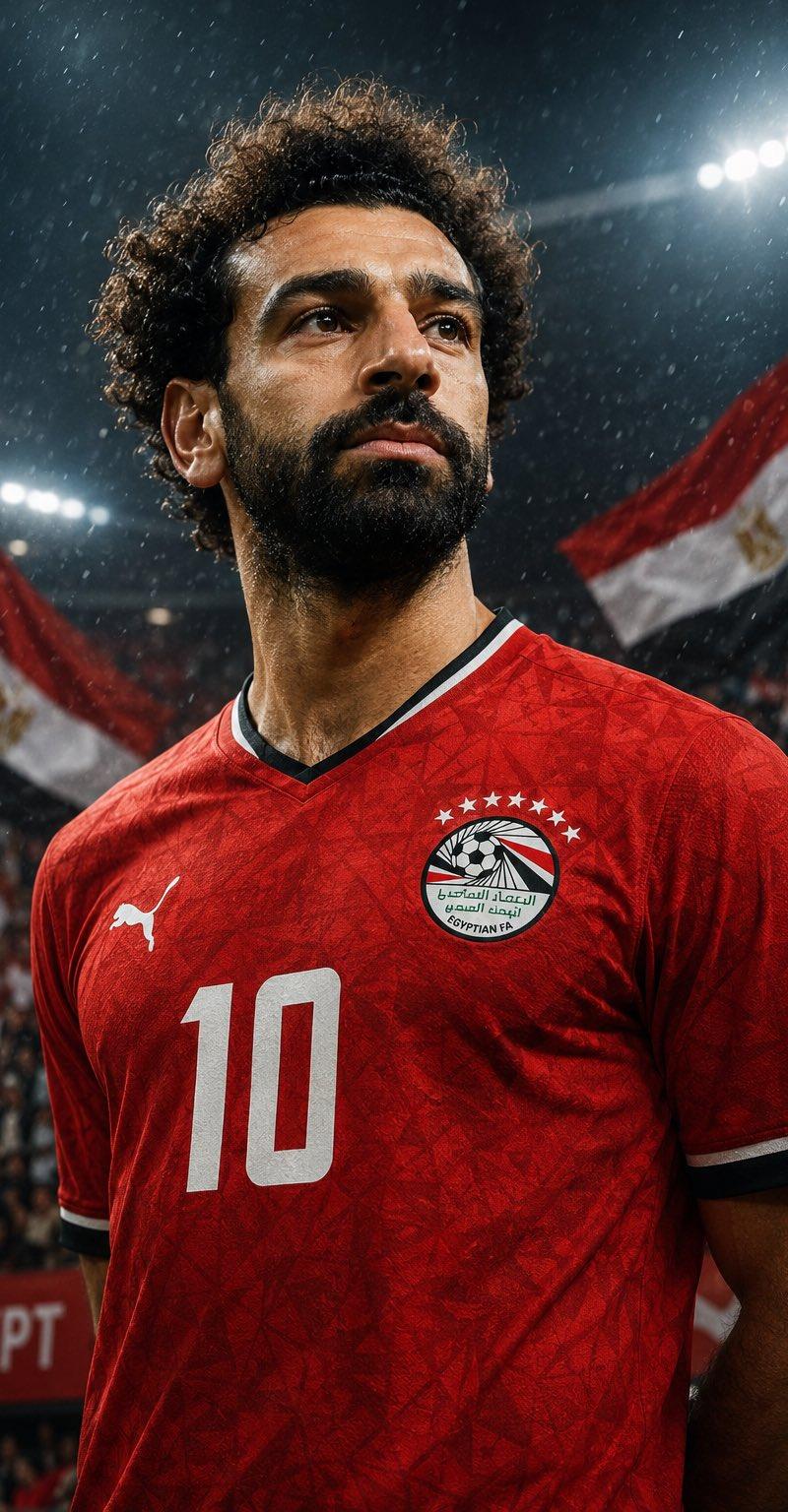
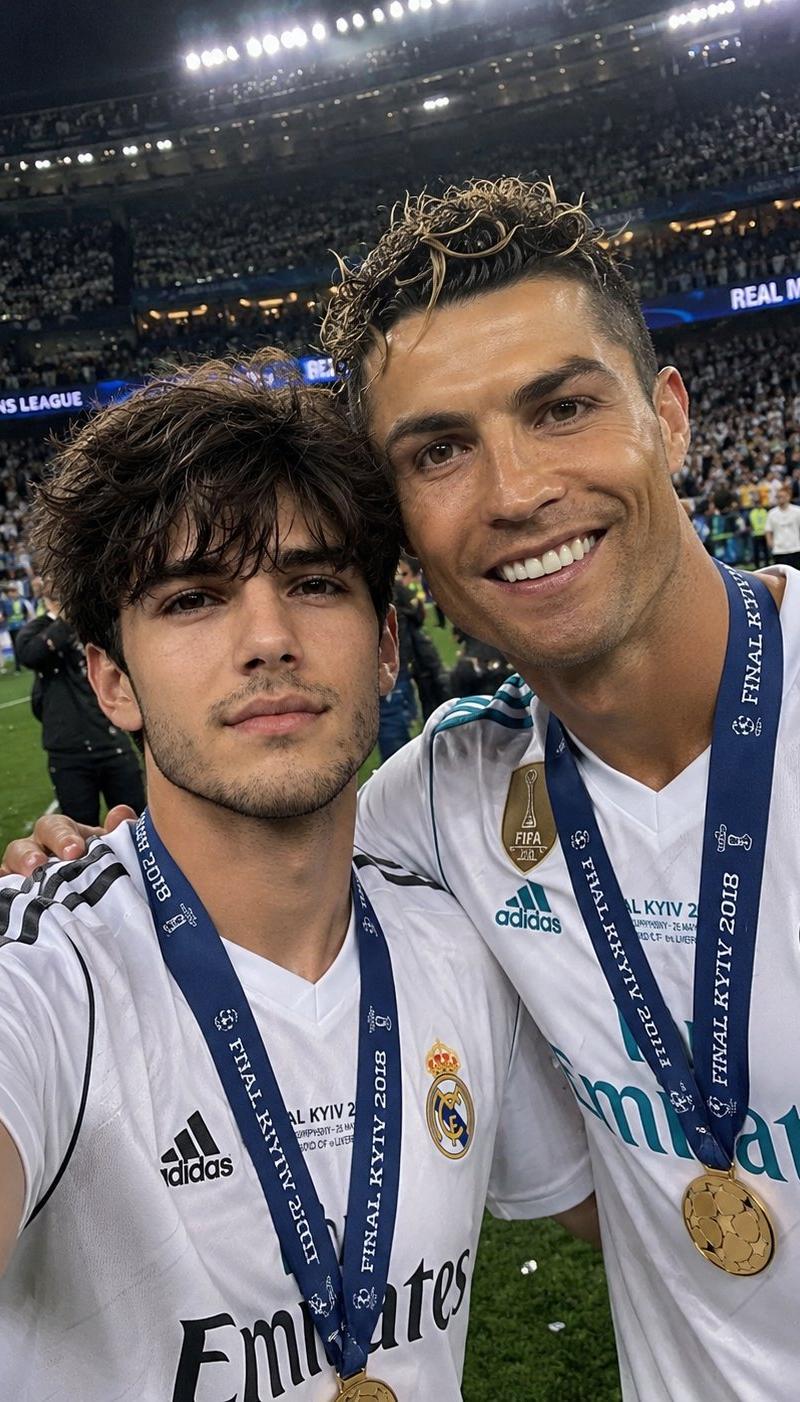
Example images

体育编辑海报设计

Prompt
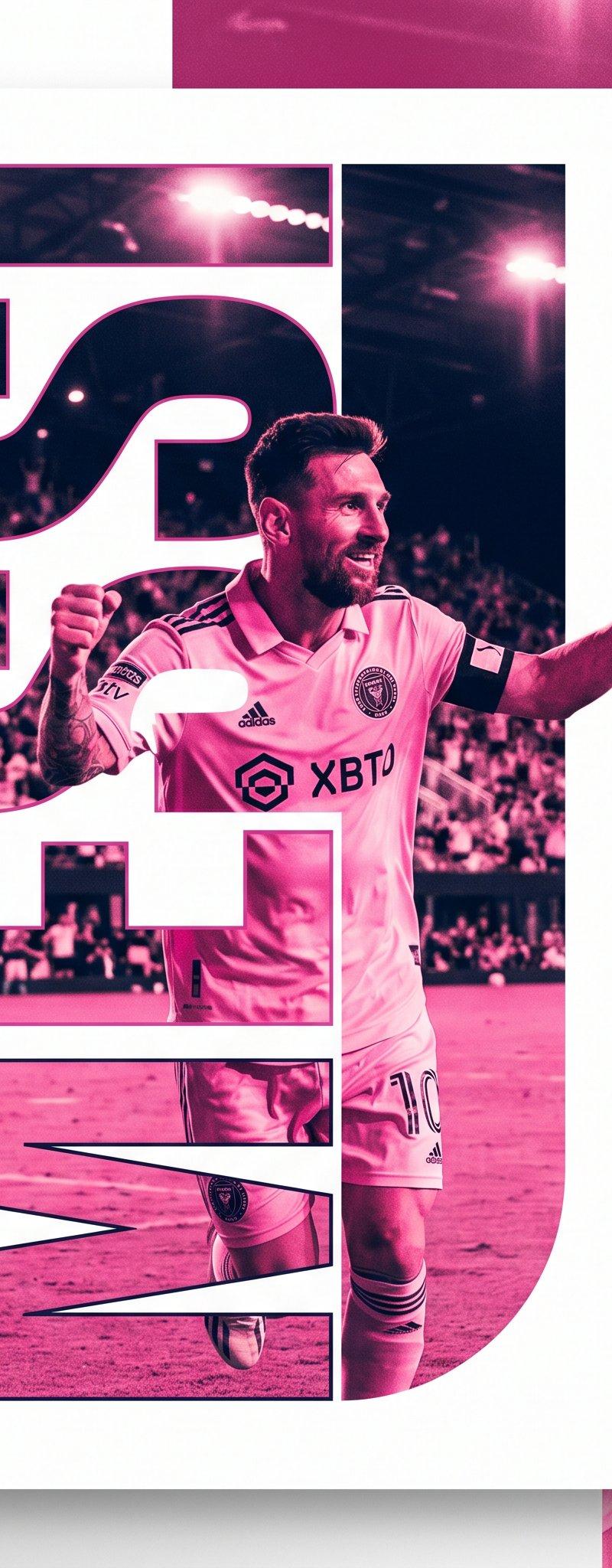
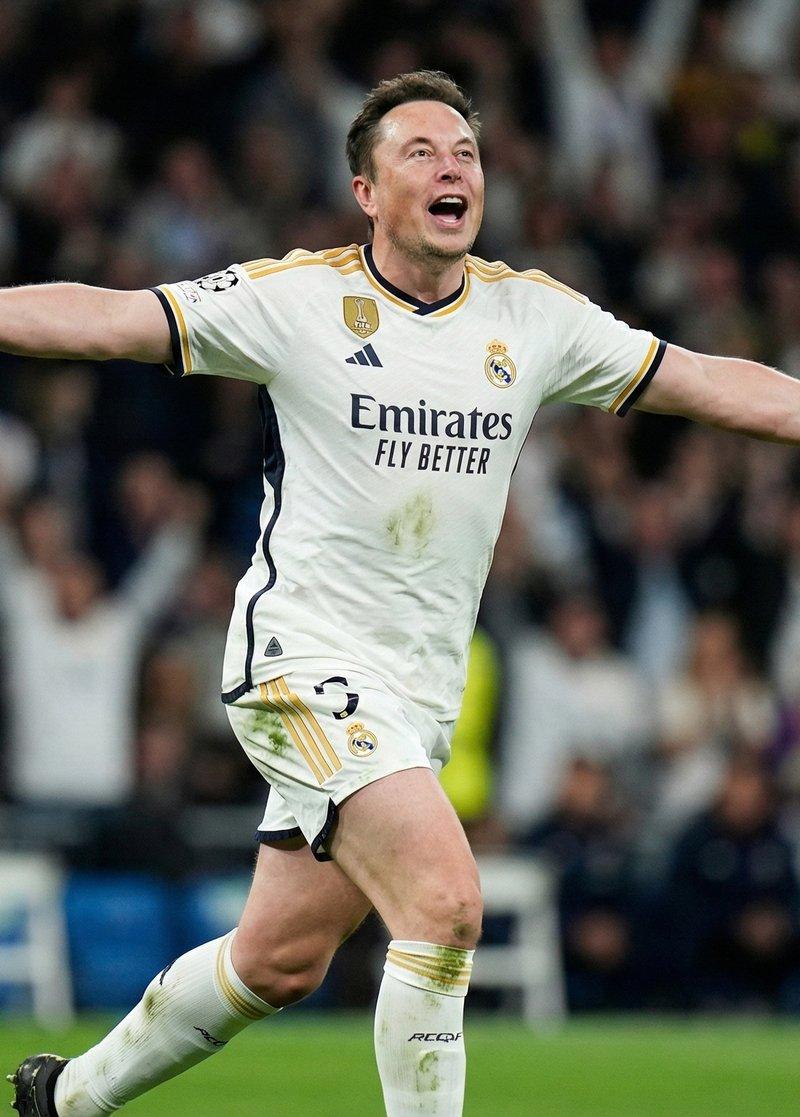
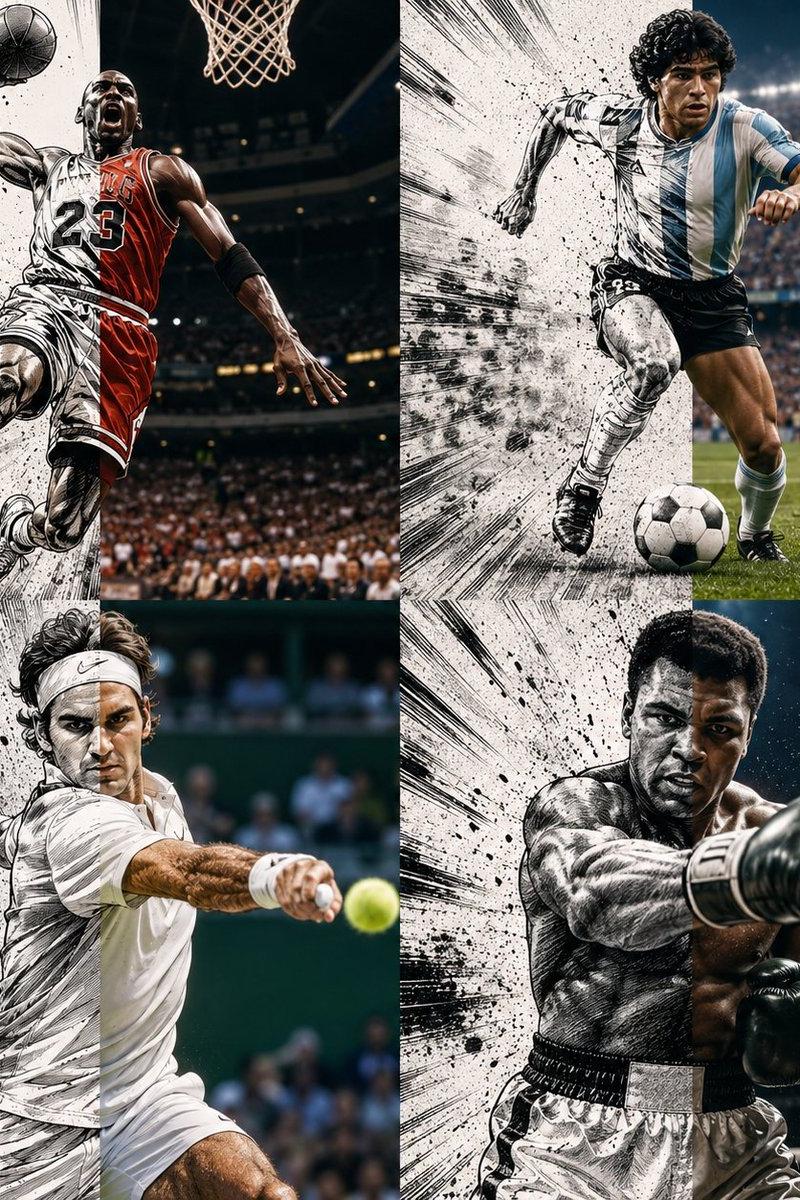
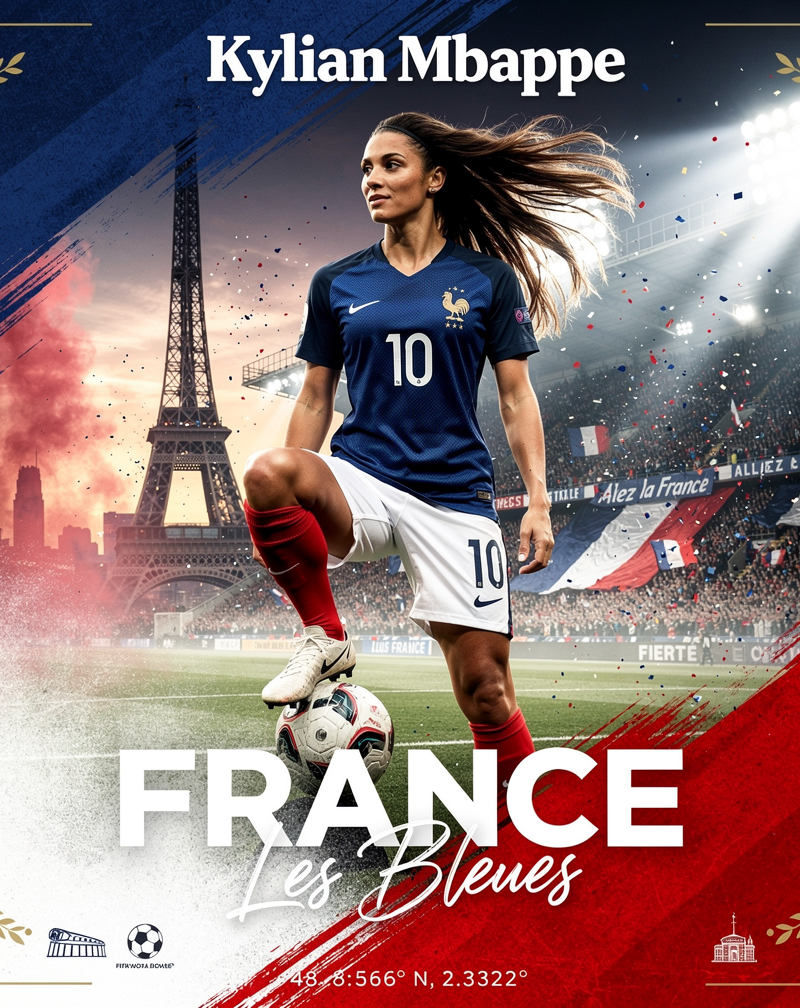
Sports poster design, fictional {argument name="subject" default="male soccer player"} with short dark hair, light stubble, confident gesture pointing toward camera with one hand near chin, other arm extended outward, wearing {argument name="jersey" default="pink soccer jersey with black trim and sponsor logo"}, tattoo visible on forearm, duotone pink color treatment over photograph, giant bold cutout typography spelling fictional surname "{argument name="player name" default="RIVERA"}" acting as a window revealing the photo behind the letters, asymmetric editorial layout with player name vertical along left edge in small white text, floating translucent color dot accents in orange and pink scattered in corners, clean white negative space background, magazine-quality sports editorial poster design, vertical 4:5 composition --ar 4:5 --v 6
Category
Charts & Infographics
Model
GPT Image 2
Creator
Shahid Wani
Source language
en
Views0
Source ID
26971
Published
Jun 27, 2026
Studio

Guide

About "体育编辑海报设计"

What is this prompt for?

"体育编辑海报设计" AI image prompt for GPT Image 2 (Charts & Infographics). 一款现代体育海报设计,以一名虚构的足球运动员为主角,采用双色调配色和醒目的排版设计。 Copy it on Picva and recreate the look in one cl…

The full copyable prompt and example visuals above are ready for AI image generation or one-click recreate in Picva.

How to use this prompt

  1. Step 1

    Open the prompt detail

    Review the example visuals, category, and full prompt text for "体育编辑海报设计".

  2. Step 2

    Copy the prompt

    Copy the prompt body from this page, or load it directly in Studio.

  3. Step 3

    Pick a model (GPT Image 2)

    Prefer GPT Image 2. If you switch models, keep subject and composition and tweak style terms.

  4. Step 4

    Generate and export

    Recreate the look in Picva, or export into your workflow for editing and publishing.

FAQ

What is the "体育编辑海报设计" prompt?
It is an AI image-generation prompt for GPT Image 2 in the Charts & Infographics category. This page includes the full prompt text, example visuals, and a one-click recreate path in Picva.
How do I use this prompt to generate an image?
Copy the prompt from this page, or use Generate / Studio. Paste it into a compatible image model, or recreate the look in Picva with optional reference images.
Which model is this prompt for?
This page lists GPT Image 2. Most descriptive prompts also transfer to nearby image models such as GPT Image, Flux, or Midjourney with light style tweaks.
Can I use the result commercially?
You can usually copy the prompt for creation, but commercial use of the final image depends on the model terms, reference-image rights, and the generated content. Follow the source author and platform rules.