20

从接触式印片快速提取高分辨率单帧的方法
Enlarge

从接触式印片快速提取高分辨率单帧的方法

Prompt
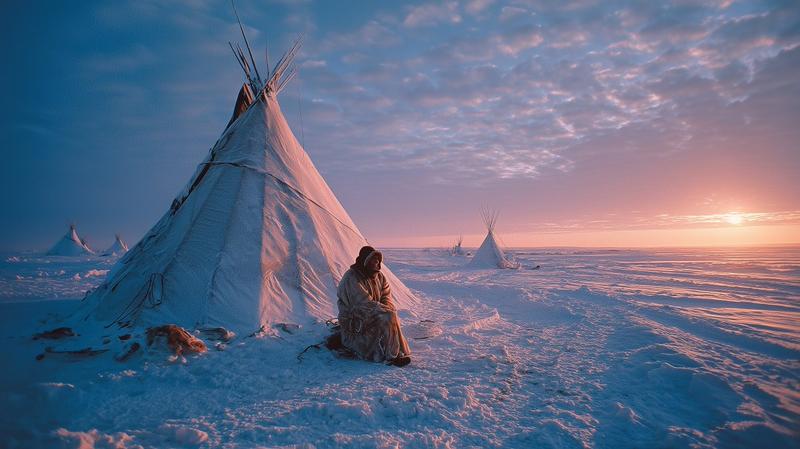
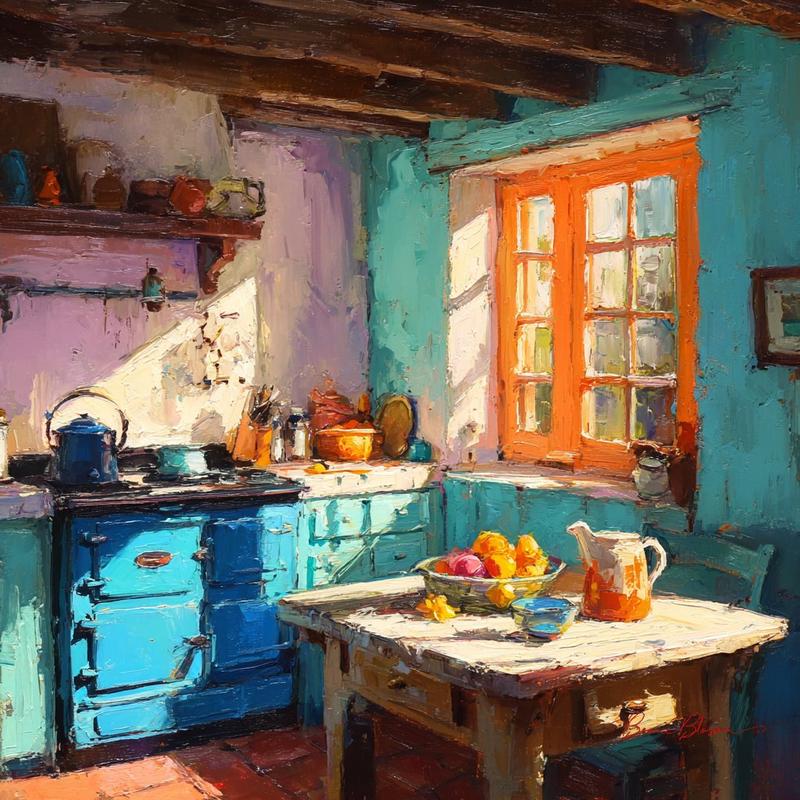
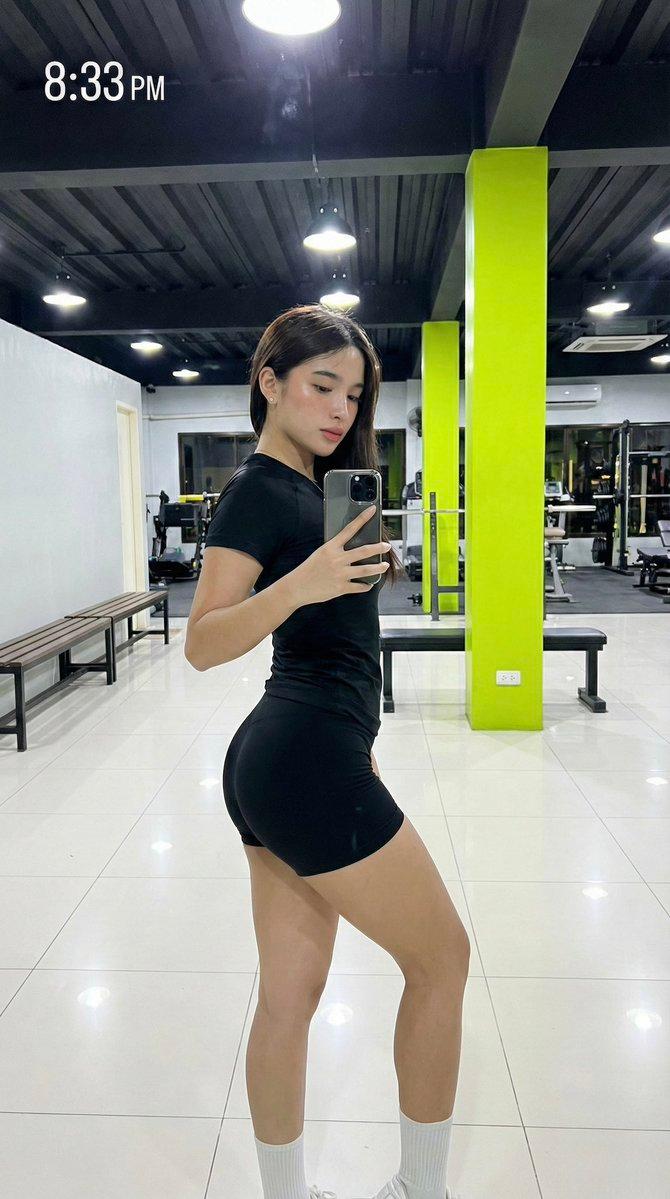
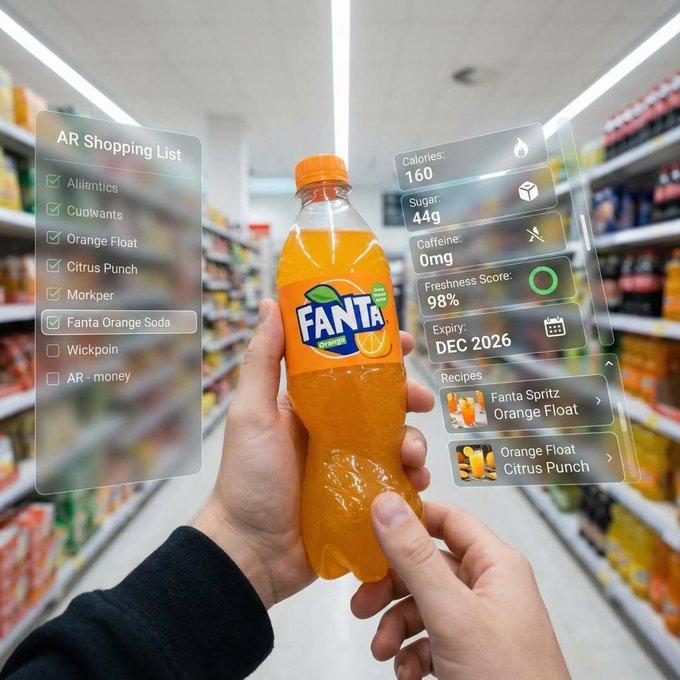
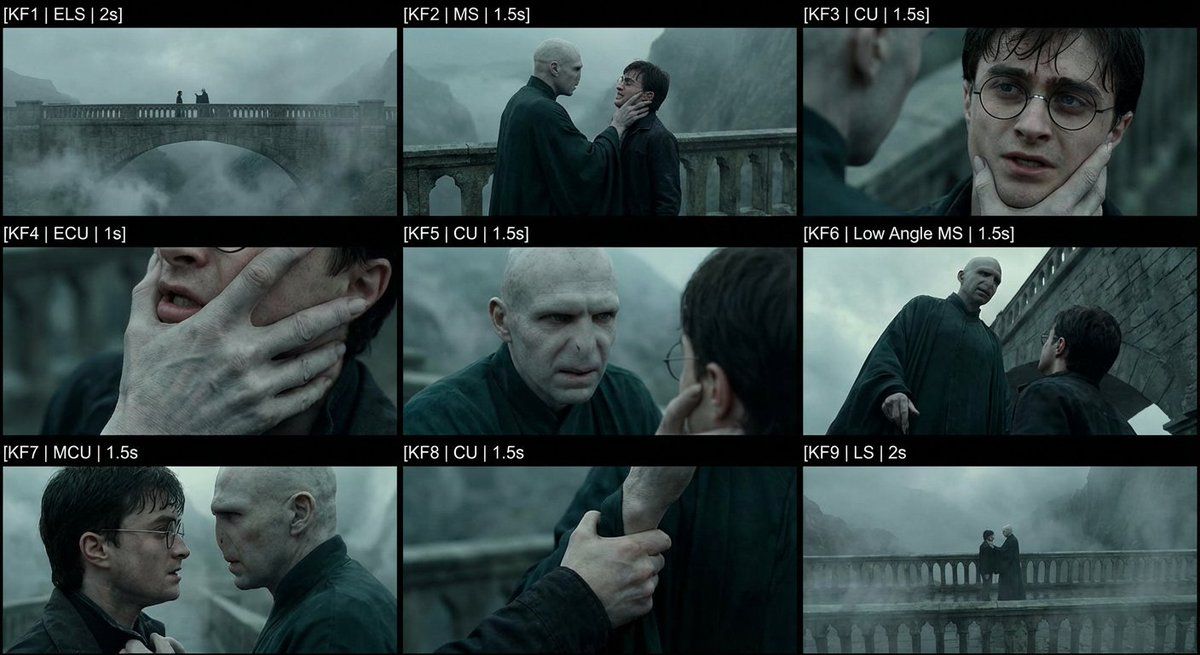
How to quickly extract high-resolution single frames from a contact sheet?
My old workflow was to send the contact sheet to Nano Banana Pro and ask it to crop a specific row and column.
But this often failed:
1. It could change the image size or style
2. It might keep black borders or text labels (messy crops)
So we built a new tool ✅
Upload an image → choose a split format (e.g. 3×3) → one-click split
After splitting, you can:
Download the individual frames directly
Or enable AI Upscale: we send the split images to AI, get high-resolution versions back, and then download them
This saves a huge amount of time compared to manual cropping and upscaling.
I’ve shared the link and step-by-step instructions in the comments.
Category
UI & Interfaces
Model
Nano Banana Pro
Creator
underwood
Views0
Source ID
how-to-quickly-extract-high-resolution-single-frames-from-a-contact-sheet

Guide

About "从接触式印片快速提取高分辨率单帧的方法"

What is this prompt for?

"从接触式印片快速提取高分辨率单帧的方法" AI image prompt for Nano Banana Pro (UI & Interfaces). How to quickly extract high-resolution single frames from a contact sheet? My old…

The full copyable prompt and example visuals above are ready for AI image generation or one-click recreate in Picva.

How to use this prompt

  1. Step 1

    Open the prompt detail

    Review the example visuals, category, and full prompt text for "从接触式印片快速提取高分辨率单帧的方法".

  2. Step 2

    Copy the prompt

    Copy the prompt body from this page, or load it directly in Studio.

  3. Step 3

    Pick a model (Nano Banana Pro)

    Prefer Nano Banana Pro. If you switch models, keep subject and composition and tweak style terms.

  4. Step 4

    Generate and export

    Recreate the look in Picva, or export into your workflow for editing and publishing.

FAQ

What is the "从接触式印片快速提取高分辨率单帧的方法" prompt?
It is an AI image-generation prompt for Nano Banana Pro in the UI & Interfaces category. This page includes the full prompt text, example visuals, and a one-click recreate path in Picva.
How do I use this prompt to generate an image?
Copy the prompt from this page, or use Generate / Studio. Paste it into a compatible image model, or recreate the look in Picva with optional reference images.
Which model is this prompt for?
This page lists Nano Banana Pro. Most descriptive prompts also transfer to nearby image models such as GPT Image, Flux, or Midjourney with light style tweaks.
Can I use the result commercially?
You can usually copy the prompt for creation, but commercial use of the final image depends on the model terms, reference-image rights, and the generated content. Follow the source author and platform rules.