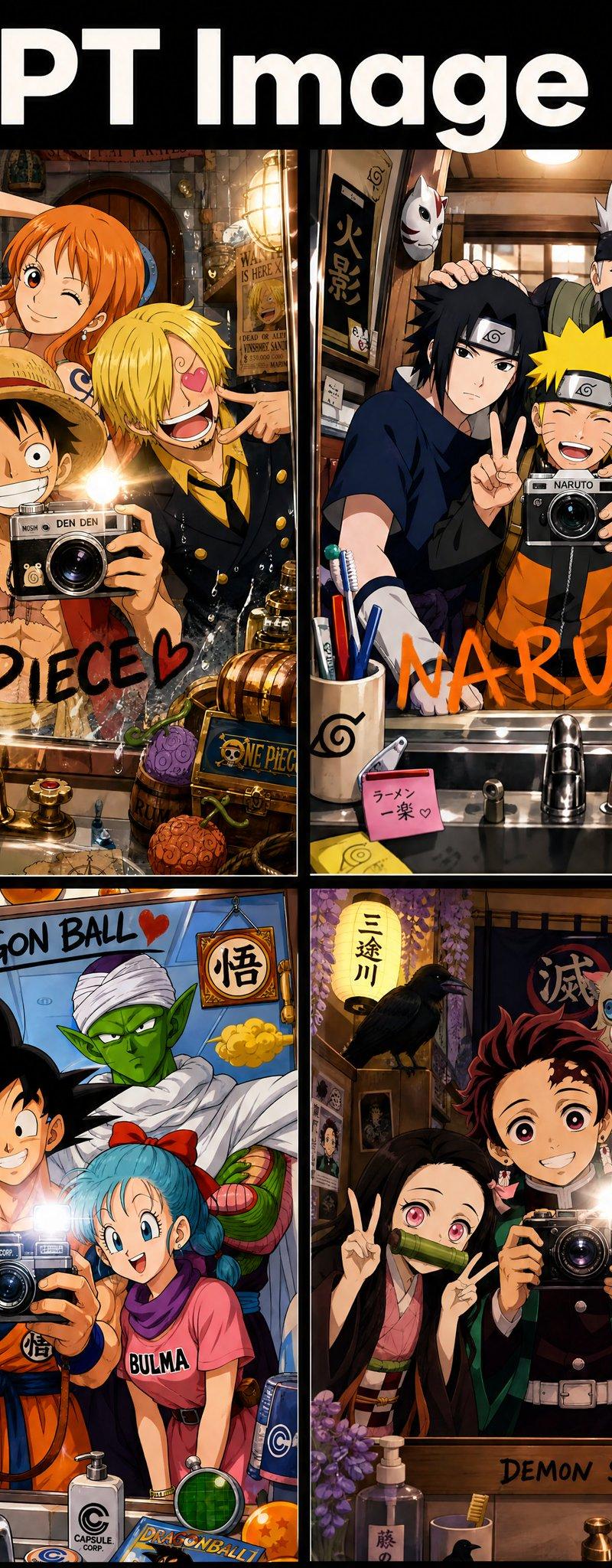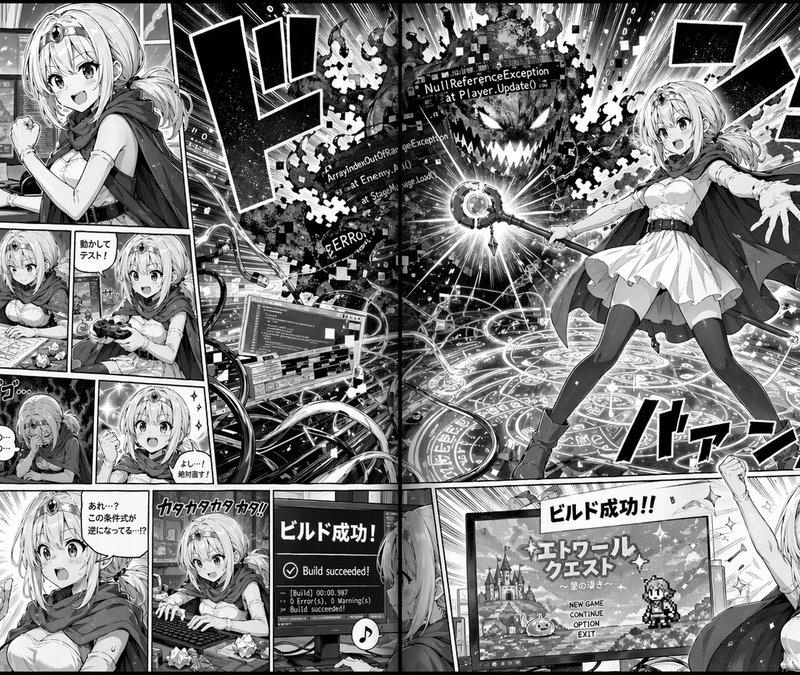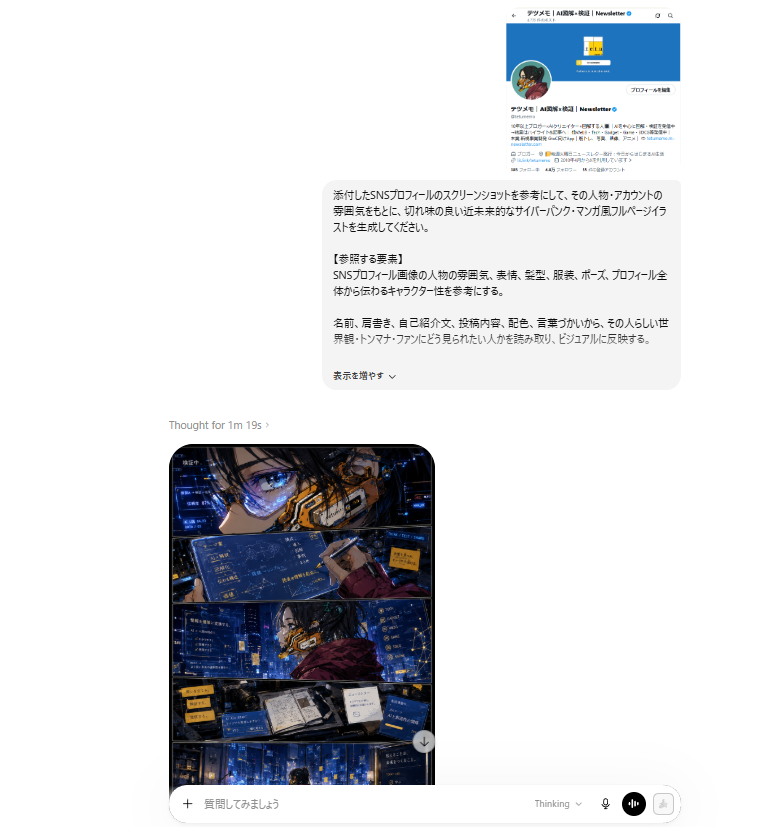
GPT Image 2 Prompt Gallery README
Prompt
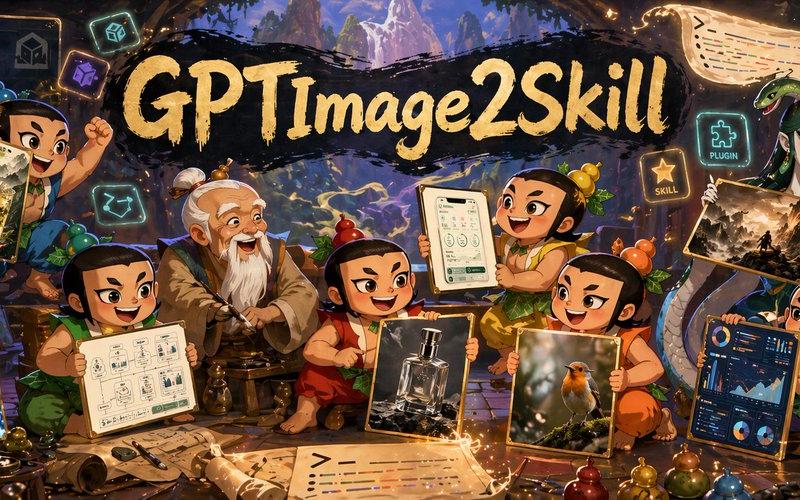
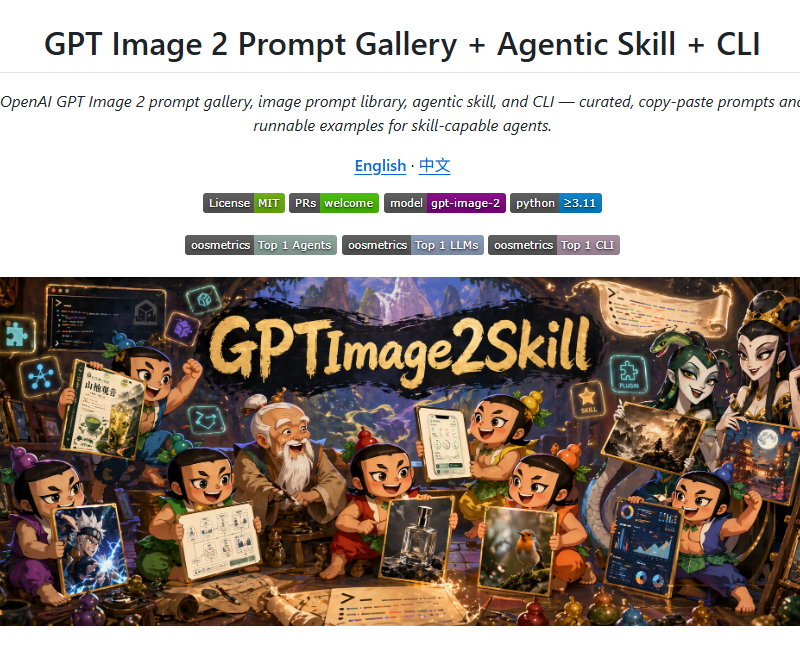
Goal: Create a clean GitHub README-style landing page screenshot promoting {argument name="project title" default="GPT Image 2 Prompt Gallery + Agentic Skill + CLI"}, with a centered title area and a large fantasy-anime hero banner underneath.

Canvas: 890×650 px webpage screenshot on a white background, with generous margins and a thin light-gray horizontal divider below the title. Use a crisp browser/documentation aesthetic, no browser chrome.

Layout: Top-left has a small black chain-link anchor icon. Centered at the top is the large bold headline “GPT Image 2 Prompt Gallery + Agentic Skill + CLI”. Under it, place an italic two-line subtitle: “OpenAI GPT Image 2 prompt gallery, image prompt library, agentic skill, and CLI — curated, copy-paste prompts and runnable examples for skill-capable agents.” Below that, centered language links read “English · 中文” in blue underlined link style. Under the language links, place exactly 6 small rectangular status badges in one row: “License MIT”, “PRs welcome”, “model gpt-image-2”, and “python ≥3.11”, with the first two labels split into dark-gray label + green value, the model badge split dark-gray label + purple value, and the python badge split dark-gray label + blue value. Below, place exactly 3 centered ranking badges in one row: “oosmetrics Top 1 Agents”, “oosmetrics Top 1 LLMs”, and “oosmetrics Top 1 CLI”, using dark-gray label segments and muted blue/purple value segments.

Hero banner: Place one large wide rectangular illustration beneath the badges, spanning almost the full content width with small white margins. The banner is a richly detailed fantasy workshop scene in warm cinematic lighting, anime/chibi style, with a black brush-stroke sign across the upper center reading {argument name="banner title" default="GPTImage2Skill"} in large rough gold lettering. The background shows a magical cave workshop with glowing UI panels, floating icons, scrolls, prompt sheets, potion-like colorful orbs, tools, and a mountain landscape opening in the distance.

Characters and objects in the hero banner: Include exactly 8 chibi fantasy characters arranged across the banner, each holding or presenting image-generation artifacts: 1 boy on the left holding a parchment and raising a fist, 1 purple-clothed character at bottom-left holding a dramatic anime image, 1 green-clothed character near lower-left holding a diagram/spec sheet, 1 elderly robed character near center-left, 1 small red-clothed character in the center, 1 green/yellow character near center-right holding a phone-style UI sheet, 1 smiling orange/green character near lower-right holding a realistic bird photo, and 1 blue/green character at far right holding a poster and a dashboard panel. Add several additional partial humanoid figures behind them if needed, but the 8 foreground chibi characters must remain visually dominant. Render the humanoid faces as intentionally blurred or masked soft tan rectangles, as if anonymized, while keeping costumes, poses, hands, and held images sharp.

Visual style: Combine clean documentation page typography with a vibrant high-detail fantasy anime illustration. The page area should be flat and white; the hero image should be saturated, warm, magical, and highly detailed with glowing cyan and gold accents. Keep all visible text legible where specified, avoid adding extra paragraphs, watermarks, logos, or browser controls.- Category
- Charts & Infographics
- Model
- GPT Image 2
- Creator
- Resource Daily
- Source language
- en
- Source ID
- 25054
- Published
- Jun 10, 2026
Views0