Claude Code 速报信息图
Prompt
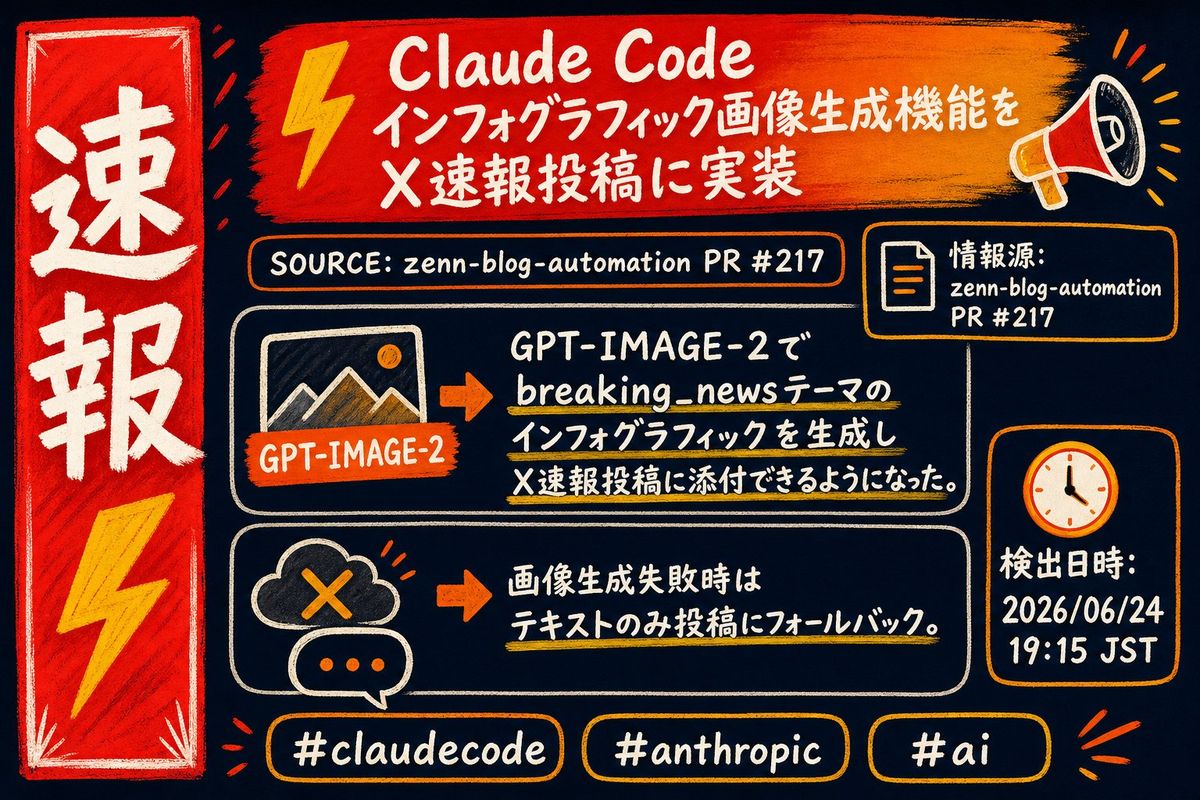
Goal: Create a hand-drawn breaking-news style infographic in Japanese about {argument name="headline topic" default="Claude Code implementing infographic image generation for X breaking-news posts"}.

Canvas: 16:9 horizontal image, dark navy chalkboard background, rough marker and chalk texture, high-contrast red, orange, yellow, white, and cream colors. Use imperfect hand-lettering, sketchy outlines, brush strokes, and doodle icons. No photorealism.

Layout: Left side has 1 tall vertical red breaking-news banner with a white border, large white Japanese text 「速報」 stacked vertically, and 1 yellow lightning bolt near the bottom. Top center has 1 wide red-to-orange brush-stroke headline banner with 1 yellow lightning icon on the left and 1 megaphone icon on the right. Under it is 1 rounded source bar. Main middle area contains exactly 2 large rounded rectangular information panels stacked vertically. Right side contains exactly 2 smaller rounded cards stacked vertically: a source-information card above and a date/time card below. Bottom row contains exactly 3 hashtag pills.

Text content: Top headline banner text: 「Claude Code」 on the first line, then 「インフォグラフィック画像生成機能を」, then 「X速報投稿に実装」. Source bar text: 「SOURCE: zenn-blog-automation PR #217」. Right source card text: 「情報源:」 then 「zenn-blog-automation」 then 「PR #217」. First main panel text: 「GPT-IMAGE-2で」, 「breaking_newsテーマの」, 「インフォグラフィックを生成し」, 「X速報投稿に添付できるようになった。」 Include a small orange label reading 「GPT-IMAGE-2」 on an image-thumbnail icon. Second main panel text: 「画像生成失敗時は」, 「テキストのみ投稿にフォールバック。」 Date/time card text: 「検出日時:」 then {argument name="timestamp" default="2026/06/24 19:15 JST"}. Bottom hashtag pills must read exactly 3 labels: {argument name="hashtag one" default="#claudecode"}, {argument name="hashtag two" default="#anthropic"}, and {argument name="hashtag three" default="#ai"}.

Discrete visual elements to include: exactly 1 left vertical banner, 1 top headline brush banner, 1 source bar, 2 main info panels, 2 right-side cards, 3 hashtag pills, 2 yellow lightning bolts total, 1 megaphone, 1 document icon, 1 clock icon, 1 image-thumbnail icon with mountains, 2 orange arrow icons pointing right, 1 cloud-with-X failure icon, and 1 speech bubble with three dots.

Visual style: Energetic Japanese breaking-news infographic, marker poster look, slightly irregular white handwritten type, orange rounded borders, yellow underline highlights under important phrases, small decorative radiating accent marks around the megaphone, banner, and hashtags. Keep the composition dense but readable, with strong hierarchy and a dramatic emergency-news feel.

Constraints: Use Japanese text exactly as specified, do not add extra sections or extra hashtags, keep all icons hand-drawn, avoid logos, avoid watermarks, and maintain the rough chalk-and-paint texture throughout.- Category
- Charts & Infographics
- Model
- GPT Image 2
- Creator
- 甲斐甲
- Source ID
- 26708
- Published
- Jun 24, 2026
Views0