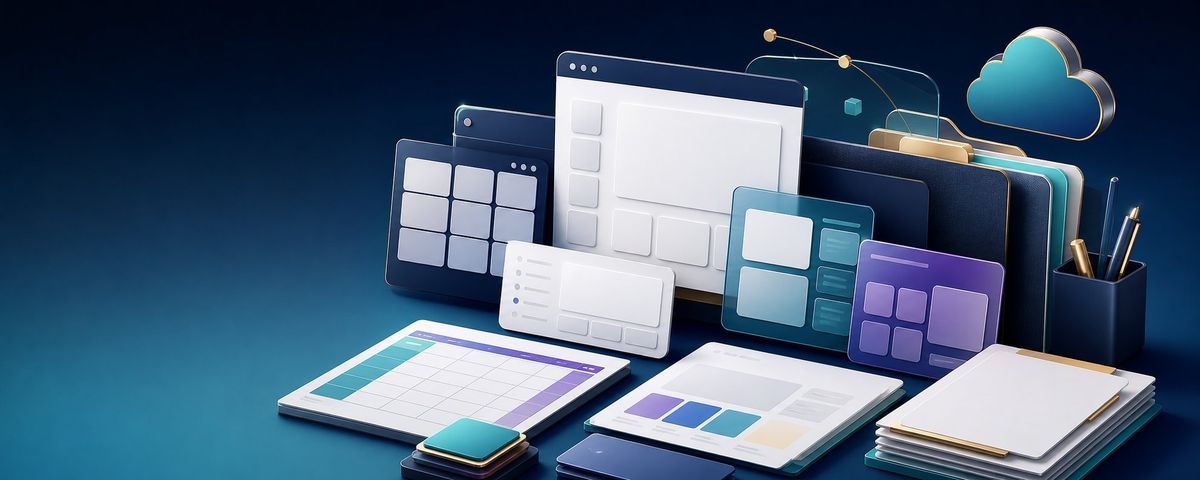
3D AI Prompt Library 工作空间
Prompt
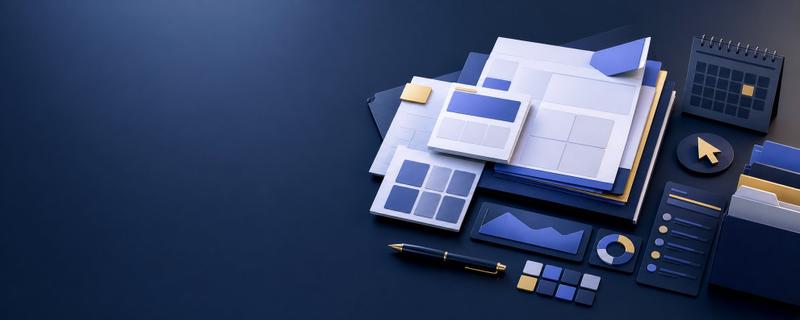
Goal: Create a polished 3D isometric tech workspace illustration showing a reusable AI design prompt library and digital content planning tools.

Canvas: Ultra-wide horizontal banner, approximately 2.5:1 aspect ratio, dark navy-to-teal gradient background, cinematic studio lighting, clean empty margins at the left and top for possible overlay text.

Main subject and layout: Arrange a layered cluster of floating and tabletop productivity elements across the center-right of the canvas. Use {argument name="primary color palette" default="deep navy, teal, cyan, white, violet, and warm gold accents"}. The scene should feel like a premium SaaS/productivity hero image, with soft shadows, glossy bevels, subtle reflections, and rounded corners.

Discrete visible elements: Include exactly 13 main objects: 1 large central desktop browser window with a dark top bar and wireframe layout blocks; 1 dark grid dashboard panel behind it on the left with nine square tiles; 1 small white analytics/card panel in front with left-side list dots and bottom mini buttons; 1 teal UI card on the right with four main content blocks and three narrow side rows; 1 purple UI card farther right with five rounded modules; 1 spreadsheet/calendar tablet lying flat in the foreground left with turquoise row header and purple top bar; 1 open report/document tablet in the foreground center with four colored chart blocks; 1 stacked pile of papers or folders in the foreground right topped by a blank white sheet; 1 small stack of rounded square app tiles in the foreground; 1 dark smartphone or slim rectangular device at the bottom center; 1 large stack of dark binders or file folders standing vertically in the back right with teal and gold edges; 1 floating cloud icon in the upper right outlined with gold rim lighting; 1 dark cylindrical pen cup on the far right containing three writing instruments.

Background accents: Add thin golden orbital connector lines arcing above the panels with three small gold nodes, a tiny cyan cube near the upper right, and translucent glass-like panel outlines behind the main windows. Keep these accents delicate and secondary.

Style: High-end 3D render, rounded clay-like UI components, glassmorphism, soft ambient occlusion, beveled edges, metallic gold highlights, modern creator-tool aesthetic, no people. Use {argument name="lighting mood" default="moody cinematic blue studio lighting with bright cyan rim highlights"} and {argument name="render style" default="premium 3D isometric SaaS illustration"}.

Text constraints: No readable words, no logos, no watermark. Any interface marks should be abstract lines, dots, grids, and blank cards only.

Composition constraints: Keep the main cluster centered slightly right, preserve strong depth layering from flat foreground tablets to floating background panels, keep the cloud in the upper-right corner, and leave the far-left background mostly uncluttered.- Category
- Charts & Infographics
- Model
- GPT Image 2
- Creator
- 张扬Zhang
- Source ID
- 26984
- Published
- Jun 27, 2026
Views0