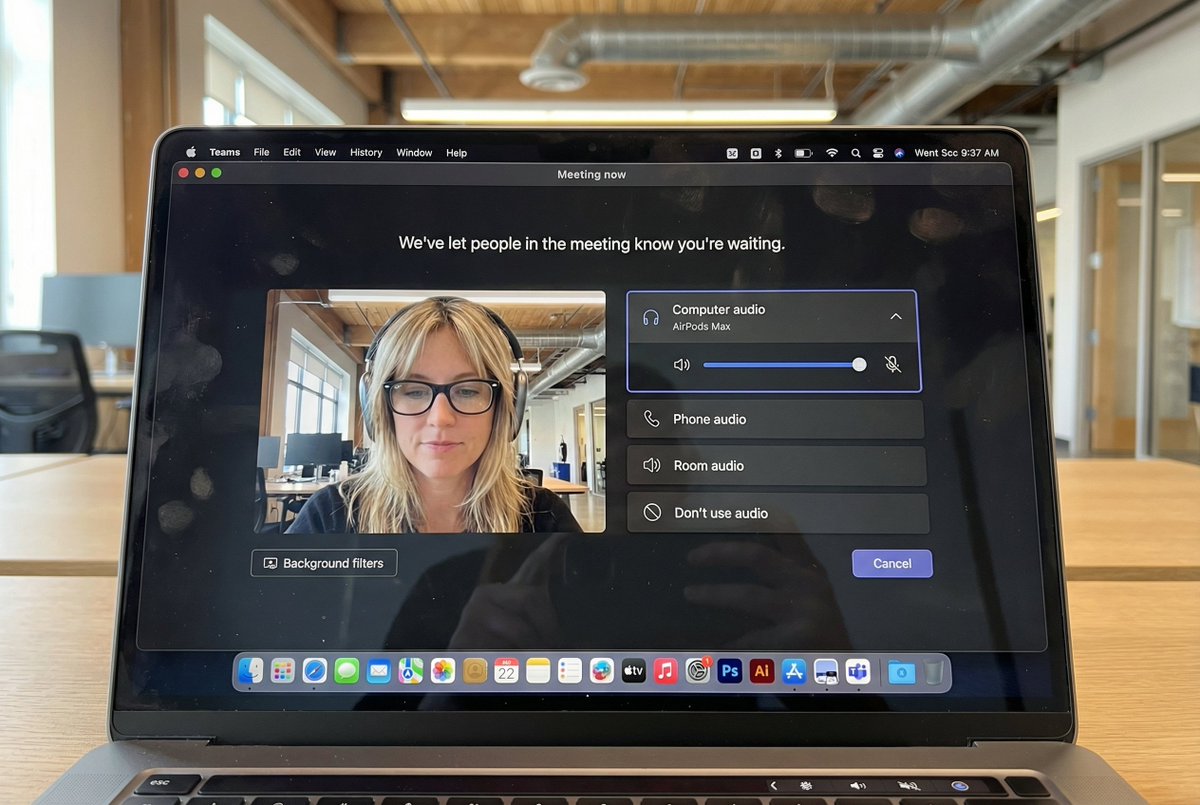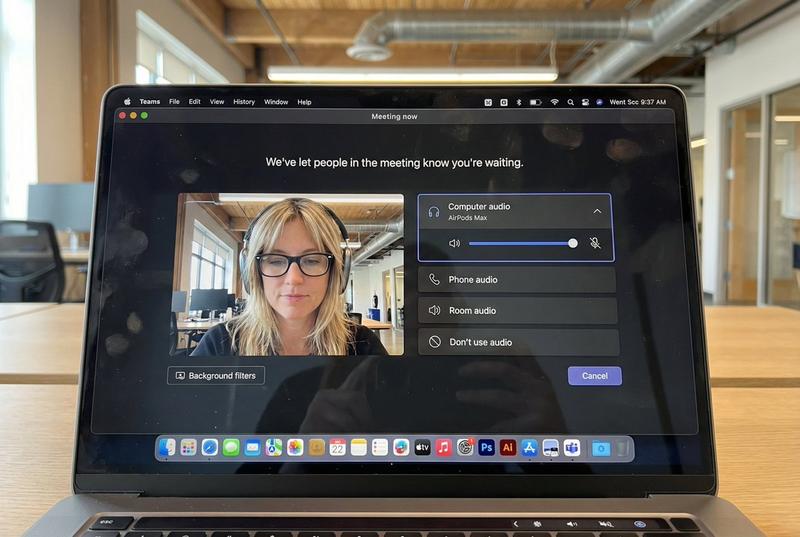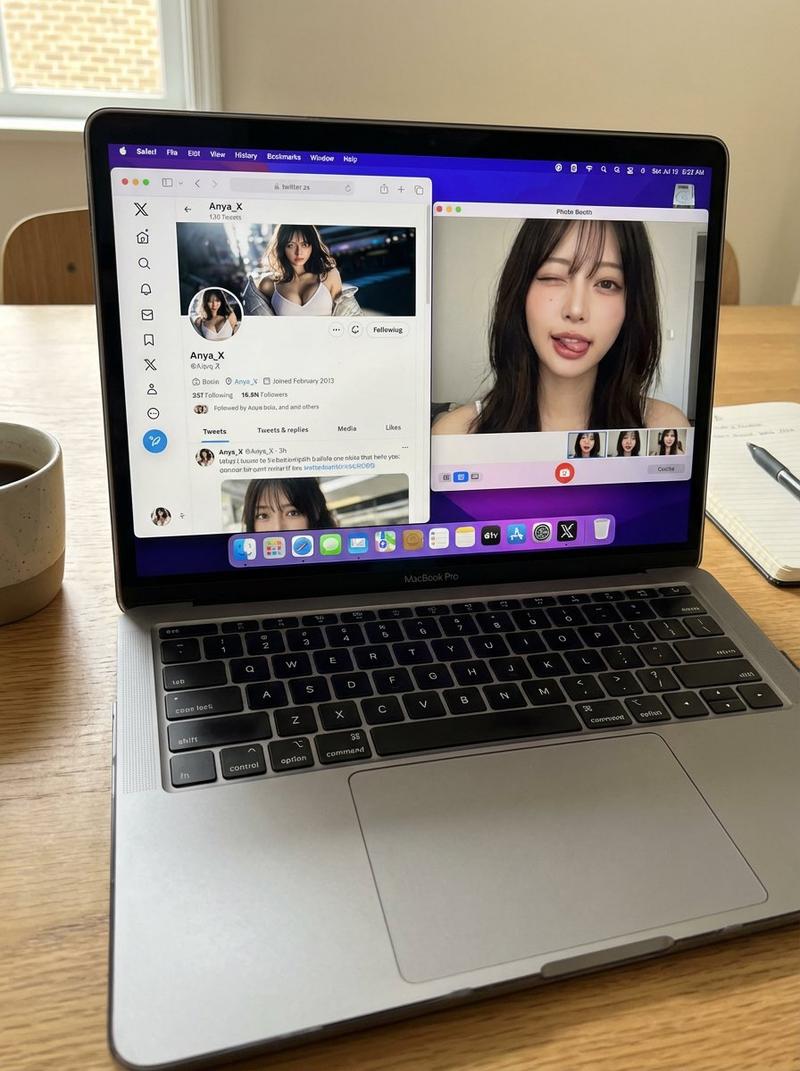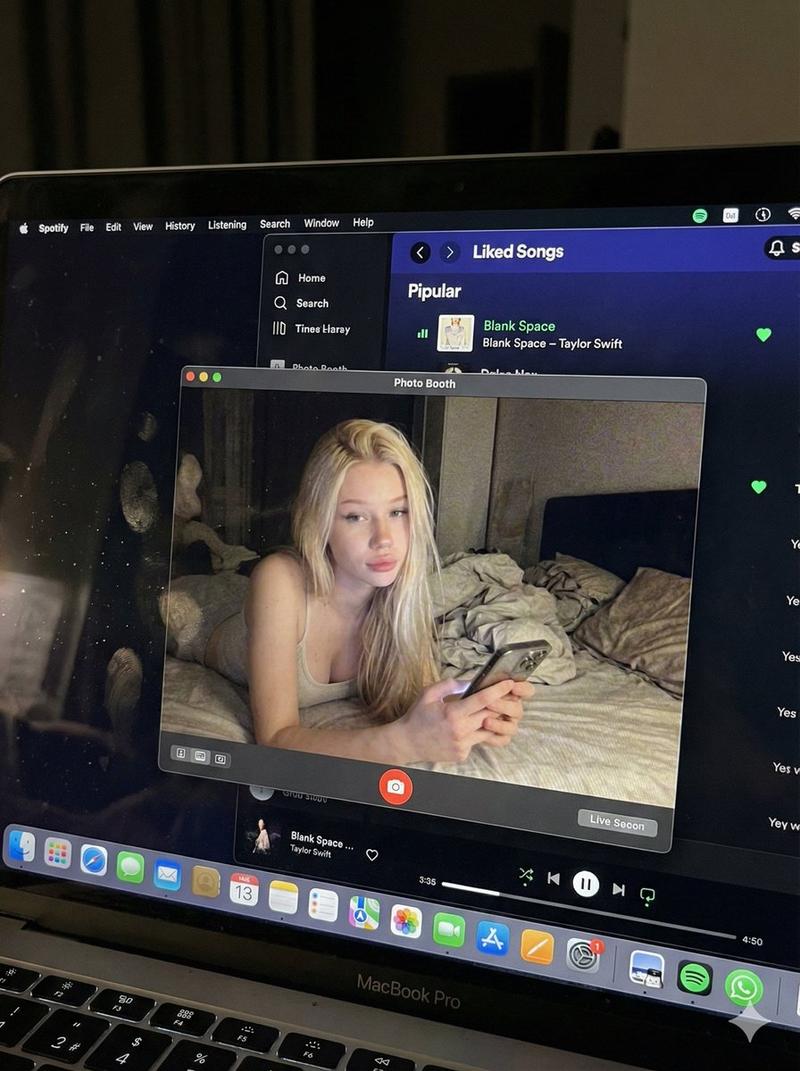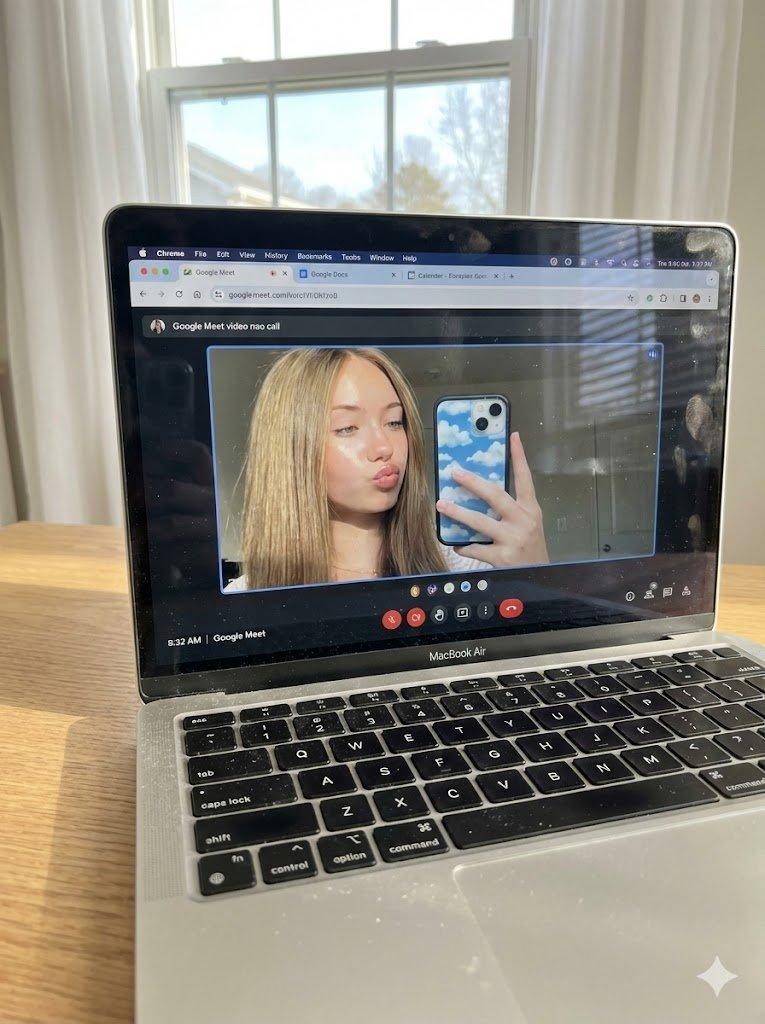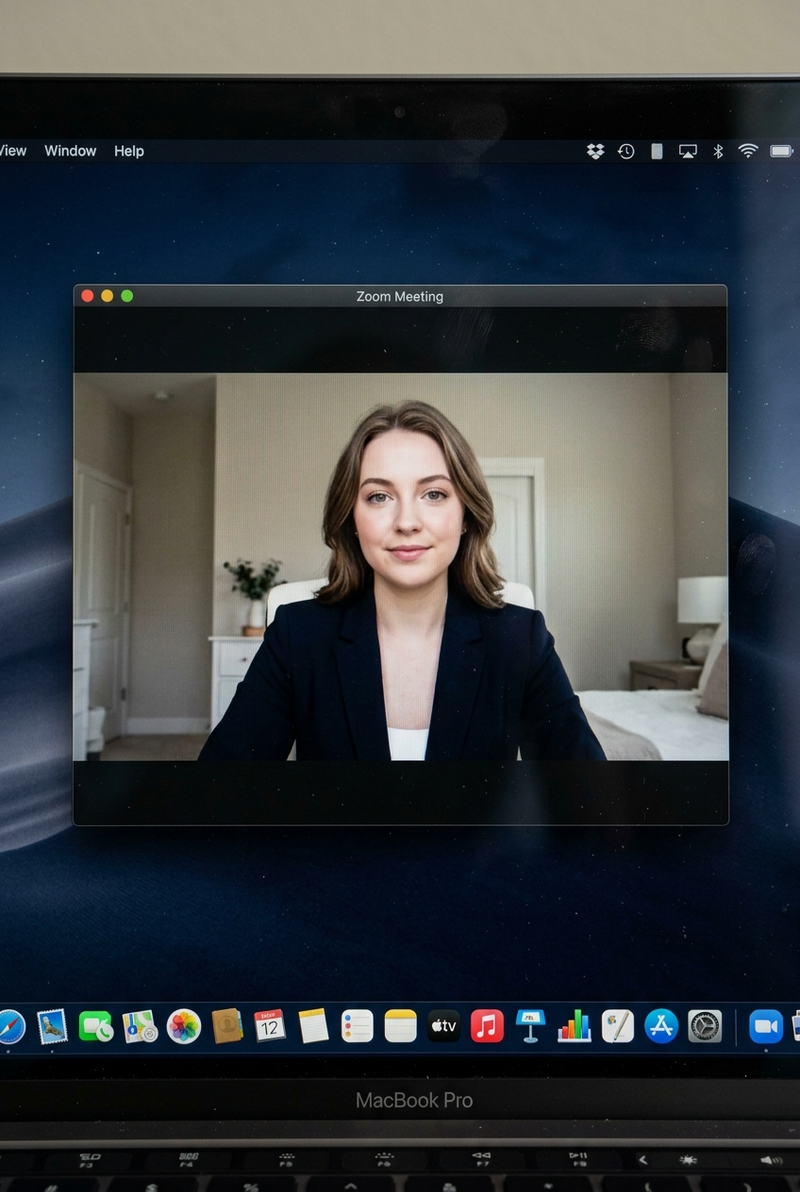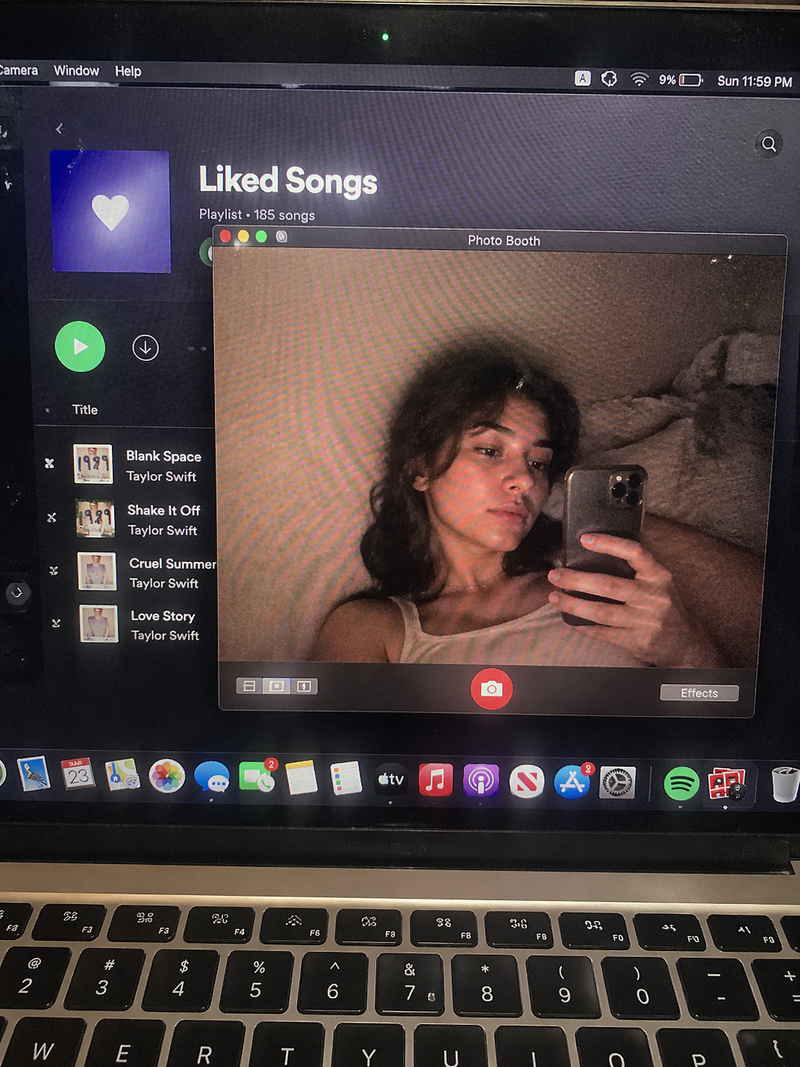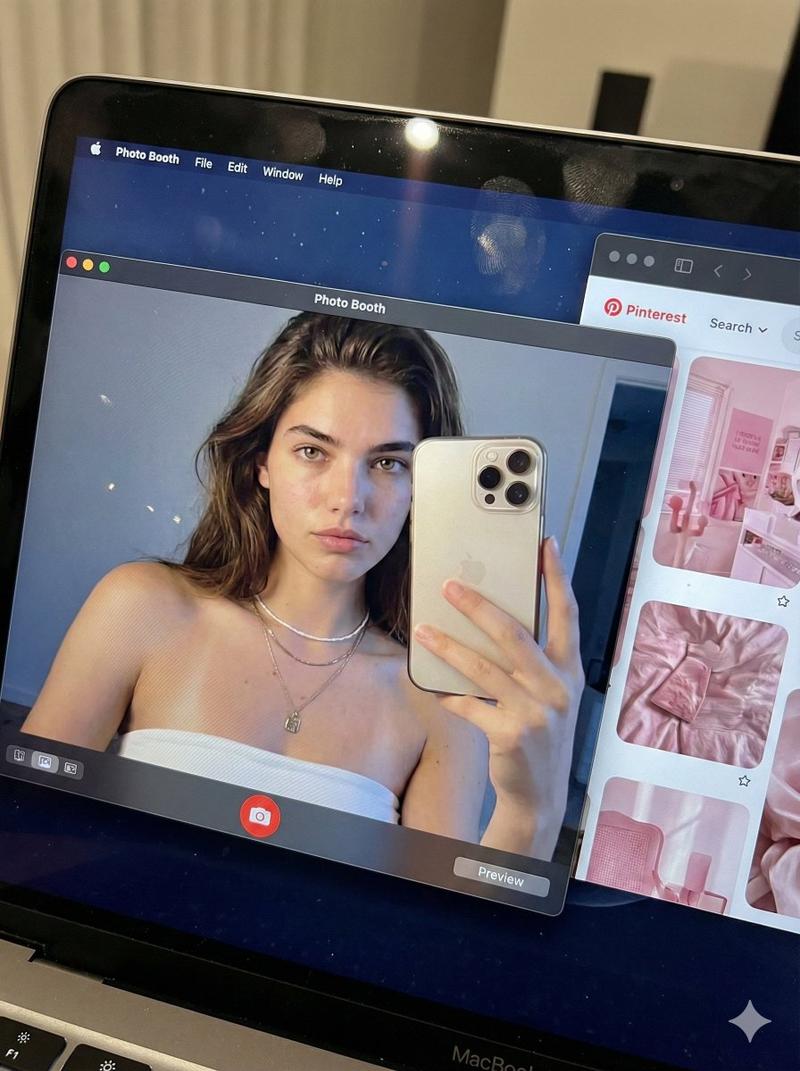
超逼真的Macbook屏幕视频会议图
提示词
{
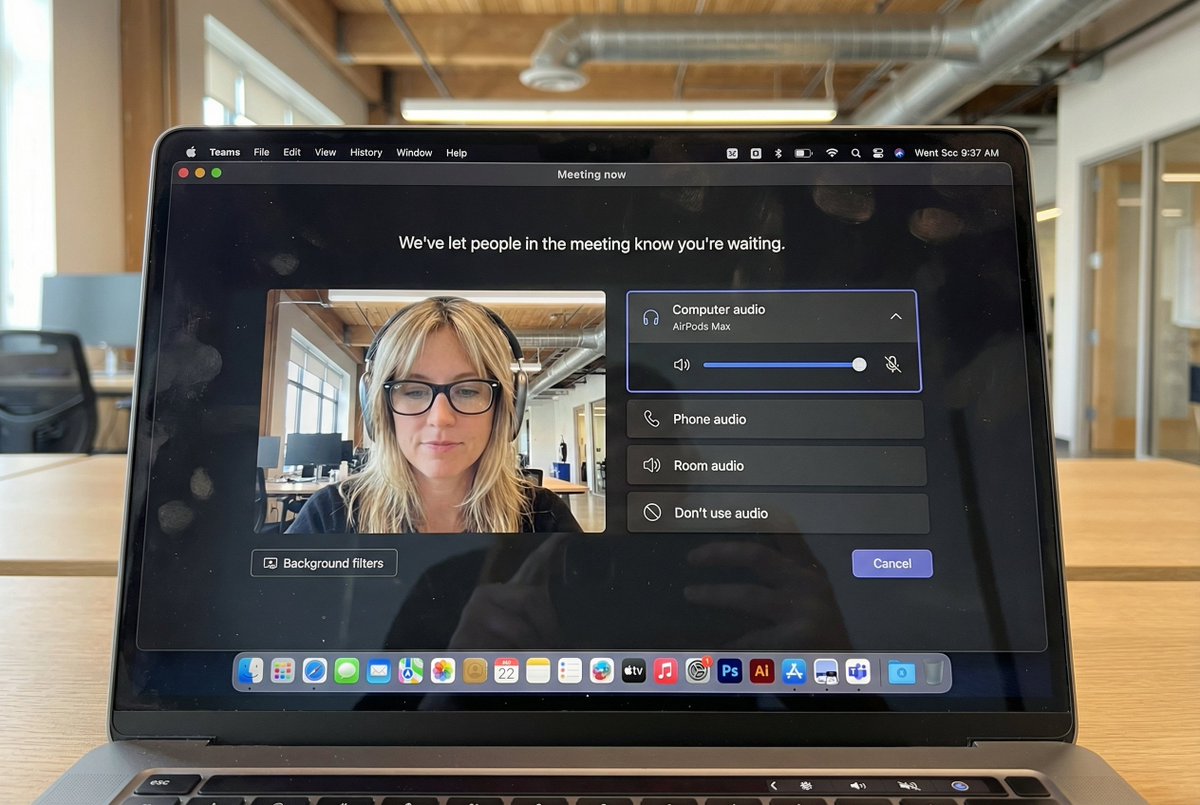
  "task": "hyper_realistic_macbook_screen_photography",
  "reference_logic": "exact_microsoft_teams_waiting_room_ui_macos",
  "output": {
    "type": "single_image",
    "resolution": "ultra_high_resolution_8k",
    "realism": "indistinguishable_from_real_laptop_photo",
    "capture_style": "iphone_photo_of_macbook_screen",
    "post_processing": "none"
  },
  "scene": {
    "application": "Microsoft Teams",
    "platform": "macOS",
    "ui_state": "meeting_waiting_room",
    "top_status_text": "Meeting now",
    "center_message": "We've let people in the meeting know you're waiting.",
    "background": "pure_black_dark_mode"
  },
  "ui_layout": {
    "left_panel": {
      "video_preview": {
        "position": "bottom_left",
        "aspect_ratio": "landscape",
        "camera_toggle": "on",
        "background_filters_button": "visible_below_preview"
      }
    },
    "right_panel": {
      "audio_section": {
        "title": "Computer audio",
        "selected_device": "AirPods Max",
        "volume_slider": "horizontal_blue_indicator",
        "mute_toggle": "off"
      },
      "audio_options": [
        "Phone audio",
        "Room audio",
        "Don't use audio"
      ],
      "cancel_button": {
        "label": "Cancel",
        "position": "bottom_right",
        "style": "rounded_rectangle"
      }
    }
  },
  "subject": {
    "gender": "female",
    "hair": {
      "color": "natural_blonde",
      "style": "soft_bangs_with_loose_layers",
      "texture": "individual_strands_visible"
    },
    "face": {
      "skin": "true_human_skin_texture",
      "details": "visible_pores_micro_imperfections",
      "retouching": "none"
    },
    "eyewear": {
      "brand": "Ray-Ban",
      "model": "Wayfarer",
      "type": "prescription_glasses",
      "frame_color": "black",
      "lens_reflection": "subtle_real_world_glare"
    },
    "headphones": {
      "model": "AirPods Max",
      "color": "space_gray",
      "fit": "natural_over_ear_position"
    },
    "clothing": {
      "top": "neutral_crop_top",
      "style": "casual_minimal"
    },
    "expression": "calm_focused_waiting",
    "gaze": "slightly_downward"
  },
  "environment": {
    "background": "modern_open_office",
    "ceiling": "exposed_industrial_ducts",
    "lighting": {
      "type": "soft_natural_daylight",
      "mixed_with": "indoor_office_lighting",
      "temperature": "5200K"
    }
  },
  "screen_reflection": {
    "enabled": true,
    "source": "same_subject_as_video_preview",
    "reflection_type": "soft_glass_reflection",
    "intensity": "very_subtle",
    "opacity": 0.05,
    "sharpness": "low",
    "distortion": "slight_glass_warp",
    "positioning": "offset_not_centered",
    "visibility_rules": {
      "ui_text": "fully_readable",
      "icons": "unobstructed",
      "reflection_never_overpowers_ui": true
    },
    "realism_notes": [
      "not_mirror_like",
      "not_double_face",
      "no_symmetry",
      "appears_only_on_dark_areas"
    ]
  },
  "macos_elements": {
    "dock": {
      "visible": true,
      "style": "macos_default_big_sur_or_later",
      "reflection": "subtle",
      "indicator_dot": "visible_under_active_apps",
      "icons": [
        "Finder",
        "Mail",
        "Calendar",
        "Microsoft Teams",
        "Adobe Illustrator",
        "Adobe InDesign",
        "Adobe After Effects",
        "Adobe Lightroom",
        "Adobe Photoshop",
        "Adobe Premiere Pro",
        "App Store",
        "System Settings"
      ]
    },
    "menu_bar": {
      "visibility": "partial_top_edge",
      "elements": [
        "WiFi",
        "Battery",
        "Time",
        "macOS_control_icons"
      ]
    }
  },
  "camera": {
    "device": "iPhone",
    "angle": "slightly_off_axis",
    "handheld": true,
    "screen_artifacts": [
      "soft_glass_reflection",
      "minor_glare",
      "fingerprint_smudges",
      "dust_particles",
      "moire_pattern"
    ]
  },
  "color_profile": {
    "contrast": "natural_display_contrast",
    "saturation": "neutral_realistic",
    "white_balance": "accurate_screen_calibrated"
  },
  "negative_prompt": [
    "generic_video_call_ui",
    "zoom_interface",
    "google_meet_ui",
    "fake_buttons",
    "wrong_fonts",
    "misaligned_panels",
    "ai_generated_ui",
    "blurred_text",
    "plastic_skin",
    "over_sharpening",
    "mirror_reflection",
    "double_face",
    "incorrect_dock_icons"
  ]
}- 分类
- 创意图片
- 模型
- Nano Banana Pro
- 来源作者
- @egeberkina
- 来源 ID
- cf9fc296-006d-43a1-90cb-2ad8b2da066e
- 发布时间
- 2025年12月27日
浏览量3