15

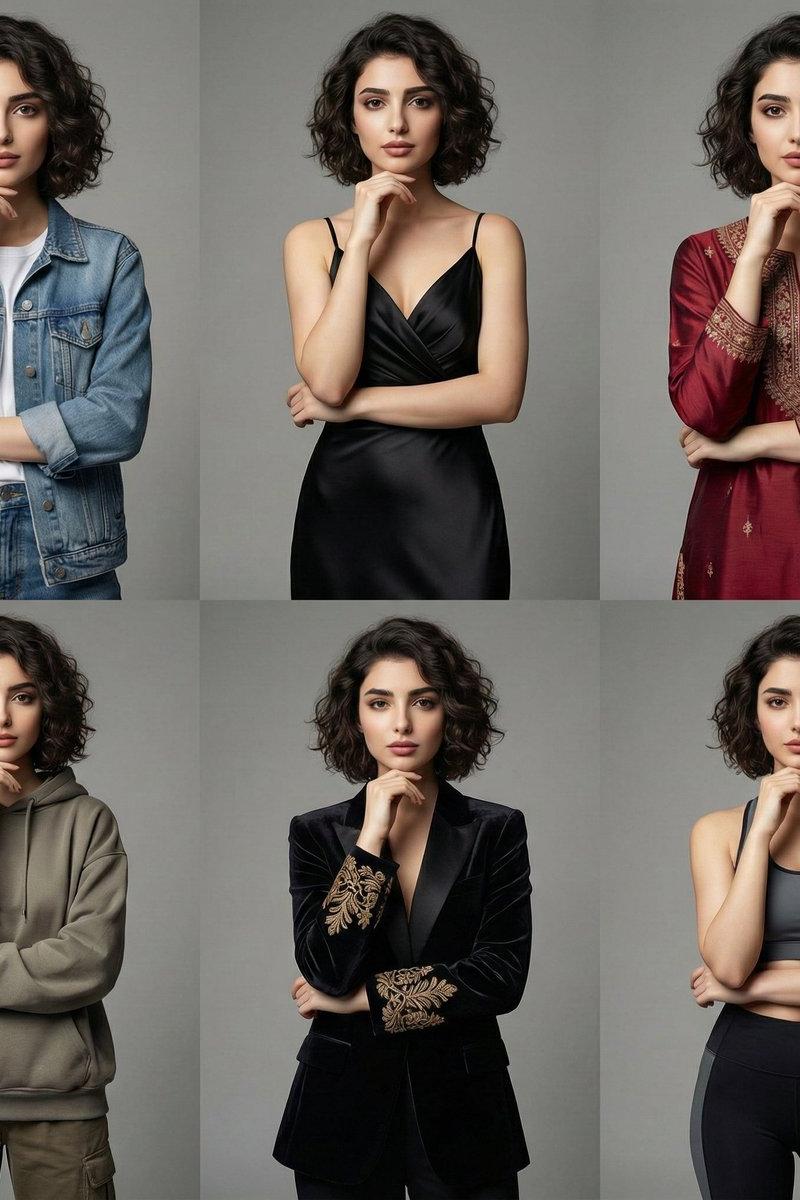
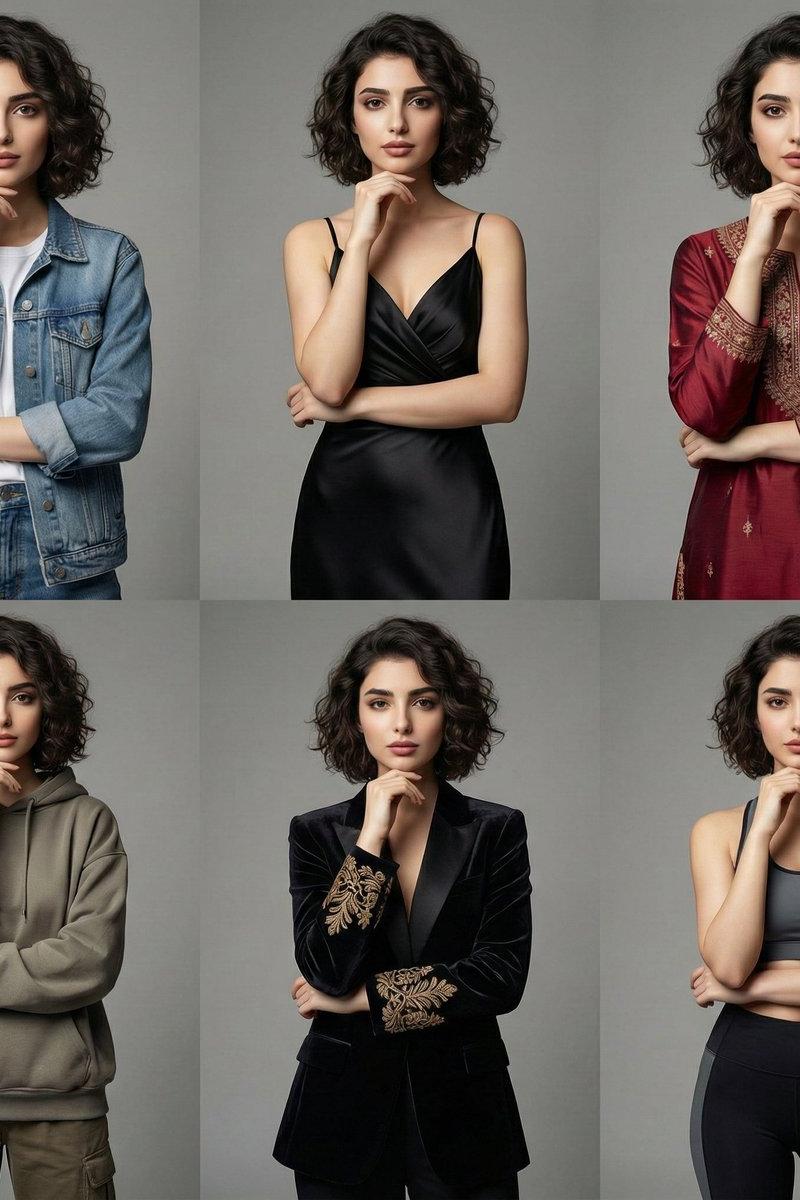
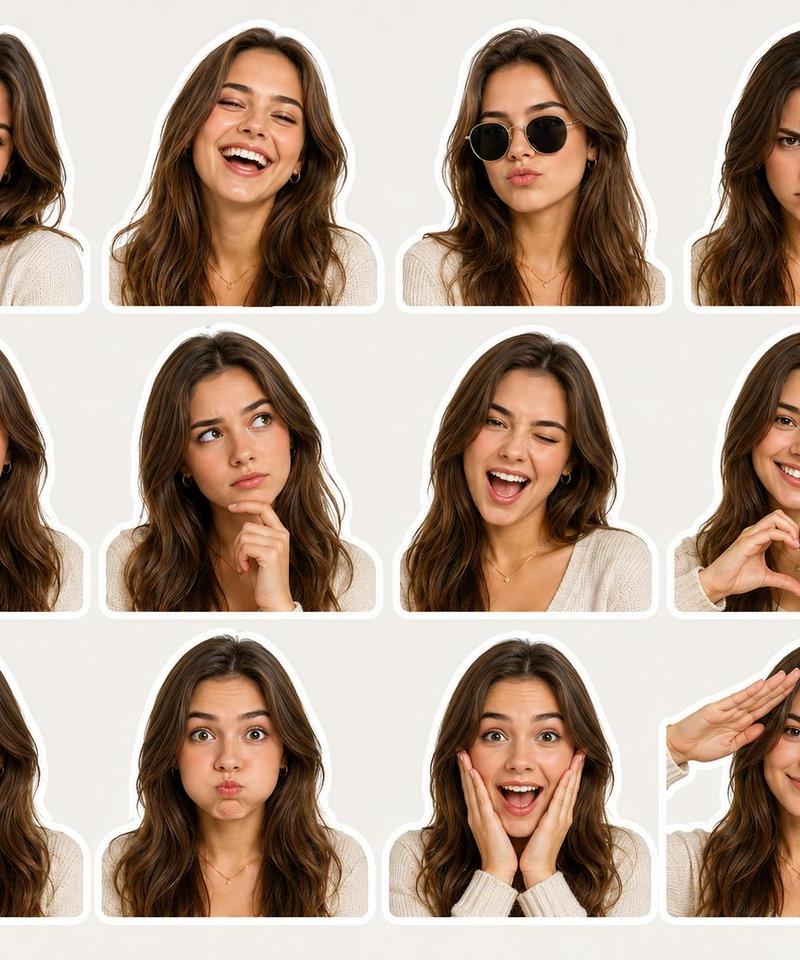
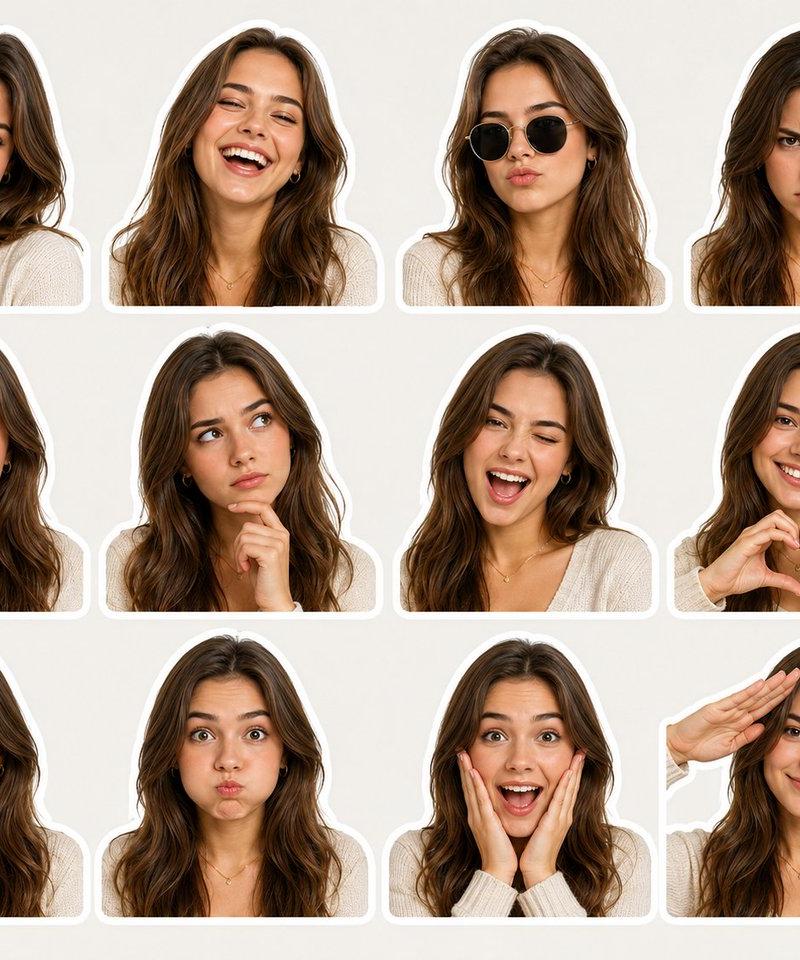
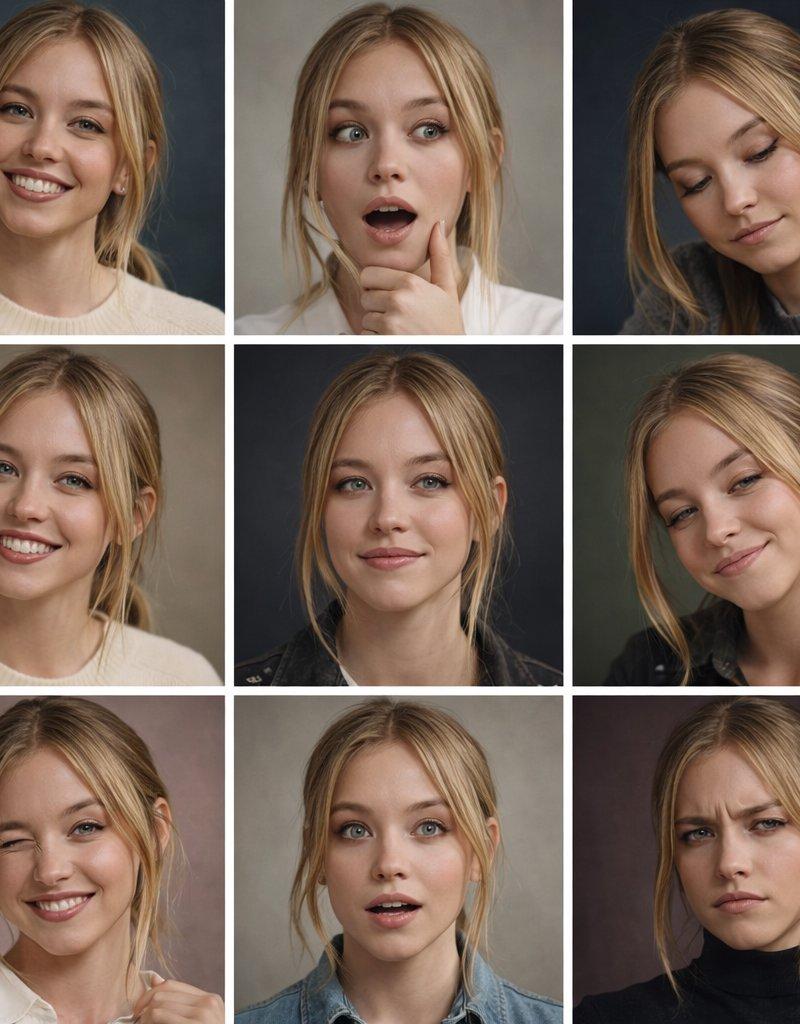
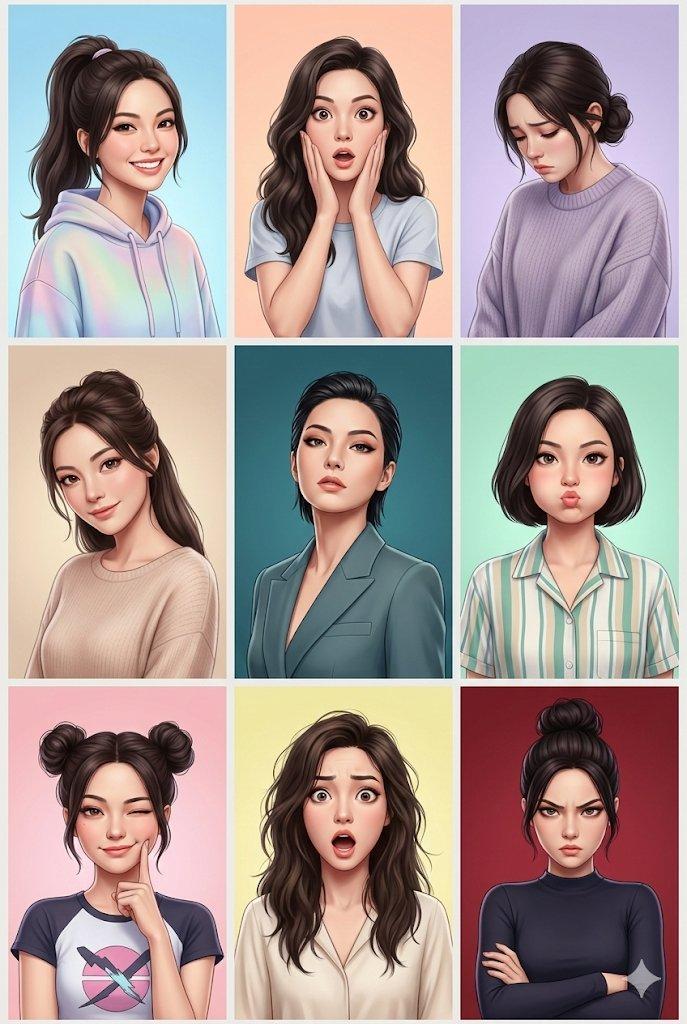
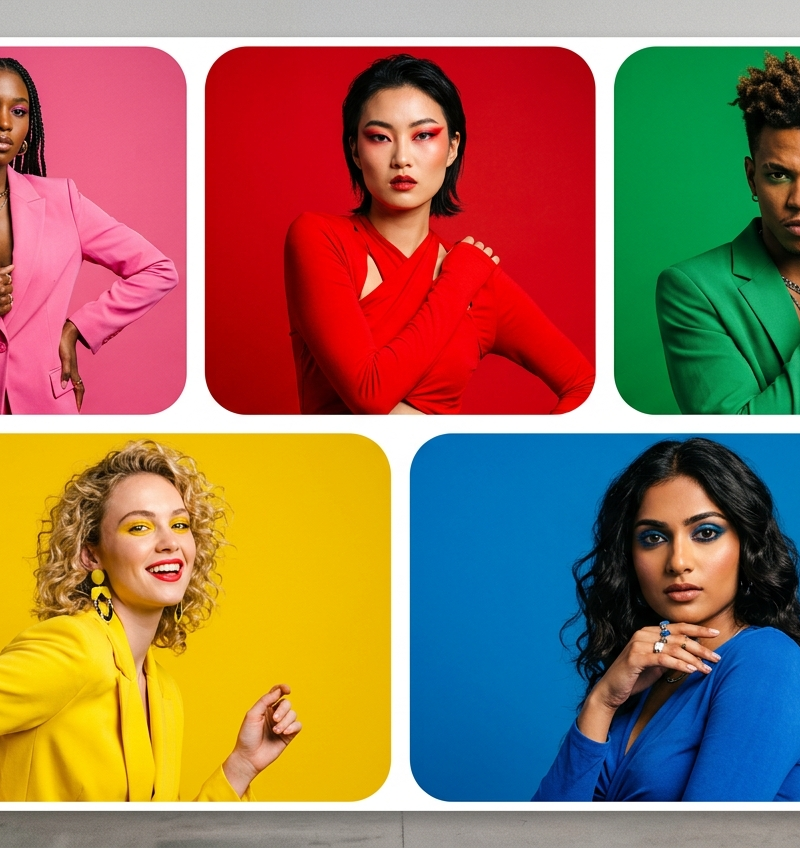
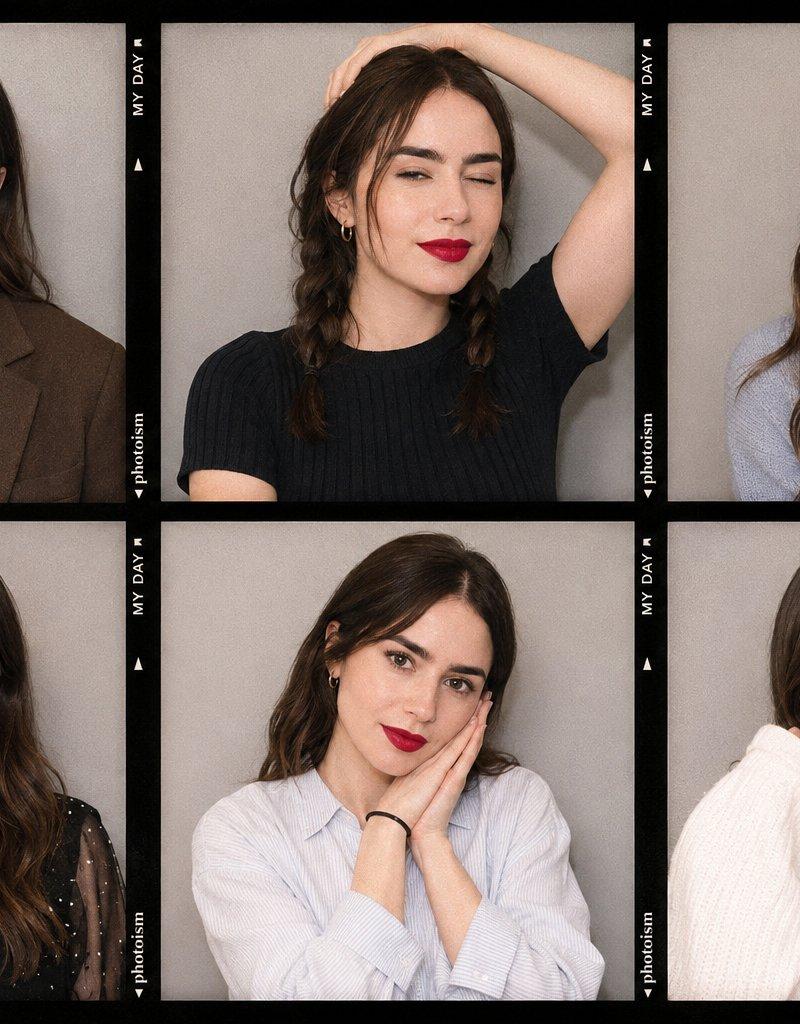
4-panel emotion grid portrait: GPT Image 2 prompt
Enlarge

Example images

4-panel emotion grid portrait: GPT Image 2 prompt

Prompt
Panels are NOT edge-to-edge
Visible thin white spacing between panels Subtle outer white margin around the entire grid clean modern UI-style layout
Slight rounded corners on each tile
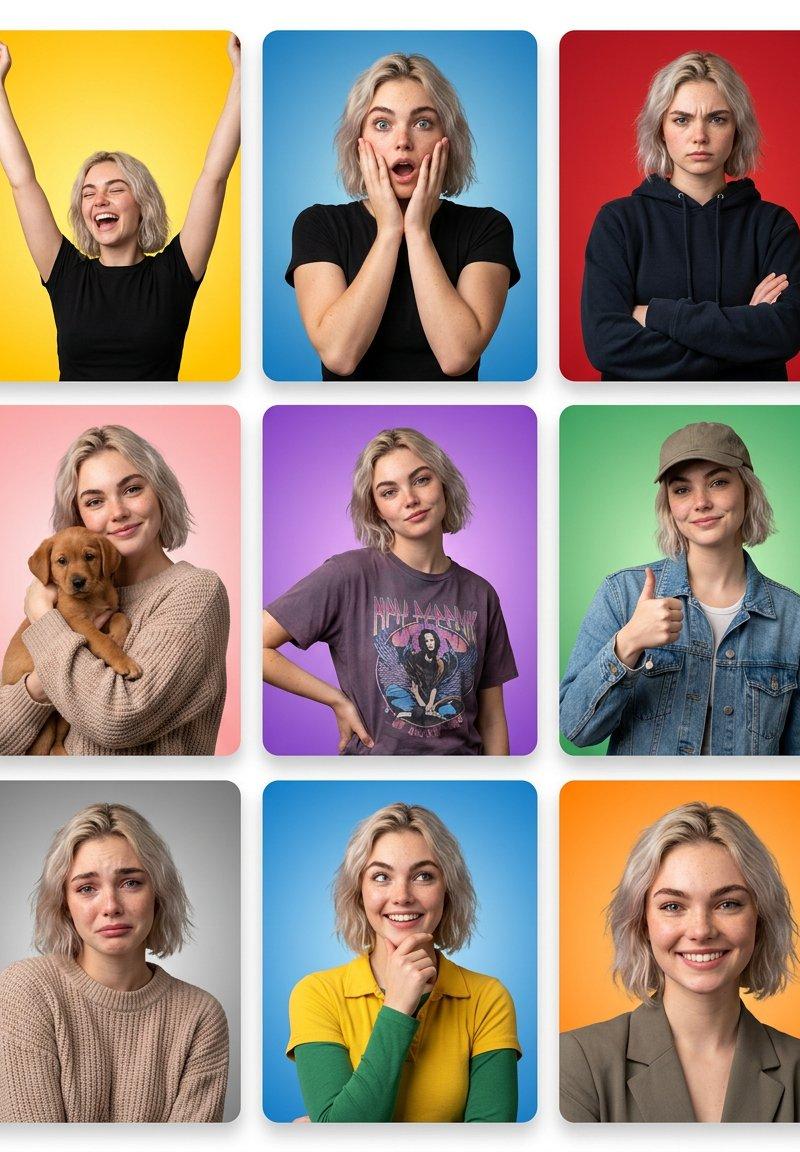
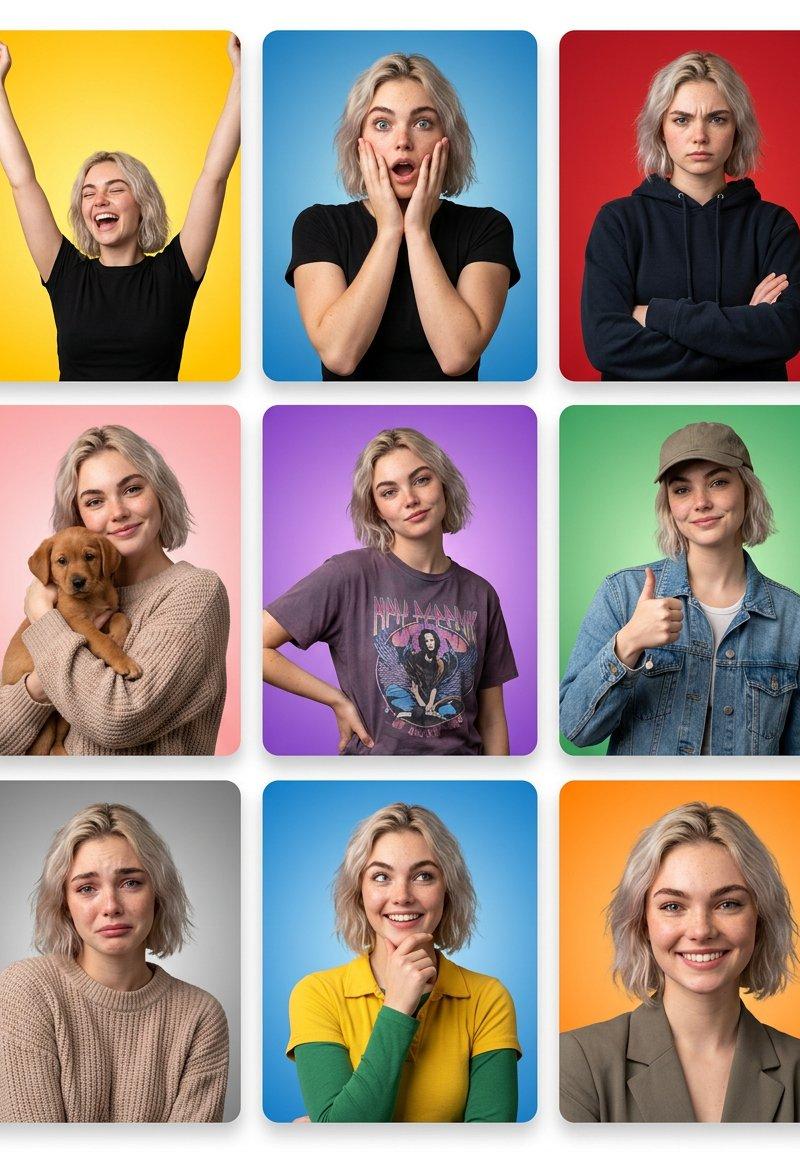
Panel 1 — Joyful / Celebratory (Yellow) Bright yellow gradient background
Arms raised
Eyes closed
Big open laugh
Energetic posture
Panel 2 — Shocked (Blue)
Blue gradient background
Hands on cheeks
Wide eyes
Open mouth
Raised brows
Panel 3 — Serious / Stern (Red)
Red background
Arms crossed
Furrowed brows
Neutral tight lips
Wearing dark hoodie
Panel 4 — Affectionate (Pink)
Soft pink gradient
Holding small brown puppy
Gentle smile
Cozy knit sweater
Panel 5 — Confident / Sassy (Purple)
Purple gradient background
One hand on hip
Slight smirk
Graphic t-shirt
Relaxed stance
Panel 6 — Friendly / Casual Approval (Green)
Green gradient background
Wearing cap + denim jacket
Thumbs-up
Relaxed smile
Panel 7 — Sad / Emotional (Gray)
Gray gradient background
Slight downward gaze
Eyebrows slightly raised in center
Lips slightly curved downward
Category
Photography & Realism
Model
GPT Image 2
Creator
Kashberg_0
Source language
en
Views0
Source ID
2029370003485802945
Published
Mar 5, 2026
Studio

Guide

About "4-panel emotion grid portrait: GPT Image 2 prompt"

What is this prompt for?

"4-panel emotion grid portrait: GPT Image 2 prompt" AI image prompt for GPT Image 2 (Photography & Realism). Panels are NOT edge-to-edge Visible thin white spa…

The full copyable prompt and example visuals above are ready for AI image generation or one-click recreate in Picva.

How to use this prompt

  1. Step 1

    Open the prompt detail

    Review the example visuals, category, and full prompt text for "4-panel emotion grid portrait: GPT Image 2 prompt".

  2. Step 2

    Copy the prompt

    Copy the prompt body from this page, or load it directly in Studio.

  3. Step 3

    Pick a model (GPT Image 2)

    Prefer GPT Image 2. If you switch models, keep subject and composition and tweak style terms.

  4. Step 4

    Generate and export

    Recreate the look in Picva, or export into your workflow for editing and publishing.

FAQ

What is the "4-panel emotion grid portrait: GPT Image 2 prompt" prompt?
It is an AI image-generation prompt for GPT Image 2 in the Photography & Realism category. This page includes the full prompt text, example visuals, and a one-click recreate path in Picva.
How do I use this prompt to generate an image?
Copy the prompt from this page, or use Generate / Studio. Paste it into a compatible image model, or recreate the look in Picva with optional reference images.
Which model is this prompt for?
This page lists GPT Image 2. Most descriptive prompts also transfer to nearby image models such as GPT Image, Flux, or Midjourney with light style tweaks.
Can I use the result commercially?
You can usually copy the prompt for creation, but commercial use of the final image depends on the model terms, reference-image rights, and the generated content. Follow the source author and platform rules.