16

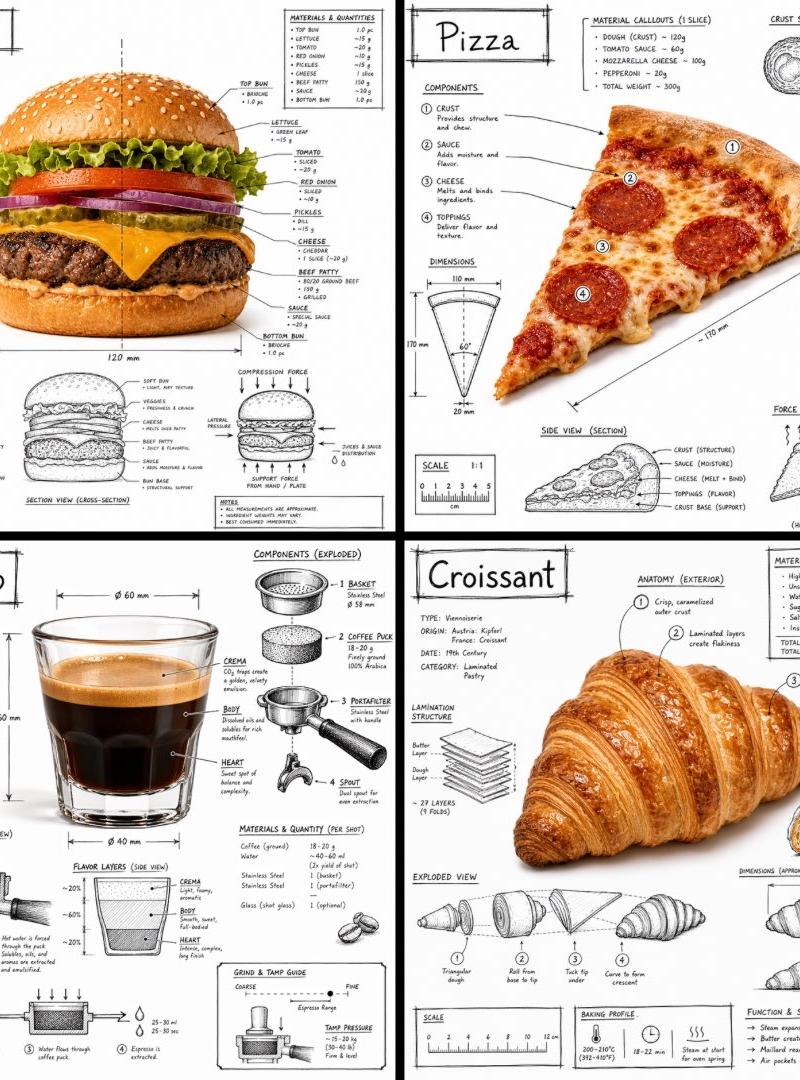
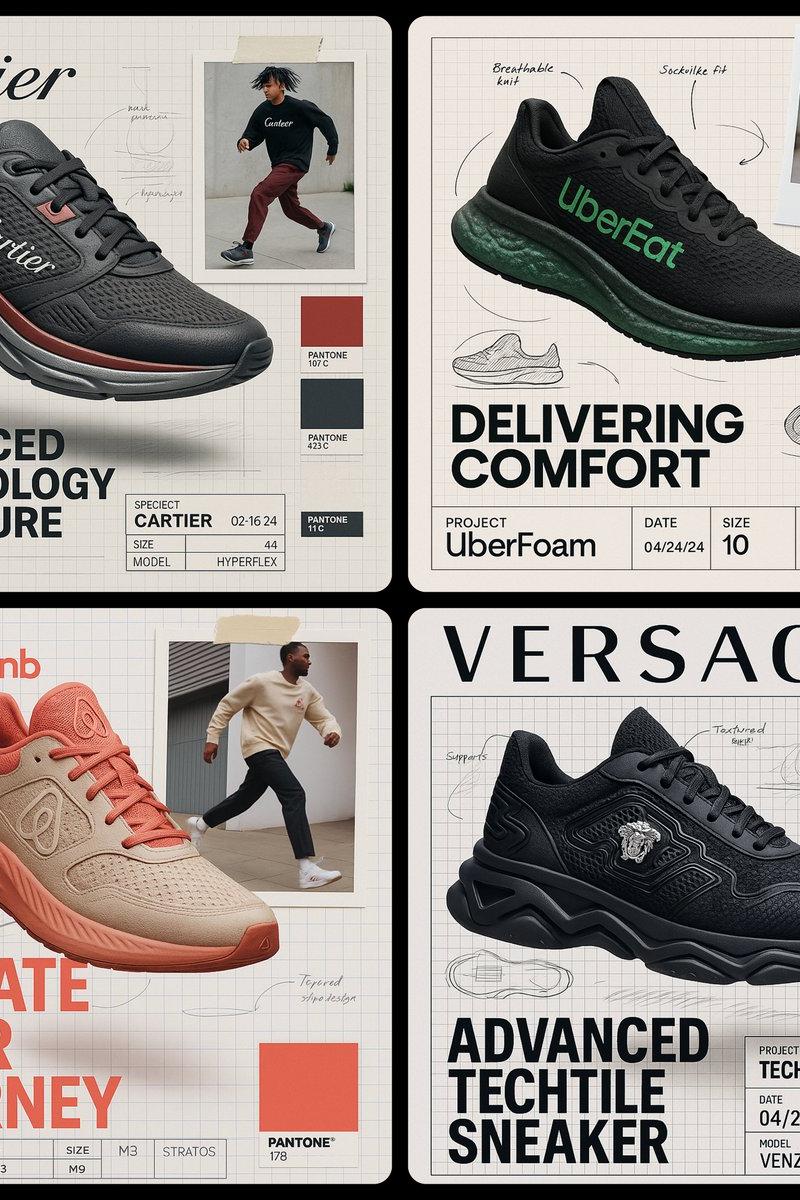
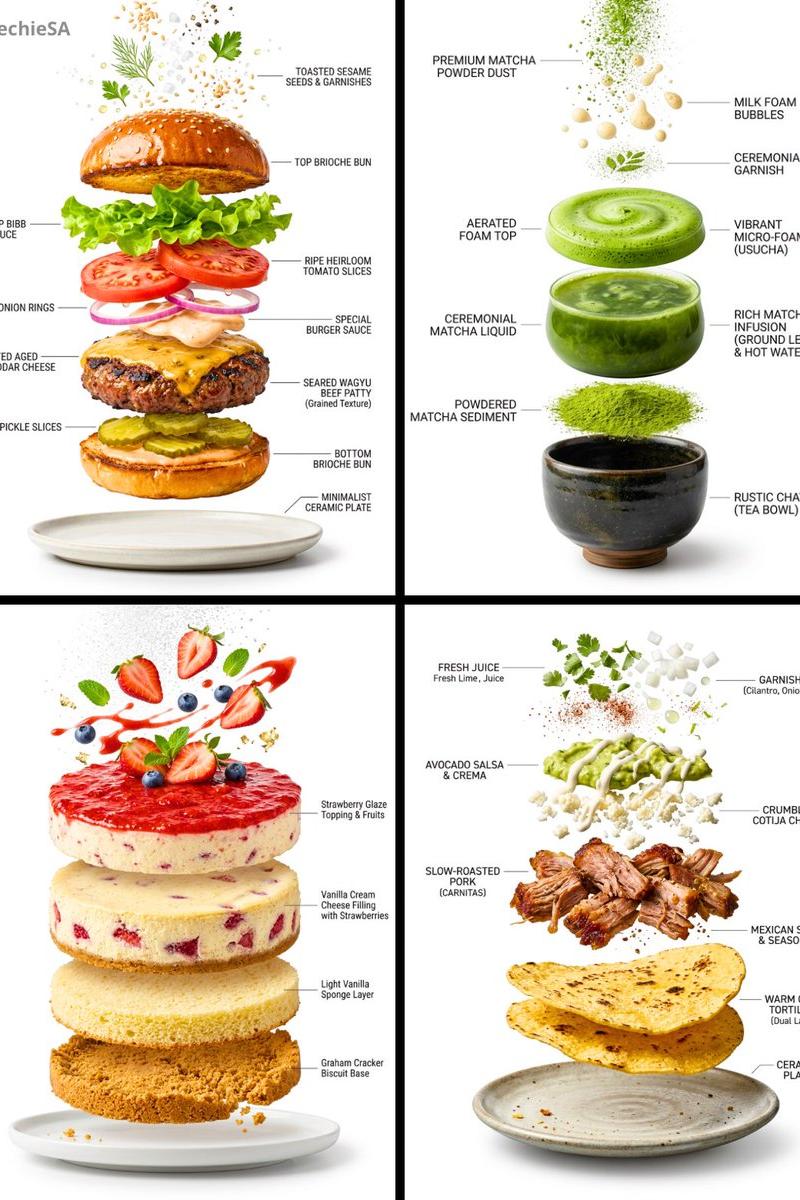
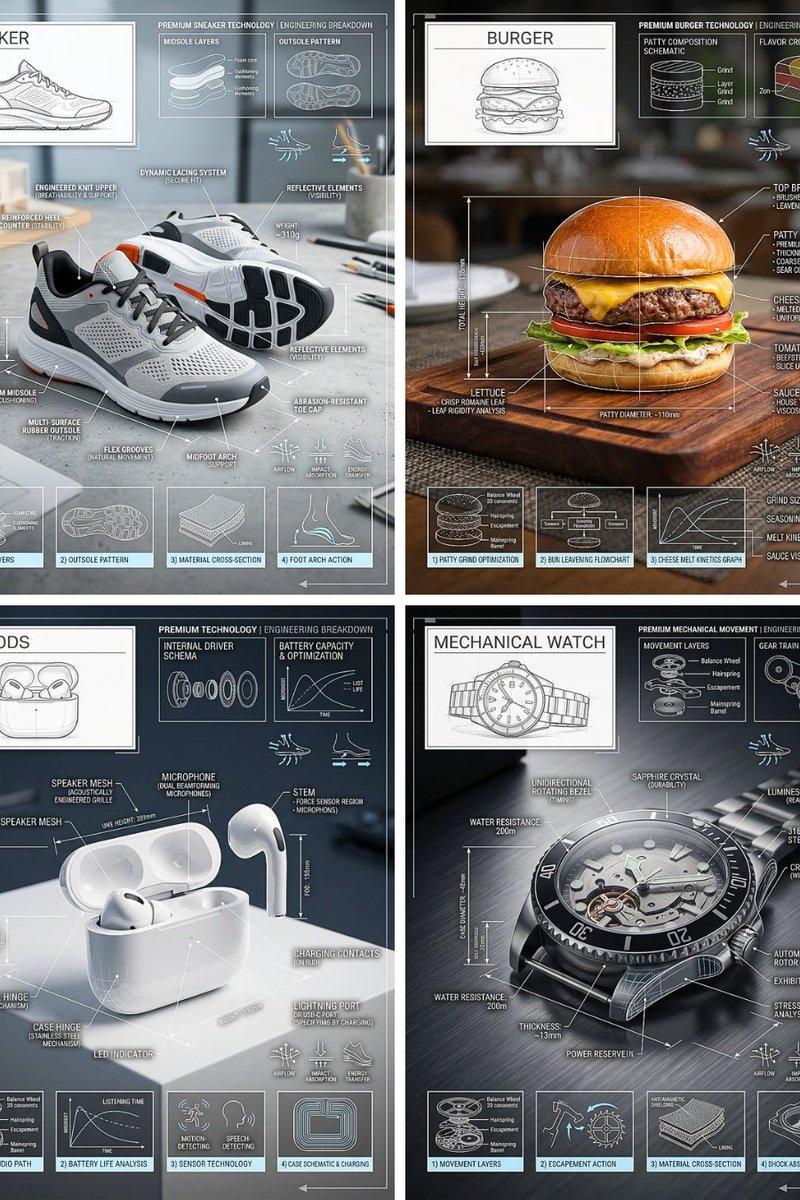
Technical Breakdown Infographic
Enlarge

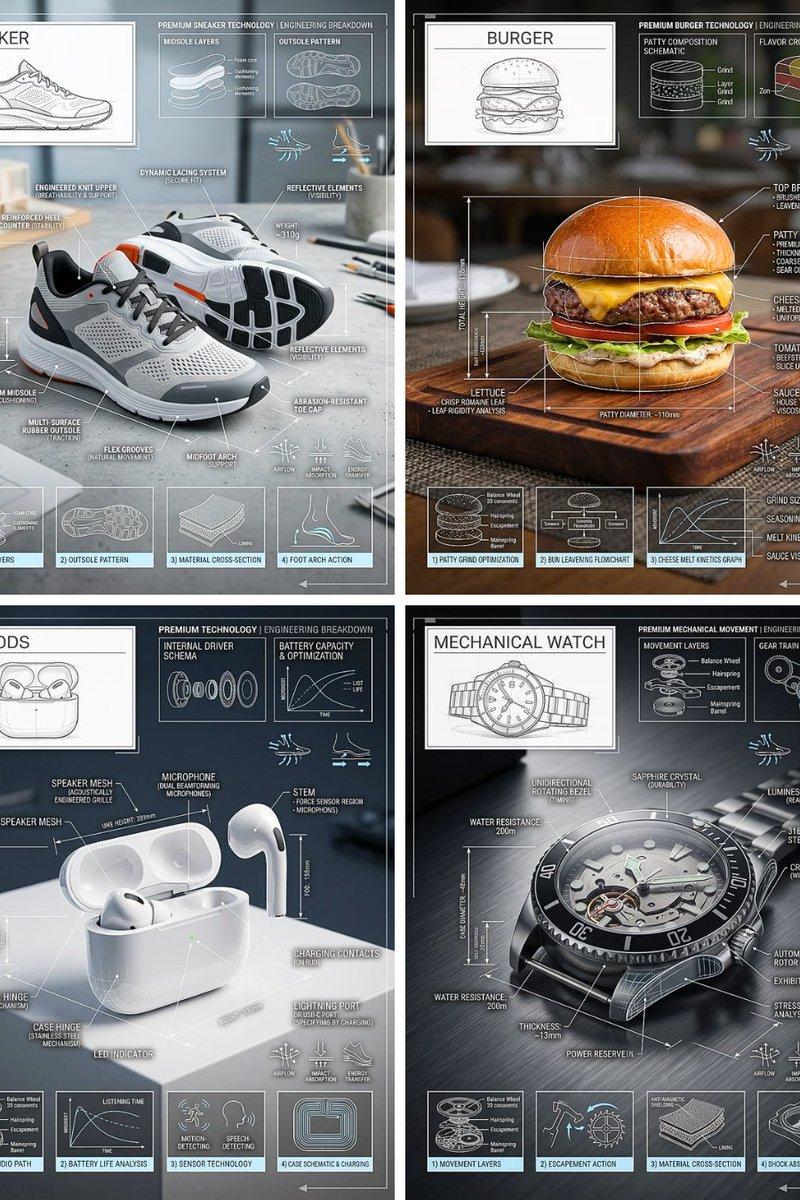
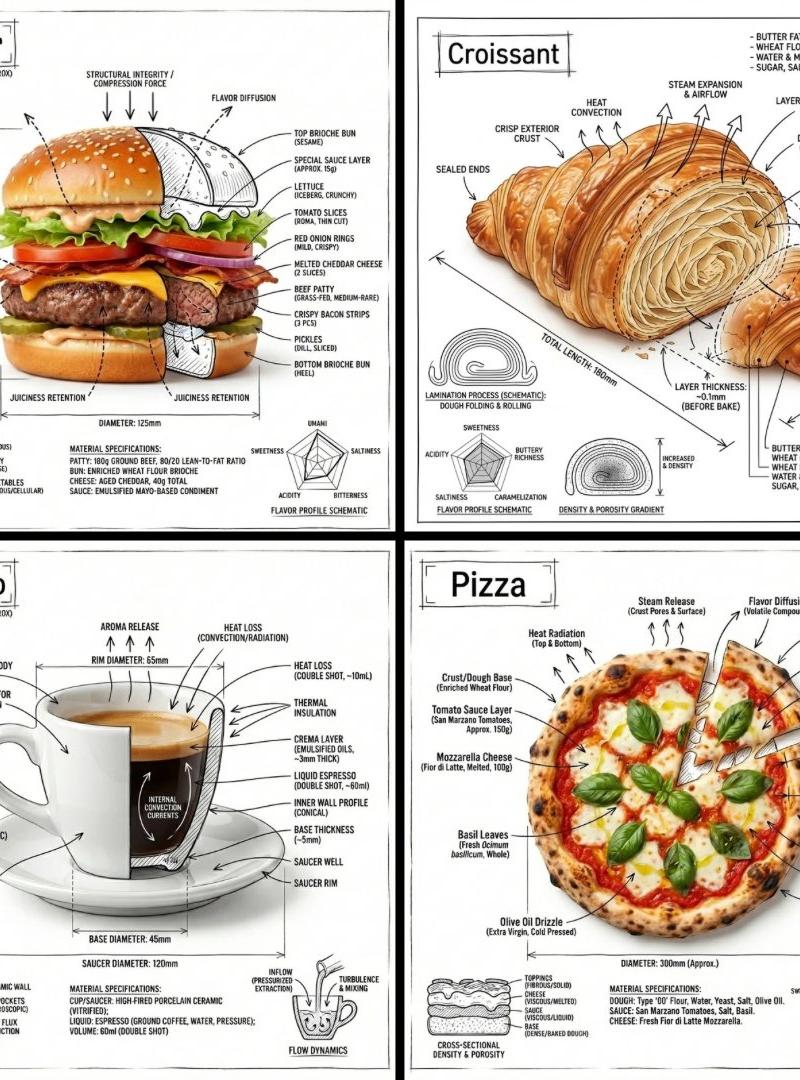
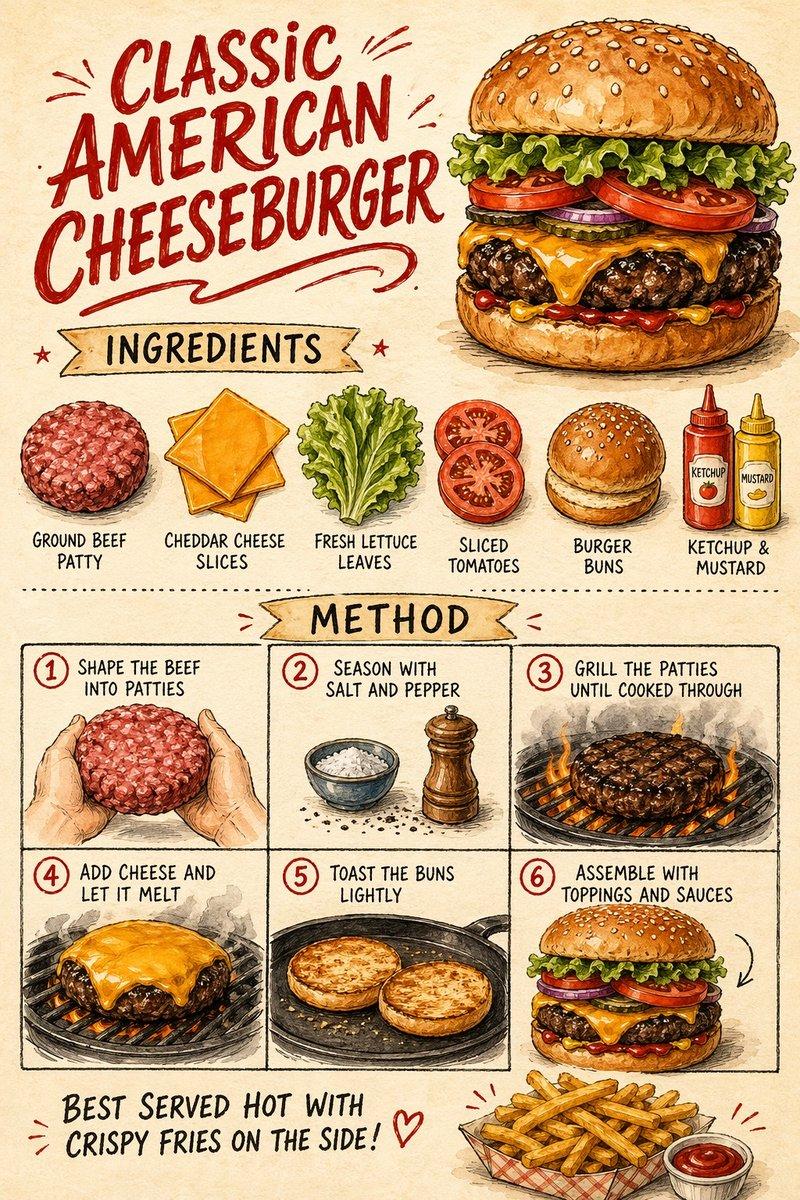
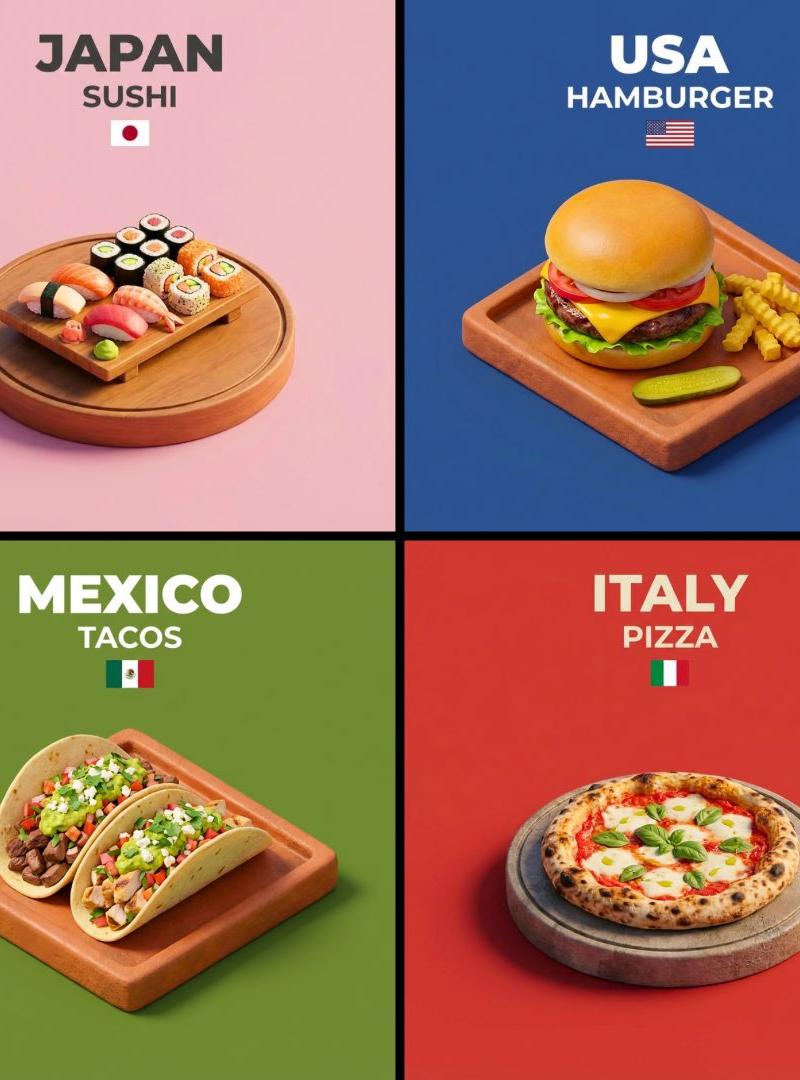
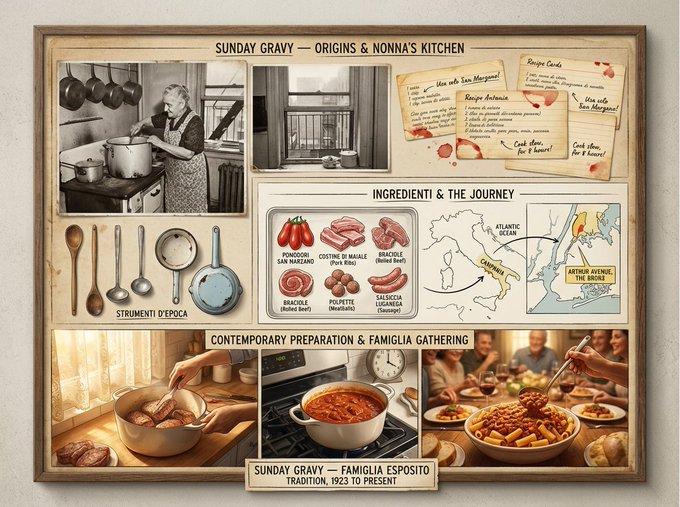
Example images

Technical Breakdown Infographic

Prompt
Create a high-quality technical infographic of {argument name="target object" default="[OBJECT]"}. Use the provided reference image only to understand the shape and form of the object — do not replicate the original photo, angle, composition, or background. Reimagine the subject as a fresh, professional, and realistic photograph with a clean, well-lit setup and a more aesthetic background. The object itself should look like a real photo, not an illustration. Layer a {argument name="overlay style" default="technical blueprint-style overlay"} on top, featuring white lines, arrows, dimension callouts, part labels, material notes, measurements, and small functional diagrams. The overall composition should feel clear, elegant, and informative. Include a sketch inset box in the upper left corner labeled "OBJECT". 4:5 ratio.
Category
Charts & Infographics
Model
GPT Image 2
Creator
PromptLab
Source language
en
Views432
Source ID
24451
Published
Jun 6, 2026
Studio

Guide

About "Technical Breakdown Infographic"

What is this prompt for?

"Technical Breakdown Infographic" AI image prompt for GPT Image 2 (Charts & Infographics). A technical infographic prompt that takes an object's form and overl…

The full copyable prompt and example visuals above are ready for AI image generation or one-click recreate in Picva.

How to use this prompt

  1. Step 1

    Open the prompt detail

    Review the example visuals, category, and full prompt text for "Technical Breakdown Infographic".

  2. Step 2

    Copy the prompt

    Copy the prompt body from this page, or load it directly in Studio.

  3. Step 3

    Pick a model (GPT Image 2)

    Prefer GPT Image 2. If you switch models, keep subject and composition and tweak style terms.

  4. Step 4

    Generate and export

    Recreate the look in Picva, or export into your workflow for editing and publishing.

FAQ

What is the "Technical Breakdown Infographic" prompt?
It is an AI image-generation prompt for GPT Image 2 in the Charts & Infographics category. This page includes the full prompt text, example visuals, and a one-click recreate path in Picva.
How do I use this prompt to generate an image?
Copy the prompt from this page, or use Generate / Studio. Paste it into a compatible image model, or recreate the look in Picva with optional reference images.
Which model is this prompt for?
This page lists GPT Image 2. Most descriptive prompts also transfer to nearby image models such as GPT Image, Flux, or Midjourney with light style tweaks.
Can I use the result commercially?
You can usually copy the prompt for creation, but commercial use of the final image depends on the model terms, reference-image rights, and the generated content. Follow the source author and platform rules.