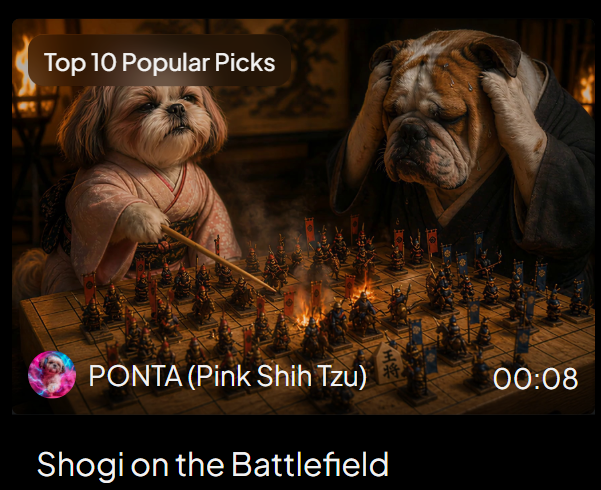
将棋战场视频缩略图
Prompt
Goal: Create a cinematic social media video thumbnail / award post image showing a fantasy shogi match transforming into a battlefield, with a dark PixVerse-style video-card presentation.

Canvas: 600×483 px landscape card on a black background with rounded corners. The upper 82% is a cinematic image still; the lower strip is black with a large title. Use warm firelight, deep shadows, shallow depth of field, dramatic movie lighting, and high-detail photorealistic animal characters.

Main scene: Inside a dim traditional Japanese room, two anthropomorphic dogs sit across a wooden shogi board that has become a miniature battlefield. On the left is {argument name="left character" default="PONTA, a pink Shih Tzu"}, small and fluffy, wearing a pale pink kimono, holding a thin wooden pointer toward the board with a confident strategic expression. On the right is {argument name="right character" default="a worried bulldog opponent"}, large and wrinkled, wearing a dark robe, gripping both sides of his head in despair. Behind them are blurred lanterns, flames, and traditional wall art.

Board details: The shogi board fills the lower center of the image in perspective. Show a dense miniature battle scene on top of the grid: exactly two opposing armies, one accented in red/orange and one accented in blue. Include about 64 visible miniature soldier figures total, mixed with shogi pieces, banners, spears, and glowing embers. A bright fiery clash burns near the center of the board. Make the wooden grid and at least one shogi piece with Japanese characters visible near the front edge.

Overlay text and UI: Add a rounded dark-brown pill label at the top left reading {argument name="award label" default="Top 10 Popular Picks"} in white sans-serif text. At the lower left of the image still, place a circular colorful avatar icon followed by white text reading {argument name="creator line" default="PONTA (Pink Shih Tzu)"}. At the lower right of the image still, place the white duration text {argument name="duration" default="00:08"}. In the black bottom area, add the large white title text {argument name="video title" default="Shogi on the Battlefield"} aligned left.

Visible discrete text elements: exactly 4 text elements: the award label, the creator line, the duration, and the bottom title. Visible major characters: exactly 2 dogs. Visible UI elements: exactly 1 rounded award pill, exactly 1 circular avatar, exactly 1 video duration marker, exactly 1 bottom title area.

Style constraints: photorealistic yet fantastical, cinematic, warm orange highlights, dark vignette, high contrast, crisp central details, no extra logos, no watermark, no additional captions beyond the specified text.- Category
- UI & Interfaces
- Model
- GPT Image 2
- Creator
- pink shih tzu ponta
- Source language
- en
- Source ID
- 24972
- Published
- Jun 9, 2026
Views3