19

创意情绪板拼贴
Enlarge

创意情绪板拼贴

Prompt
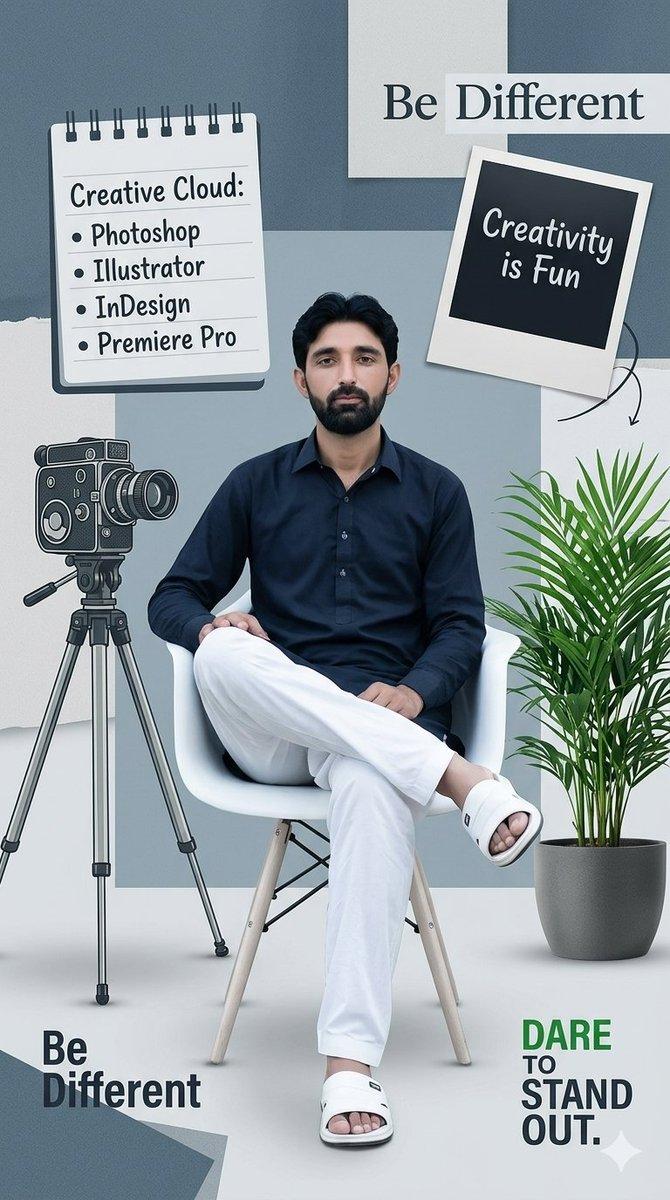
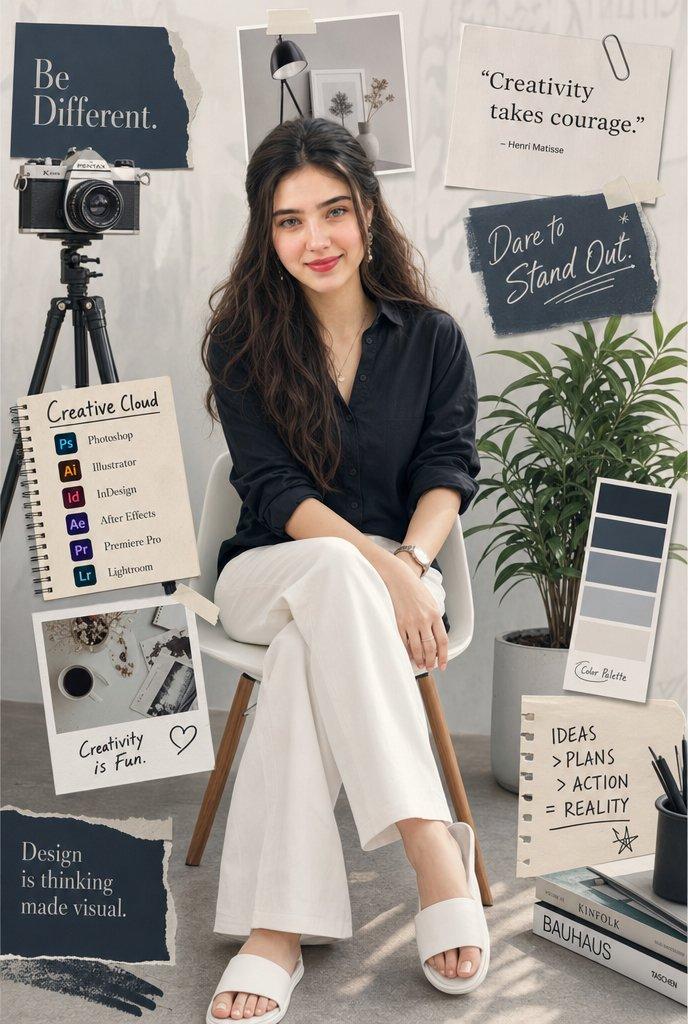
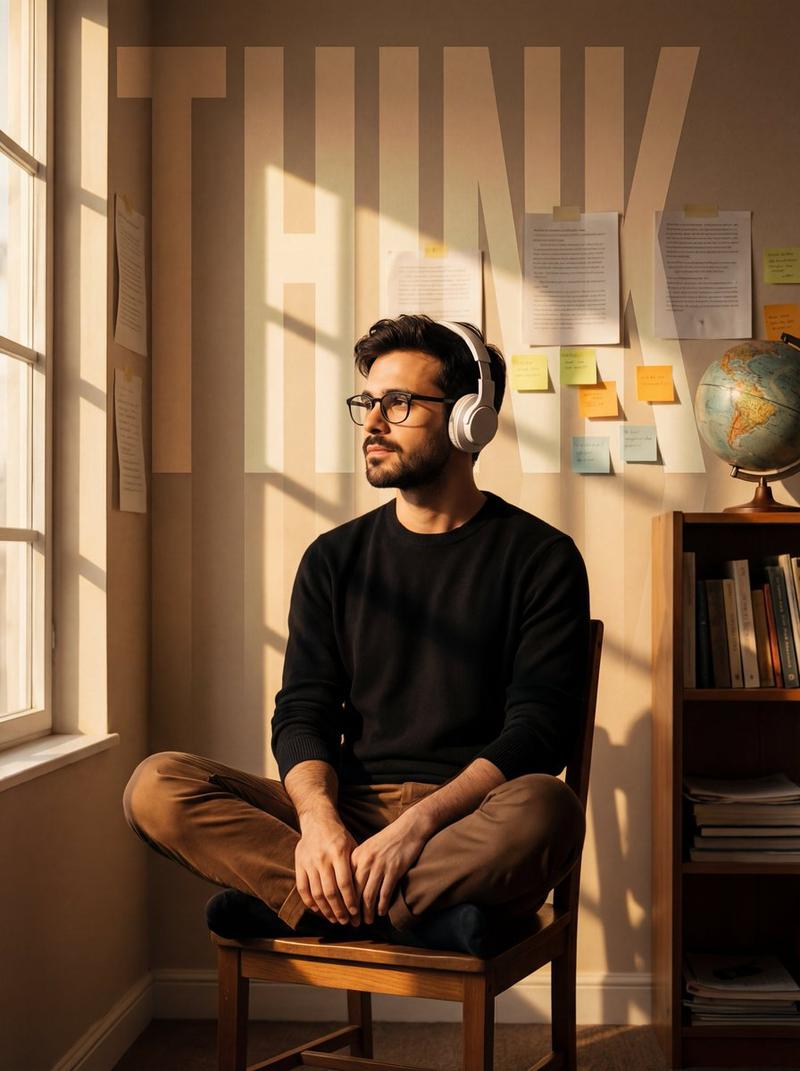
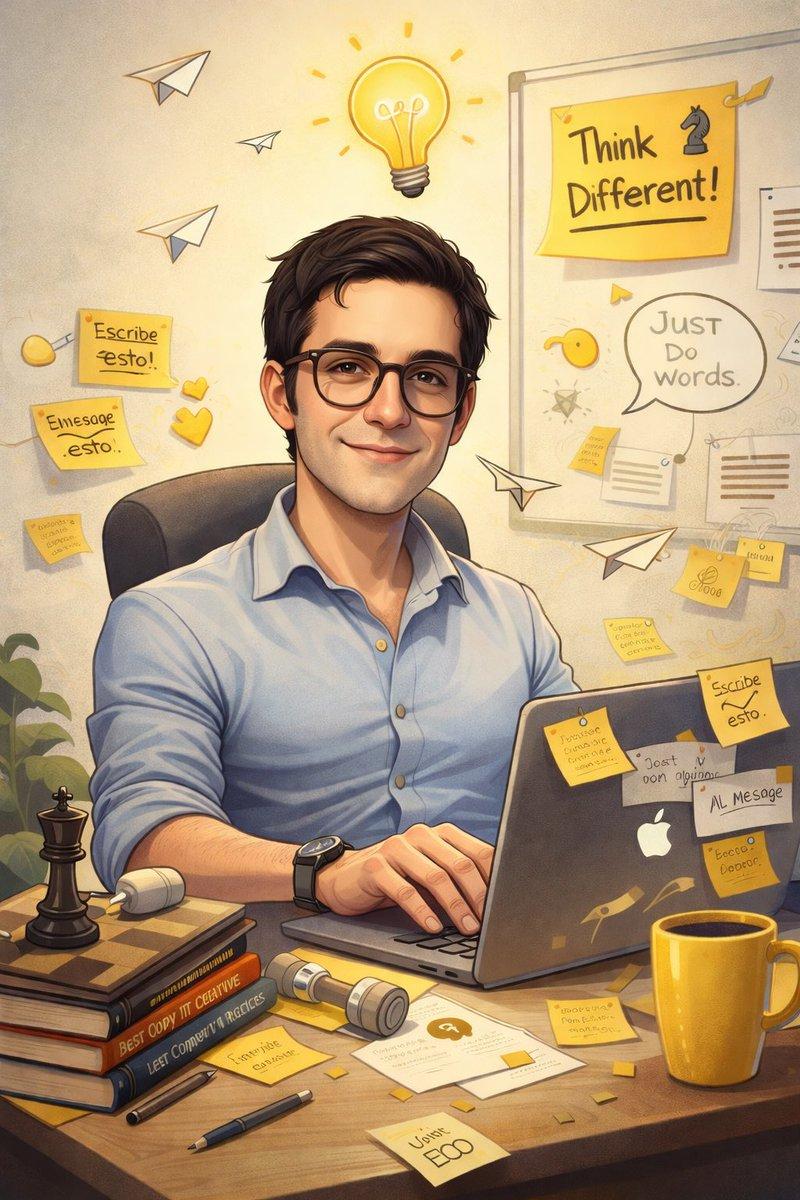
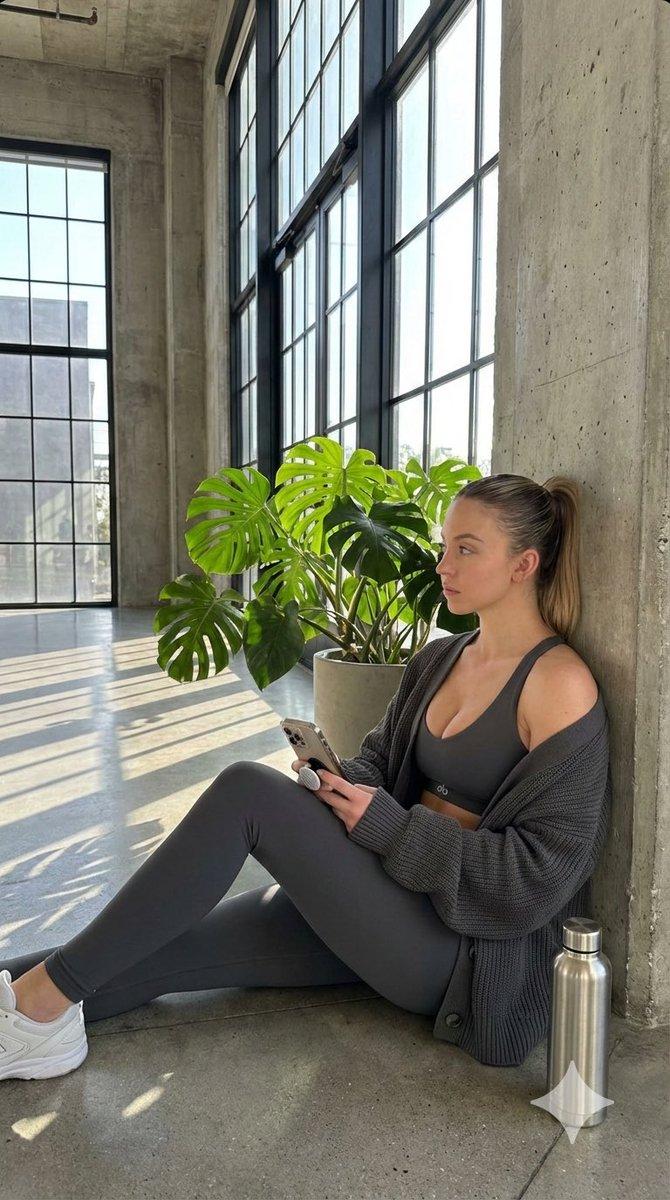
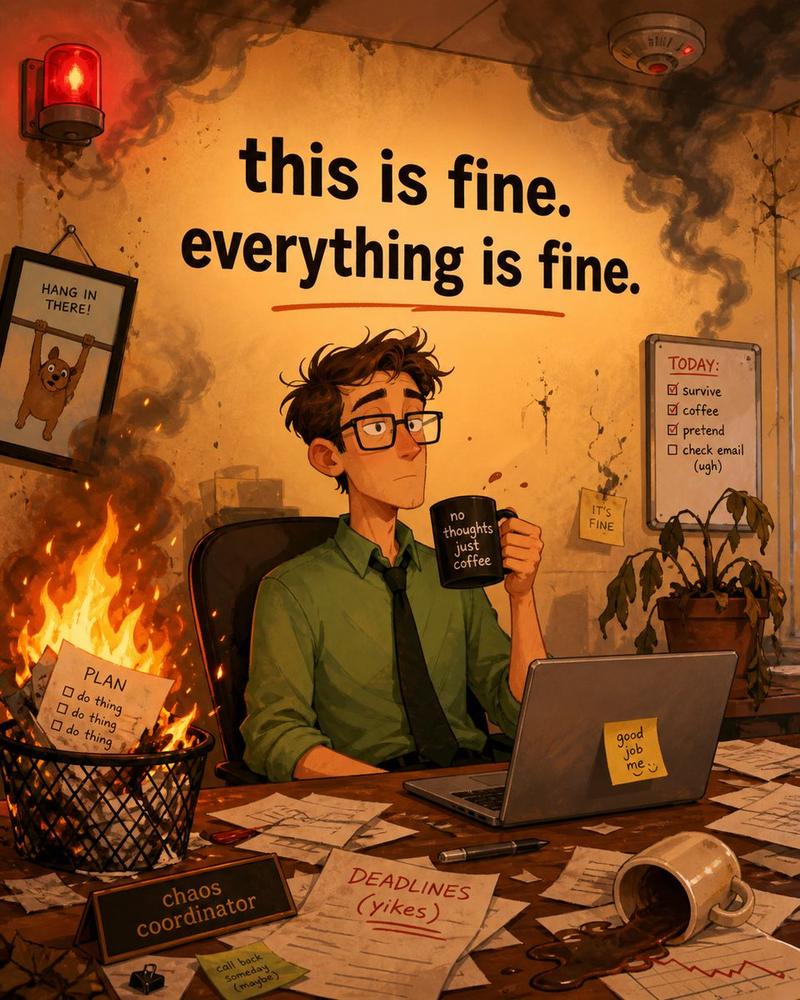
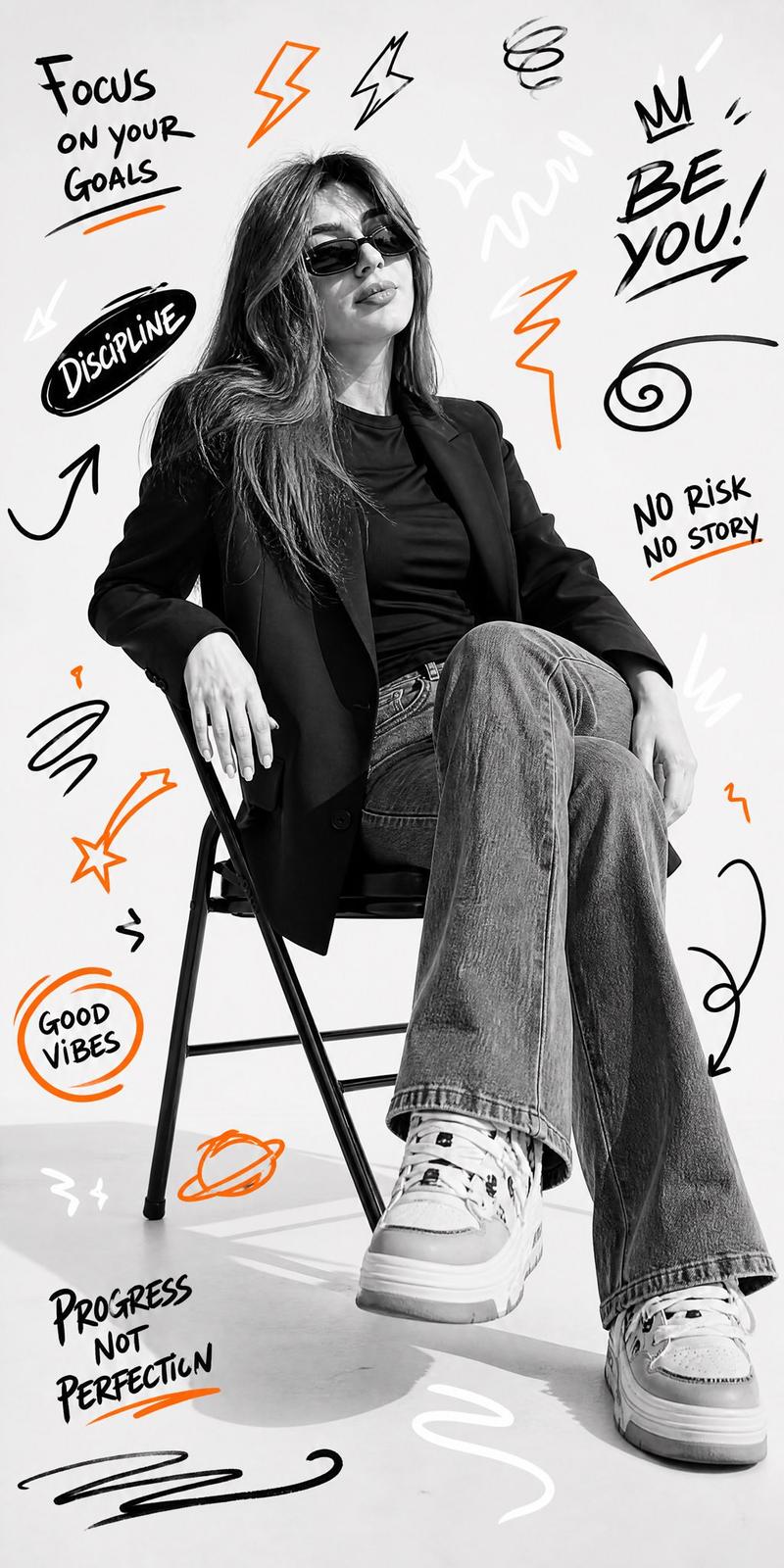
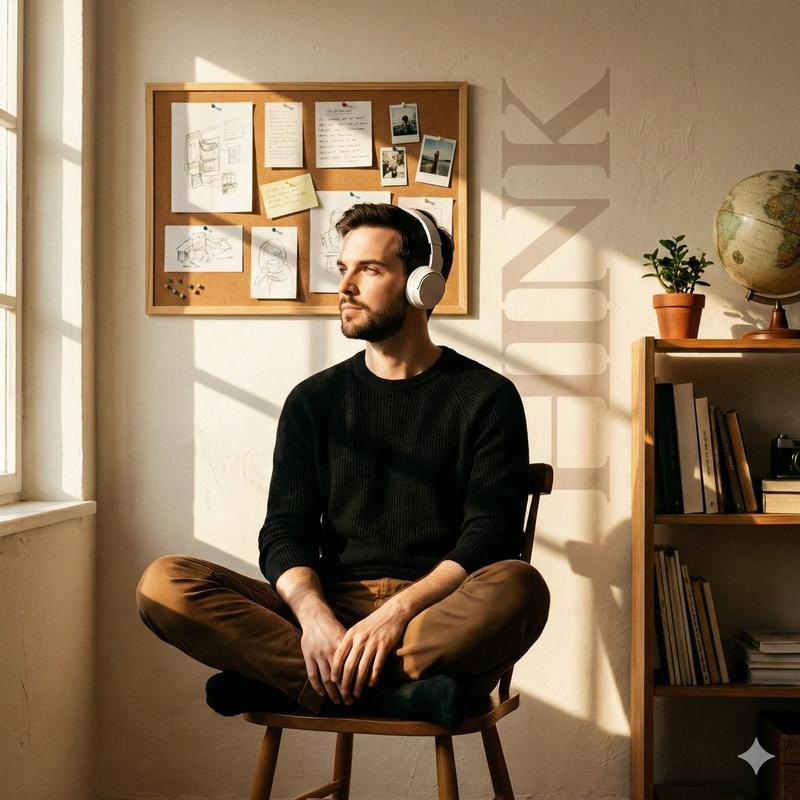
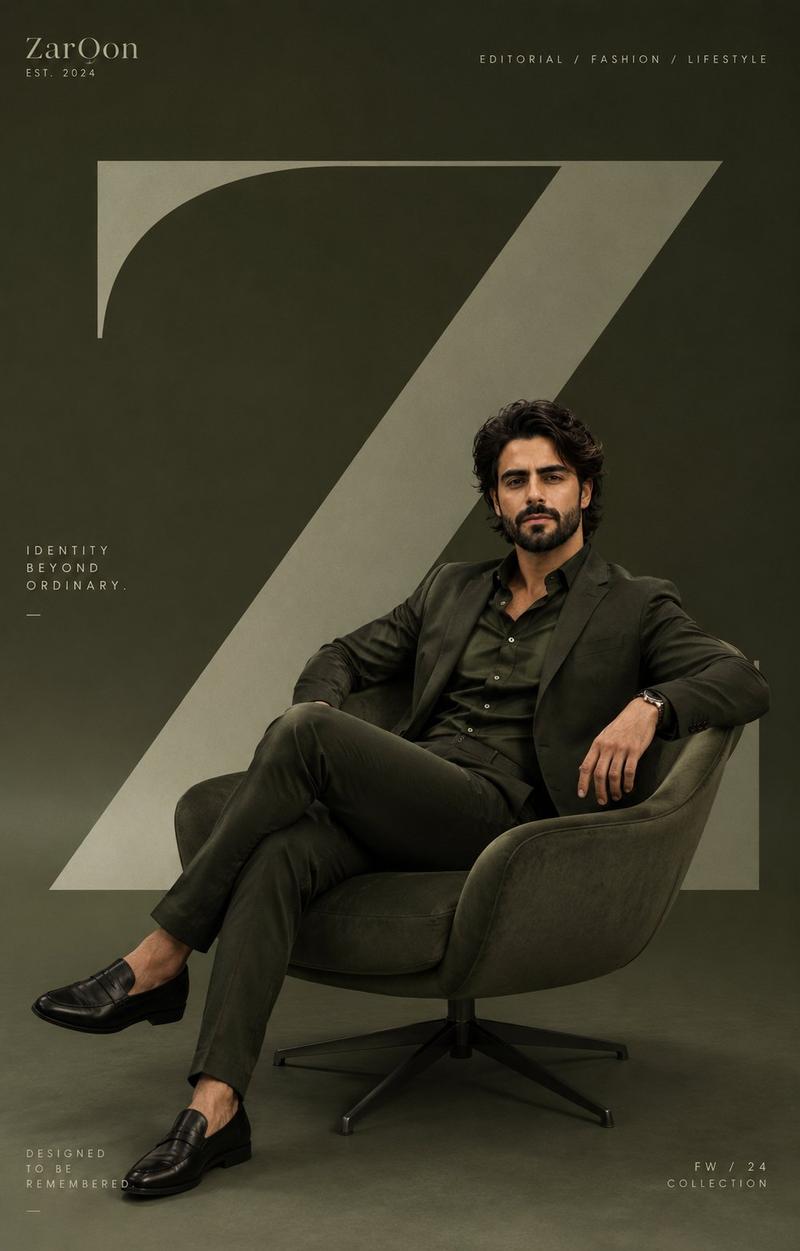
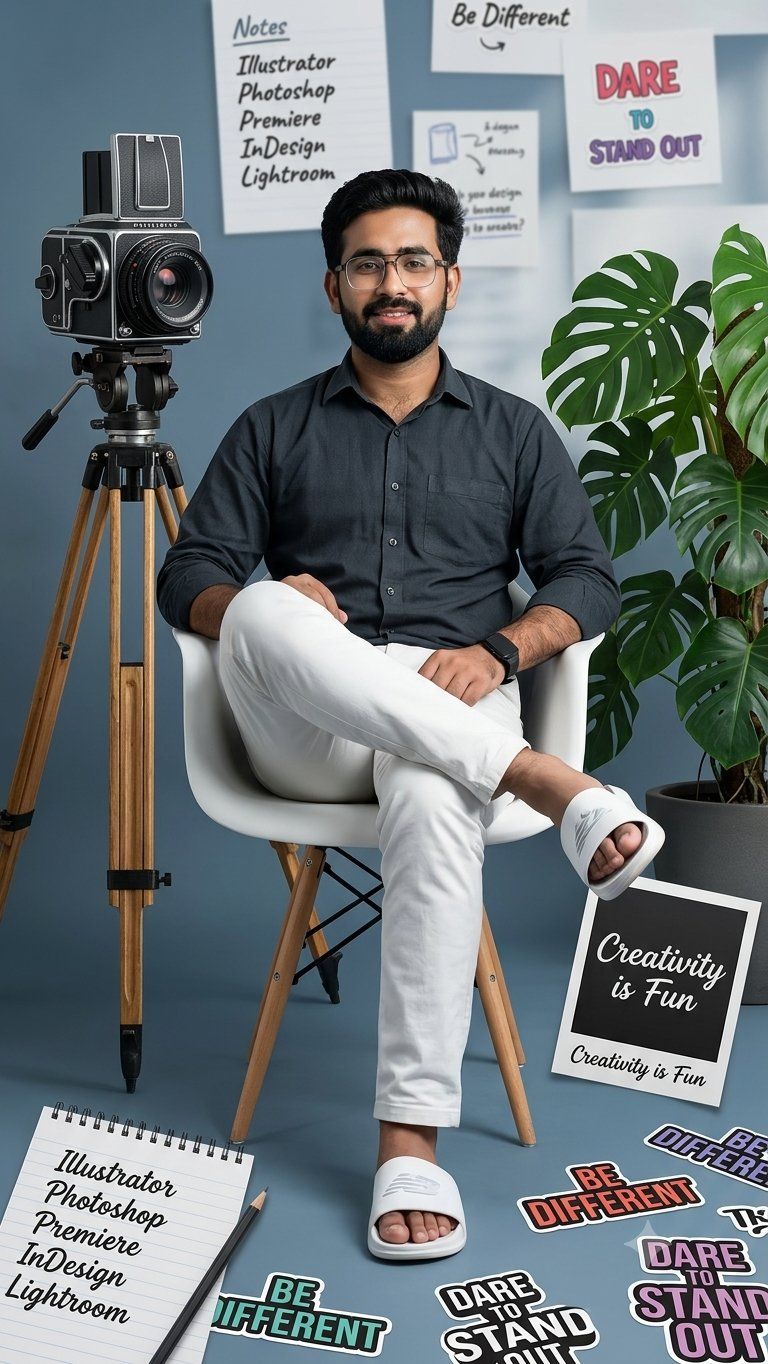
A full shot of a {argument name="subject" default="man"} sitting on a {argument name="chair" default="white chair"} with his legs crossed, wearing a {argument name="outfit" default="dark button-down shirt, white pants, and white slides"}, uploaded face as reference, with an old-fashioned film camera on a tripod to his left, a potted green plant to his right, and various design-related elements scattered around him, including a notepad listing "Creative Cloud" applications, a Polaroid photo with the words "Creativity is Fun," and text snippets like "Be Different" and "Dare to Stand Out," all arranged in a collage style, with a color palette of {argument name="colors" default="muted blues, grays, and whites"}, and pops of color from the plant and text, creating a visually engaging and informative composition, reminiscent of a graphic design mood board, with a slightly desaturated look and a clean, modern aesthetic, as if designed for an Instagram story.
Category
Charts & Infographics
Model
GPT Image 2
Views0
Source ID
25028
Published
Jun 10, 2026

Guide

About "创意情绪板拼贴"

What is this prompt for?

"创意情绪板拼贴" AI image prompt for GPT Image 2 (Charts & Infographics). 一种拼贴风格的提示词,展示了现代背景下的人物,融合了创意设计元素与排版。 Copy it on Picva and recreate the look in one click.

The full copyable prompt and example visuals above are ready for AI image generation or one-click recreate in Picva.

How to use this prompt

  1. Step 1

    Open the prompt detail

    Review the example visuals, category, and full prompt text for "创意情绪板拼贴".

  2. Step 2

    Copy the prompt

    Copy the prompt body from this page, or load it directly in Studio.

  3. Step 3

    Pick a model (GPT Image 2)

    Prefer GPT Image 2. If you switch models, keep subject and composition and tweak style terms.

  4. Step 4

    Generate and export

    Recreate the look in Picva, or export into your workflow for editing and publishing.

FAQ

What is the "创意情绪板拼贴" prompt?
It is an AI image-generation prompt for GPT Image 2 in the Charts & Infographics category. This page includes the full prompt text, example visuals, and a one-click recreate path in Picva.
How do I use this prompt to generate an image?
Copy the prompt from this page, or use Generate / Studio. Paste it into a compatible image model, or recreate the look in Picva with optional reference images.
Which model is this prompt for?
This page lists GPT Image 2. Most descriptive prompts also transfer to nearby image models such as GPT Image, Flux, or Midjourney with light style tweaks.
Can I use the result commercially?
You can usually copy the prompt for creation, but commercial use of the final image depends on the model terms, reference-image rights, and the generated content. Follow the source author and platform rules.