Sketch to Controller Design Board
Prompt
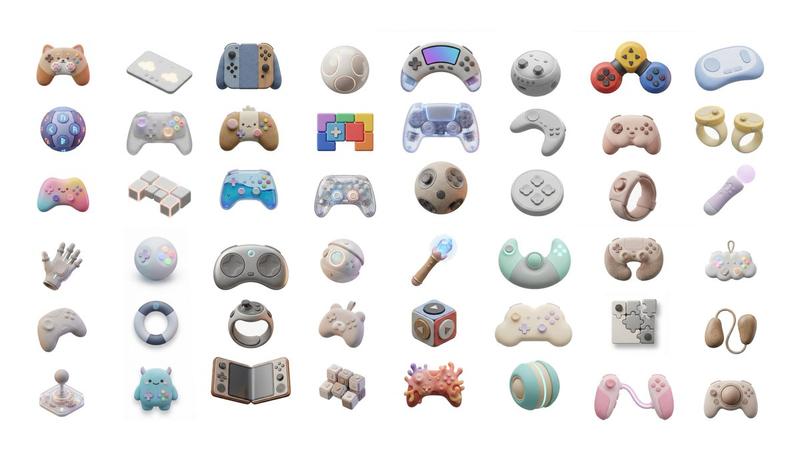
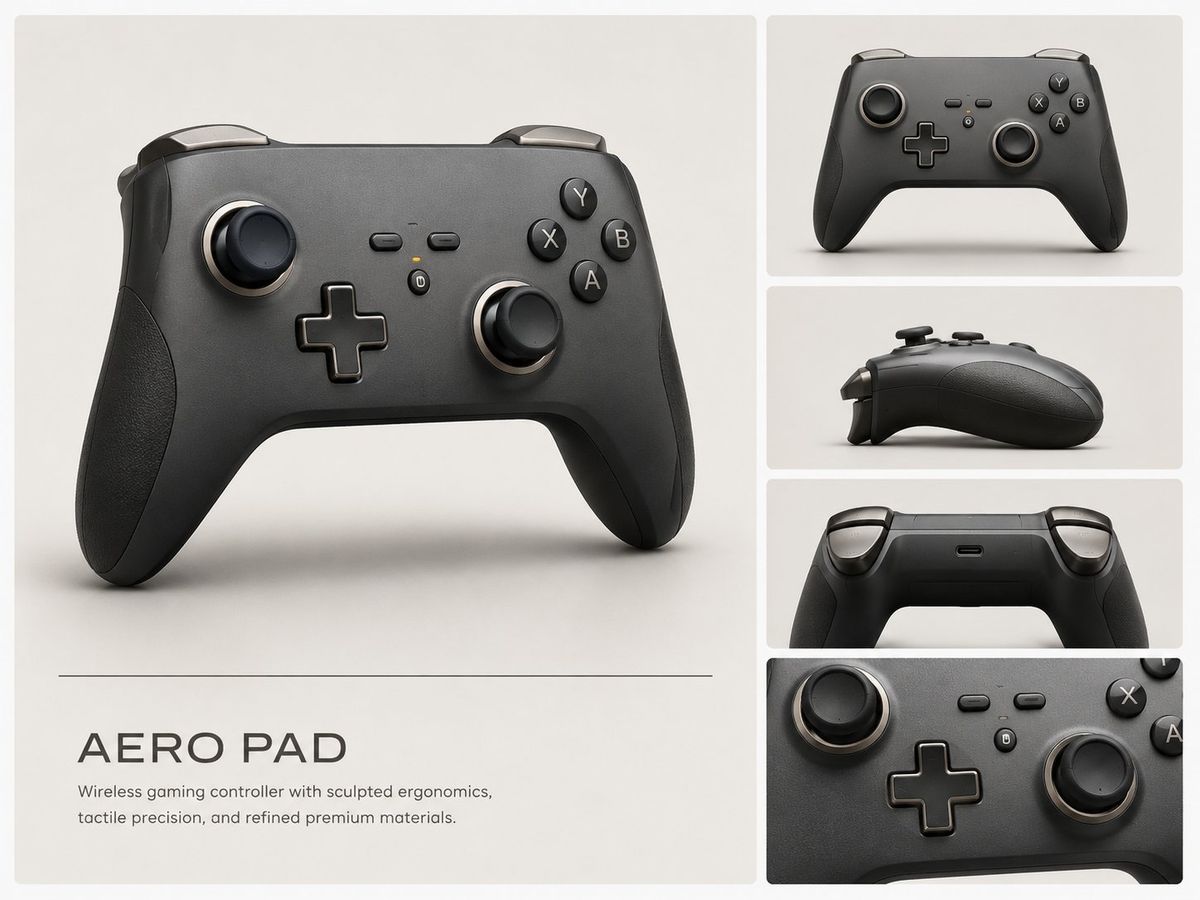
Using REFERENCE_0 as the rough concept sketch, transform it into a polished professional industrial design presentation board for a premium wireless game controller. Preserve the overall controller silhouette and control layout from the sketch, but reinterpret it as a realistic matte black product with sculpted ergonomic grips, rounded shoulders, refined seams, tactile buttons, analog sticks, D-pad, shoulder triggers, subtle metallic rings, and premium material finishes.

Canvas and layout: Create a clean 4:3 product concept board on a warm off-white studio background. Use exactly 5 rendered views: 1 large hero render on the left occupying most of the page, and 4 smaller stacked panels on the right showing: front view, side profile, rear/top view, and a close-up detail crop of the controls. Use thin white gutters between panels and soft studio shadows.

Branding and text: Add a minimalist title block below the large hero render with the product name {argument name="product name" default="AERO PAD"} in spaced uppercase lettering, a thin horizontal divider line above it, and the description {argument name="tagline" default="Wireless gaming controller with sculpted ergonomics, tactile precision, and refined premium materials."}

Style: High-end industrial design visualization, photorealistic 3D render, soft diffused lighting, matte graphite and black materials, subtle texture, clean Apple-like product presentation, no sketch lines remaining.

Constraints: Do not add hands, people, packaging, logos, or extra accessories. Keep the design clearly derived from the reference sketch while making it look production-ready.- Category
- Charts & Infographics
- Model
- GPT Image 2
- Creator
- seesaw game
- Source ID
- 24531
- Published
- Jun 6, 2026
Views13