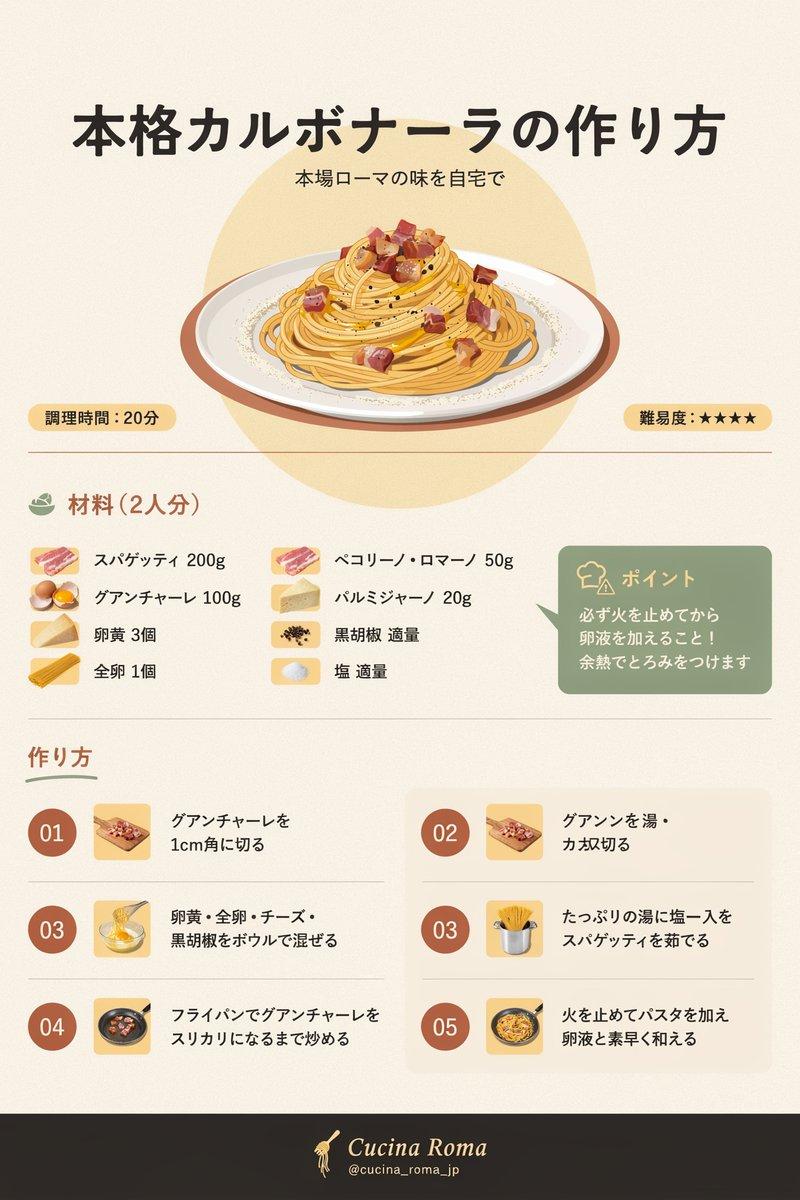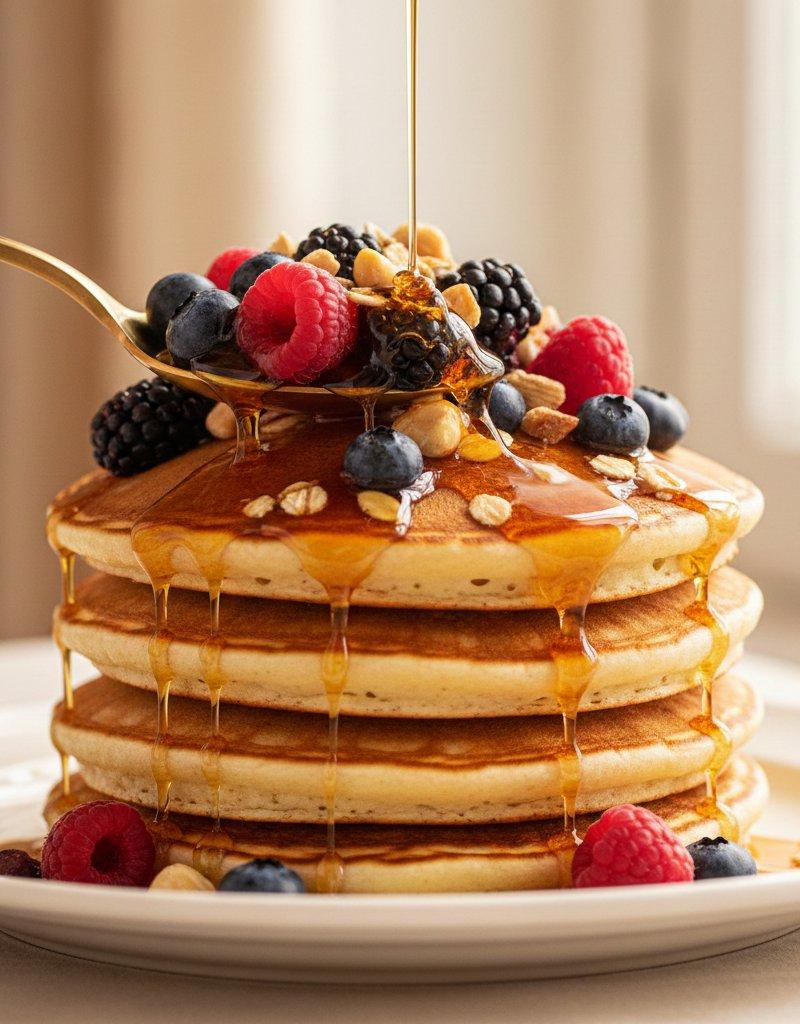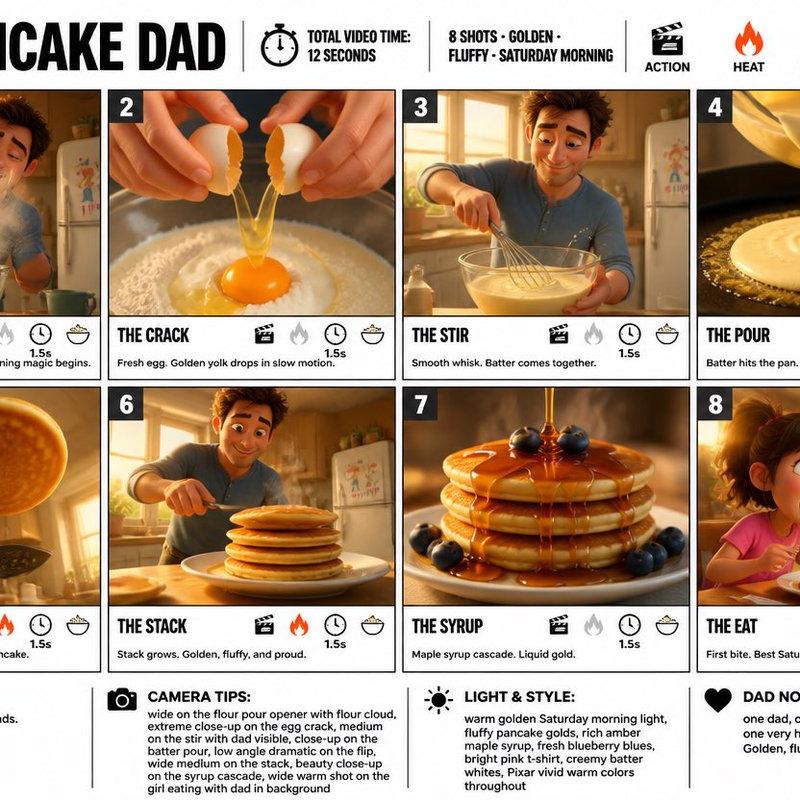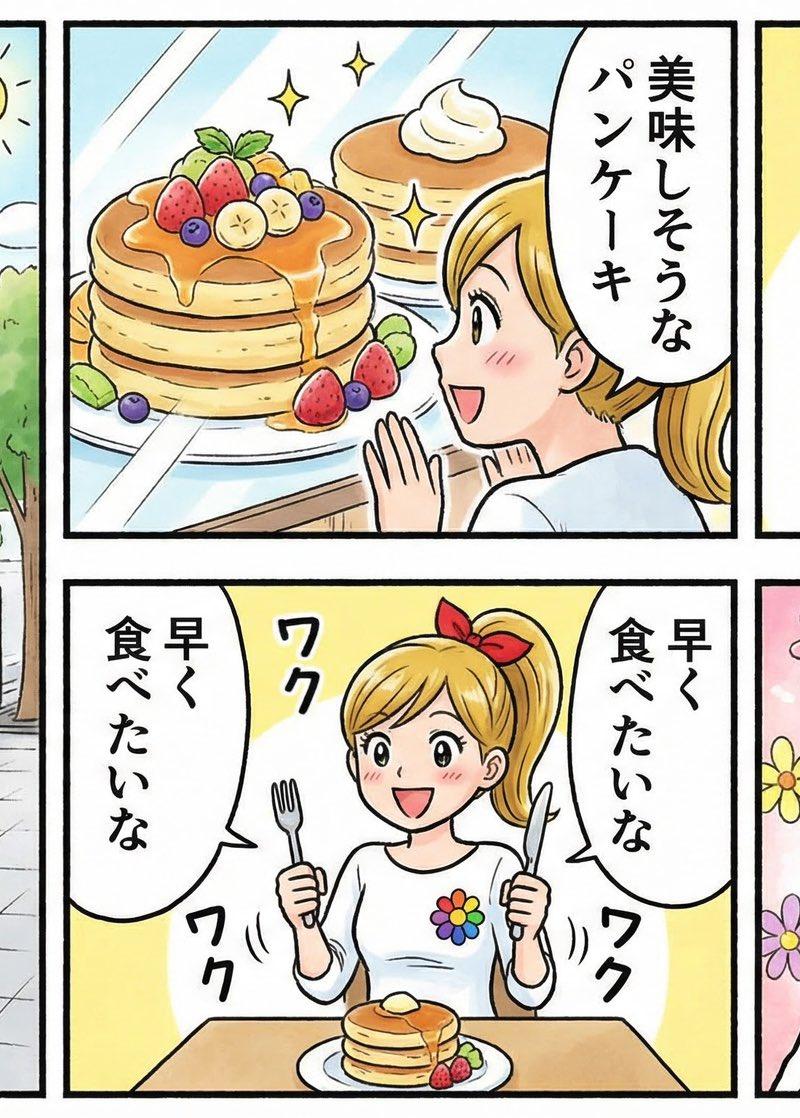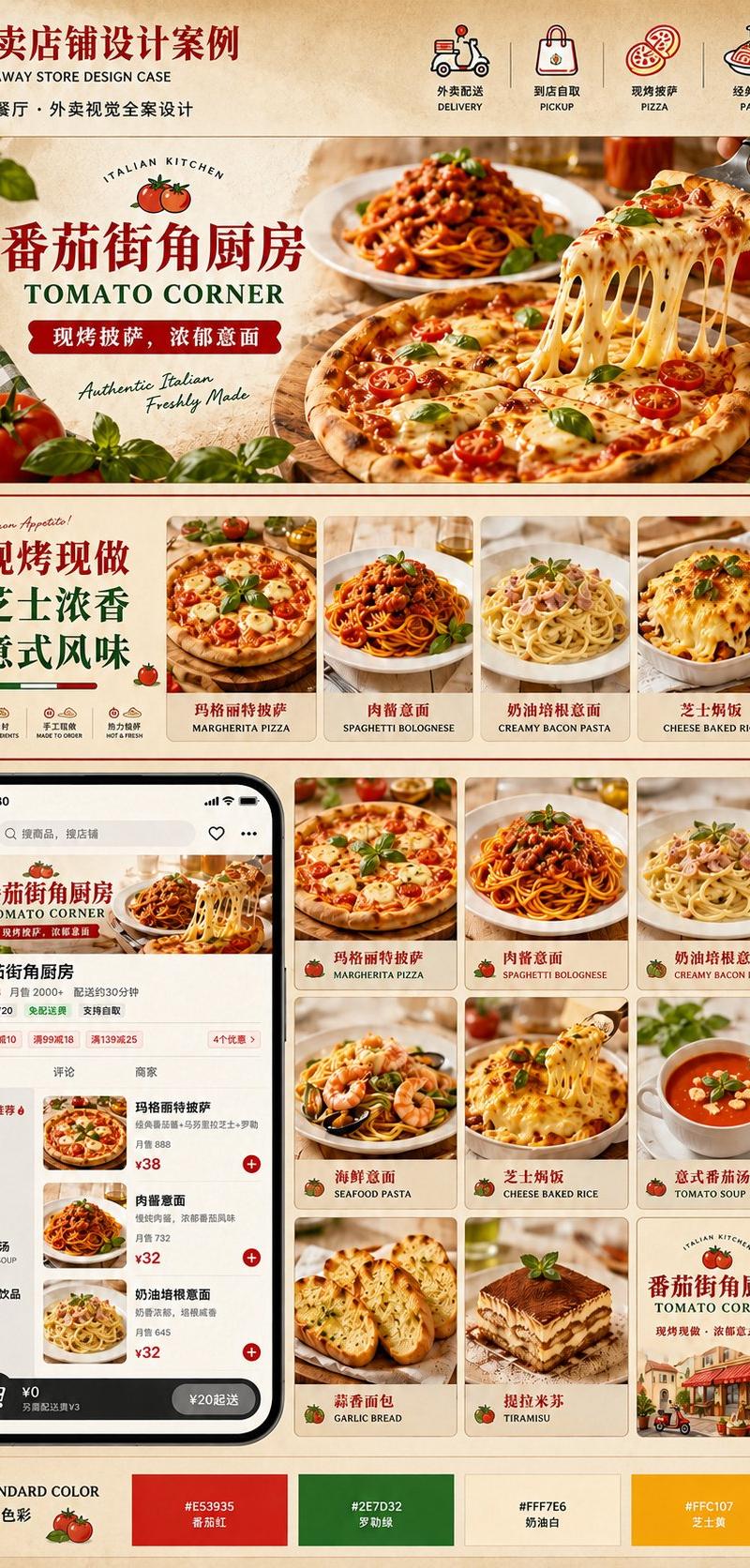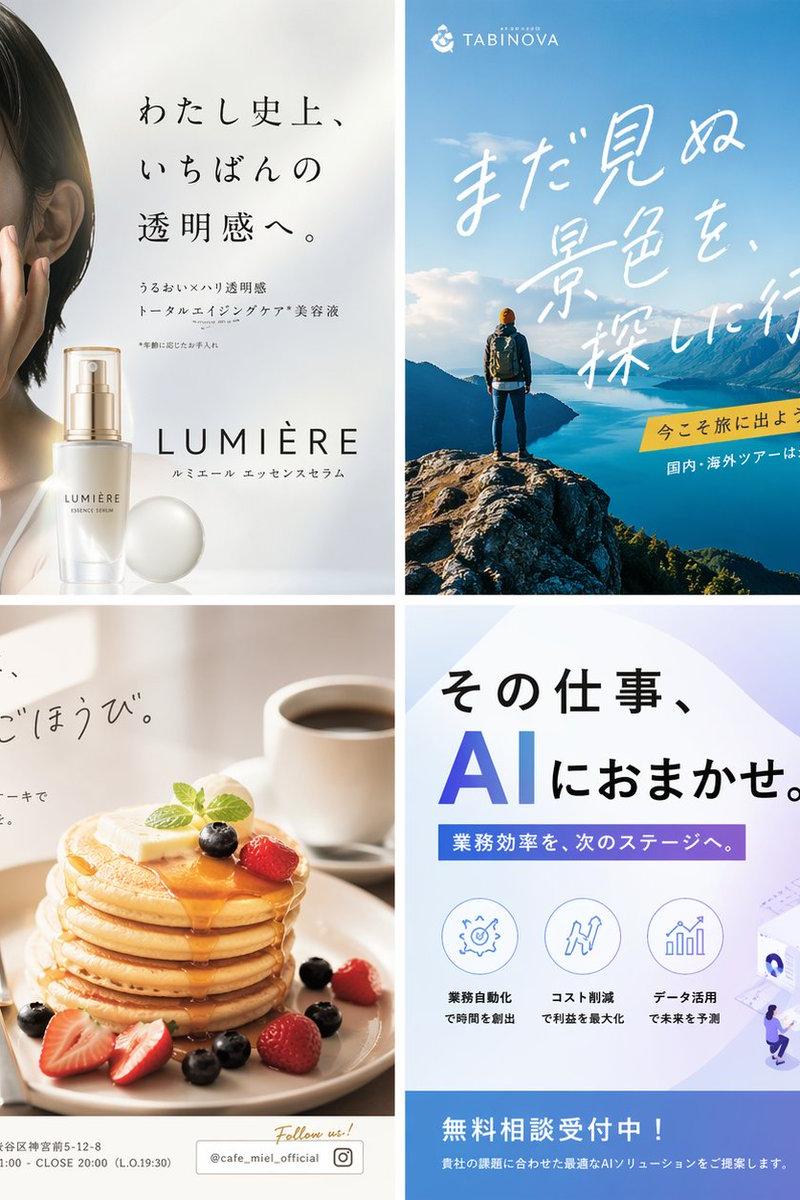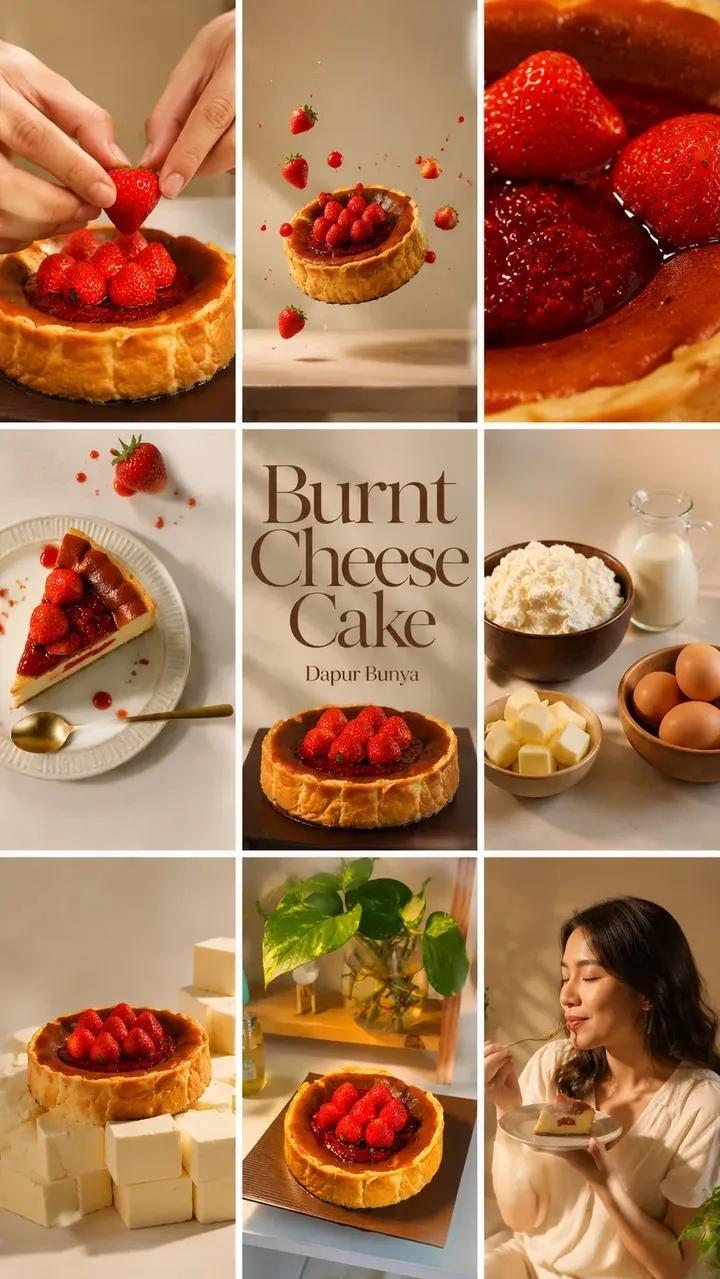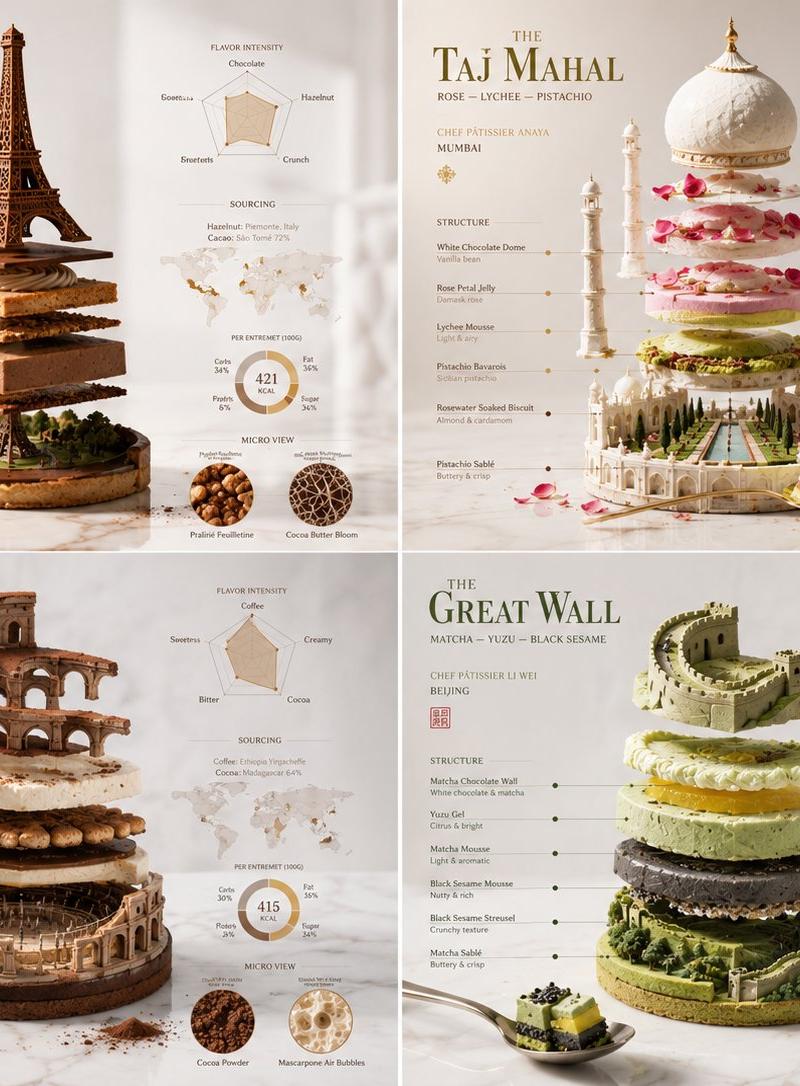
GPT Image 2 Cooking Prompt Banner
Prompt
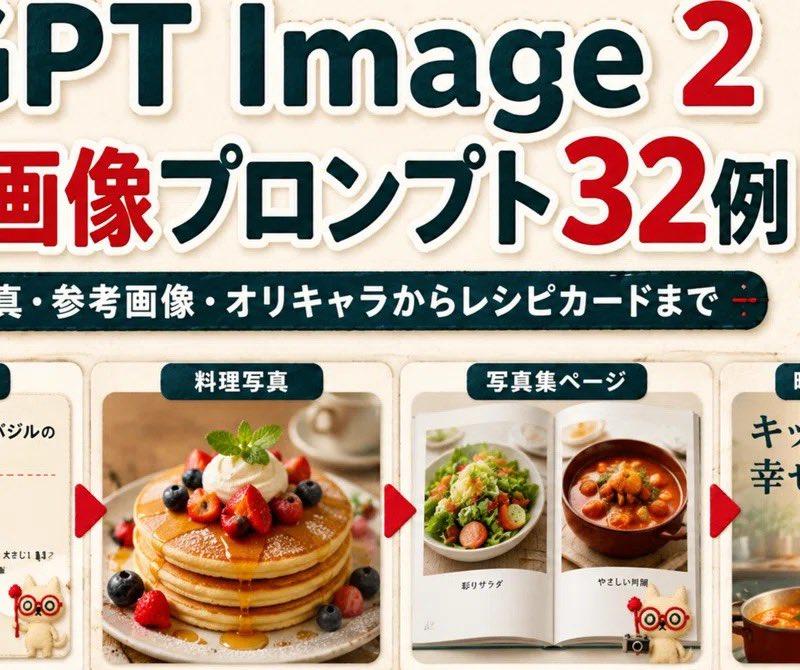
Goal: Create a wide Japanese promotional thumbnail/banner for {argument name="headline topic" default="GPT Image 2 cooking image prompts"}, designed like a cute handmade recipe-craft collage.

Canvas: Horizontal 16:9-ish social media banner, warm cream paper background with subtle fabric texture, rounded sticker-like shapes, soft shadows, red and dark teal color palette, high readability.

Main headline area: At the top, place a huge bold title reading “GPT Image 2” with “GPT Image” in dark teal and the number “2” in bright red, all with thick white sticker outlines and slight drop shadow. Below it, add a large Japanese headline reading “料理画像プロンプト32例”, with “料理画像” and “32” in red and the remaining text in dark teal, also outlined in white. Under the headline, add a dark teal rounded pill banner with white Japanese text: “写真・参考画像・オリキャラからレシピカードまで”.

Mascot and decorations: Add exactly 3 appearances of a cute beige stitched cat mascot with red round glasses and a small red wand: one large mascot standing at the upper right, one tiny mascot near the bottom of the first recipe card, and one large mascot on the right movie-poster card. Add exactly 2 small red yarn-tree decorations near the top left and top right, plus small golden sparkle icons around the headline.

Bottom layout: Create exactly 4 rounded rectangular showcase cards in a row across the lower half, separated by exactly 3 red triangular arrow markers pointing right between the cards. Each card has a dark teal label tab with white text at the top.

Card 1: Label tab “レシピカード”. Show a clean recipe card layout with a photo of tomato basil pasta on the left and Japanese recipe text on the right. The title should read “トマトとバジルのパスタ”, followed by a small ingredient list with bullet-like lines. Include the tiny mascot at the lower right of this card.

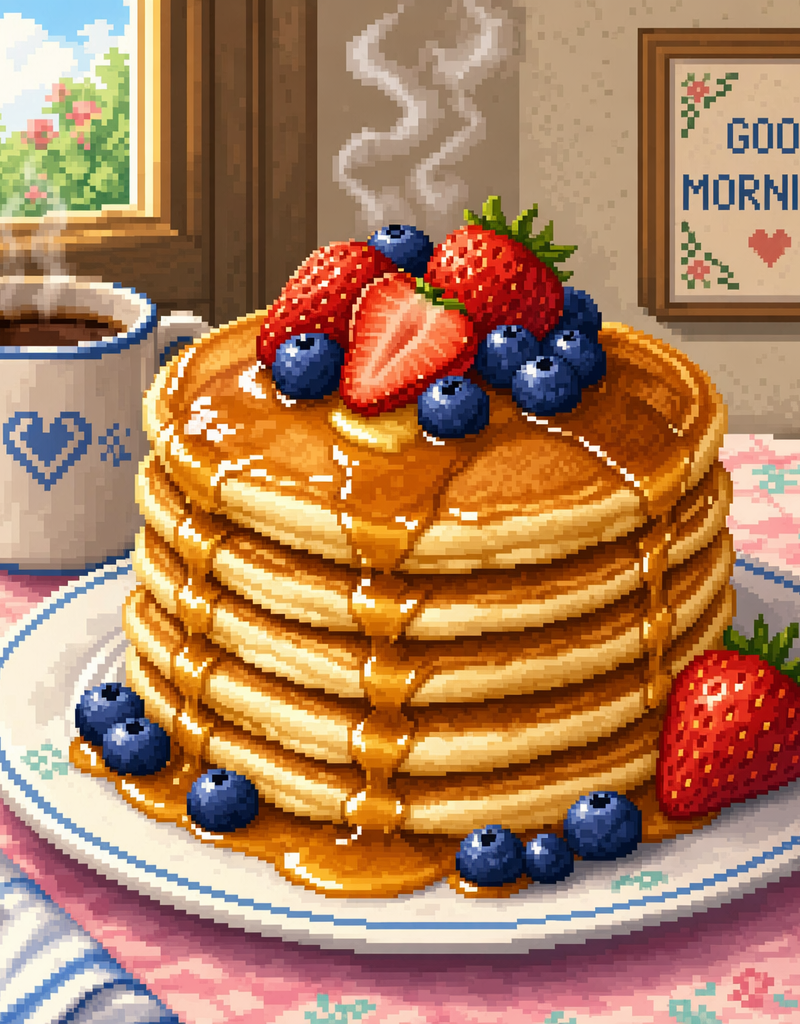
Card 2: Label tab “料理写真”. Show a warm professional food photograph of stacked pancakes topped with berries, whipped cream, mint, and syrup, centered in the card.

Card 3: Label tab “写真集ページ”. Show an open photo book spread with exactly 2 visible food photos: a salad on the left page and a stew or soup bowl on the right page, with small Japanese captions beneath each photo.

Card 4: Label tab “映画ポスター風”. Create a cinematic kitchen-poster style card with large Japanese copy “キッチンから、幸せを。” at the top left, a warm kitchen background, a pot of orange soup at the bottom, and the large cat mascot standing on the right.

Visual style: Bright, cute, polished Japanese blog-thumbnail design; realistic food photos inside craft-paper frames; sticker outlines, rounded corners, subtle shadows, soft beige background, clean hierarchy. Keep the composition dense but readable, with no extra cards, no extra arrows, and no watermark.- Category
- Charts & Infographics
- Model
- GPT Image 2
- Creator
- Maki@Sunwood AI Labs.
- Source language
- en
- Source ID
- 24521
- Published
- Jun 6, 2026
Views609