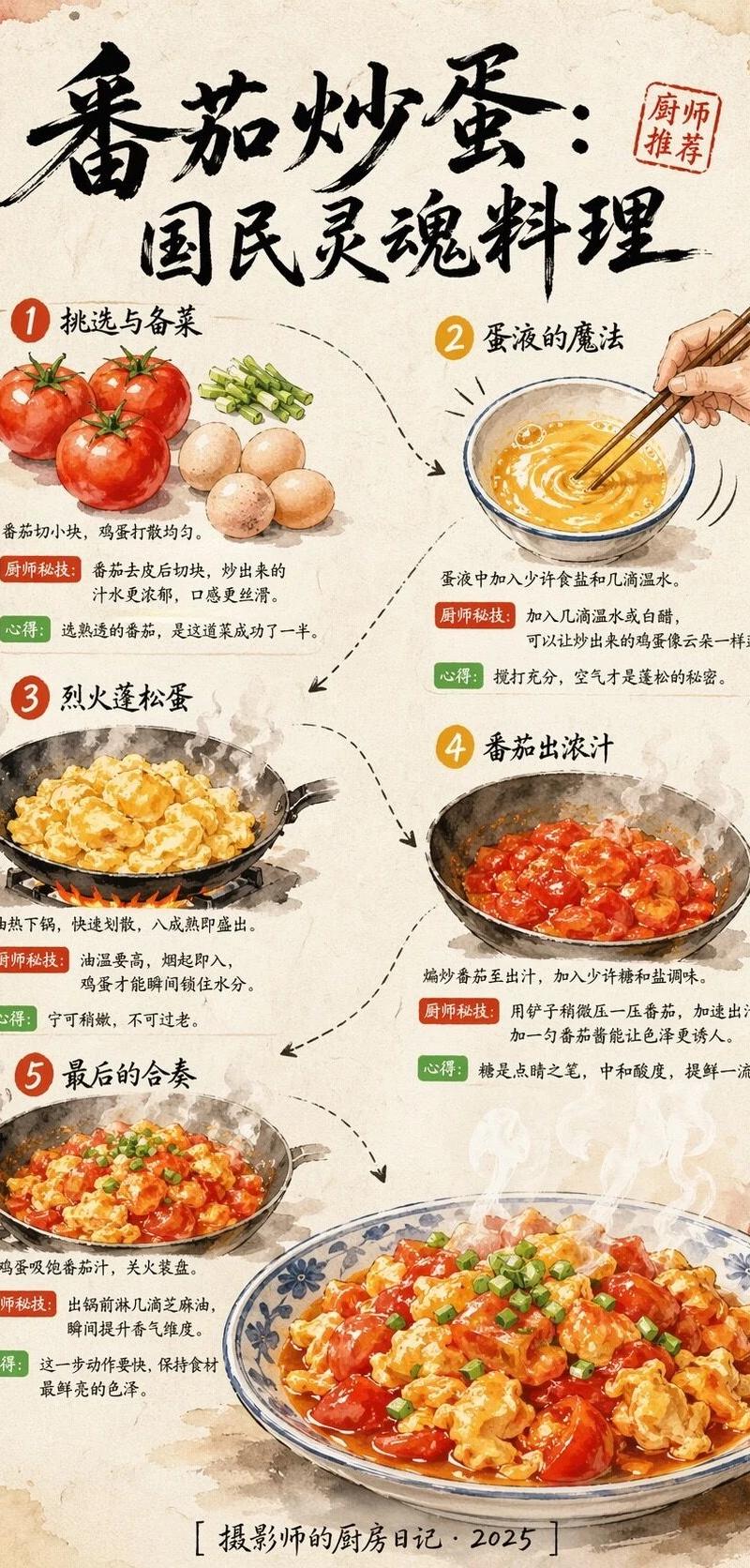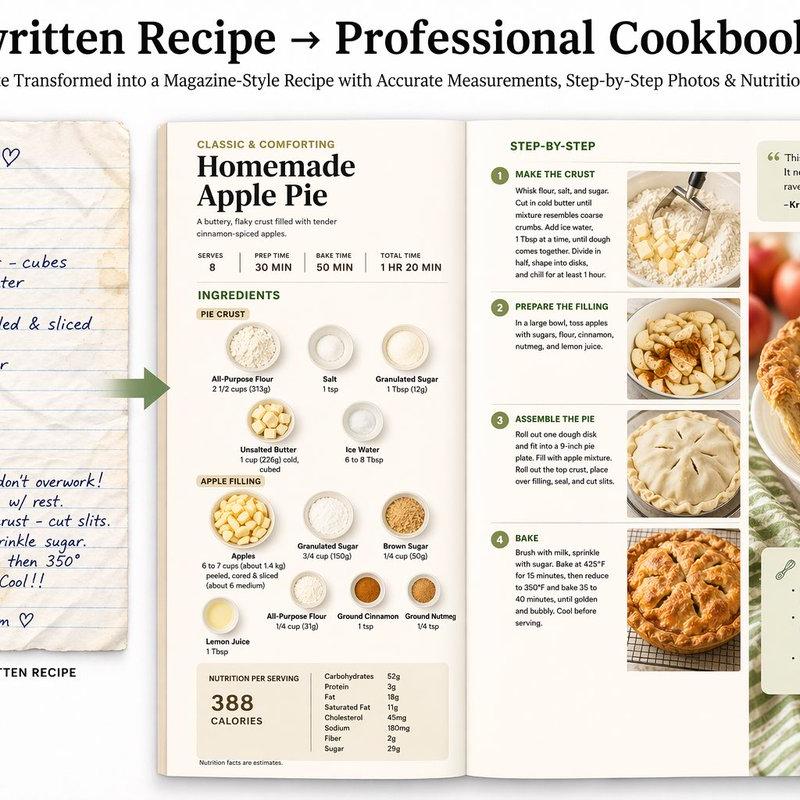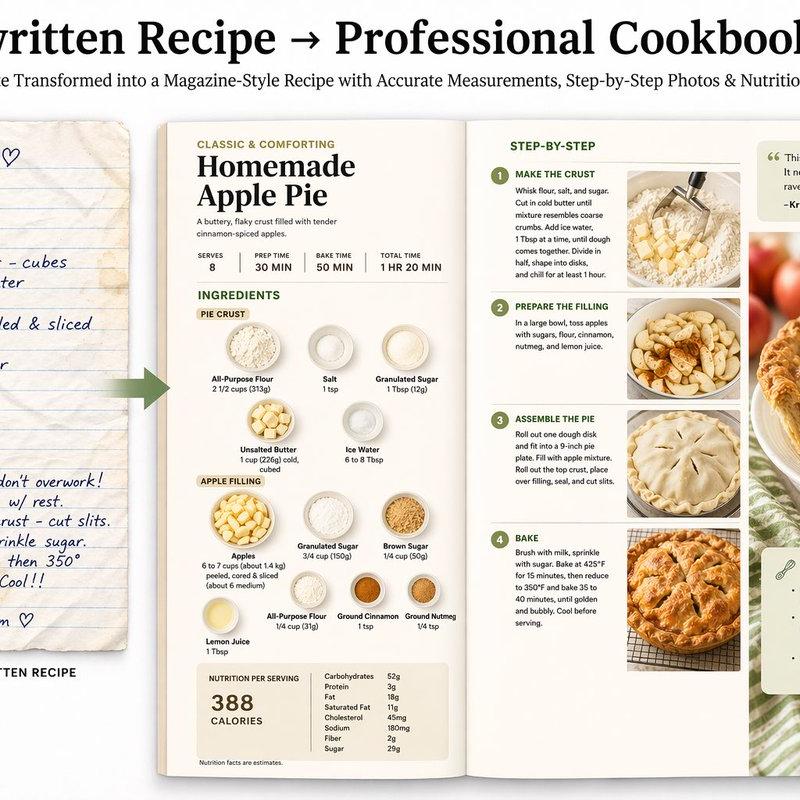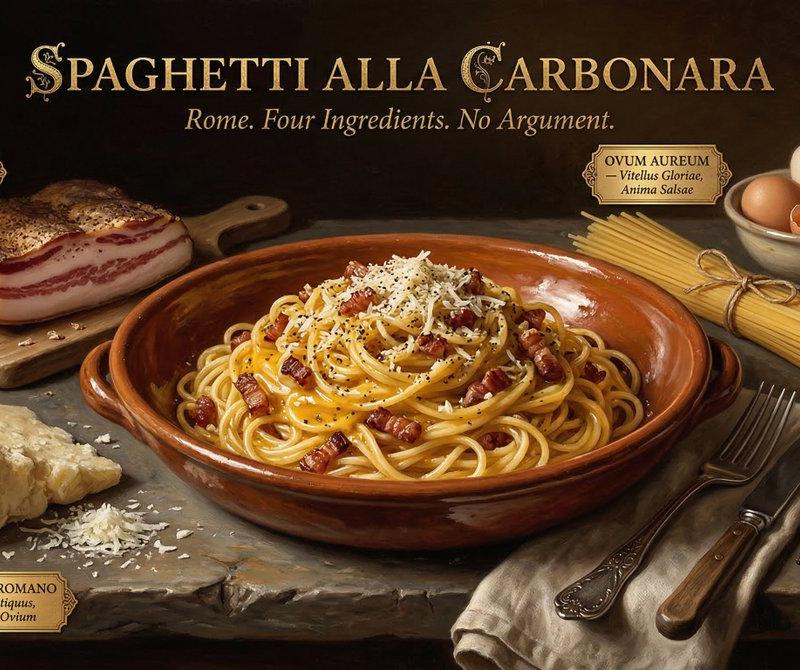
日式培根蛋酱意面食谱信息图
Prompt
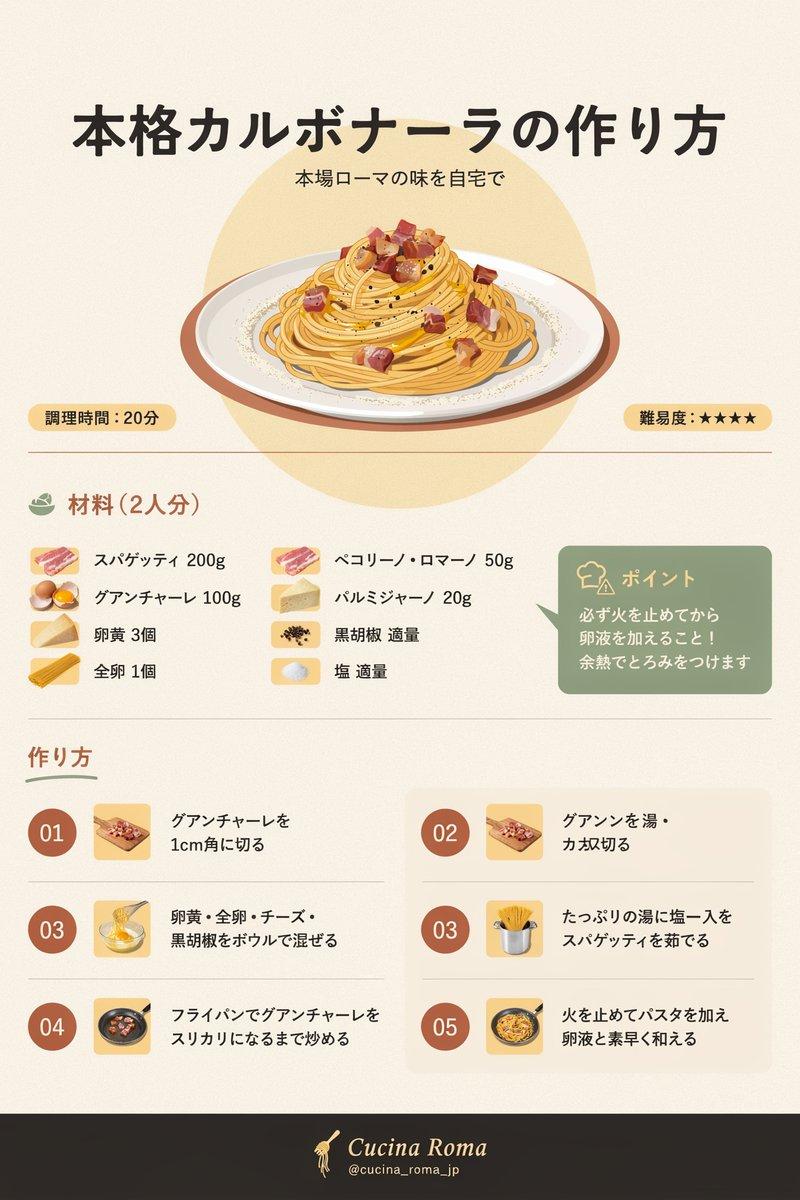
Goal: Create a clean Japanese recipe infographic poster for {argument name="recipe title" default="本格カルボナーラの作り方"}, showing authentic Roman carbonara in a warm editorial style.

Canvas: Vertical poster, approximately 4:5 aspect ratio, soft cream paper background with subtle grain. Center everything with generous margins and thin divider lines. Use a modern Japanese layout with rounded cards, muted earth tones, and high-quality flat food illustration.

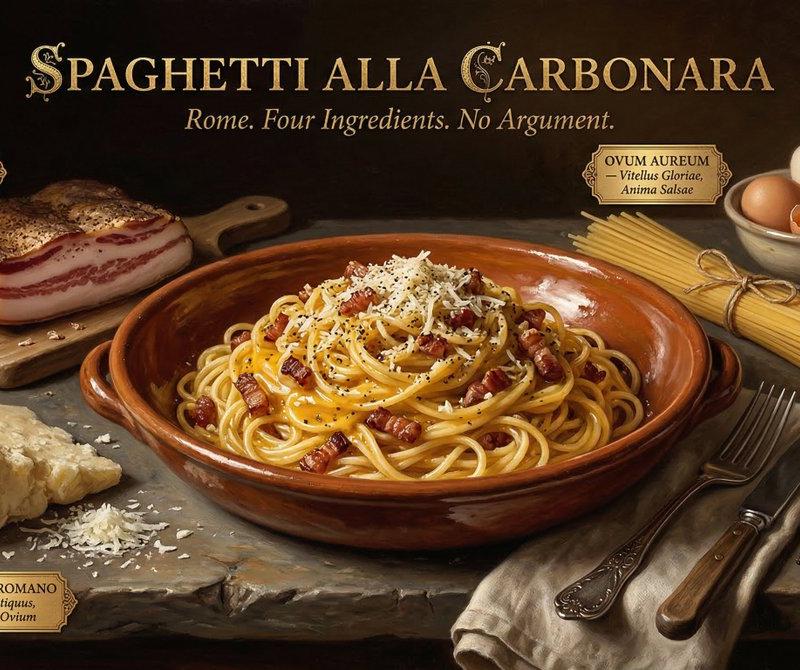
Header: Large bold black Japanese headline at the top: {argument name="recipe title" default="本格カルボナーラの作り方"}. Under it, smaller subtitle: {argument name="subtitle" default="本場ローマの味を自宅で"}. Below the title, place a large illustrated plate of spaghetti carbonara on an oval white plate, with golden pasta, creamy sauce, black pepper specks, and cubed browned guanciale. Put a pale yellow circular halo behind the plate.

Info badges: Add exactly 2 small rounded yellow badges beneath the hero plate, one on the left reading {argument name="cooking time" default="調理時間:20分"}, and one on the right reading {argument name="difficulty label" default="難易度:★★★★★"}.

Ingredients section: Create a section titled 「材料(2人分)」 with a small green bowl icon. Show exactly 8 ingredient rows in two columns, each with a small square ingredient illustration and Japanese text: 1) 「スパゲッティ 200g」 with pasta/bacon-like icon, 2) 「グアンチャーレ 100g」 with egg/guanciale-style icon, 3) 「卵黄 3個」 with cheese wedge icon, 4) 「全卵 1個」 with yellow pasta/cheese icon, 5) 「ペコリーノ・ロマーノ 50g」 with cured meat icon, 6) 「パルミジャーノ 20g」 with cheese block icon, 7) 「黒胡椒 適量」 with peppercorn icon, 8) 「塩 適量」 with salt icon.

Tip card: To the right of the ingredients, place one muted green rounded rectangle card with a small chef-hat icon and heading 「ポイント」 in pale yellow. Body text: 「必ず火を止めてから卵液を加えること!余熱でとろみをつけます」.

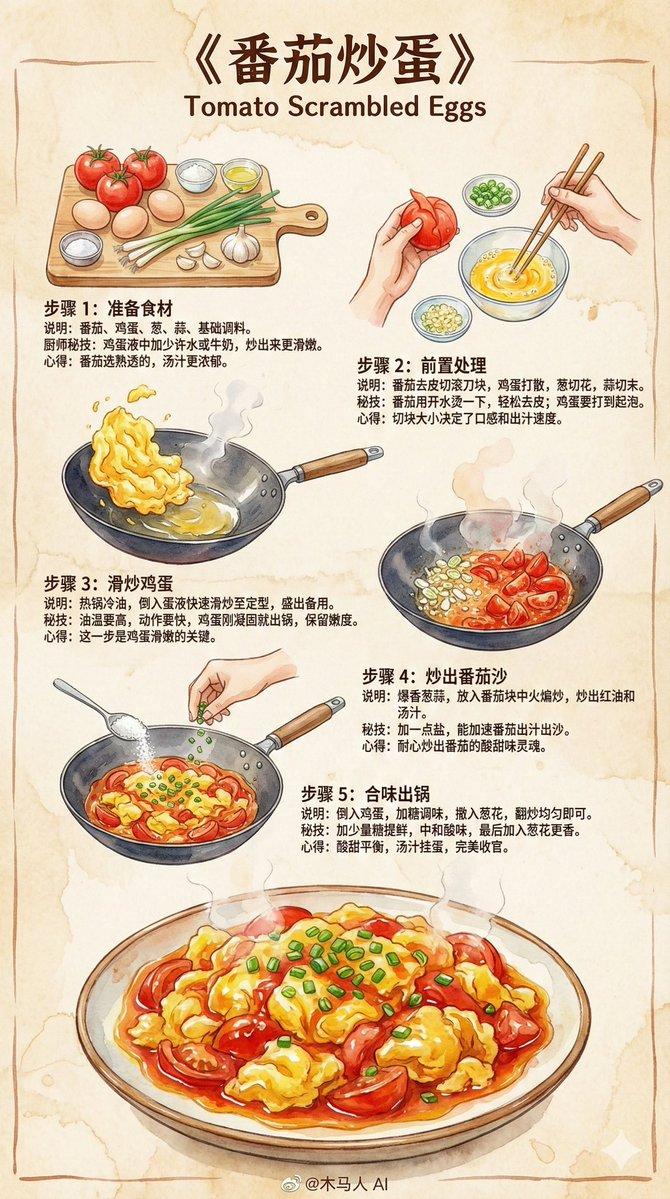
Steps section: Below another thin divider, add the heading 「作り方」 in reddish brown with a short green underline. Use exactly 6 instruction cards arranged in two columns and three rows, each with a red-brown circular number badge, a small square cooking icon, and Japanese text. The visible number badges should be exactly: 01, 02, 03, 03, 04, 05. Step texts: 01 「グアンチャーレを1cm角に切る」, 02 「グアンを湯・カ丸切る」, 03 「卵黄・全卵・チーズ・黒胡椒をボウルで混ぜる」, duplicate 03 「たっぷりの湯に塩一入をスパゲッティを茹でる」, 04 「フライパンでグアンチャーレをカリカリになるまで炒める」, 05 「火を止めてパスタを加え卵液と素早く和える」. Keep some slight AI-generated awkwardness in the Japanese text to match the original look.

Footer: Add a dark charcoal horizontal footer band at the bottom. Center a small spaghetti/fork icon, the brand name “Cucina Roma” in elegant italic serif lettering, and the handle “@cucina_roma_jp” below it.

Visual style: Soft vector illustration mixed with polished infographic design, warm cream, ochre, caramel, muted green, and terracotta palette. Rounded corners, minimal shadows, clean Japanese typography, no photography, no extra sections, no watermark.- Category
- Charts & Infographics
- Model
- GPT Image 2
- Creator
- バナナ🍌
- Source language
- en
- Source ID
- 24188
- Published
- Jun 4, 2026
Views1