18

文字遮罩双重曝光图形
Enlarge

文字遮罩双重曝光图形

Prompt
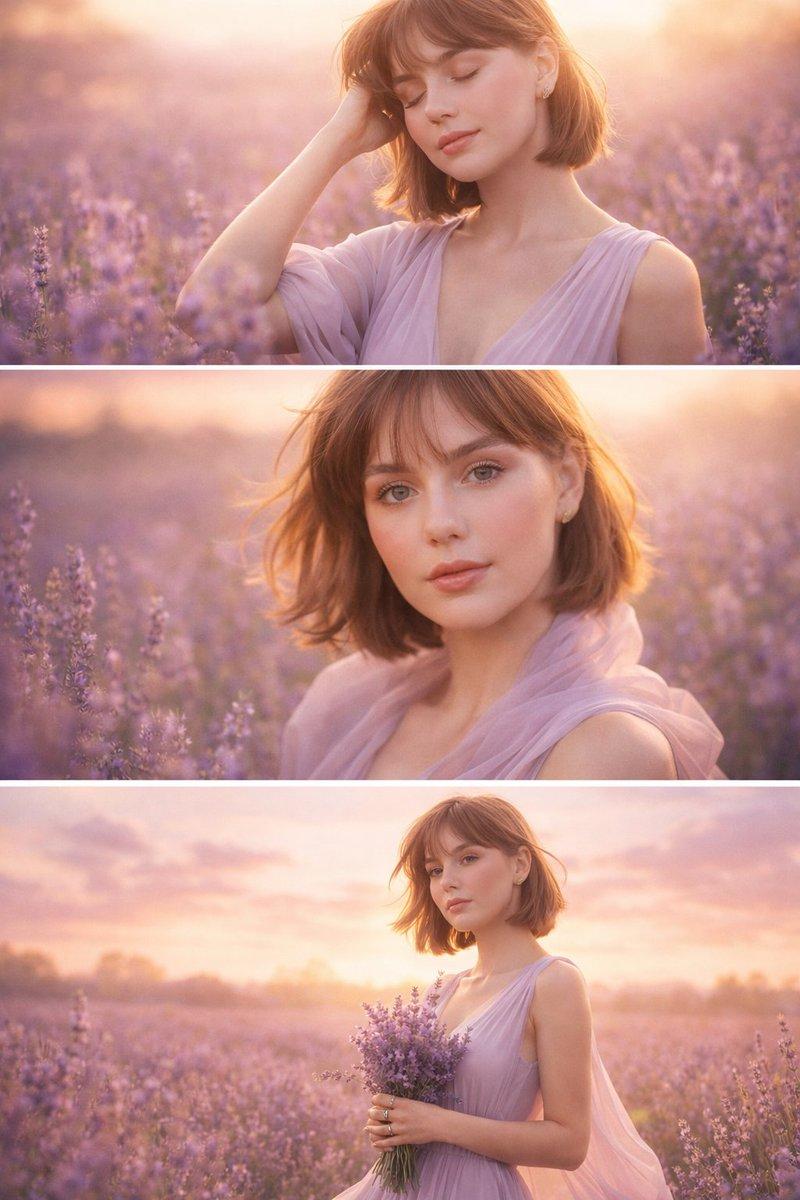
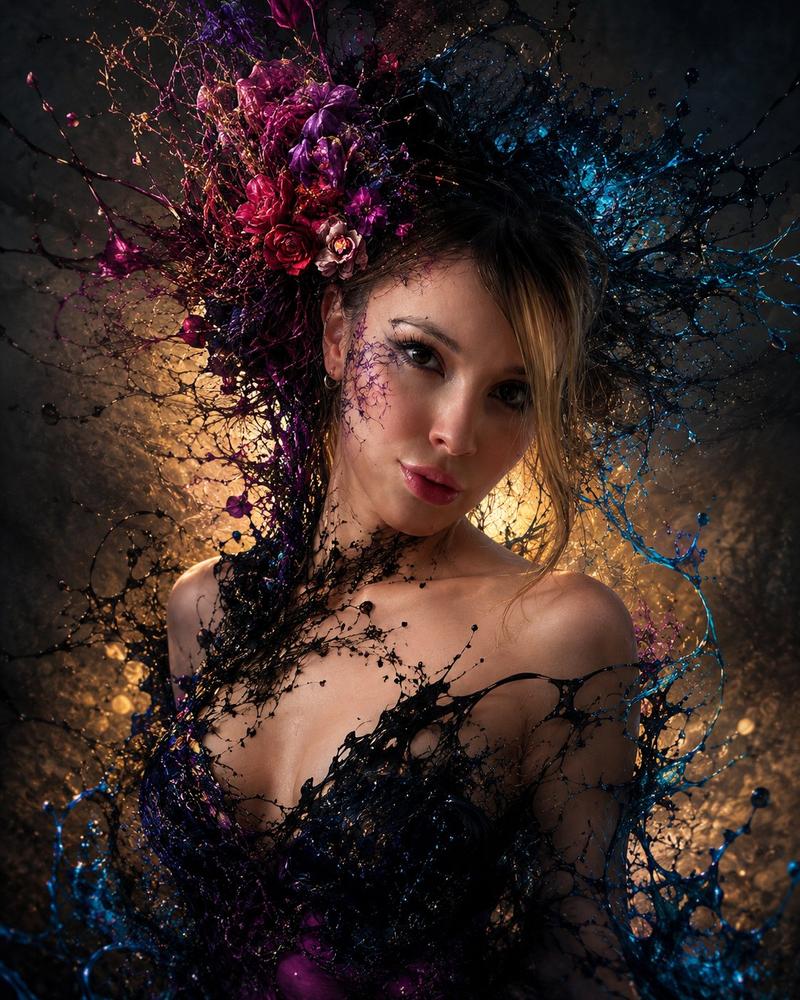
Create a digital graphic where the word "{argument name="masked text" default="FAITH"}" is rendered in large, bold, sans-serif capital letters. The letters serve as a mask revealing a detailed portrait of a {argument name="subject" default="young woman with freckles, green eyes, and messy brown hair"} inside the text. She has a serene, soft expression. Behind her inside the letters, show a warm {argument name="accent color" default="lavender"} glow with soft-focus flowers. Set the entire text against a solid lavender-purple background with a subtle drop shadow on the letters to give a 3D effect. Use a double exposure or text-masking technique. Typography should be bold, capitalized sans-serif. Lighting should be warm, calm, and high-contrast in shades of lavender, purple, and violet. Overall layout: clean and minimalist with a flat background.
Category
Charts & Infographics
Model
GPT Image 2
Creator
PromptLab
Views0
Source ID
25876
Published
Jun 16, 2026

Guide

About "文字遮罩双重曝光图形"

What is this prompt for?

"文字遮罩双重曝光图形" AI image prompt for GPT Image 2 (Charts & Infographics). 创作一张精致的数字图形,将细腻的女性肖像遮罩在粗体排版内,并以宁静的薰衣草色为背景。 Copy it on Picva and recreate the look in one…

The full copyable prompt and example visuals above are ready for AI image generation or one-click recreate in Picva.

How to use this prompt

  1. Step 1

    Open the prompt detail

    Review the example visuals, category, and full prompt text for "文字遮罩双重曝光图形".

  2. Step 2

    Copy the prompt

    Copy the prompt body from this page, or load it directly in Studio.

  3. Step 3

    Pick a model (GPT Image 2)

    Prefer GPT Image 2. If you switch models, keep subject and composition and tweak style terms.

  4. Step 4

    Generate and export

    Recreate the look in Picva, or export into your workflow for editing and publishing.

FAQ

What is the "文字遮罩双重曝光图形" prompt?
It is an AI image-generation prompt for GPT Image 2 in the Charts & Infographics category. This page includes the full prompt text, example visuals, and a one-click recreate path in Picva.
How do I use this prompt to generate an image?
Copy the prompt from this page, or use Generate / Studio. Paste it into a compatible image model, or recreate the look in Picva with optional reference images.
Which model is this prompt for?
This page lists GPT Image 2. Most descriptive prompts also transfer to nearby image models such as GPT Image, Flux, or Midjourney with light style tweaks.
Can I use the result commercially?
You can usually copy the prompt for creation, but commercial use of the final image depends on the model terms, reference-image rights, and the generated content. Follow the source author and platform rules.